Photopea vs GIMP: browser editor or desktop app?
By Pixuvia · · Updated
Photopea vs GIMP is a choice between a browser tab and an installed program, and for PSD files it is not close. Photopea opens and saves PSD as its main format and keeps adjustment layers, text and smart objects editable. GIMP imports PSD layers but, by its own notice, turns several Photoshop features into empty or flat layers. GIMP wins if you want an open-source desktop editor that works without a website and keeps its own XCF projects.
A note before the details: we make Pixuvia, a browser photo editor, and we cover it briefly near the end. Every fact about Photopea and GIMP below comes from their own websites, documentation, release notes and apps, checked in November 2026, with links in the sources.
On this page
Photopea vs GIMP at a glance
| Question | Photopea | GIMP |
|---|---|---|
| Where it runs | In the browser; the site says it runs on any device | Installed on Windows, macOS or Linux (stable release 3.2.8) |
| Account to edit | Not needed; log in only for Premium or synced settings | Not mentioned on the download page |
| How you pay | Ads, or a one-time Premium payment for a set period | Open source under the GNU GPL, at no cost; donations welcome |
| Own file format | PSD | XCF |
| Opening a PSD | Layers, groups, masks, text, adjustment layers and smart objects stay editable | Pixel layers come in; by GIMP's own notice, adjustment layers and smart objects become empty layers and text becomes pixels |
| Saving a PSD | Yes, its main format | Yes, via Export; PSB too since 3.2 |
| Non-destructive edits | Adjustment layers, smart objects and smart filters | Non-destructive filters, plus link and vector layers since 3.2 |
| AI tools | Remove background and replace by text, with AI credits for Premium | Not listed in the 3.0 or 3.2 release notes |
| Best for | PSD files, Photoshop habits, any computer with a browser | Desktop editing on your own machine, open-source workflows |
Where each runs: browser tab or installed program
Photopea is a web page. You open photopea.com, click through to the editor and drop in a file. Its home page says there is nothing to download, that it runs on any device and that the better your hardware, the better it runs. You can edit and save without logging in; Photopea's accounts page says logging in stores your settings, such as theme, language and tool options, so they sync across devices, and that a login is needed for Premium.
Photopea's terms say files you open are processed inside your device and never sent anywhere, and they warn that closing the tab without saving loses your work. You save to your computer, or connect Dropbox, Google Drive or OneDrive and save back to the cloud from the File menu.
GIMP is a desktop application. Its download page lists builds for Windows, macOS and GNU/Linux, with the Microsoft Store, Flathub and the Snap Store as other ways in, and notes that the GIMP team does not provide a package on Apple's App Store. The 3.0 release added a Linux AppImage and native Wayland support. The download page doesn't mention an account. Once installed, GIMP works on files on your computer like any other program, and your projects live wherever you save them.
That makes Photopea the one ready on a borrowed laptop, a school Chromebook or a work machine where you can't install software. GIMP needs an install, but after that it doesn't depend on a website being reachable.
How you pay for Photopea and GIMP
Photopea is supported by ads. Its terms say anyone can use the editor for any purpose, that your work belongs to you, and that Photopea doesn't accept donations. Premium is a one-time payment rather than a subscription: you buy a set number of days, and when they run out the account goes back to the version with ads. The in-app Account window lists what Premium adds: no ads, more PeaDrive storage, a monthly allowance of AI credits and twice as many history steps. Team Premium covers every member of a team through one payment.
GIMP is open-source software under the GNU General Public License. Its about page describes it as community-developed software, and every build on the download page is offered at no cost. The project asks for donations and lists sponsors, but nothing in the program is locked behind a payment. There is no premium tier to compare.
PSD support: Photopea or GIMP?
This is where the two differ most. Both open a PSD, but they keep very different parts of it.
Photopea and PSD
Photopea's opening and saving guide calls PSD the main format it uses to store documents, and every file you open, whether PNG, JPG or Sketch, is converted to a PSD document. Its home page says it fully supports PSD for opening and saving, and lists layers, masks, layer styles, smart objects, adjustment layers, channels and paths among its features.
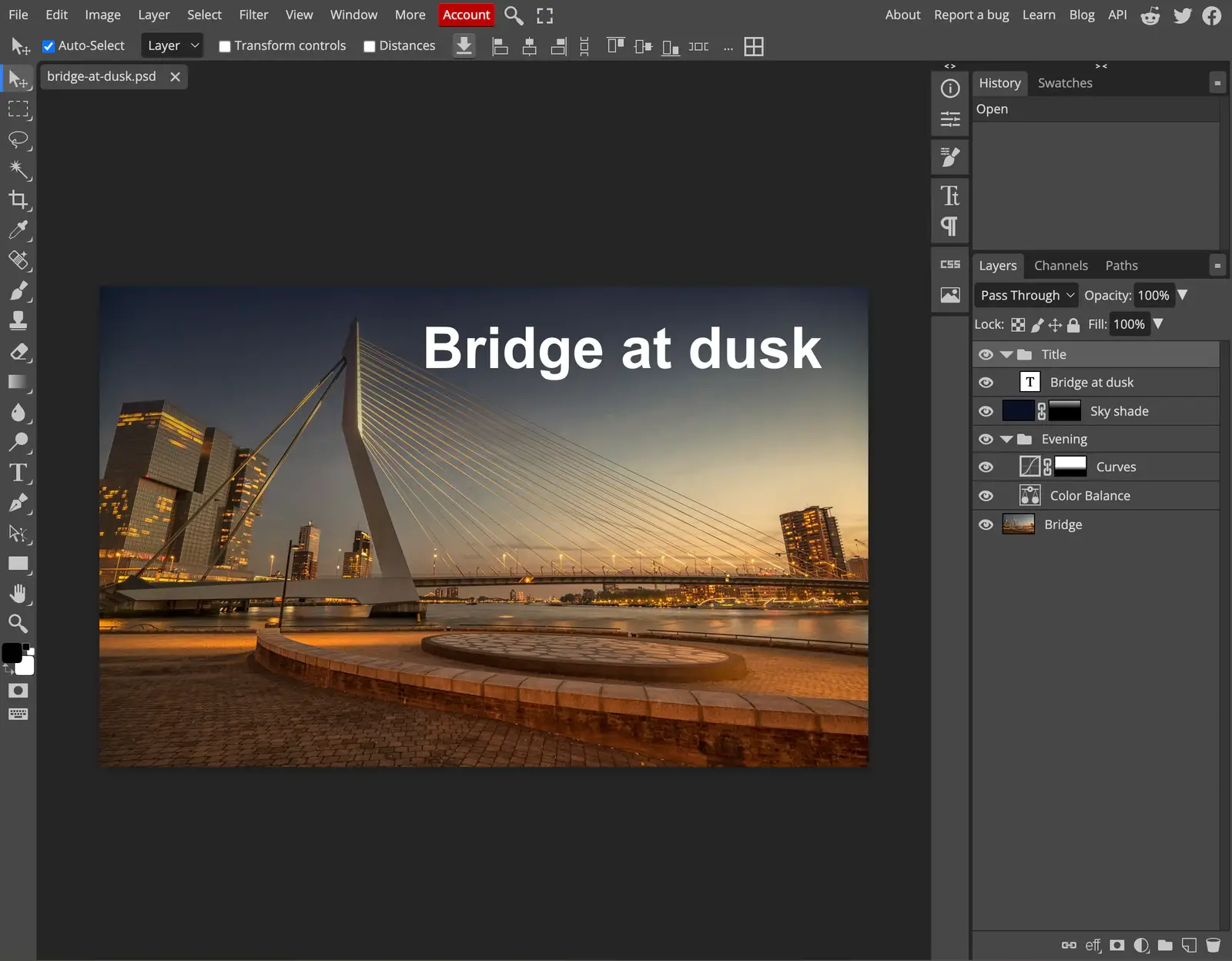
We built a small layered PSD of a city bridge at dusk for this page and opened it in Photopea, signed out. Every layer came in as the same kind of layer: both groups, the masked Sky shade layer, the Curves and Color Balance adjustment layers (Curves with its mask) and the title as an editable text layer.
Opening a PSD in GIMP
GIMP imports PSD files as layered images. The GIMP 3.0 release notes say PSD import and export compatibility improved, that it can load JPEG and TIFF files with Photoshop clipping paths, guides and layers, and that it imports and exports CMYK PSD files. The GIMP 3.2 release notes add PSB export (PSB import arrived in 3.0) and import of more layer styles, naming Drop Shadow, Inner Shadow and Outer Glow.
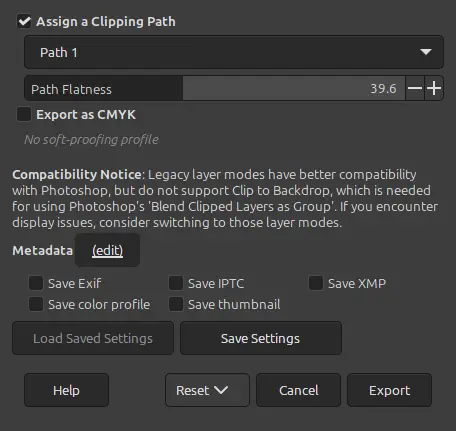
For the rest, GIMP is direct about its limits. When a PSD contains features it can't handle, it shows a Compatibility Notice that reads "This PSD file contains features that are not yet fully supported in GIMP", followed by a list. In the source of GIMP 3.2.8's PSD plug-in, that list includes:
- "Adjustment layers are not yet supported and will show up as empty layers."
- "Text layers are partially supported and will be converted to raster layers."
- "Smart objects are not yet supported and will show up as empty layers."
- "Layer effects are not yet supported and will show up as empty layers."
- "Fill layers are partially supported and will be converted to raster layers." Vector masks get the same note.
- Linked layers, vector strokes and layer comps also "show up as empty layers".
So a PSD with live text, a Curves adjustment layer and a placed logo will open in GIMP, but the text is pixels you can't retype, the Curves layer comes in empty with its effect gone, and the logo's smart object comes in as an empty layer. Exporting back to PSD can only save what GIMP imported. GIMP's PSD export manual page also warns that blending modes don't always convert exactly between GIMP and Photoshop. We didn't run GIMP ourselves for this page; the list above is GIMP's own wording.
GIMP has a way around missing adjustment layers in its own files. Its 3.2 notes explain that a non-destructive filter on an empty layer group set to Pass through affects every layer below it, which "allows you to recreate an 'Adjustment Layer' workflow from other software". That works in GIMP's XCF format, not as a Photoshop adjustment layer inside a PSD.
So if you receive PSD files from designers or need to send one back with editable text and adjustments, Photopea is the safer choice. If PSD is only a way to get layered pixels into an editor once, GIMP handles it. Our guide on how to open a PSD file without Photoshop covers the checks worth doing either way, and Photopea vs Photoshop looks at how close Photopea gets to the original.
Editing tools compared
Photopea follows Photoshop's vocabulary. Its Learn pages cover layers, masks, layer styles, smart objects (including linked ones), adjustments and filters, selections with Refine Edge, channels, Free Transform, brushes, text, vector graphics, artboards, actions, scripts, variables, animation, video, slices, Vanishing Point, Blur Gallery and layer comps. It also opens camera RAW files such as DNG, CR2, CR3, NEF and ARW, and design files such as AI, EPS, Figma and Sketch, according to its home page.
GIMP has its own set of names and its own strengths. GIMP 3.0 made filters non-destructive by default: a filter stays editable after you apply it and is saved with the XCF file. Its text tool gained non-destructive outlines, and color management grew, with CMYK soft-proofing and CMYK import and export for JPEG, TIFF, PSD and JPEG XL. GIMP 3.2 added link layers, which it compares to Photoshop's linked smart objects (an external image that updates when the file changes), vector layers built from paths with editable stroke and fill, filters on layer groups, and import of Photoshop Curves and Levels presets (.acv and .alv) and patterns (.pat).
Both cover the daily basics: selections, layer masks, healing and cloning, curves and levels, text and export to the common formats. The difference is how they get there. If your hands know Photoshop shortcuts and menu paths, Photopea needs almost no relearning. GIMP takes longer to learn if you come from Photoshop, and its non-destructive work is kept in XCF files rather than PSD. Our guide to using layer masks explains a technique both editors share.
AI features
Photopea's home page lists two AI features: removing a background with one click, and replacing part of an image with new content from a text description. Its Account window lists a monthly allowance of AI credits with Premium.
GIMP's 3.0 and 3.2 release notes don't list AI tools such as AI background removal or generative fill. If AI edits are central to your work, neither editor is built around them.
Offline use and large files
Both can work without a connection, in different ways. GIMP is installed on your computer, opens files from your disk and saves them there, so it never needs the internet. Photopea's Learn pages say you can load photopea.com, disconnect and keep using it offline; you still need a connection to open it in the first place. Its accounts page also offers a self-hosted package for running the editor on your own server.
For very large documents, GIMP can also open and, since 3.2, save PSB, Photoshop's large document format. Photopea says it runs on your own CPU and GPU, so its speed depends on your device and browser.
Who should choose Photopea, and who should choose GIMP
Choose Photopea if you:
- open, edit and send back PSD files with live text, adjustment layers or smart objects
- already know Photoshop and want the same menus and tool names
- work on computers where you can't install software, or switch between machines
- can live with ads, or prefer a one-time payment to remove them
Choose GIMP if you:
- want an open-source editor installed on your own Windows, macOS or Linux computer
- often work without a connection or on very large files and prefer a desktop program
- keep your projects in GIMP's own XCF format and only import PSD occasionally
- want non-destructive filters, link layers and vector layers without any account or payment
For a wider view, see our list of Photoshop alternatives or GIMP vs Photoshop.
A third option: Pixuvia
Pixuvia is another browser editor. Its Editor uses Photoshop-style tools and menus, and its Studio is built around one-job AI tools, plus filters, text and collages. Both run in the browser on Windows, macOS, Linux, Android, iPhone and iPad.
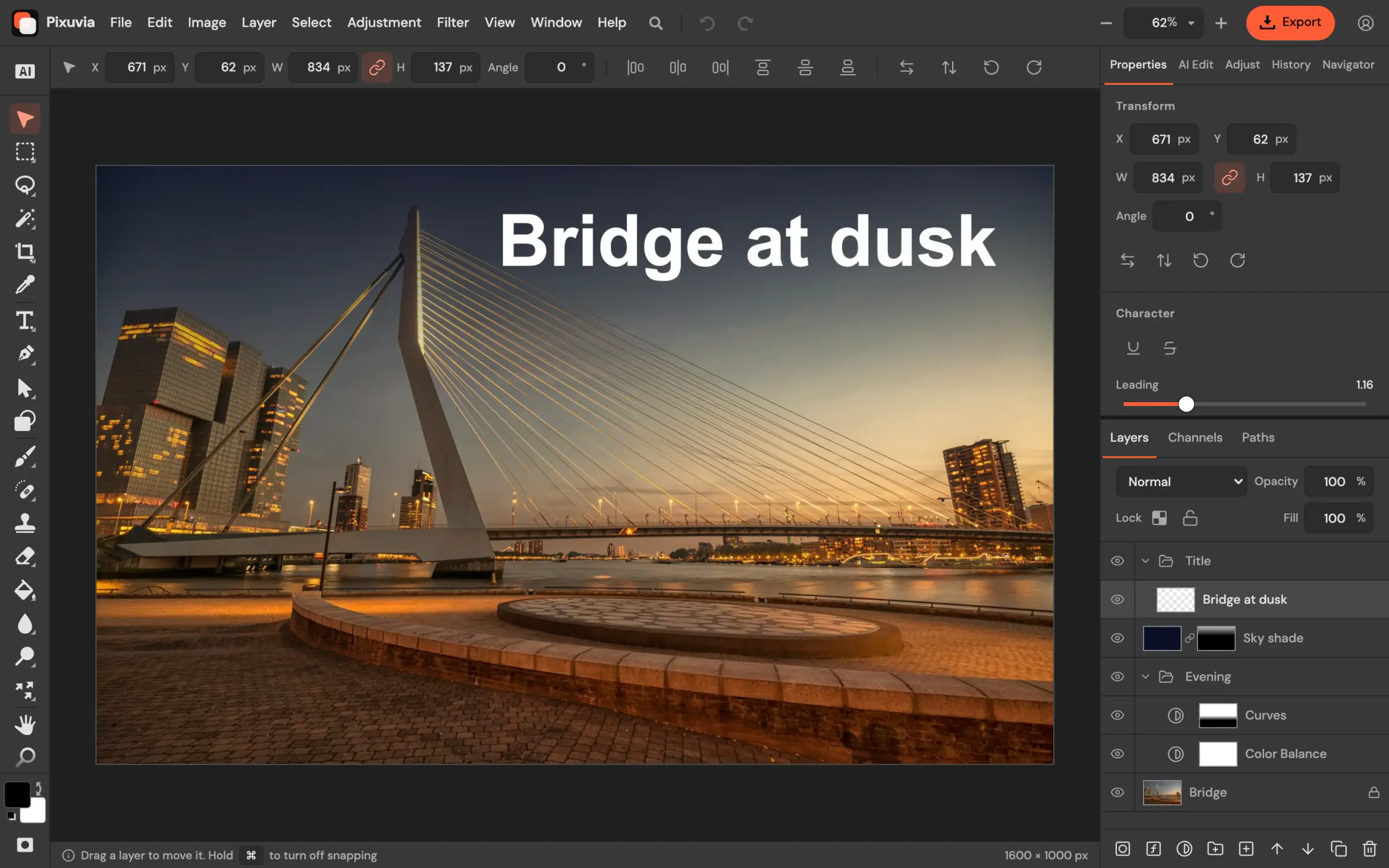
- About 50 tools, including the Pen, Quick Selection, Healing, Patch, Liquify and Puppet Warp
- 18 kinds of adjustment layers, each with its own mask, plus layer masks, vector masks and clipping masks
- Smart objects with smart filters, 10 layer styles and Photoshop blend modes
- Opens PSD files up to 60 MB with layers, groups, masks, editable text and shapes, and saves PSD, PNG, JPG, WebP, GIF, SVG, PDF and TIFF
- AI tools (remove background, erase objects, generative fill, expand, upscale, relight, edit by prompt) in both editors, which need a sign-in and use credits; see pricing
The limits matter too. Pixuvia exports 8-bit RGB, doesn't keep alpha channels or masks and effects on groups, opens warped or linked smart objects and text on a path as pixels, and doesn't open PSB files, which GIMP does. It also needs a browser, so for offline work GIMP remains the better choice. To see how it handles your own file, open it in the online PSD editor.
Questions
Is Photopea or GIMP better?
For PSD files and Photoshop habits, Photopea is the better fit: PSD is its main format, it keeps adjustment layers, text and smart objects editable, and it opens in a browser tab. For a full desktop editor that is open source, runs without a website and saves its own XCF projects, GIMP is the better fit.
Can GIMP open PSD files?
Yes. GIMP imports PSD and PSB files with their pixel layers. Its own import notice says adjustment layers, layer effects and smart objects are not yet supported and show up as empty layers, and that text layers, fill layers and vector masks are converted to raster layers. GIMP 3.2 added import of some layer styles, such as Drop Shadow, Inner Shadow and Outer Glow.
Can GIMP save a PSD file?
Yes, GIMP exports PSD, and since 3.2 also PSB. Its manual says blending modes do not always convert exactly between GIMP and Photoshop. Because live text and adjustment layers do not come in as editable layers, a PSD that went through GIMP may not keep them for the next person.
Do I need to install Photopea or GIMP?
Photopea runs in the browser at photopea.com with nothing to install and no account needed to edit. GIMP is a desktop program you download and install for Windows, macOS or Linux.
Does Photopea or GIMP have AI tools?
Photopea lists background removal and replacing part of an image from a text description; its Premium accounts include a monthly allowance of AI credits. The GIMP 3.0 and 3.2 release notes do not list AI tools of this kind.
Which is easier to learn if I know Photoshop?
Photopea. Its menus, tool names and panels follow Photoshop closely. GIMP has its own names and workflow: for example, it recreates an adjustment layer with a filter on an empty layer group set to Pass through.
Sources
- Photopea: home page and in-app Account window (Premium benefits)
- Photopea Learn: Opening and saving files
- Photopea Learn: topic index
- Photopea Learn: Smart objects
- Photopea: Accounts (logins, teams, self-hosted version)
- Photopea: Terms of use and privacy policy
- GIMP: About GIMP (license)
- GIMP: Downloads (version 3.2.8, platforms and stores)
- GIMP 3.0 release notes
- GIMP 3.2 release notes
- GIMP 3.2 manual: Export Image as Photoshop image
- GIMP 3.2.8 source: PSD import plug-in (Compatibility Notice text)