10 Photoshop alternatives and how they handle your PSD files
By Pixuvia · · Updated
The best Photoshop alternative for you depends on where your PSD files come from and where you edit. If you want Photoshop's tools and menus in a browser, try Pixuvia or Photopea. For an open-source desktop app, pick GIMP for photos or Krita for painting. For photo, vector and layout work in one app, try Affinity. For quick edits with AI tools, look at Pixlr, Fotor or Picsart. For social posts built from templates, try Canva, and on a Mac, Pixelmator Pro.
Every Photoshop alternative below was checked for one thing most lists skip: what it says it keeps when you open a PSD file.
We make Pixuvia, so we list it first. The facts about the other editors come from their own websites and documentation, checked in November 2026, and each one links to its source.
On this page
- Why people look for a Photoshop alternative
- What to look for in a Photoshop alternative
- Photoshop alternatives compared
- 1. Pixuvia: Photoshop's layout and PSD files in the browser
- 2. Photopea: a browser editor built around PSD
- 3. GIMP: the open-source desktop photo editor
- 4. Krita: open source and made for painting
- 5. Affinity: photo, vector and layout in one app
- 6. Pixlr: quick edits and AI tools in the browser
- 7. Canva: templates and quick photo edits
- 8. Pixelmator Pro: Apple's image editor for Mac and iPad
- 9. Fotor: one-click AI edits and quick designs
- 10. Picsart: AI photo editing for social media
- How to choose a Photoshop alternative
- Questions
- Sources
Why people look for a Photoshop alternative
The most common reason is cost. Photoshop is sold only as a subscription: on Adobe's plans page, the answer to "Can I buy Photoshop outright?" is "No."
Leaving early costs extra. Under Adobe's subscription terms, cancelling an annual plan billed monthly after the first 14 days means a lump sum of 50% of the remaining contract.
Photoshop on the web does not cover the gap either. It needs a plan, works only in supported desktop browsers, and Adobe's own feature table marks the Pen tool, Magic Wand, Warp and Smart Filters as not available on the web.
The other reasons are practical: a computer Photoshop won't install on, a client who sent a PSD, or a few edits a month that don't justify a yearly plan.
What to look for in a Photoshop alternative
- PSD fidelity. Check which layer types open as editable layers and which turn into flat pixels. Text, adjustment layers and smart objects are where editors differ most.
- Where it runs. A browser editor opens on any computer or tablet. A desktop app usually handles very large files better.
- How you pay. Subscription, one-time payment, ads or open source. Read what each plan adds before you rely on a feature.
- The tools you use daily. Selections, masks, the Pen tool, healing and layer styles matter more than the length of a feature list.
- AI tools. In most editors here, AI tools such as background removal are tied to credits or a paid plan, so check what each plan includes.
Photoshop alternatives compared
| Editor | Runs on | How you pay | PSD | Best for |
|---|---|---|---|---|
| Pixuvia | Browser: Windows, macOS, Linux, Android, iPhone, iPad | AI tools use credits (see pricing) | Opens and saves; keeps layers, masks, text and most adjustment layers and smart objects | Photoshop-style editing plus AI tools in a browser |
| Photopea | Browser | Supported by ads, with an optional one-time Premium | Opens and saves; its main format | PSD work in a browser, many file formats |
| GIMP | Windows, macOS, Linux | Open source | Imports and exports | Photo editing on the desktop without a plan |
| Krita | Windows, macOS, Linux, Android | Open source; paid store versions too | Loads and saves layers, styles, text, groups | Digital painting and illustration |
| Affinity | Windows, macOS, iPad | No charge for individuals; AI tools need a Canva premium plan | Imports with layers and structure | Photo, vector and layout work in one app |
| Pixlr | Browser, desktop, mobile | Subscription plans that remove ads and add AI credits | Says it opens layered PSD; exports JPEG, PNG, WebP | Quick edits and AI tools |
| Canva | Browser, desktop, mobile | A plan at no charge; Pro and team plans add premium tools | Imports as an editable design (beta); some elements may be rasterized; no PSD download | Social posts, templates and simple photo edits |
| Pixelmator Pro | Mac, iPad | Apple Creator Studio subscription; one-time purchase on Mac | Listed among its supported formats | Photo editing and design on a Mac |
| Fotor | Browser, Windows, Mac, iOS, Android | Basic plan at no charge; Pro plans add credits, HD downloads and remove ads | Not among its listed upload formats | One-click AI edits, portraits and quick designs |
| Picsart | Browser, iOS, Android | Pro and Ultra subscriptions with monthly AI credits | Says it opens layered PSD (import needs an account); exports JPG or PNG | AI photo edits, effects and generation for social media |
1. Pixuvia: Photoshop's layout and PSD files in the browser
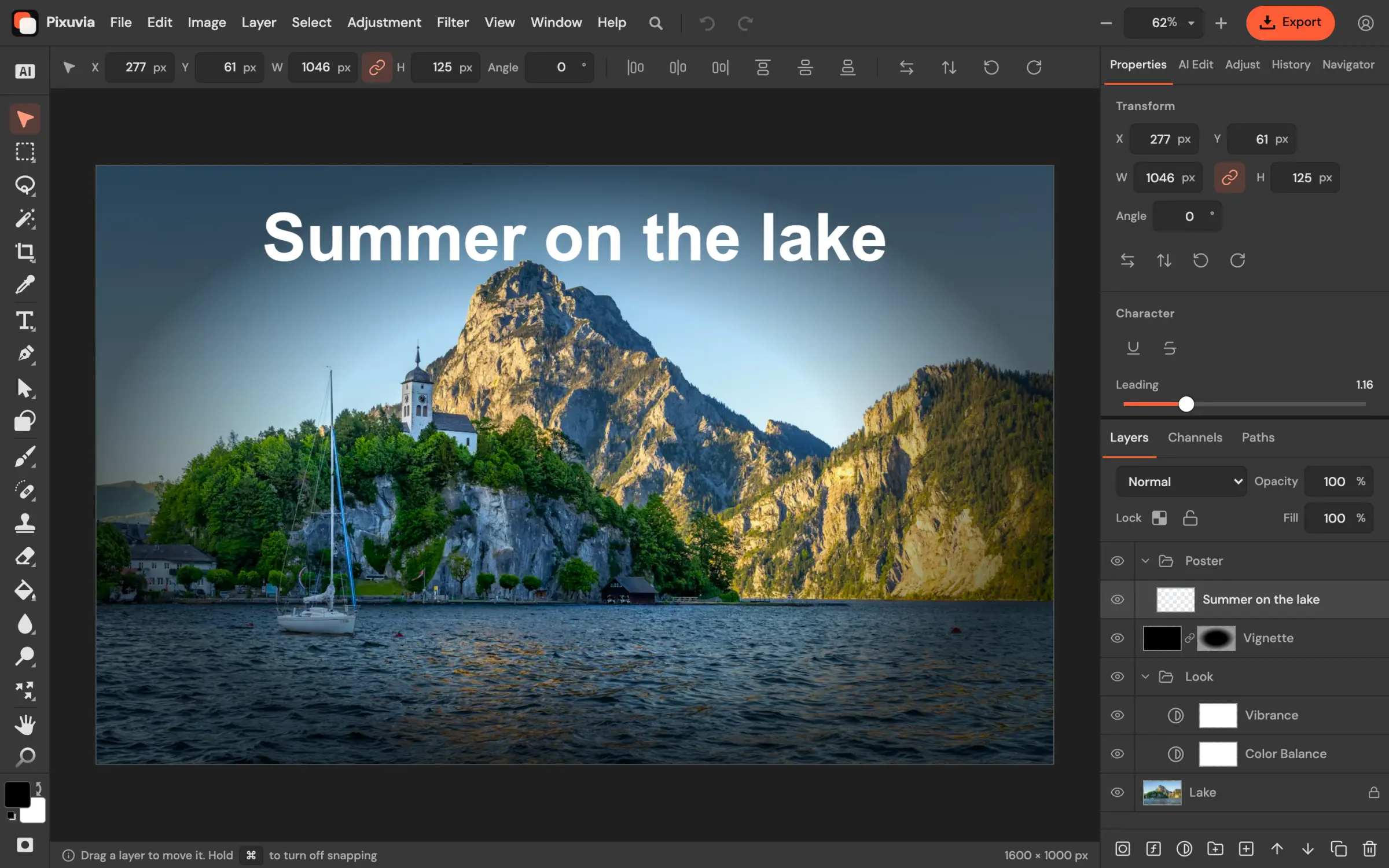
Pixuvia has two editors in the browser. The Editor follows Photoshop's layout, with about 50 tools in the same groups and menus from File to Window. The Studio is built around one-job AI tools (remove background, erase objects, generative fill, expand, upscale, relight and edit by prompt), plus filters, text and collages.
PSD is a first-class format. The Editor opens Photoshop files up to 60 MB and saves PSD back, keeping layers, nested groups, masks, editable text and shapes, most adjustment layers and embedded smart objects with smart filters. The online PSD editor page shows what that looks like.
Good at
- Photoshop names and menus: Magic Wand, Pen, Warp, Puppet Warp, Liquify, Clone Stamp, Healing, Patch.
- 18 adjustment layer types, each with its own mask, plus layer masks, vector masks and clipping masks.
- Smart objects with smart filters, 10 layer styles and Photoshop blend modes.
- AI tools in both editors: remove background, erase objects, generative fill, expand, upscale, relight and edit by prompt.
- Saves PSD, PNG, JPG, WebP, GIF, SVG, PDF and TIFF; the document autosaves in the browser as you work.
Keep in mind
- PSD export is 8-bit RGB. Alpha channels and group masks or group effects are not kept.
- Warped or linked smart objects and text on a path open as pixels, and PSB files don't open.
- AI tools need a sign-in and use credits; plans are on the pricing page.
Best for: people who know Photoshop and want the same way of working, with PSD files, on any device with a browser.
2. Photopea: a browser editor built around PSD
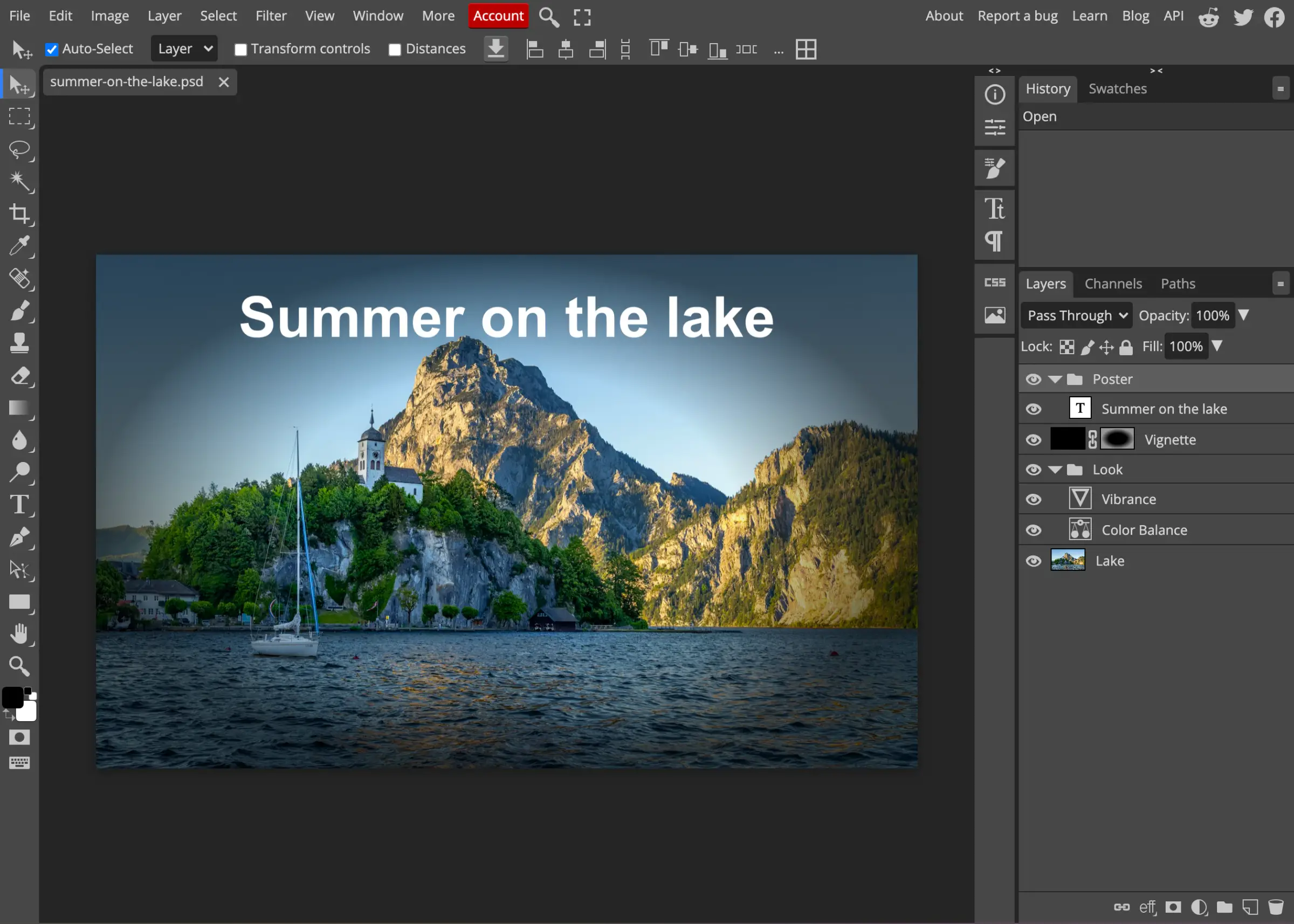
Photopea runs in the browser and treats PSD as home. Its documentation says it "fully supports" PSD for opening and saving and calls PSD "the main format of Photopea". It also opens a long list of other formats, including Figma, XD, Sketch and RAW photos.
Good at
- Opening and saving PSD, with smart objects, layer styles and masks covered in its Learn pages.
- Many import formats, from AI and PDF to INDD and Figma files.
- Actions, scripts, artboards and animation for production work.
Keep in mind
- Ads show beside the canvas unless you buy Premium, a one-time payment that lasts a set number of days.
- Its AI credits come with Premium; other users can watch an ad for a single run.
- Its terms say work you don't save is lost when you close the page.
Best for: opening and fixing PSD files from clients or templates in a browser, especially odd formats. For a closer look, read Photopea vs Pixlr.
Link: photopea.com
3. GIMP: the open-source desktop photo editor
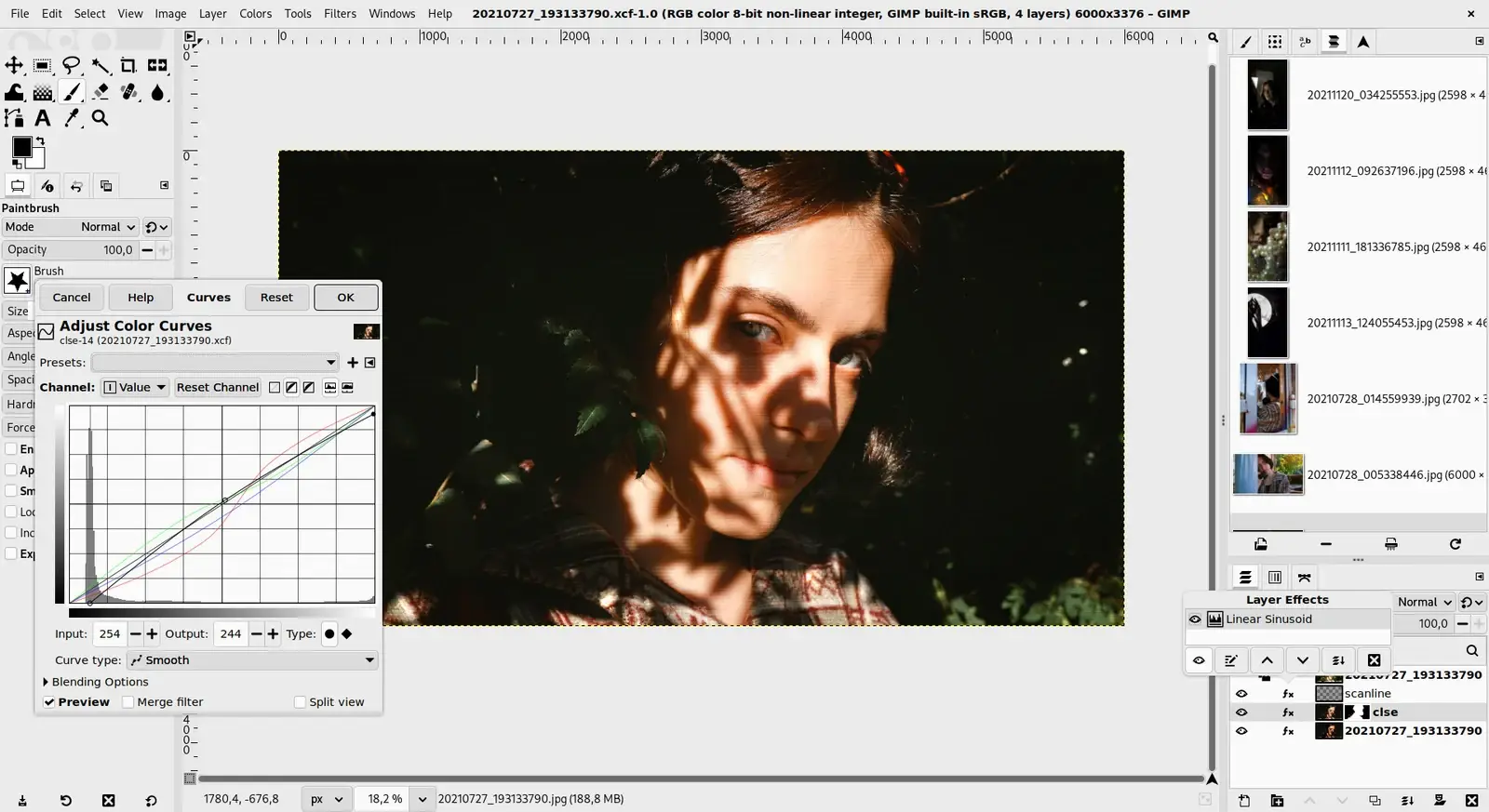
GIMP is an open-source image editor for Windows, macOS and Linux. Version 3.0 added non-destructive filters and, in the project's words, "improved compatibility for importing and exporting PSD project files".
Good at
- Photo retouching and compositing on a computer, with no plan to manage.
- Non-destructive filters you can change later.
- Runs on Linux as well as Windows and macOS.
Keep in mind
- Tool names and menus differ from Photoshop, so expect to relearn shortcuts.
- GIMP describes its PSD support as improved compatibility, so check complex files layer by layer.
Best for: photo editing on a desktop computer, including Linux, by people happy to learn a different layout.
Link: gimp.org
4. Krita: open source and made for painting
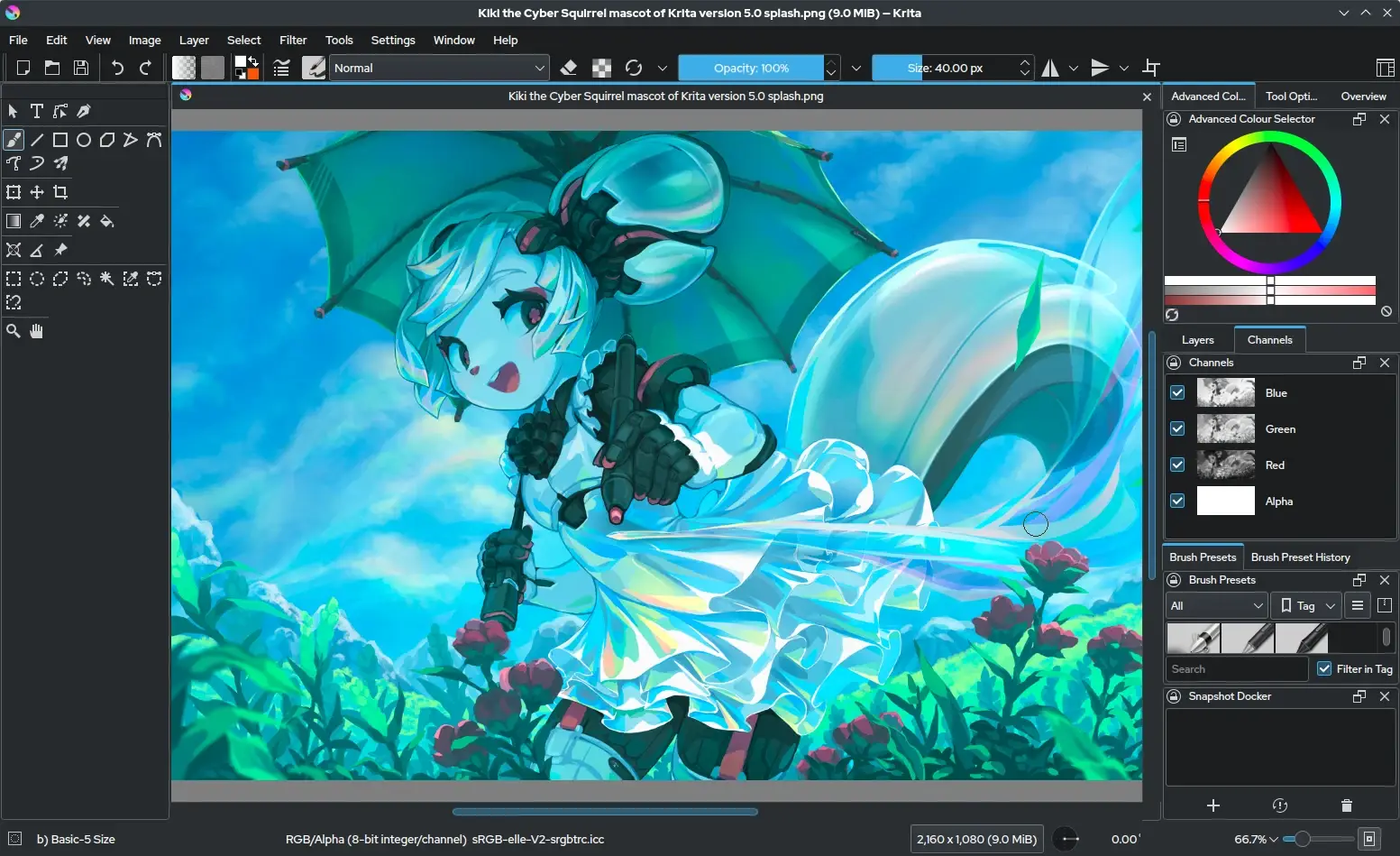
Krita is an open-source app built for digital painting, on Windows, macOS, Linux and Android. Its PSD documentation lists raster layers, blending modes, layer styles, vector shapes, text layers, layer groups and transparency masks as loaded and saved.
Good at
- Brushes, brush engines and drawing-tablet support.
- Illustration, comics and concept art.
- A clear, public list of what its PSD support covers.
Keep in mind
- It is a painting app first; photo retouching is not its focus.
- Krita itself says no program outside Photoshop supports PSD 100%.
Best for: illustrators and painters who need to swap layered files with Photoshop users.
Link: krita.org
5. Affinity: photo, vector and layout in one app
The current Affinity, now part of Canva, combines photo editing, vector design and page layout in one app for Windows, macOS and iPad. Its site says it brings in PSD files "with layers and structure preserved".
Good at
- Moving between photo, vector and layout work in one document.
- A native desktop app for Mac and Windows, plus iPad with Apple Pencil.
- No charge for individuals.
Keep in mind
- Its AI tools need a Canva premium plan.
- Its site confirms PSD import; check PSD export in the app before you rely on sending files back.
Best for: designers who mix photos with vector graphics and layouts and want one desktop app.
Link: affinity.studio
6. Pixlr: quick edits and AI tools in the browser
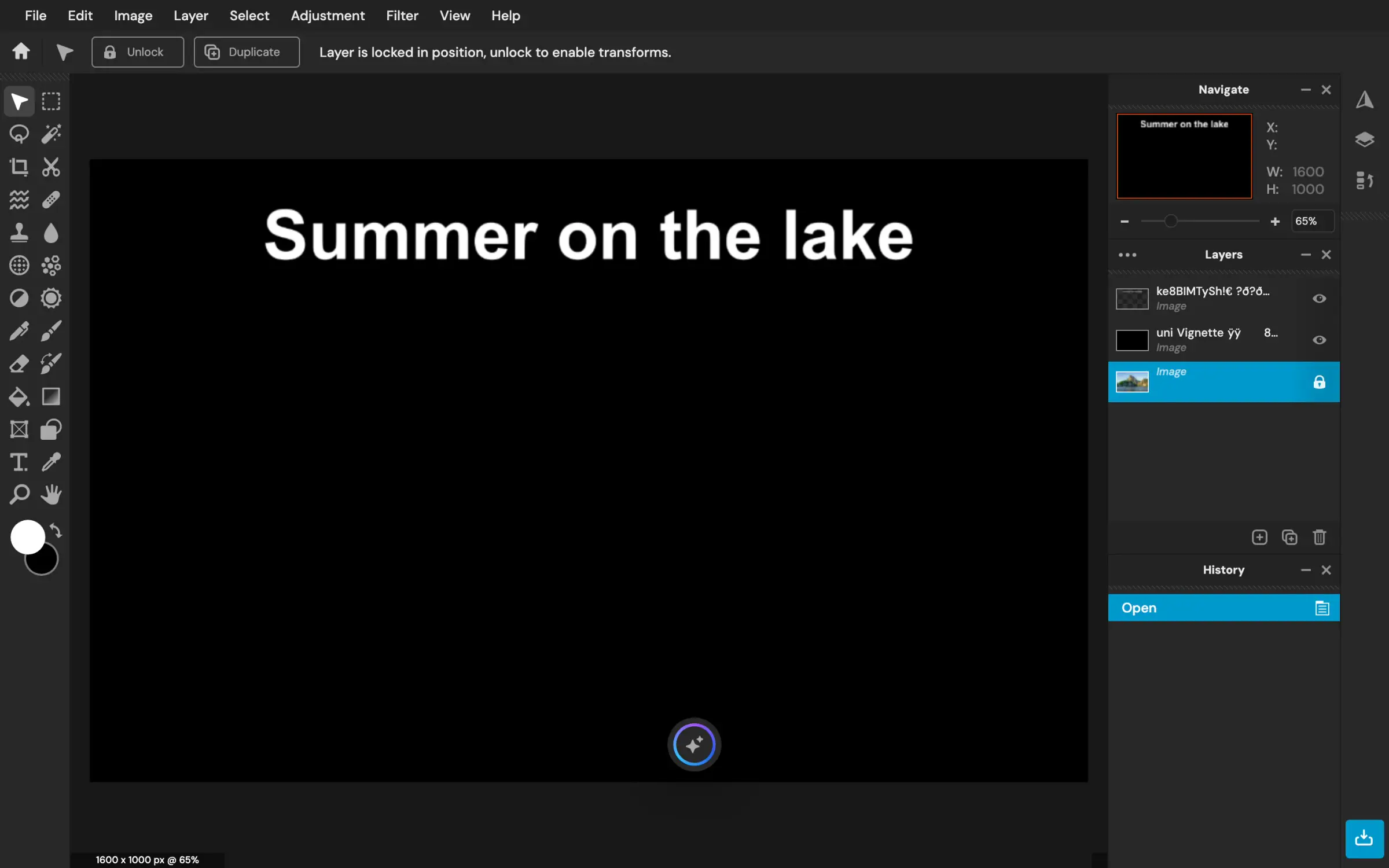
Pixlr is a cloud-based editor with two apps: Editor for layered work and Express for quick edits. It puts AI tools front and center, from generative fill to background removal and upscaling. Subscriptions also cover its desktop and mobile apps.
Good at
- A wide set of AI tools, paid with monthly credits.
- Express for fast crops, filters, text and cutouts.
- Layers, masks and blend modes in the Editor.
Keep in mind
- Pixlr says it opens layered PSD files, but its listed export formats are JPEG, PNG and WebP.
- Its own project format is PXZ, and history is kept only temporarily in the browser.
- Its pricing page lists removing ads as a feature of the paid plans.
Best for: social posts and quick fixes where AI tools matter more than sending a PSD back.
Link: pixlr.com
7. Canva: templates and quick photo edits
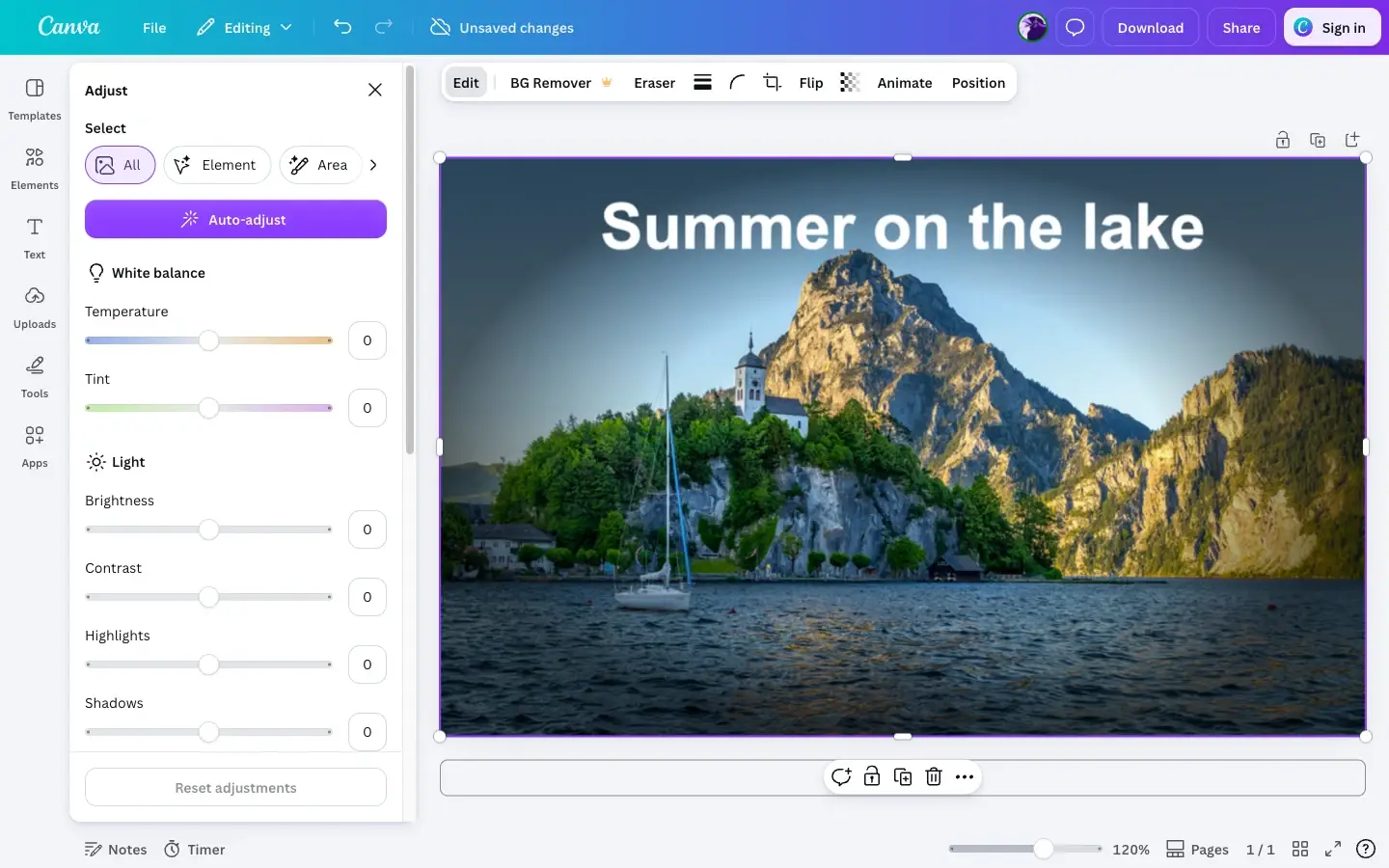
Canva is a design app in the browser, with desktop and mobile apps. Its photo editor sits inside the same workspace as its templates for social posts, presentations and print. Its help center says it imports Photoshop files as editable designs, in a beta, and that "designs with layers, gradients, and masks are supported, but some elements might be rasterized."
Good at
- A large template library for social posts, presentations and print.
- Photo adjustments and filters in the same editor as text and layout tools.
- PSD import of files up to 300 MB, turned into a Canva design you can edit.
Keep in mind
- Its download formats include JPG, PNG, WebP, SVG and PDF, but not PSD, so a file can't go back to Photoshop with layers.
- Transparent PNG and SVG downloads, quality controls and other premium tools come with Pro and the other paid plans.
- Its PSD import is a beta and needs canva.com in a desktop browser.
Best for: social graphics and marketing designs built from templates, where a photo is one part of the layout.
Link: canva.com
8. Pixelmator Pro: Apple's image editor for Mac and iPad
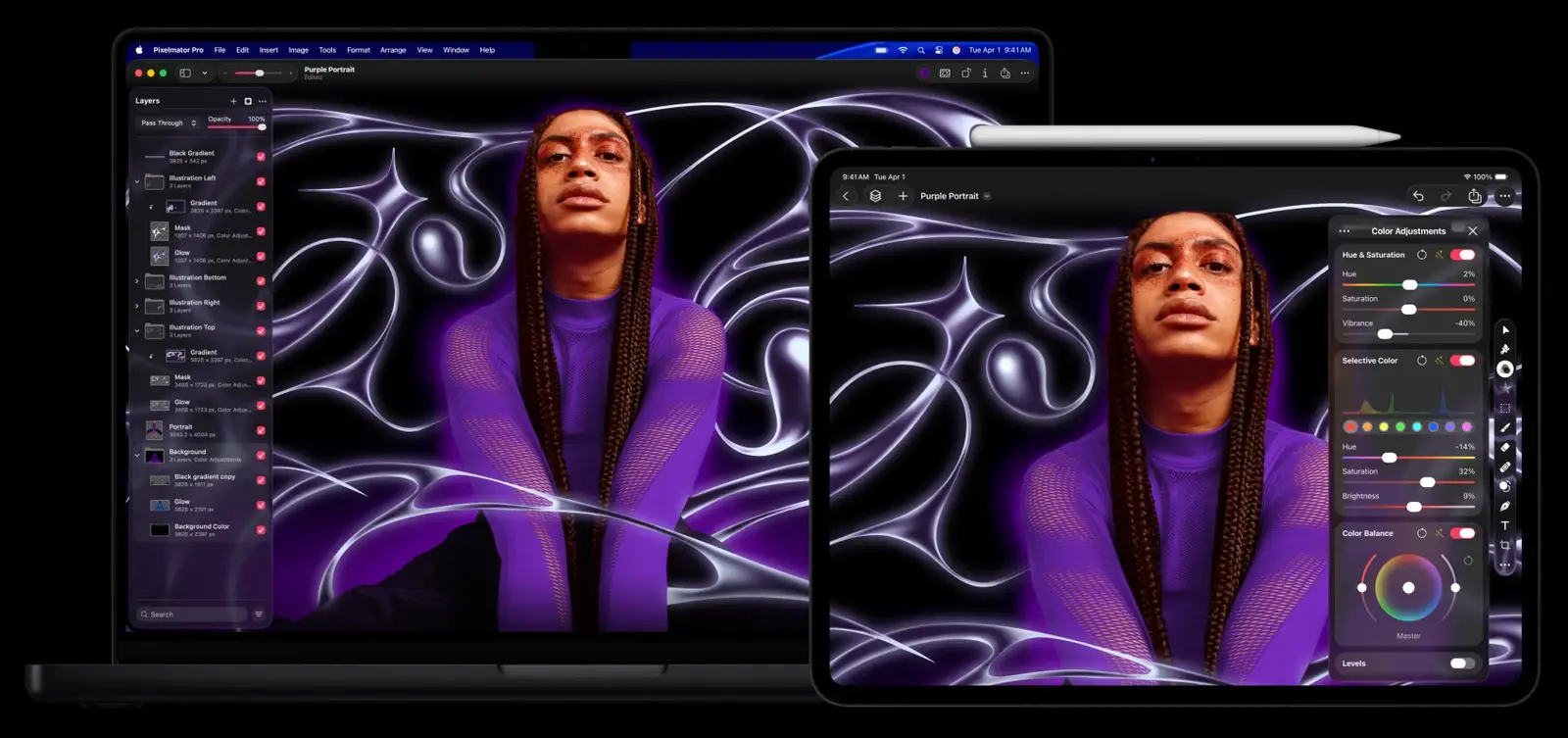
Pixelmator Pro is Apple's image editing and design app for Mac and iPad. Its product page says "Pixelmator Pro supports PSD, SVG, PDF, Adobe Illustrator, and Illustrator EPS."
Good at
- Non-destructive, layer-based editing with effects, fills, strokes and shadows.
- Machine learning tools: Super Resolution, background removal, Deband, Auto Enhance and Intelligent Denoise.
- Retouching with a Repair tool and Clone Stamp, plus a Pen tool and text on a path for design work.
Keep in mind
- It runs only on Apple devices: macOS 26 on a Mac, iPadOS 26 on a supported iPad.
- On iPad it comes only with the Apple Creator Studio subscription. Mac users can also buy it once.
- Apple says the Warp tool comes only with the subscription version.
Best for: Mac users who want a native photo and design editor that opens PSD files.
Link: apple.com/pixelmator-pro
9. Fotor: one-click AI edits and quick designs
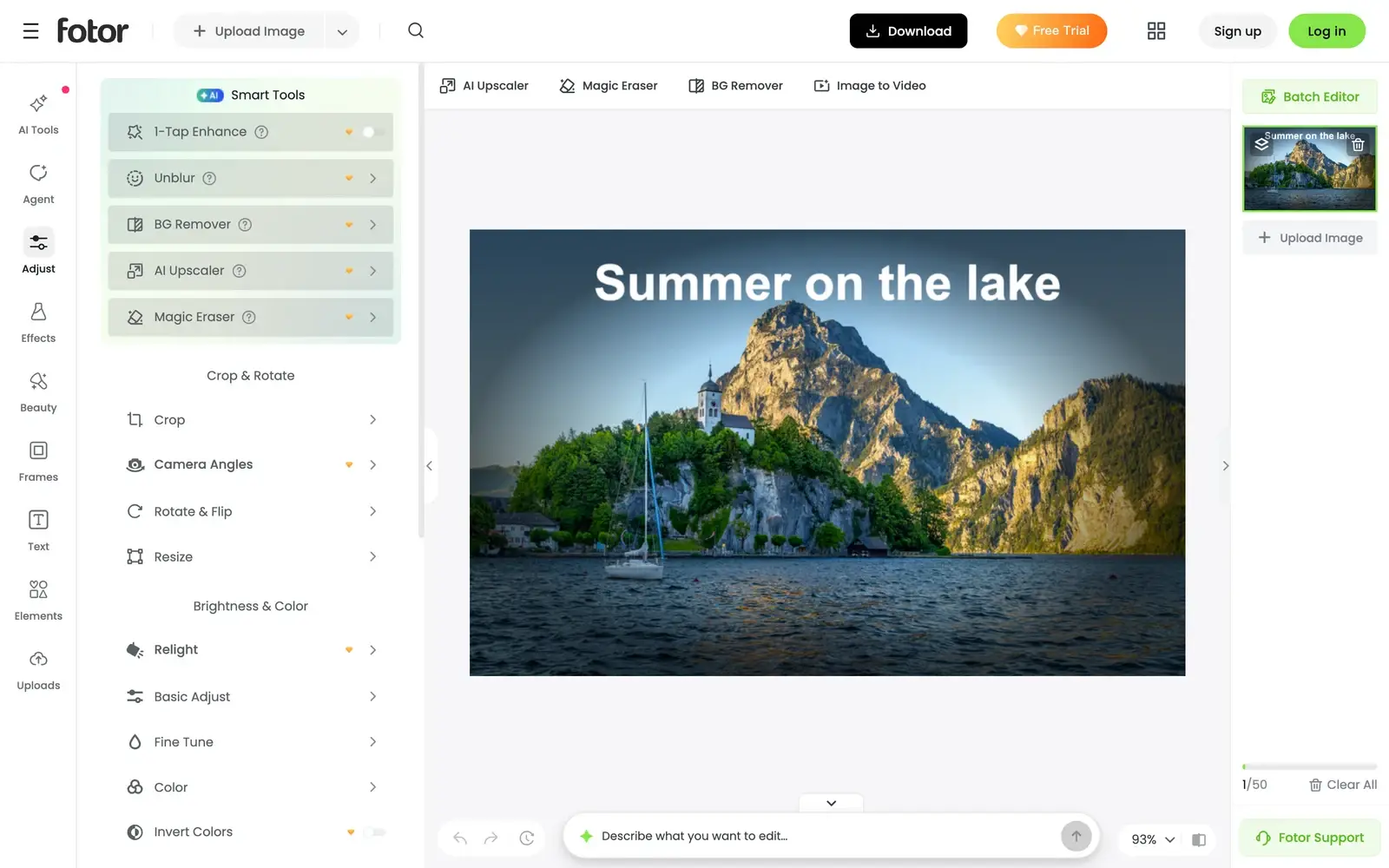
Fotor is an online photo editor and design tool with apps for Windows, Mac, iOS and Android. Its pricing page lists a Basic plan at no charge with limited credits, and Pro, Pro+ and Max plans with monthly credits for its AI tools and AI image and video models.
Good at
- One-click edits: AI portrait tools, background remover and enhancer.
- AI image generation with a choice of models, paid with credits.
- Templates, collages and simple designs next to the photo editor.
Keep in mind
- Its help center lists JPG, PNG and SVG as upload formats, and in our test the editor turned the PSD away, so you need a JPG or PNG export first.
- Basic exports are normal-quality JPG, PNG or PDF; HD and transparent PNG downloads come with the paid plans.
- Its plan table lists removing the watermark and ads among the paid-plan features.
Best for: quick AI touch-ups and portraits from JPG or PNG photos, when you never receive PSD files.
Link: fotor.com
10. Picsart: AI photo editing for social media
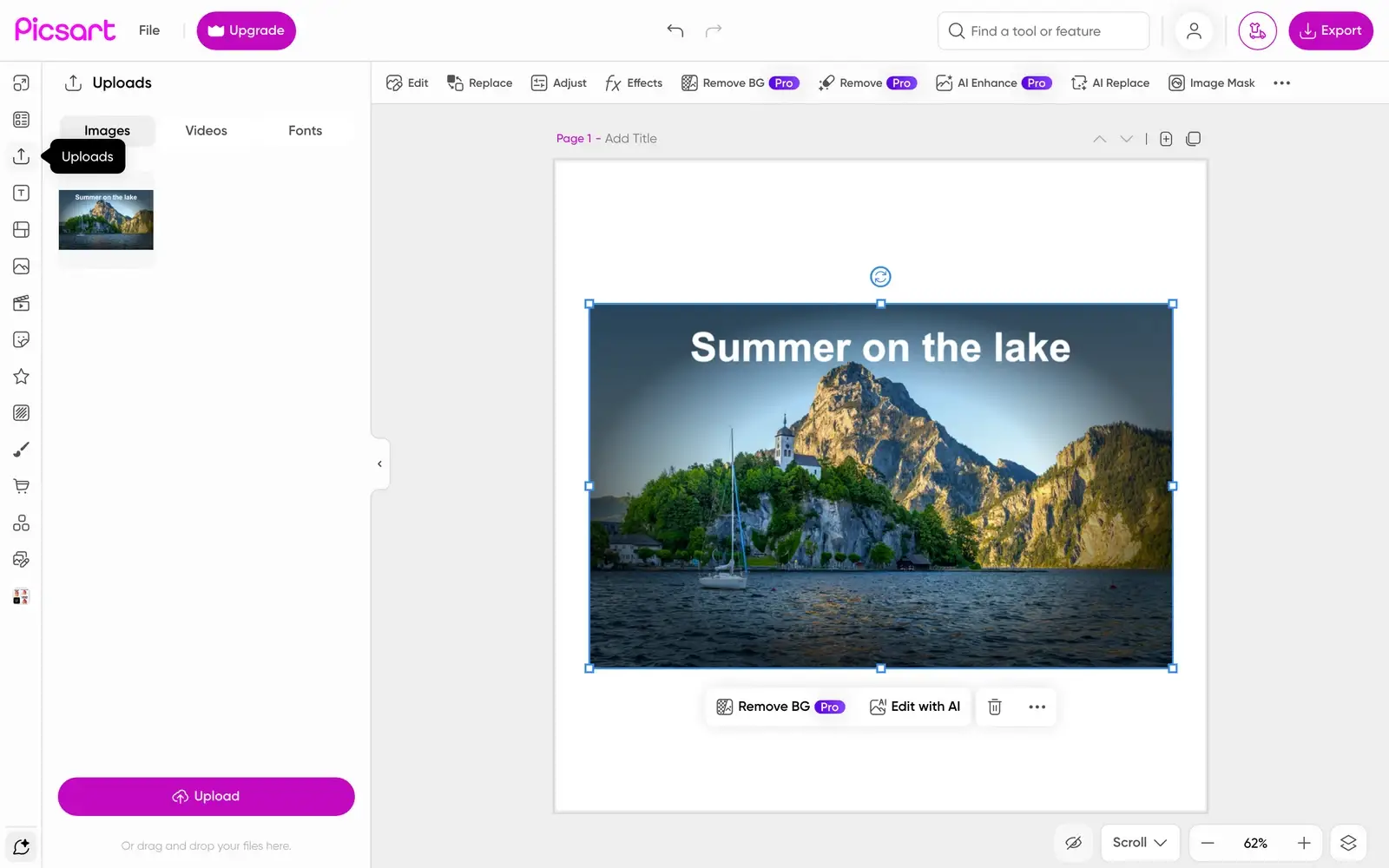
Picsart is a photo and video editor for the browser, iPhone and Android, built around AI tools and a large creator community. Its PSD to JPG page says it opens layered PSD files so you can adjust text, images and colors, hide or remove layers, and then export a JPG or PNG.
Good at
- Background and object removal, a one-tap image enhancer and AI image generation.
- Effects, stickers, fonts and templates made for social posts.
- Batch edits of up to 50 images at once on the Pro plan.
Keep in mind
- Its pricing page lists Pro and Ultra subscriptions, with AI use counted in monthly credits.
- Its PSD Import needs an account, and its PSD pages describe export to JPG and PNG only, so keep your original file.
- It covers video and AI generation too, so the photo tools share space with many other features.
Best for: social media creators who want AI edits, effects and templates on phone and web.
Link: picsart.com
How to choose a Photoshop alternative
- You receive PSD files and need to send them back: Pixuvia or Photopea.
- You want Photoshop's tools without installing anything: Pixuvia or Photopea.
- You only need a PNG or JPG from a PSD: convert the PSD to PNG in the page.
- You edit photos on Linux or prefer open source: GIMP.
- You paint or draw with a tablet: Krita.
- You combine photos with vector and layout work: Affinity.
- You want quick AI edits for social media: Pixlr.
- You design social posts from templates: Canva.
- You work on a Mac and want a native app: Pixelmator Pro.
- You want one-click AI portraits and touch-ups: Fotor.
- You edit on your phone for social media: Picsart.
Whichever you pick, open a copy of a real project first and check the text, adjustment layers and smart objects you depend on.
Questions
What is the closest alternative to Photoshop?
For working the way Photoshop works, with the same tool names, menus, adjustment layers and PSD as the main file, the closest options are Pixuvia and Photopea, both in the browser. Among desktop apps, Affinity is the closest all-round editor, and Krita is the closest for painting.
How can I open a PSD file without Photoshop?
Open it in an editor that reads PSD: Pixuvia or Photopea in the browser, or GIMP, Krita, Affinity or Pixelmator Pro on a computer. Canva imports PSD as a design. Layers usually come through. Effects that only Photoshop renders, such as some smart object and text features, may open as flat pixels, so check the layers before you edit and keep the original file.
Is there a Photoshop alternative that runs in the browser?
Yes. Pixuvia, Photopea, Pixlr, Canva, Fotor and Picsart all run in a browser tab. Pixuvia and Photopea open and save layered PSD files. Pixlr says it opens layered PSD files, but its listed export formats are JPEG, PNG and WebP.
Is Photoshop on the web an alternative to the desktop app?
Only partly. It needs an Adobe plan, runs only in supported desktop browsers, and Adobe's own comparison marks the Pen tool, Magic Wand, Warp and Smart Filters as not available on the web. It suits quick edits to files you already keep in Photoshop.
Will my layers survive if I edit a PSD in another app and open it again in Photoshop?
Usually the basic structure does: pixel layers, groups, masks and blend modes. Live text, adjustment layers, layer styles and smart objects vary by app. Krita says no program outside Photoshop supports PSD 100%. Test a copy of your file with the features you rely on before you switch a real project.
Can I buy Photoshop with a one-time payment?
No. Adobe answers "Can I buy Photoshop outright?" with "No." Photoshop comes only with a subscription. Among the alternatives here, GIMP and Krita are open source, Affinity has no charge for individuals, Photopea is supported by ads with an optional one-time Premium, and Pixelmator Pro for Mac is sold as a one-time purchase as well as by subscription.
Sources
- Adobe: Compare Photoshop plans (FAQ "Can I buy Photoshop outright?")
- Adobe: Subscription terms
- Adobe: Compare Photoshop on the web and desktop features
- Adobe: Photoshop on the web technical requirements
- Photopea: Opening and saving
- Photopea: Terms of use
- GIMP: GIMP 3.0 release notes
- Krita: PSD file format
- Wikimedia Commons: Krita 5.0.0 screenshot
- Krita: Download
- Affinity: Product page
- Canva Newsroom: The all-new Affinity
- Pixlr: Pixlr Suite
- Pixlr: Pricing
- Canva Help Center: Import Adobe Illustrator or Photoshop files
- Canva Help Center: Choose the right download file type
- Apple: Pixelmator Pro
- Fotor: Pricing and plan comparison
- Fotor Help Center: Importing images, supported file types
- Picsart: Pricing
- Picsart: PSD to JPG
