Blur the background of a photo
Drop a photo on this page and the main subject is found by itself. Everything around it softens like a portrait lens, and the Strength slider sets how much. Compare before and after with the line on the photo, then download it or keep editing in the Studio or the Editor.
Pixuvia is an online photo and image editor with AI tools: a classic editor for detailed work and PSD files, and a modern studio for one-tap edits. It runs in your browser on a computer, tablet or phone.
How to do it
Drop your photo on this page, or choose it from your files.
Wait a moment while the subject is found. The background blurs around it.
Drag Strength for a softer or stronger blur, and drag the line on the photo to compare.
Click Download, or keep editing in the Studio or the Editor.
Best with a clear subject
The subject is found from how it stands out in color and contrast, so a person or object against a plainer background gives the cleanest edge. When none is found, open the photo in the Editor and place the blur yourself with Iris Blur.
Compare as you go
The line on the photo shows before and after side by side, and the blur follows each move of Strength.
Your original stays as it was
The blurred photo downloads as a new PNG file, so the photo you dropped is never changed.
Three kinds of blur in the Editor
Filter > Blur > Iris Blur keeps an oval sharp, Field Blur sets the blur at pins you place, and Tilt-Shift keeps a band sharp for a miniature look. Turn on more than one and they add up.
Questions
How do I blur everything except a person?
Drop the photo here: the person is found and stays sharp while the rest blurs. For an exact outline in the Editor, choose Select > Subject, then Select > Inverse, and run Filter > Blur > Gaussian Blur on the background.
What if the wrong part stays sharp?
A subject that blends into its surroundings is harder to find. Open the photo in the Editor and choose Filter > Blur > Iris Blur, then drag the ring onto the part that should stay sharp.
Does it work on a phone?
Yes. Choose a photo from your library and drag Strength with your finger.
More tools
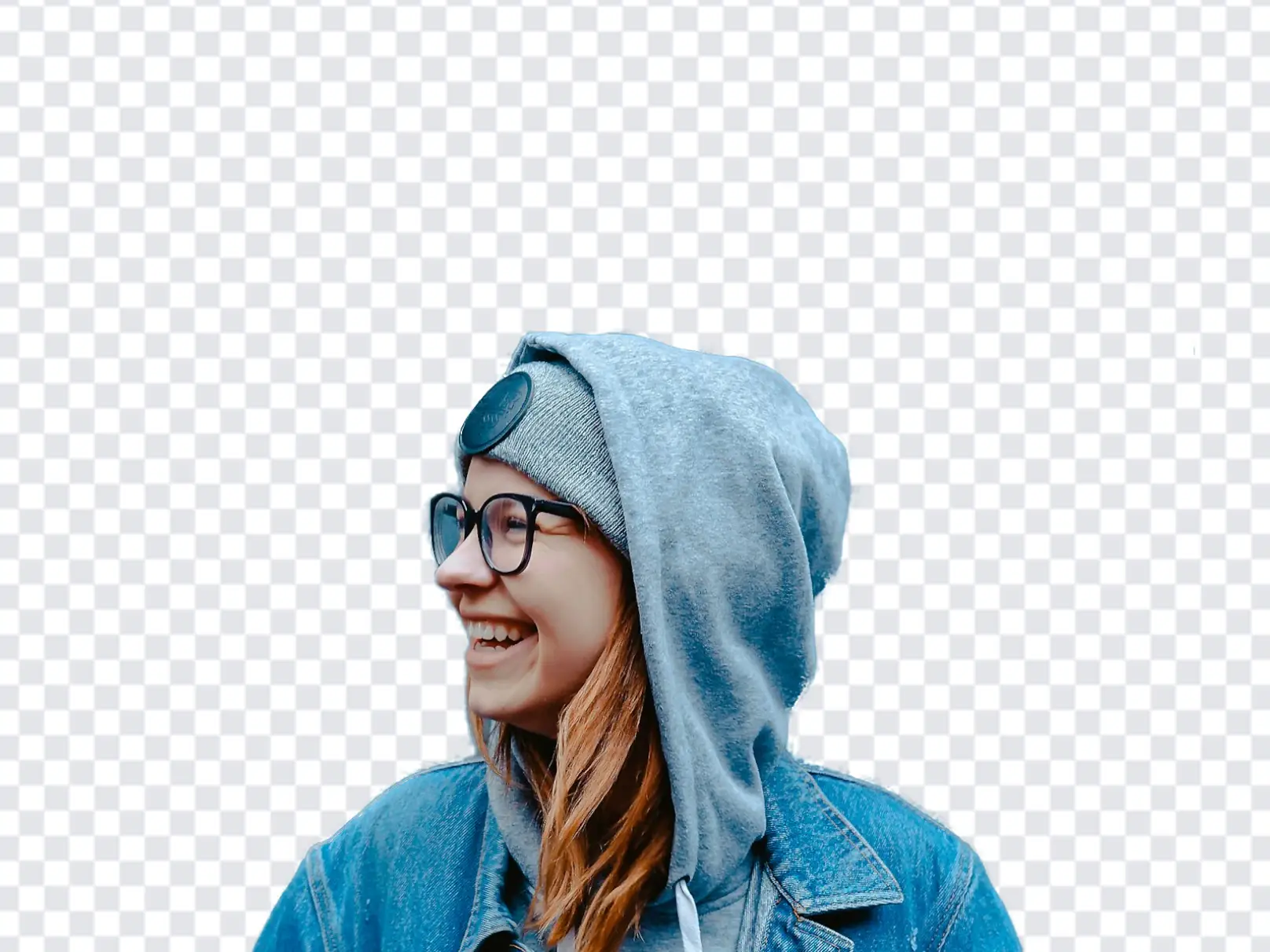 Remove the background with a layer maskMask out the background and save a transparent PNG.
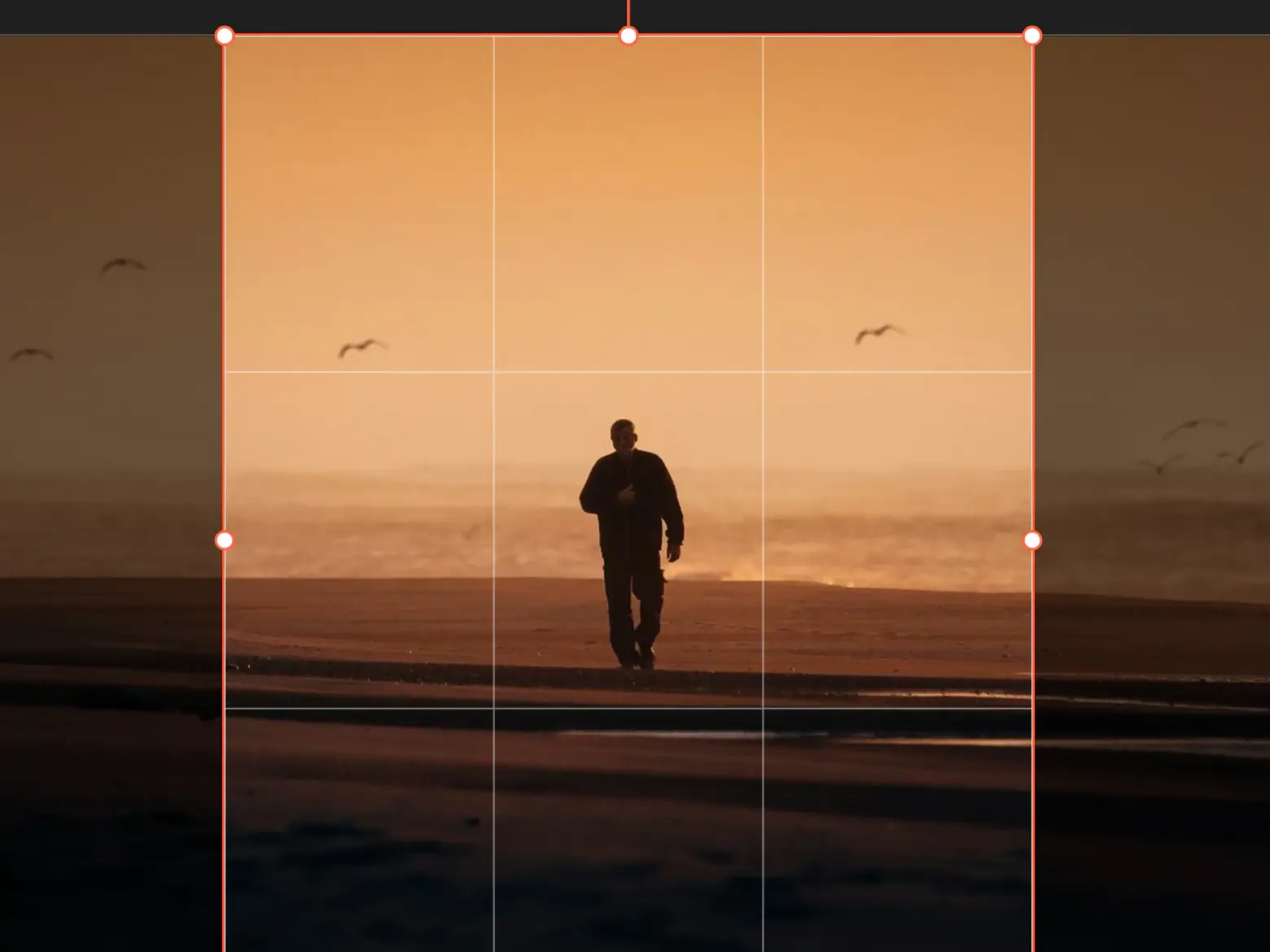 Crop a photo for social mediaCrop to 1:1, 4:5, 16:9 or 9:16 for any post.
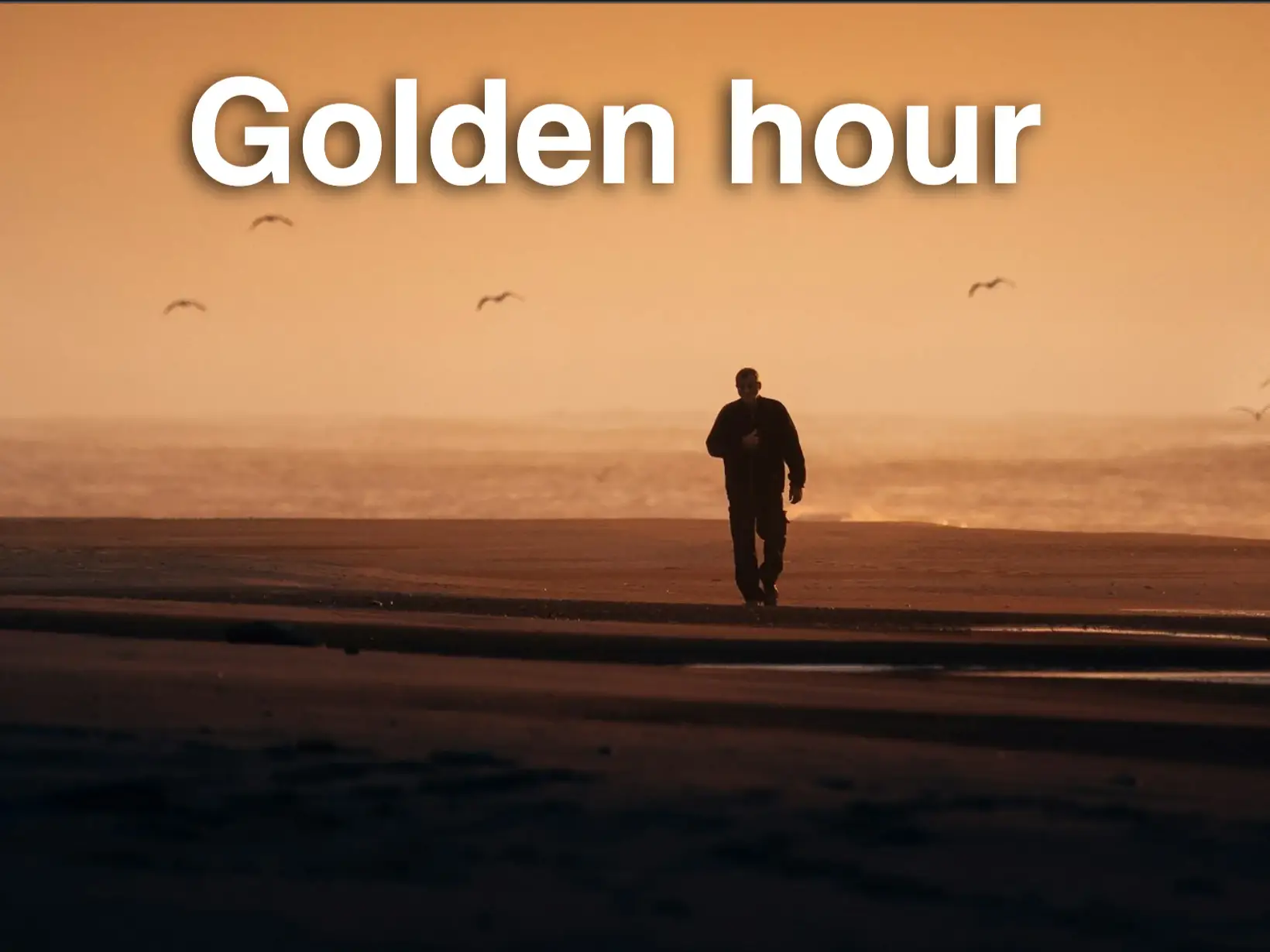 Add text to a photoType on a photo, style it and keep it editable.
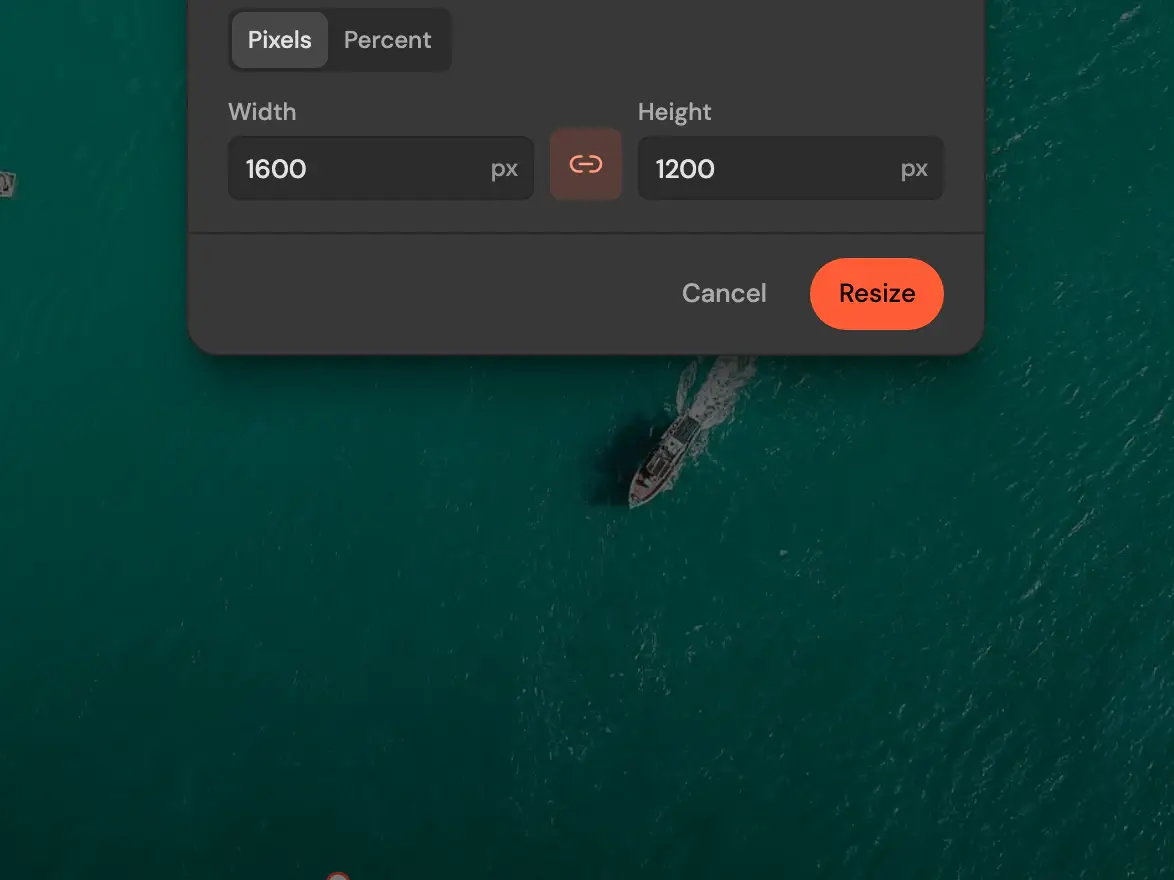 Resize an imageSet exact pixels or a percentage, ratio linked.
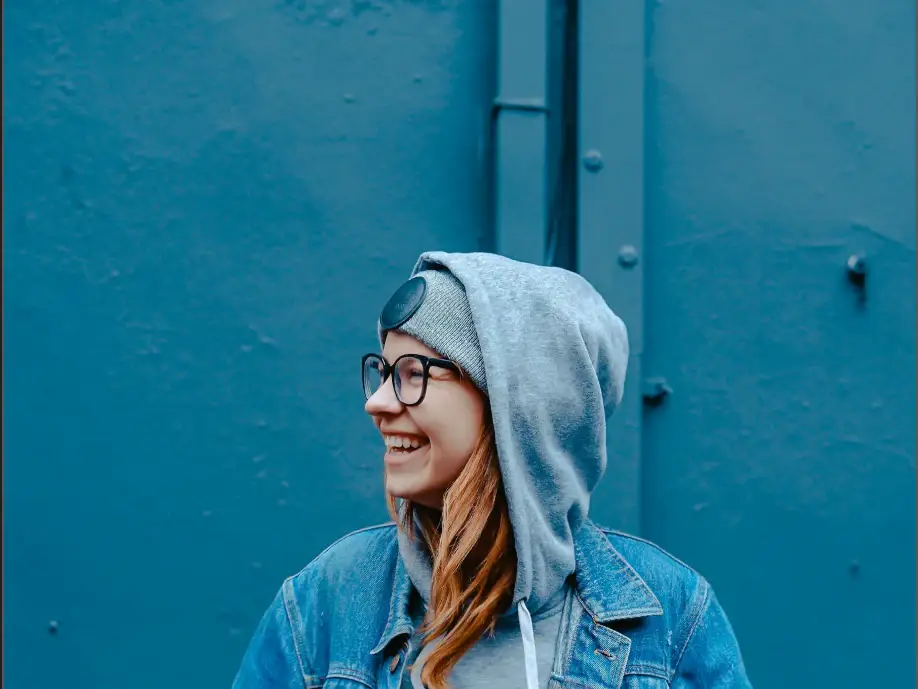 Liquify a photo onlinePush, bloat, pinch and swirl pixels, then restore.
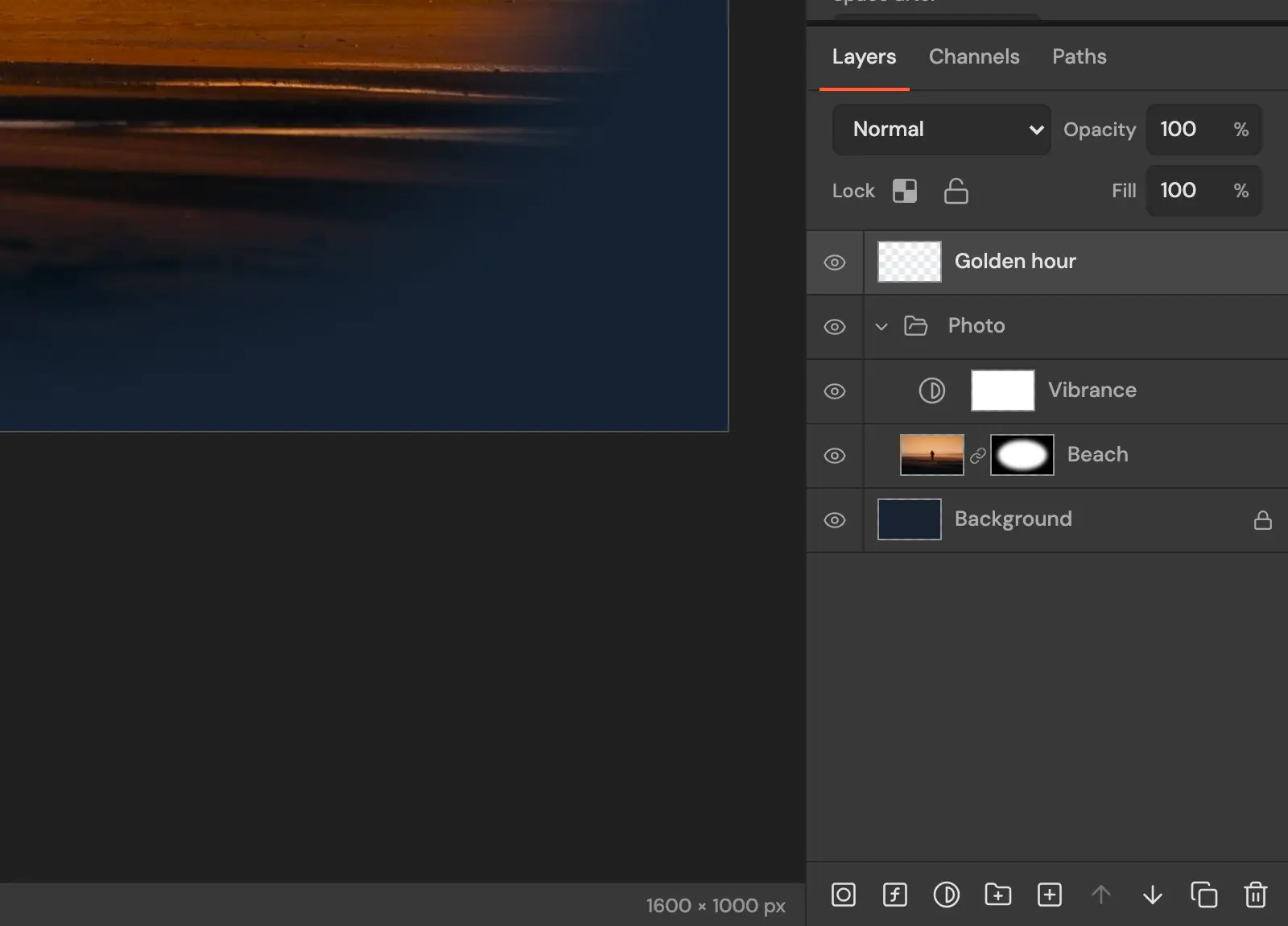 Edit PSD files onlineOpen a layered PSD, edit it and save it back as PSD.
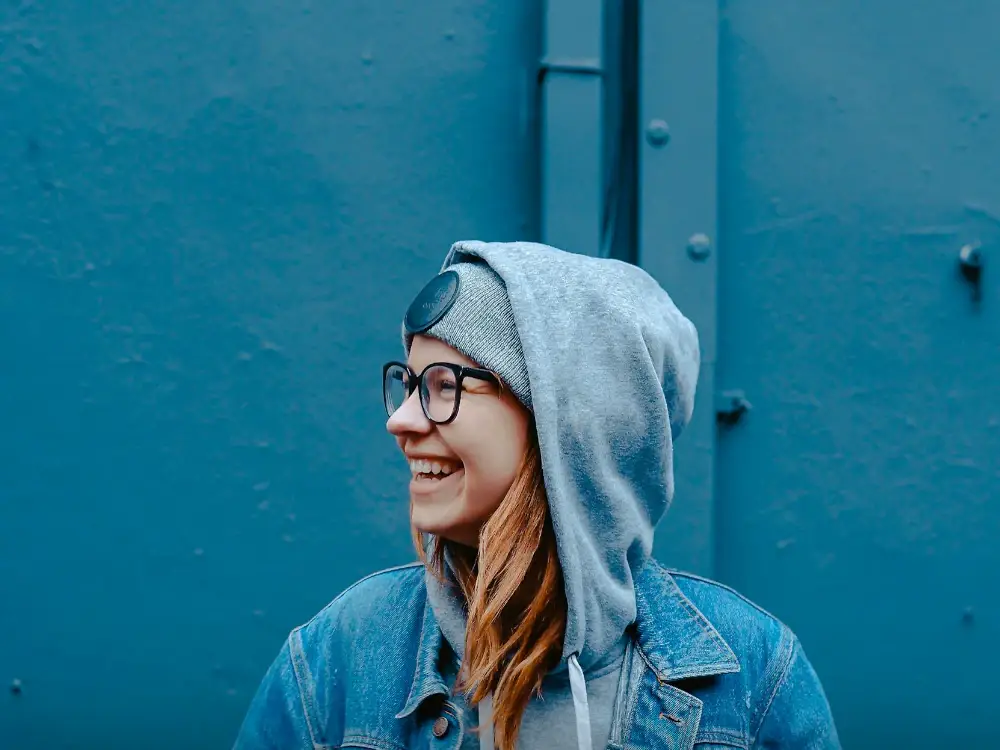 Edit PSD files on your phoneOpen a layered PSD on Android, iPhone or iPad.
Ready to create? Open a photo and make it better.
Start editingDrop it on the Editor, paste it, or pick it from your phone's photos.