Object remover
Paint over a person or object and remove it from your photo online. Use Standard with no credits, or AI for a cleaner result on busy scenes.
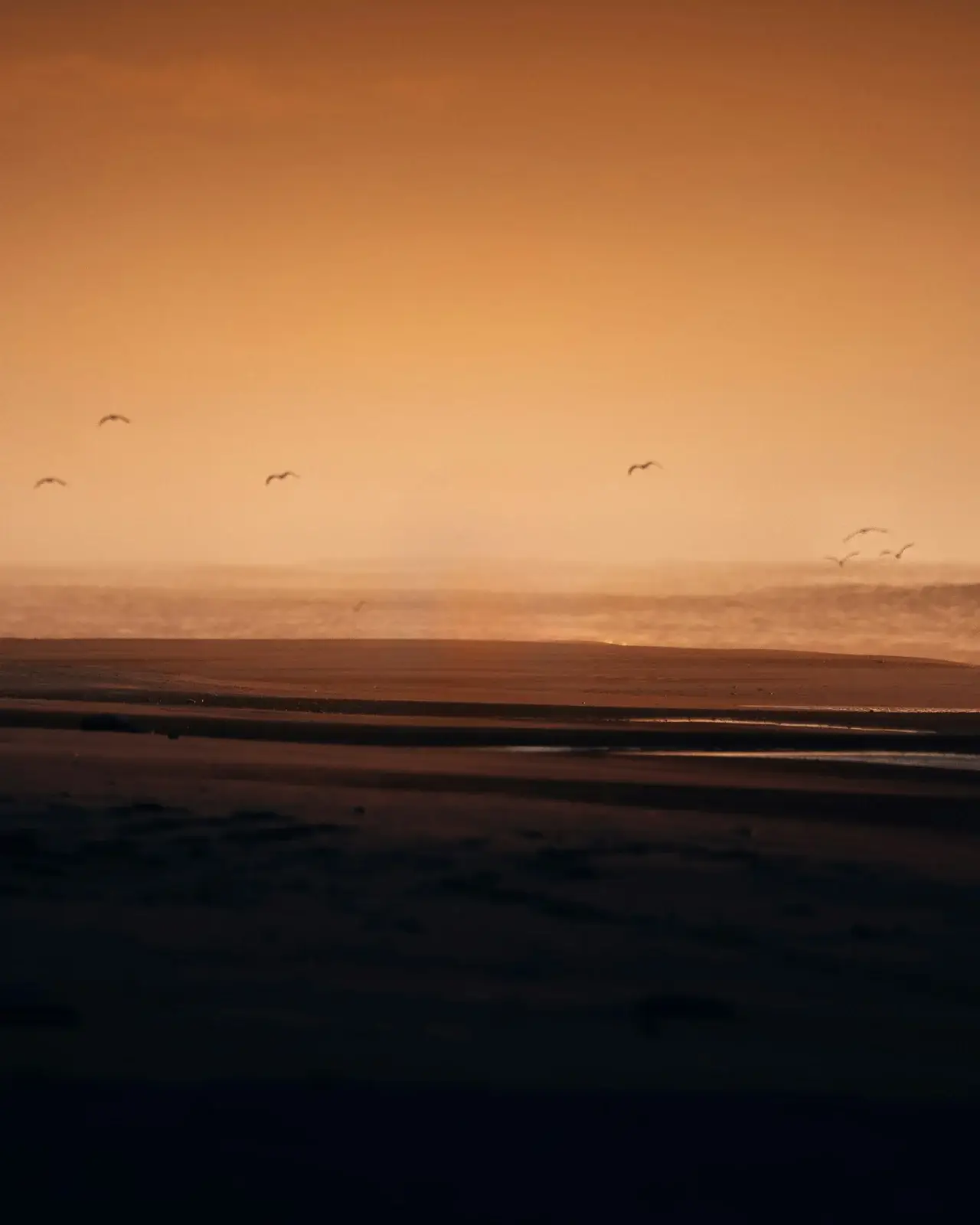
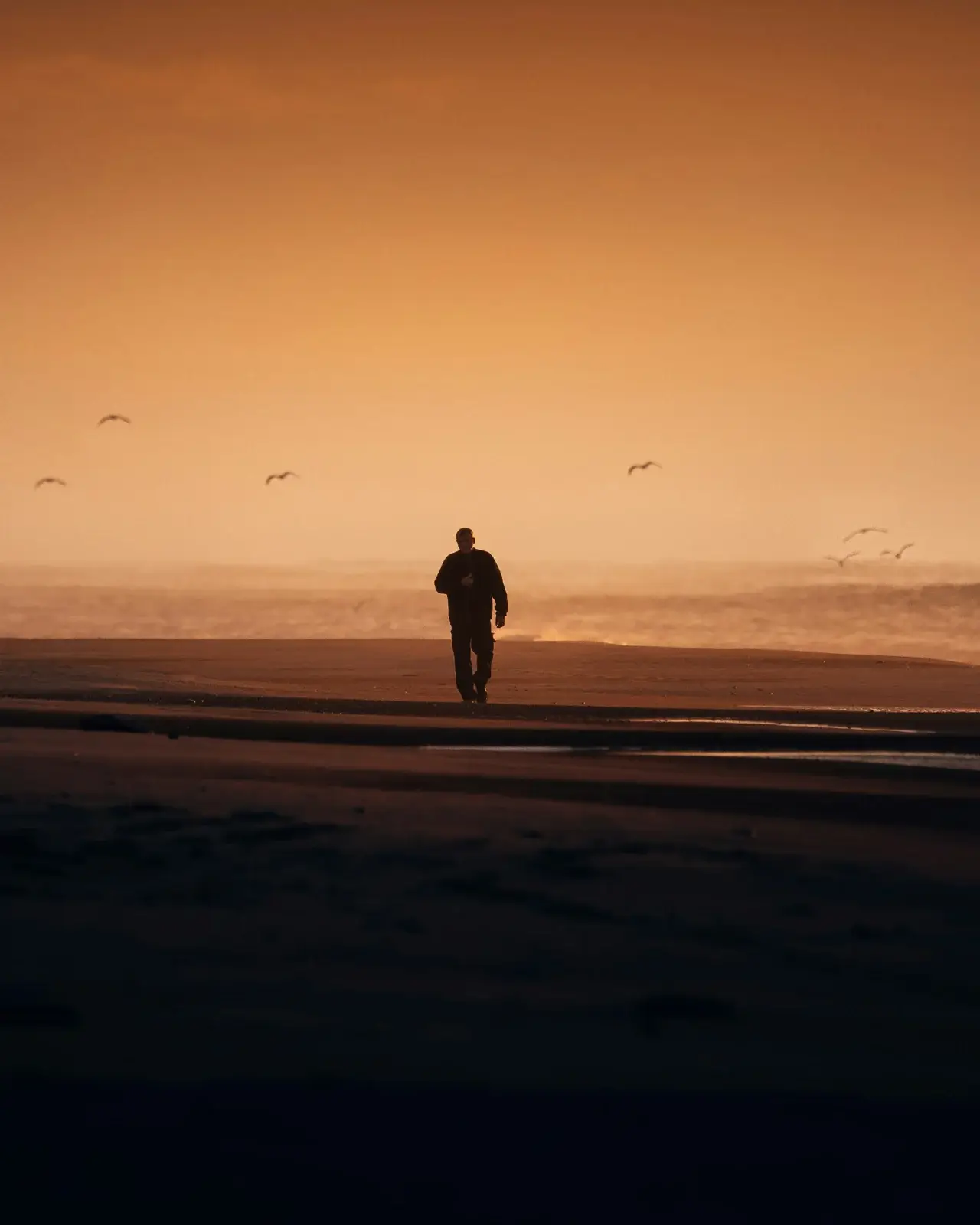 BeforeAfter
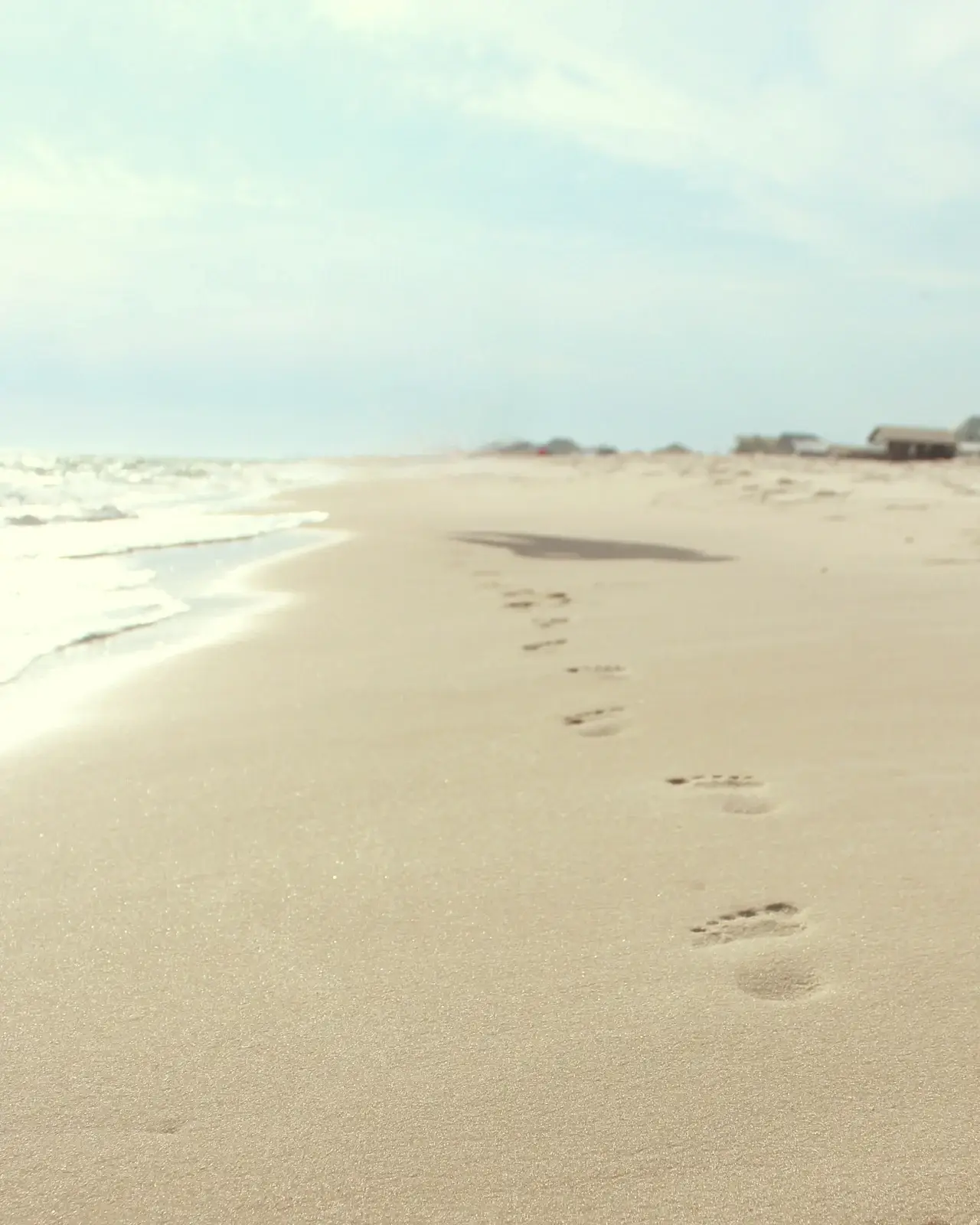
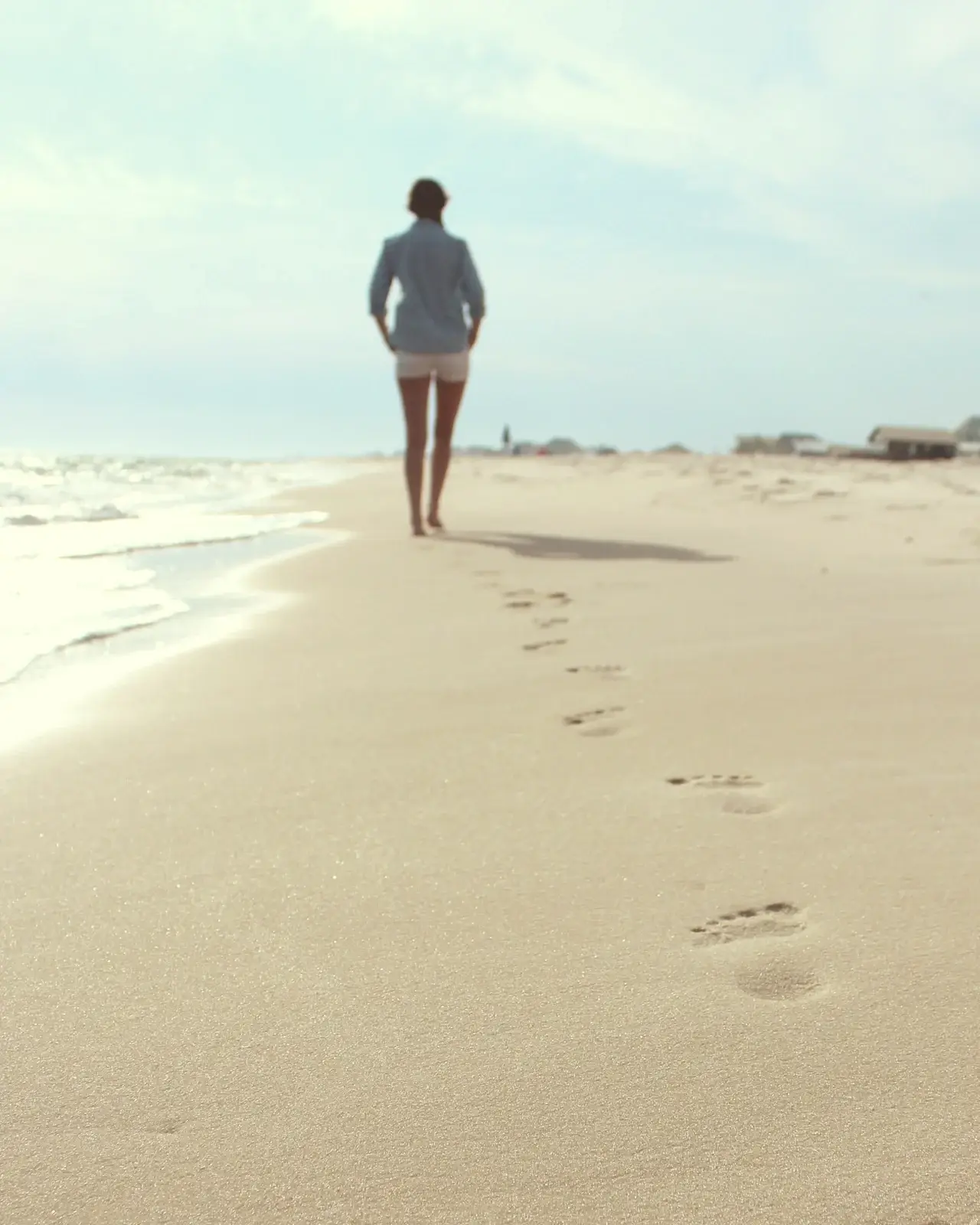 BeforeAfter
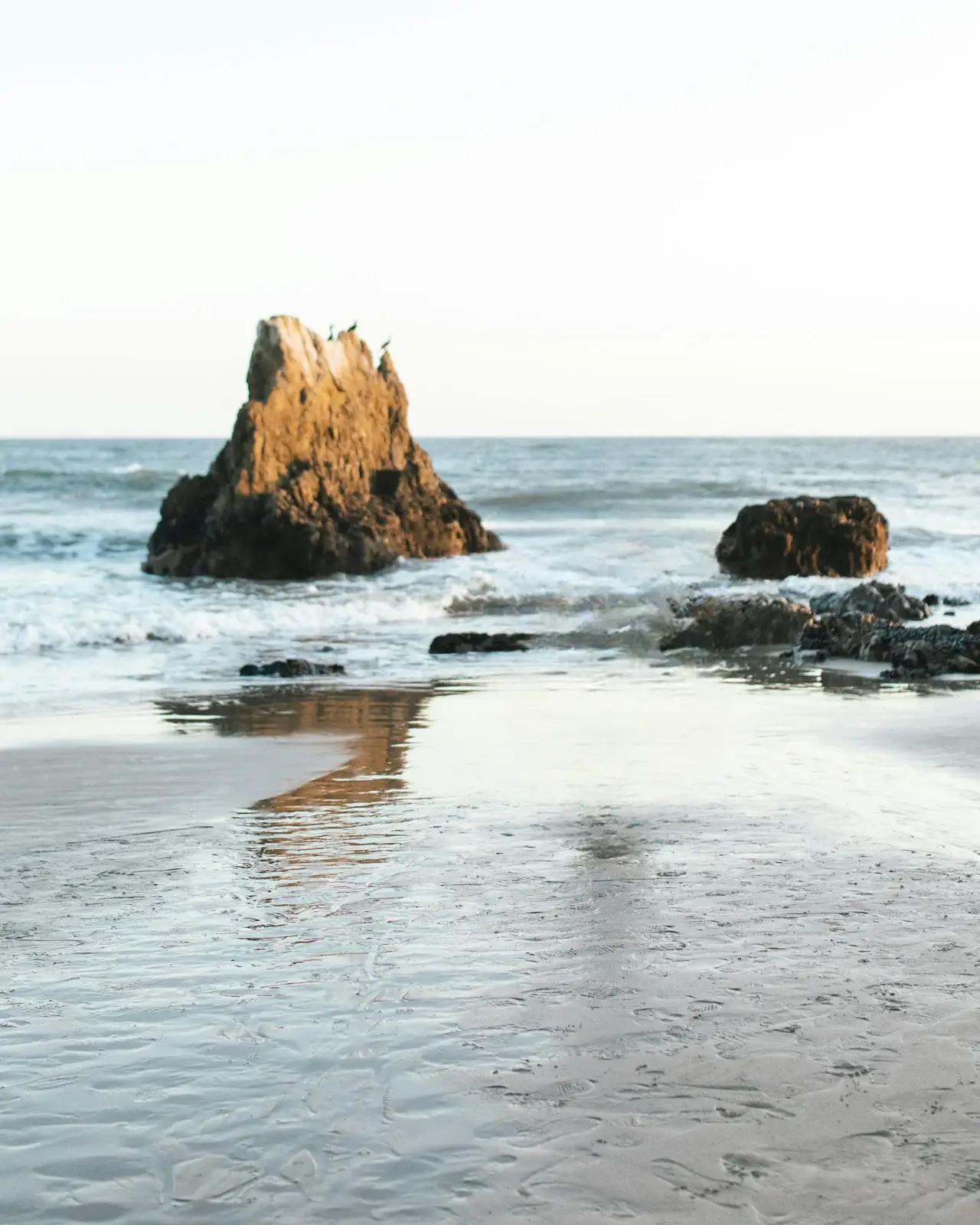
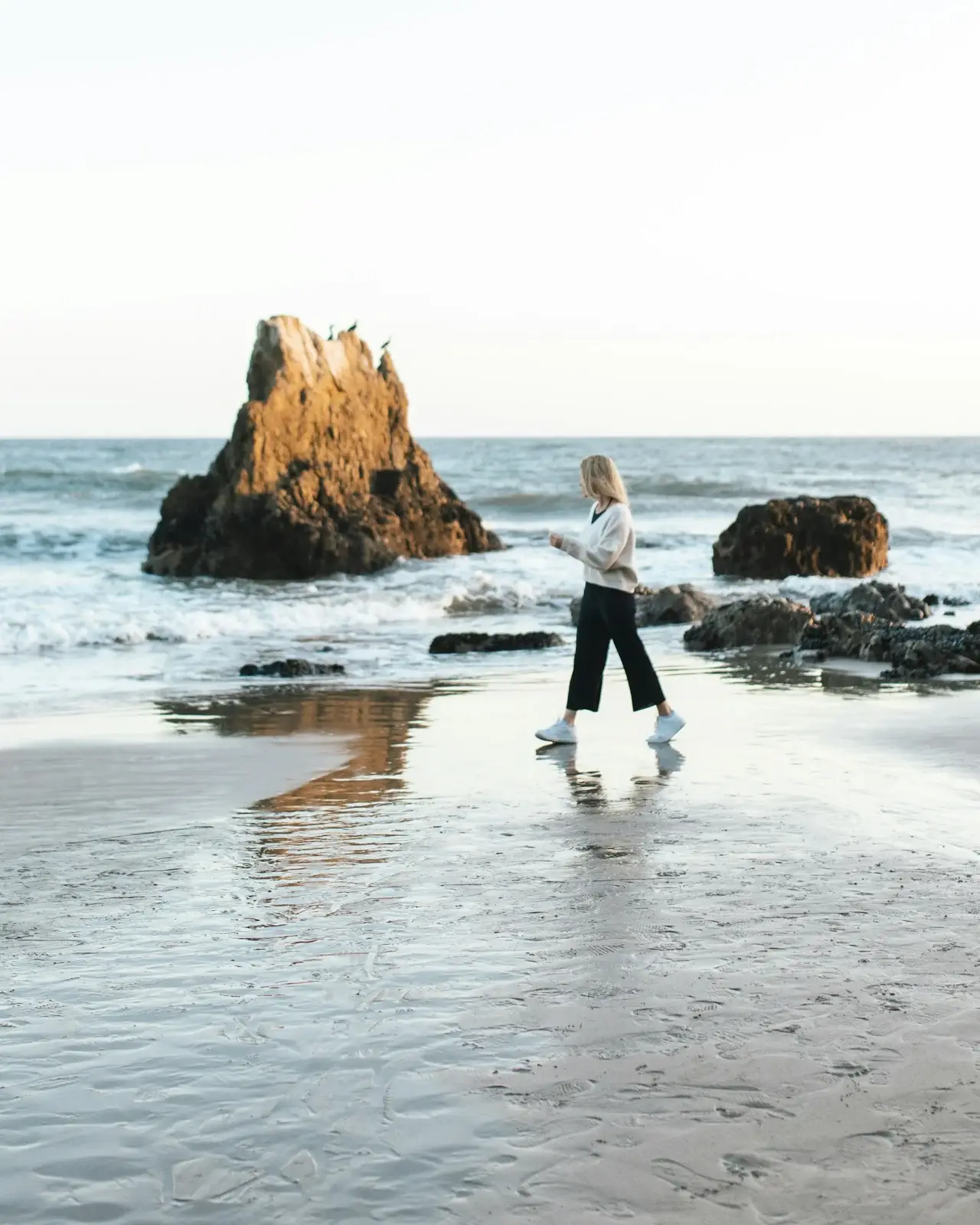 BeforeAfter
Paint over it, or circle it
Paint over what you want gone with a brush, or circle it with the lasso.
A natural fill
The space it leaves is filled to match what surrounds it.
Your photo stays full size
Only the marked area changes, so the rest keeps its resolution.
What removing an object can look like
Drag the slider to compare each photo with and without the object. Examples are for illustration; your result depends on your photo.
BeforeAfterBeforeAfterBeforeAfterExamples are illustrations.
Cleaner fills with AI
AI paints what should be behind the object, even on busy scenes. You need to be signed in, and the cost shows beside each model.
Try it nowBeforeAfterNo credits with Standard
Standard fills the gap from nearby parts of the photo. It works best on small objects over sand, sky, grass and other simple backgrounds.
Try it now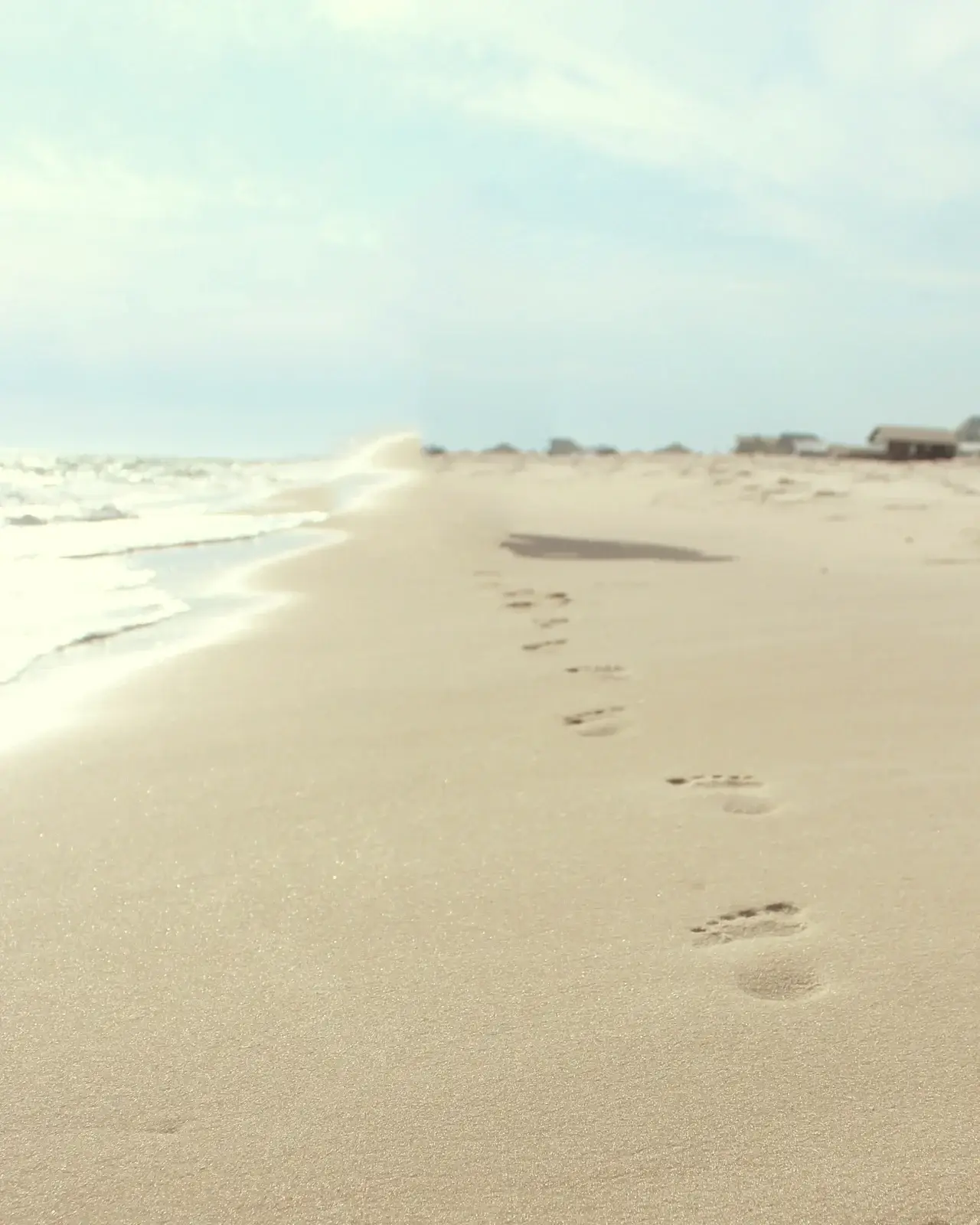 BeforeAfter
How to remove an object from a photo
Drop or choose an image. PNG, JPG, WebP and more all work.
Paint over the object, then pick Standard or an AI model.
Drag the slider to compare, then download the result or keep editing it in Studio.
Want to keep editing afterwards? Open Studio
Questions about removing objects
Can I remove an object without credits?
Yes. Standard uses no credits. It works best on small objects over simple backgrounds.
When should I use AI?
Use AI for large objects and busy scenes, where it paints a more natural fill. It uses credits, shown beside each model, and you need to be signed in.
Can I remove a person from a photo?
Yes. Paint over the person and any shadow they cast, then run the tool.
Can I remove several things?
Yes. Mark them all at once, or choose Remove more to keep going from the result.
Does it lower the quality?
The parts you did not mark keep their pixels. The result keeps the size of your photo.
Which files can I open?
PNG, JPG, WebP, GIF, AVIF, BMP, SVG and iPhone HEIC photos. The result is saved as a PNG.
Does it work on a phone?
Yes. Paint over the object with your finger, then compare the result with your photo using the slider.