GIMP vs Photoshop: which photo editor should you use?
By Pixuvia · · Updated

GIMP vs Photoshop comes down to cost and openness against depth and AI. GIMP is open-source software at no cost for Linux, Windows and macOS, and since version 3.0 it keeps most filters editable after you apply them. Photoshop is sold only by subscription and runs on Windows and macOS, the web and mobile, with adjustment layers, smart objects, PSD as its own format and a growing set of generative AI tools paid with credits.
A note before the details: we make Pixuvia, a browser photo editor, and we cover it briefly near the end. Every fact about GIMP and Photoshop below comes from their own websites, help pages and release notes, checked in November 2026, with links in the sources. We did not test either desktop app for this page, so where their pages are silent, we say so.
On this page
- GIMP vs Photoshop at a glance
- How you pay for GIMP and Photoshop
- Platforms: where GIMP and Photoshop run
- Editing tools compared
- GIMP PSD support: what carries over
- AI features in GIMP and Photoshop
- Learning curve and habits
- Who should choose GIMP, and who should choose Photoshop
- A third option: Pixuvia
- Questions
- Sources
GIMP vs Photoshop at a glance
| Question | GIMP | Photoshop |
|---|---|---|
| Latest version | GIMP 3.2.8 (November 2026) | Photoshop 28.0 on desktop (November 2026) |
| How you pay | Open source under the GNU GPL, no charge | Subscription only, as part of an Adobe plan |
| Where it runs | Linux, Windows and macOS, on x86 and ARM | Windows and macOS on desktop, plus web and mobile versions |
| Own file format | XCF | PSD (PSB for large documents) |
| PSD | Imports and exports, including CMYK PSD; layer effects are merged on export | Its native format |
| Editable adjustments | Non-destructive filters on layers, layer groups and channels | Adjustment layers and fill layers |
| Smart objects | Link layers, which GIMP compares to linked smart objects | Embedded and linked smart objects |
| AI tools | Not listed in its release notes | Generative Fill, Generative Expand, Generative Upscale and more, paid with generative credits |
| Best for | Photo editing and painting at no cost, Linux users, people who want open source | Professional and team work in PSD, print in CMYK, heavy AI use |
How you pay for GIMP and Photoshop
GIMP costs nothing. It is released under the GNU General Public License, its home page says you can change its source code and distribute your changes, and its FAQ says you can use it for any purpose, commercial work included, with no restrictions on what you make with it.
Photoshop is the opposite model. Adobe's plans page answers "Can I buy Photoshop outright?" with "No": Photoshop comes only with a Creative Cloud subscription. You can get it on its own (the Photoshop plan, with web and mobile access, cloud storage and a small monthly allowance of generative credits), in the Photography plan with Lightroom, or in Creative Cloud Pro with more than 20 other Adobe apps and a much larger credit allowance. There are student, teacher and team plans too, and plans are listed as annual, billed monthly, with a prepaid annual option. Each comes with a trial.
The credit allowance matters if you plan to use Photoshop's AI tools. Adobe's generative credits page says each plan includes a monthly allocation, the number used depends on the AI feature, and you can get more by upgrading or buying a separate credit plan.
Platforms: where GIMP and Photoshop run
GIMP is a desktop app for Linux, Windows and macOS. The GIMP 3.2.8 release lists official builds as Linux AppImage, Flatpak and Snap packages, a Windows installer and a Microsoft Store version, all for x86 and ARM, and macOS disk images for Intel and Apple silicon Macs. GIMP 3.2 was the last version with a 32-bit Windows build. gimp.org lists no web or mobile version; if you want a browser editor instead, see Photopea vs GIMP.
Photoshop on desktop runs on Windows (including Windows on ARM) and macOS. Adobe's technical requirements don't list Linux, and they say Photoshop needs an internet connection for software activation and membership validation. Beyond the desktop, Adobe's plans include Photoshop on the web and on mobile; its product page says the mobile version can be used at no charge, with premium features on a subscription.
Editing tools compared
Both editors cover the core of photo work: layers, layer masks, layer groups, selections, painting, cloning and text. The differences are in how edits stay editable and how much is built around a single file.
GIMP 3.0 and 3.2
GIMP 3.0 brought non-destructive editing to GIMP. Its release notes introduce non-destructive filters: most GEGL filters, such as Curves, stay editable on the layer after you apply them, and you can show, hide, reorder, delete or merge them from the layer's fx menu. GIMP's help calls these layer effects and notes that they are saved in XCF files. GIMP 3.0 also lets you select several layers at once, adds editable text outlines, wider color management with soft-proofing, and Python 3 scripting.
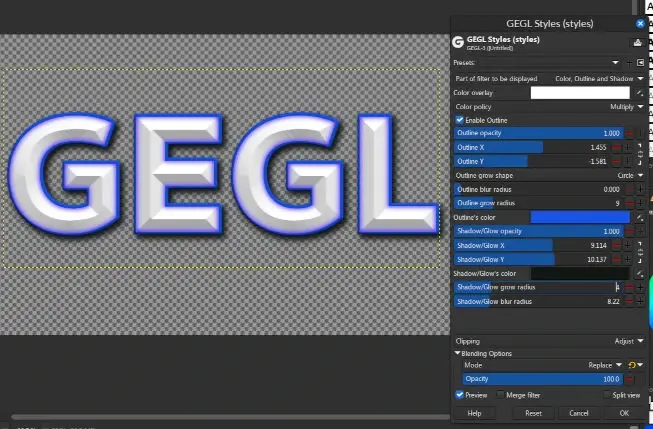
GIMP 3.2 went further. It added link layers, which embed an outside image that updates when that file changes (GIMP compares them to Photoshop's linked smart objects), and vector layers drawn with the Path tool, whose stroke and fill stay editable. Filters can now run on channels, and an empty layer group set to Pass through with a filter on it works like an adjustment layer for everything below. For painting, the MyPaint Brush tool gained 20 brushes and better tablet controls.
Photoshop
Photoshop builds non-destructive editing into layer types. Its adjustment layers apply corrections "without permanently changing pixel data", with 16 adjustments including Levels, Curves, Exposure, Hue/Saturation, Color Lookup, Selective Color and Gradient Map, plus Solid Color, Gradient and Pattern fills. Smart objects keep placed images and artwork editable: you can embed or link them, edit their contents and every copy updates. Adobe's product page also lists blend modes, Camera Raw, a customizable brush library, artboards and vector shapes.
Photoshop 28.0, released in November 2026, added Relight (up to three movable light sources), Quick Compare, removing objects together with their shadows and reflections, and an AI Assisted Editor that you can switch to the full Pro Editor at any time. Our guide to layer masks explains the masking technique both editors share.
One gap to know about: color modes. Photoshop has a CMYK Color mode for commercial printing, which its color modes page describes as a separation that maps to printing plates. GIMP imports and exports CMYK JPEG, TIFF, PSD and JPEG XL files, but its FAQ says CMYK as a core image mode is on the roadmap with no timeline, and the 3.0 notes describe the color work as groundwork for future CMYK and LAB modes.
GIMP PSD support: what carries over
PSD is Photoshop's own format, so a PSD made in Photoshop opens there as it was saved. GIMP reads and writes PSD through a plug-in, and its own pages are clear that something is lost on the way. GIMP's help on saving and exporting says XCF is the only format that can store everything about an image, and its page on layer effects says they are merged when you export, "even when you export to formats which also support layer effects, such as the PSD format".
Recent releases have improved PSD handling. According to its release notes:
- GIMP 3.0 improved PSD import and export, added CMYK PSD import and export, and a PSD export dialog that can save clipping paths, CMYK profiles and metadata
- GIMP 3.0 also loads JPEG and TIFF files with Photoshop metadata such as clipping paths, guides and layers, and imports PSB (large document) files
- GIMP 3.2 added PSB export and imports more layer styles, including Drop Shadow, Inner Shadow and Outer Glow
- GIMP 3.2 can load Photoshop Curves (.acv) and Levels (.alv) presets and Photoshop patterns (.pat)
What GIMP's pages don't say is how Photoshop adjustment layers, smart objects and live text come through. Until they do, treat a client's PSD with care: open a copy, check each layer against the original, and keep your working file in XCF if you edit in GIMP. If you mostly need to view or flatten PSD files, our guide on opening a PSD without Photoshop covers the options.
AI features in GIMP and Photoshop
Photoshop has far more here. Generative Fill adds, removes or replaces content in a selection from a text prompt, or fills it from the surrounding pixels when you leave the prompt empty, and puts the result on its own layer. Its help page lists Adobe Firefly models and partner models (FLUX.2 pro, FLUX Kontext pro, and Google Gemini 3 and 3.1) in a model picker. Photoshop also offers Generative Expand, Generative Upscale, Generative Recompose, Prompt to edit and Generative restyle. These features use generative credits from your plan, and Adobe's page says Generative Fill is not available in China.
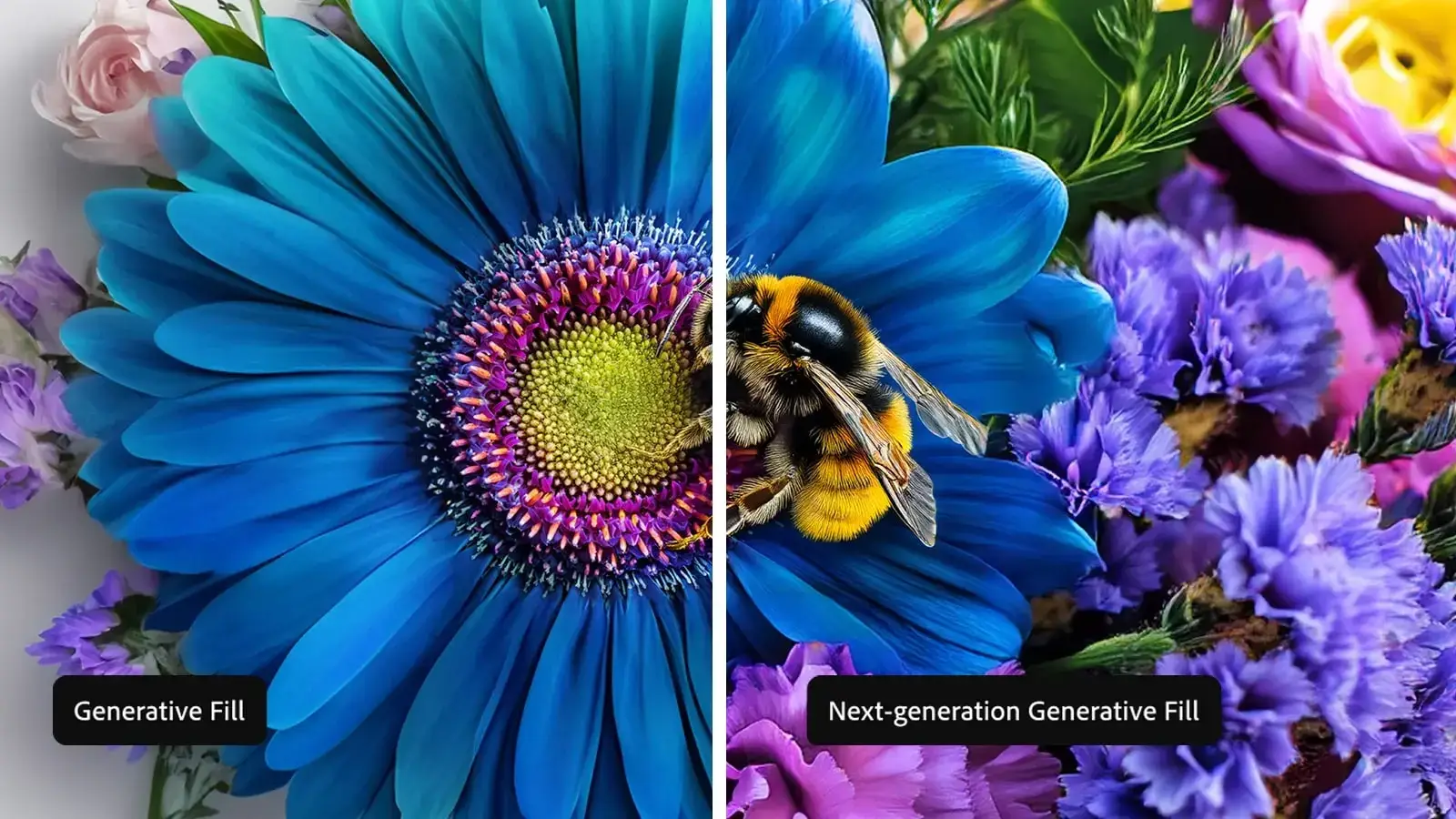
GIMP's release notes for 3.0 and 3.2 list no generative AI features, and gimp.org doesn't describe any built-in AI tools. Its help documents classic tools for the same jobs done by hand, such as Foreground Select, Heal and Clone. If AI edits are central to your work, Photoshop is the stronger choice of the two.
Learning curve and habits
Neither vendor publishes a measure of how hard its editor is to learn, so we won't guess. Photoshop now offers two ways in: the AI Assisted Editor for prompt-driven edits and the Pro Editor for full control. GIMP's FAQ says the project isn't building a Photoshop replacement and prefers its own design to copying other programs, so Photoshop habits and menu names won't always carry over. The same FAQ answers people whose GIMP looks different from the tutorial they follow: the interface has changed between versions, so pick tutorials written for GIMP 3.
Who should choose GIMP, and who should choose Photoshop
Choose GIMP if you:
- want a capable editor without a subscription, or prefer open-source software you can use for any purpose
- work on Linux, or on a computer that Photoshop's requirements don't cover
- edit photos, paint or make graphics and keep your own files in XCF
- want to script or extend your editor in Python, Script-Fu or C
Choose Photoshop if you:
- exchange layered PSD files with clients, agencies or print shops every day
- rely on adjustment layers, smart objects or a full CMYK workflow
- use generative AI tools such as Generative Fill or Generative Expand often
- want the same app on desktop, web and mobile, alongside Lightroom or other Adobe apps
A third option: Pixuvia
If you want Photoshop-style tools and PSD files without installing anything, Pixuvia runs in the browser on Windows, macOS, Linux, Android, iPhone and iPad. Its Editor follows Photoshop's tools and menus, and its Studio is built around one-job AI tools.
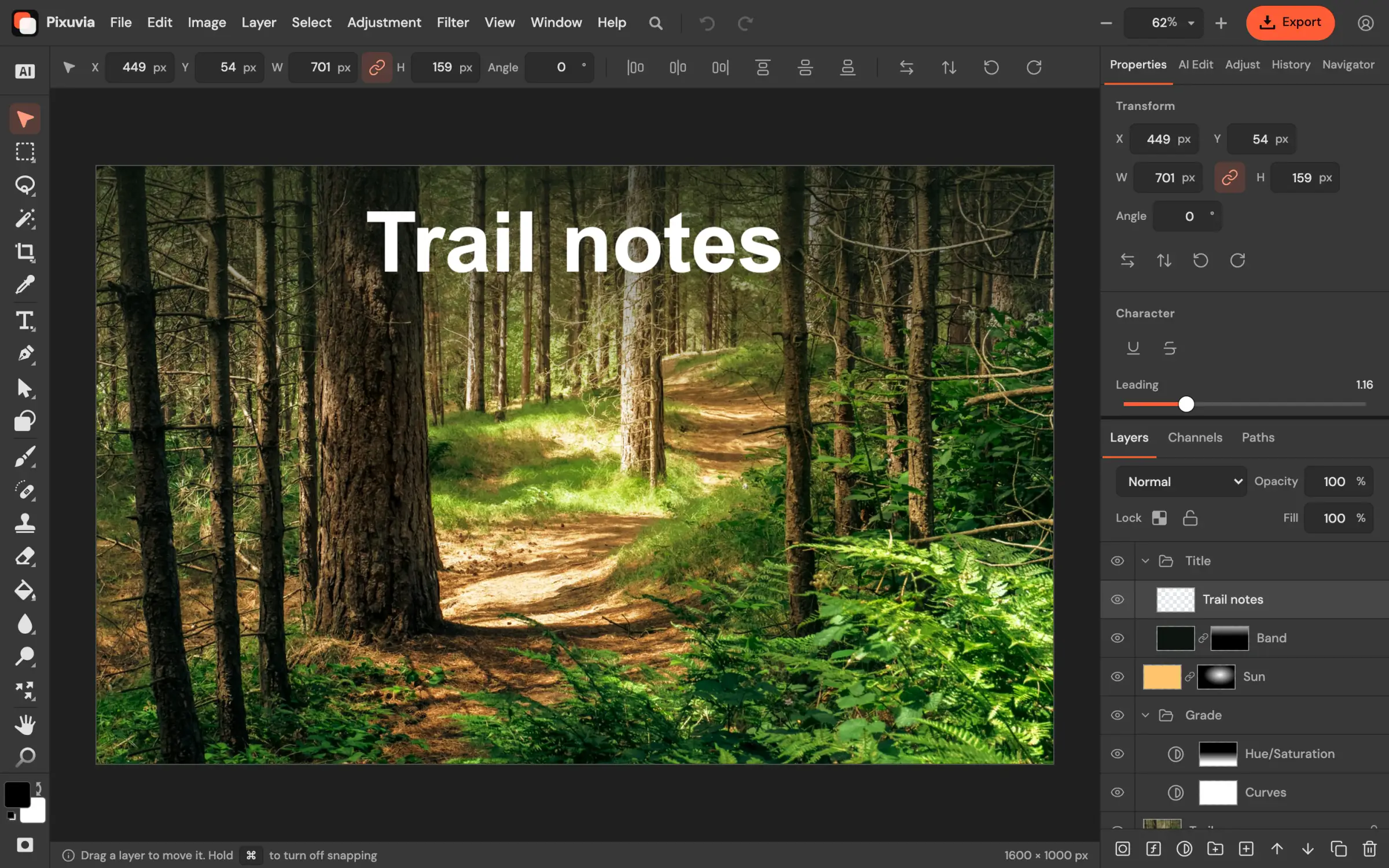
- Opens PSD files up to 60 MB with layers, groups, masks, editable text and shapes, and saves PSD, PNG, JPG, WebP, GIF, SVG, PDF and TIFF
- 18 kinds of adjustment layers, each with its own mask, plus smart objects with smart filters and 10 layer styles
- AI tools (remove background, erase objects, generative fill, expand, upscale, relight, edit by prompt) that need a sign-in and use credits; see pricing
It has limits: Pixuvia works in 8-bit RGB with no CMYK mode, doesn't open PSB files, and opens warped or linked smart objects and text on a path as pixels. If your files depend on those, Photoshop handles all of them, and GIMP opens PSB files and exports CMYK. Otherwise, try your own file in the online PSD editor, or compare more options in our list of Photoshop alternatives.
Questions
Is GIMP as good as Photoshop?
For many photo edits, yes: GIMP has layers, masks, selections, painting tools and, since GIMP 3.0, filters you can edit after applying them. Photoshop goes further in a few areas that matter to professionals: adjustment layers and smart objects that travel inside PSD files, a full CMYK image mode, and generative AI tools such as Generative Fill. Which is better depends on whether you need those.
Can GIMP open PSD files?
Yes. GIMP imports and exports PSD, including CMYK PSD files, and GIMP 3.2 added PSB export and import of more layer styles such as Drop Shadow, Inner Shadow and Outer Glow. GIMP's own help says its XCF format is the only one that stores everything about an image and that layer effects are merged when you export, even to PSD. Check a copy of an important PSD before you edit and send it back.
Does GIMP have adjustment layers?
Not under that name. GIMP 3.0 made most filters non-destructive, so a Curves or Levels filter stays editable on its layer, and the GIMP 3.2 release notes say an empty layer group in Pass through mode with a filter on it recreates an adjustment layer workflow. Photoshop has adjustment layers as a layer type, with a list of 16 adjustments and three fill types.
Can I use GIMP for commercial work?
Yes. GIMP's FAQ says it doesn't put restrictions on the kind of work you produce with it and that you can use it for any purpose, commercial work included. It is open-source software under the GNU General Public License and costs nothing to download.
Does GIMP have AI features like Generative Fill?
None are listed in the GIMP 3.0 or 3.2 release notes on gimp.org. Photoshop offers Generative Fill, Generative Expand, Generative Upscale and other AI tools, paid with the generative credits that come with each Adobe plan.
Does Photoshop run on Linux?
Adobe's technical requirements for Photoshop on desktop list Windows and macOS only. GIMP has official builds for Linux, Windows and macOS. Photoshop also has web and mobile versions, which need an Adobe plan for their premium features.
Sources
- GIMP: home page (platforms, license, latest version)
- GIMP: Frequently asked questions (commercial use, CMYK, Photoshop)
- GIMP 3.0 release notes
- GIMP 3.2 release notes
- GIMP 3.2.8 released (official builds)
- GIMP Help: Saving and exporting images (XCF)
- GIMP Help: Layer effects
- GIMP Help 3.0: contents (tools)
- Adobe: Photoshop product page
- Adobe: Photoshop plans and FAQ
- Adobe: Generative Fill in Photoshop
- Adobe Help: Edit images with Generative Fill
- Adobe Help: Generative credits overview
- Adobe Help: Work with adjustment and fill layers
- Adobe Help: Create embedded Smart Objects
- Adobe Help: Color modes in Photoshop
- Adobe Help: Supported file formats in Photoshop
- Adobe Help: Photoshop on desktop technical requirements
- Adobe Help: What's new in Photoshop on desktop