Crop a photo for social media
Drop your photos on this page and pick a shape: 1:1 for square posts, 4:5 for portrait posts, 16:9 for wide posts and thumbnails, 9:16 for stories, or an exact post size such as Instagram Story 1080 × 1920. Every photo starts centered and filling the frame; drag it to move it inside the frame and zoom in or out until it fits, then download.
Pixuvia is an online photo and image editor with AI tools: a classic editor for detailed work and PSD files, and a modern studio for one-tap edits. It runs in your browser on a computer, tablet or phone.
How to do it
Drop your photos on this page, or choose them from your files.
Pick a ratio such as 1:1, 4:5, 16:9 or 9:16, or an exact size such as Instagram Post or YouTube Thumbnail.
Each photo starts centered. Drag it inside the frame to move it, and zoom in or out with the Zoom slider, scrolling or pinching.
Download each photo, or all of them as a ZIP, or keep editing one in the Studio or the Editor.
Exact post sizes
A size crops to its shape and then scales to the pixels the platform asks for: Instagram Post 1080 × 1080, Instagram Portrait 1080 × 1350, Instagram Story 1080 × 1920, YouTube Thumbnail 3840 × 2160 and more. A ratio only crops, so the photo keeps all its detail.
Many photos, one shape
Every photo you drop gets the same shape, and picking another one crops them all again. Each photo keeps where you moved and zoomed it.
Fit the whole photo
The crop never stretches the photo. Zoom out to fit all of it in the frame: the space around it takes the background color from Options, or stays transparent in PNG and WebP.
Free cropping in the Editor
For any frame or angle, open the photo in the Editor and pick the Crop tool (C): drag the box, type an Angle to straighten a horizon, and show a Rule of Thirds or Golden Ratio overlay.
Questions
Which ratio should I use for Instagram?
Use 1:1 for a square post, 4:5 for a portrait post and 9:16 for a story.
Can I crop one photo to several ratios?
Yes. Download it in the first shape, pick the next ratio and download it again.
Can the crop go past the edge of the photo?
Yes. Zoom out and the photo sits inside the frame with plain space around it. To fill that space with matching scenery instead, use the Image extender.
Does it work on a phone?
Yes. Tap Choose images and pick a ratio, then drag the photo with your finger and pinch to zoom.
More tools
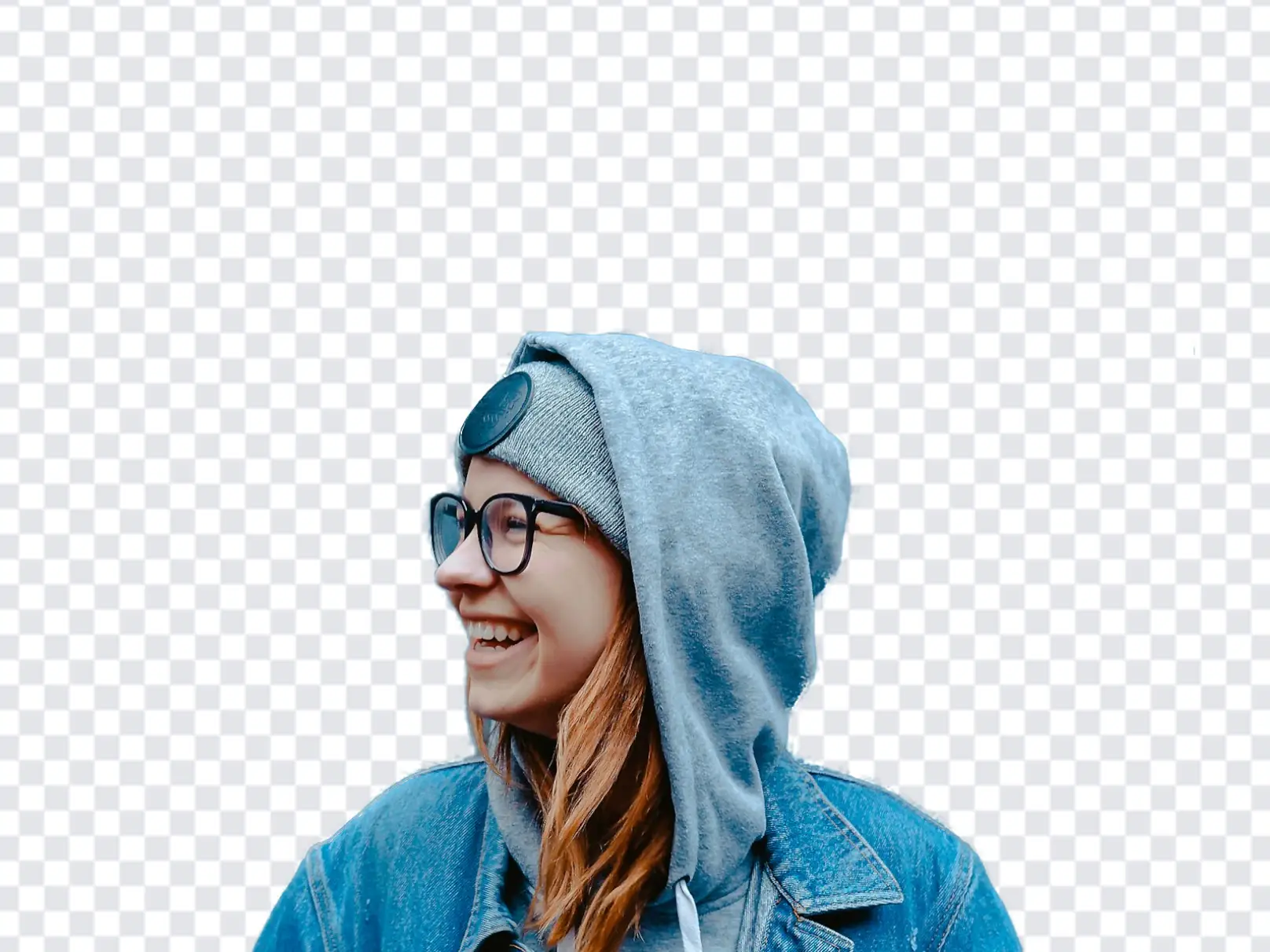 Remove the background with a layer maskMask out the background and save a transparent PNG.
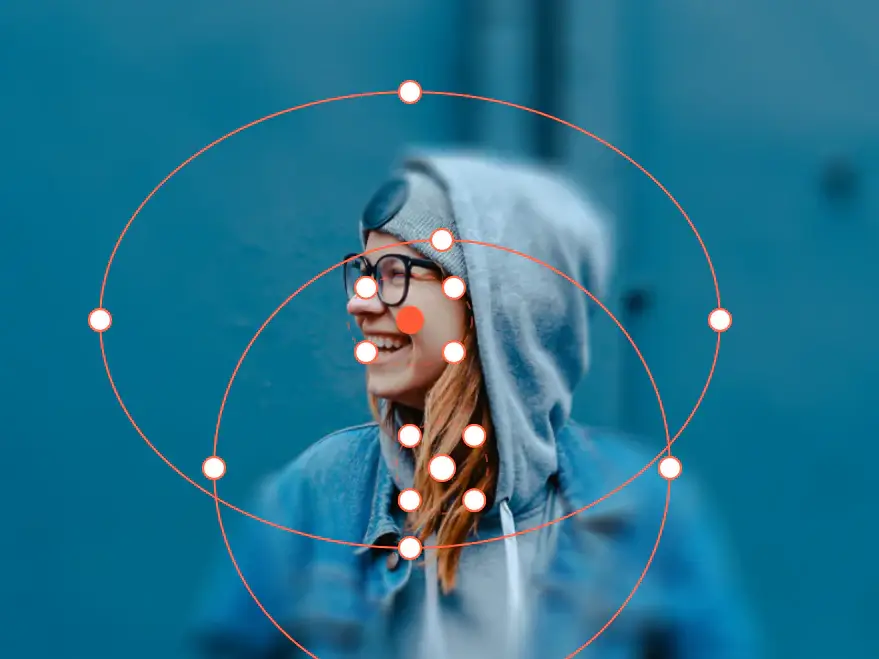 Blur the background of a photoKeep the subject sharp and soften the rest.
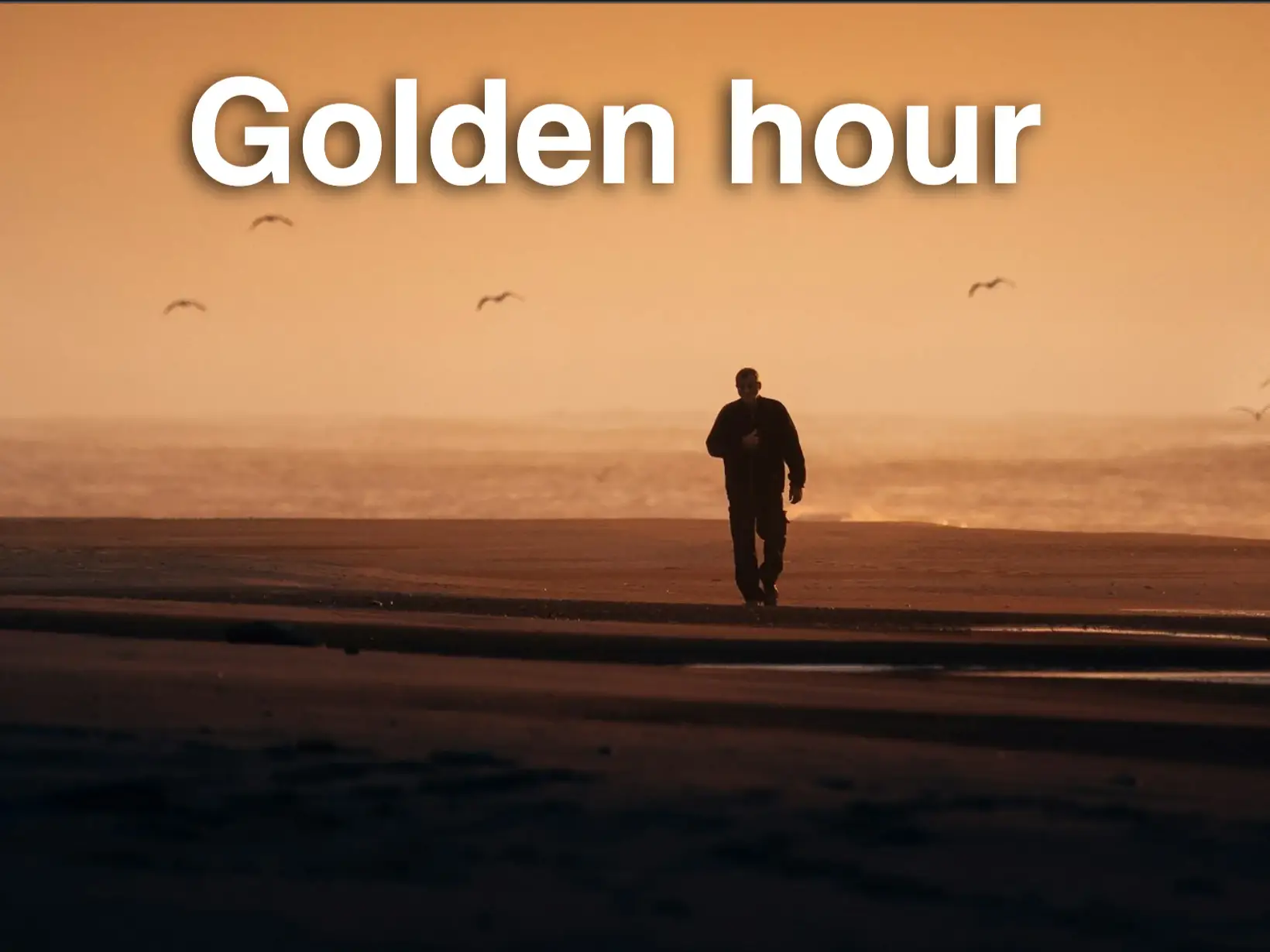 Add text to a photoType on a photo, style it and keep it editable.
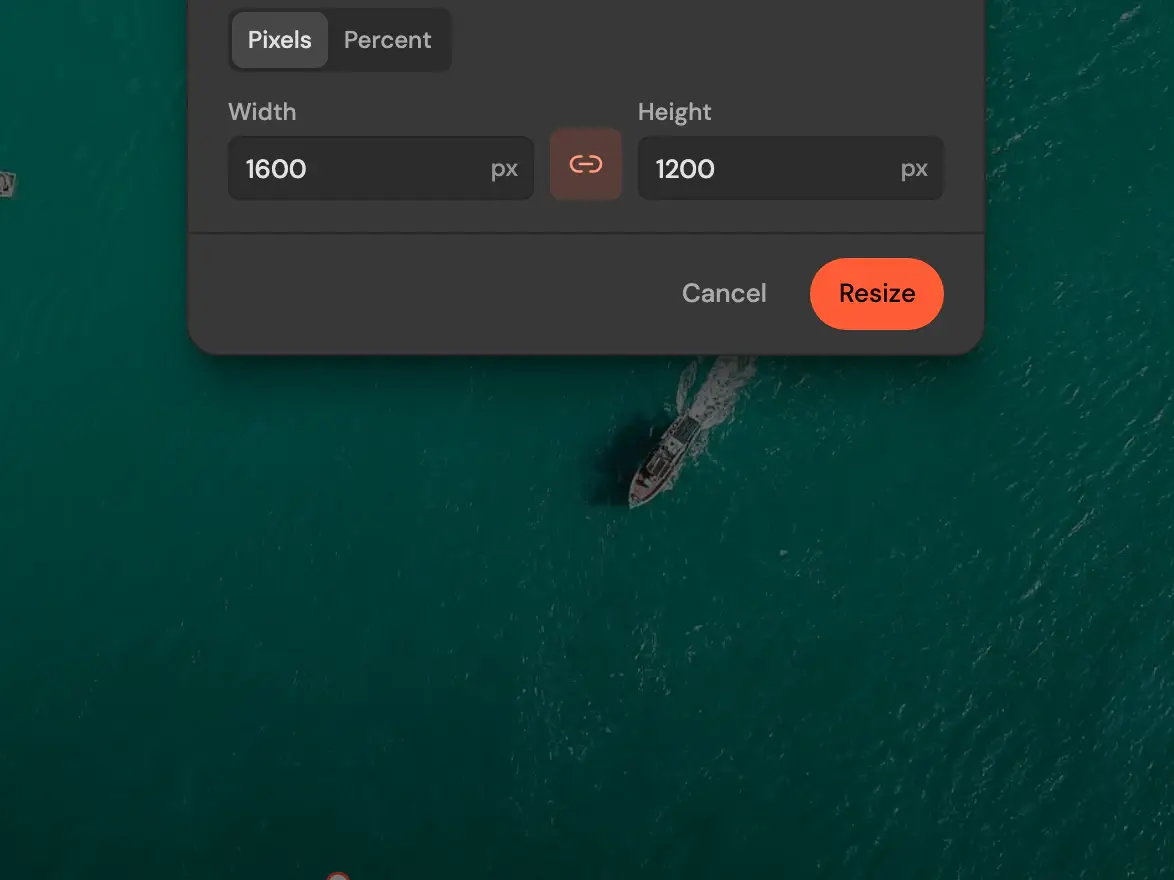 Resize an imageSet exact pixels or a percentage, ratio linked.
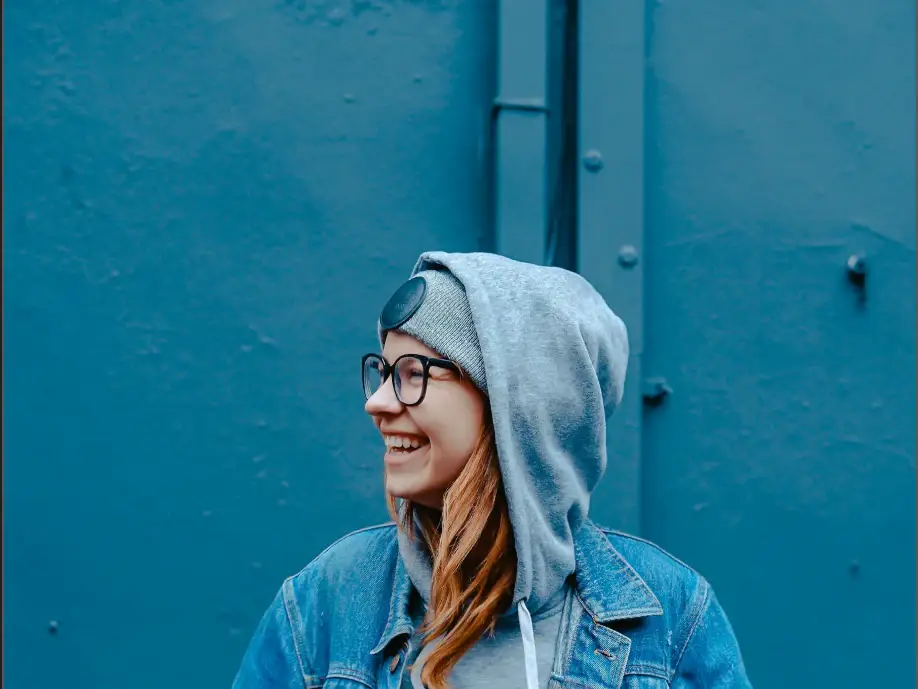 Liquify a photo onlinePush, bloat, pinch and swirl pixels, then restore.
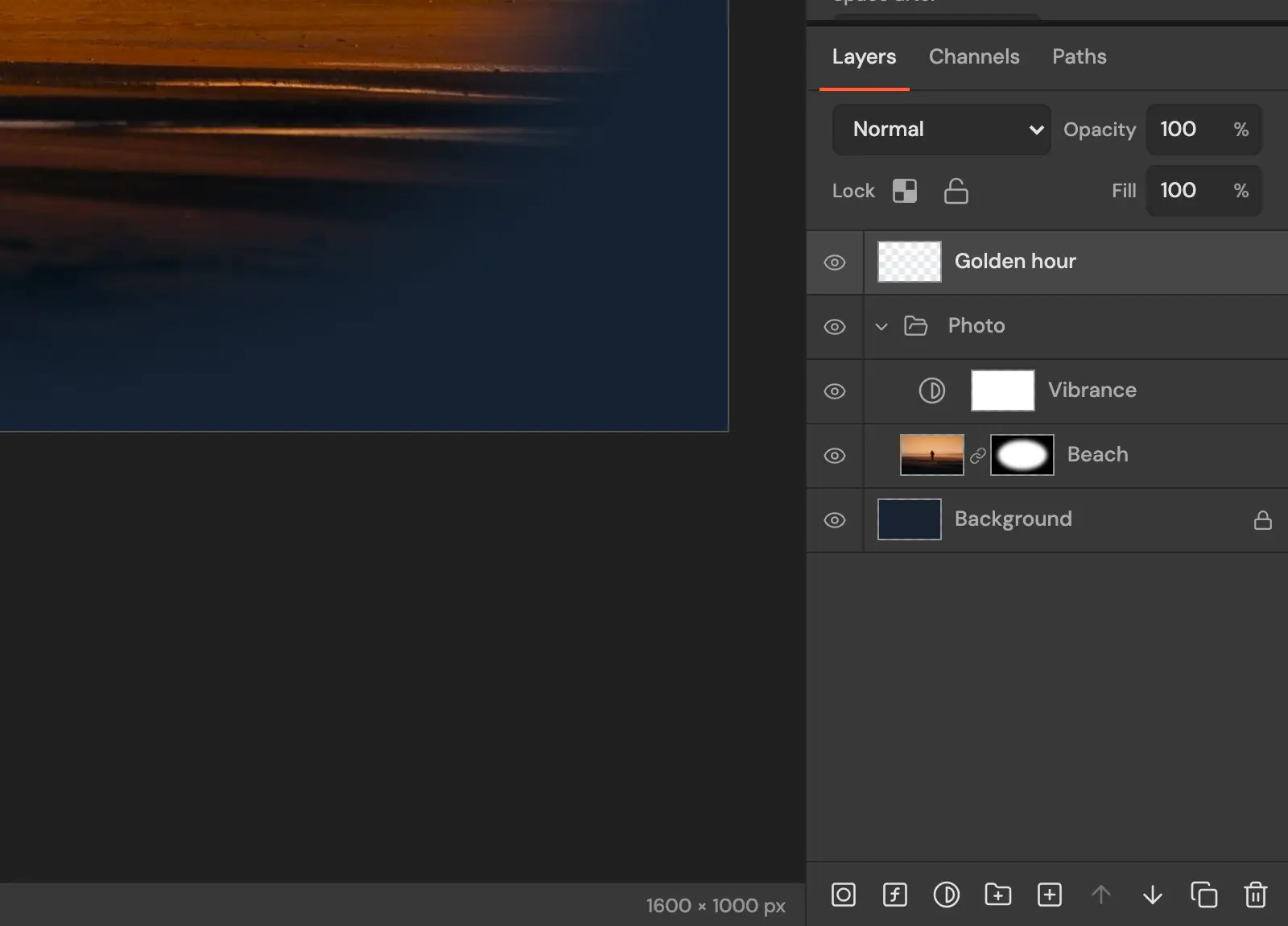 Edit PSD files onlineOpen a layered PSD, edit it and save it back as PSD.
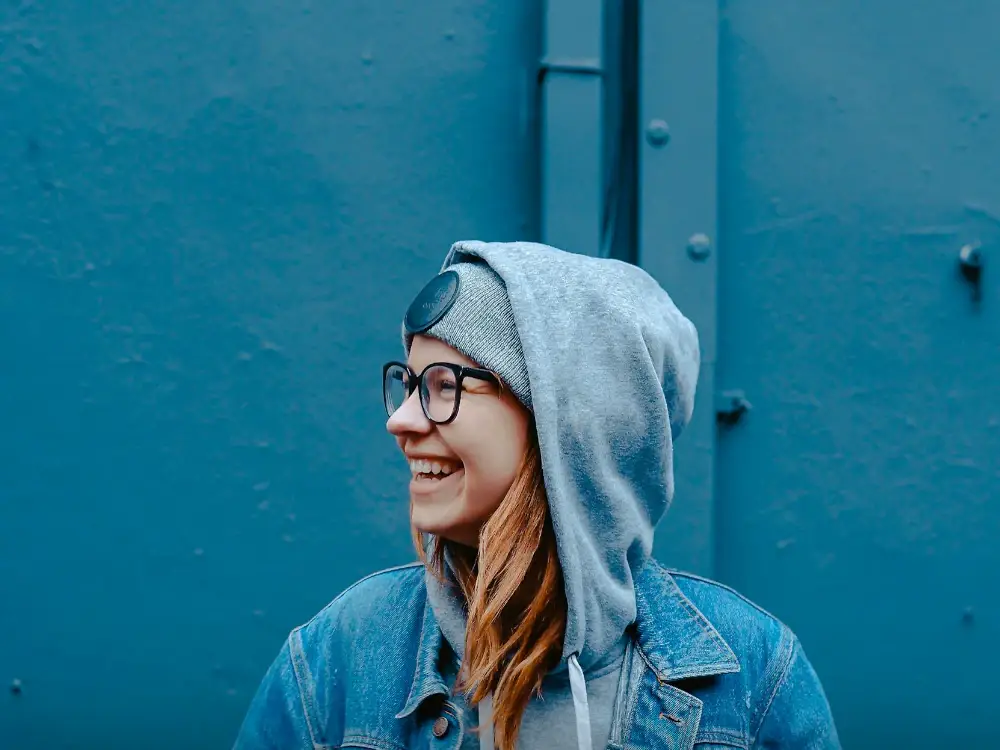 Edit PSD files on your phoneOpen a layered PSD on Android, iPhone or iPad.
Ready to create? Open a photo and make it better.
Start editingDrop it on the Editor, paste it, or pick it from your phone's photos.