Remove the background with a layer mask
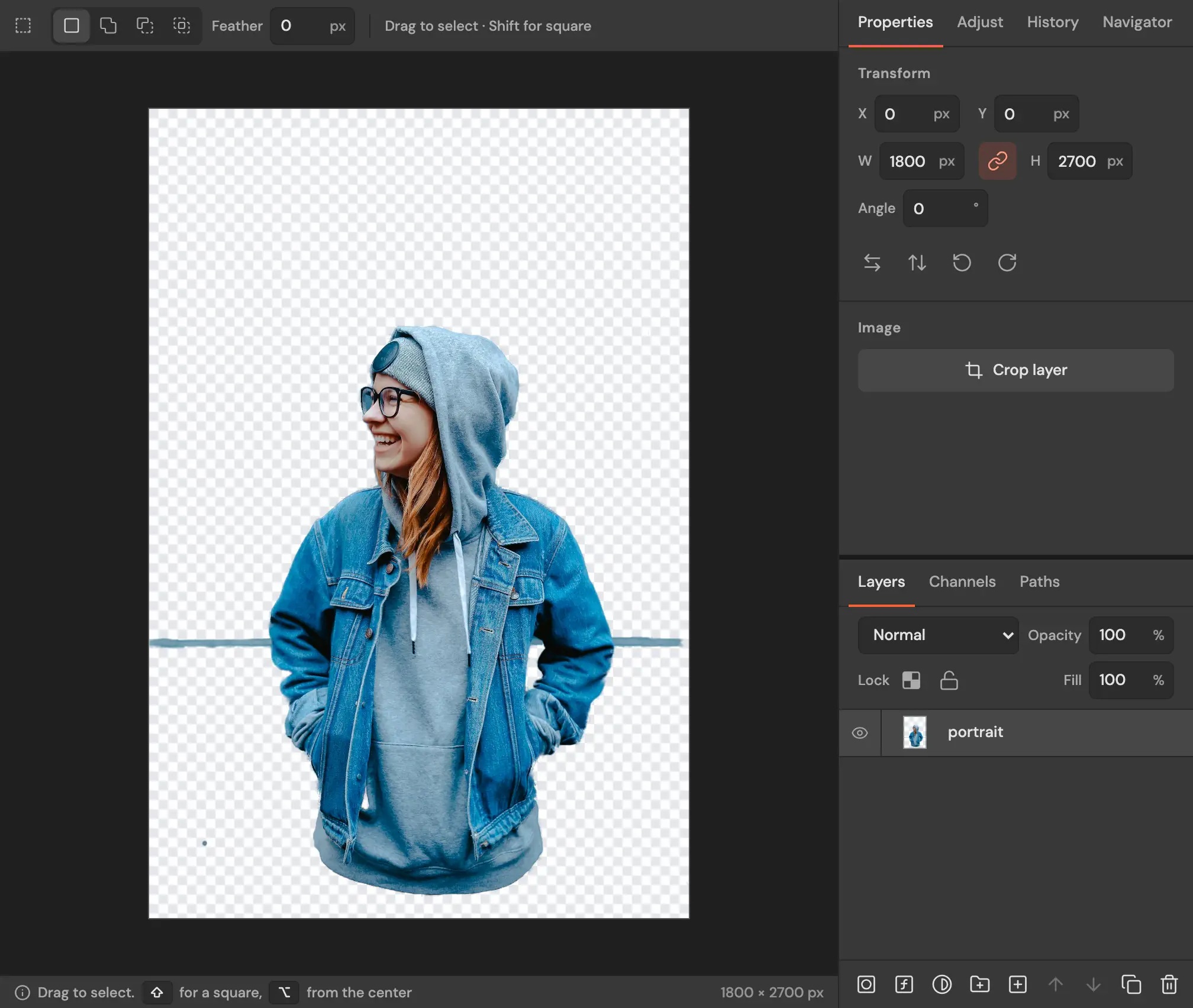
For a one-step transparent PNG, use the Background remover. This guide does it in the Editor, with a mask you can touch up. Open your photo and choose Layer > Layer Mask > Remove Background. The Editor finds the main subject and adds a layer mask that hides everything around it, so the photo itself stays intact. Touch up the edge by painting on the mask, then export a PNG or WebP with a transparent background.
Drop a photo or PSD file here
This browser could not pass the file on. Open the Editor and choose it there.
Pixuvia is an online photo and image editor with AI tools: a classic editor for detailed work and PSD files, and a modern studio for one-tap edits. It runs in your browser on a computer, tablet or phone.
How to do it
Open the Editor and drop your photo on it, or pick it from your files.
Choose Layer > Layer Mask > Remove Background. The subject stays and the background turns transparent.
To fix an edge, paint on the mask with the Brush: black hides more, white brings the photo back.
Click Export and choose PNG or WebP to keep the transparency.
The photo stays intact
Remove Background hides pixels with a layer mask instead of deleting them. Disable Mask in the Layer Mask menu shows the whole photo again for a quick comparison, and Delete Mask undoes the cut-out.
Best with a clear subject
The subject is found from how it stands out in color and contrast, so a person or object against a plainer background gives the cleanest edge. Busy scenes may need some touching up.
Other ways to cut out
For more control, drag a box around the subject with Object Selection or click Select Subject in its options bar, refine the edge with Select and Mask, and output it to a Layer Mask. The Background Eraser clears the color around hair by hand.
A new background
Place another photo with File > Place Image…, or add a layer and fill it with Edit > Fill…, then move it below the cut-out in the Layers panel.
Questions
How do I save the photo with a transparent background?
Export it as PNG or WebP. JPG has no transparency, so the removed background would turn white.
Can I bring back part of the background?
Yes. Click the mask thumbnail in the Layers panel and paint over that area with white. Painting with black hides it again.
Why did it keep the wrong area?
A subject that blends into its surroundings is harder to tell apart. Paint the mask to fix it, or draw a box around the subject with Object Selection instead.
Which layers can I remove the background from?
One layer at a time. It does not run on a group, a locked layer, an adjustment layer or a layer that already has a mask. A Background layer becomes a normal layer first, so the removed area can be transparent.
Does it work on a phone?
Yes. Tap Menu, then Layer > Layer Mask > Remove Background, and paint the mask with your finger to touch it up.
More tools
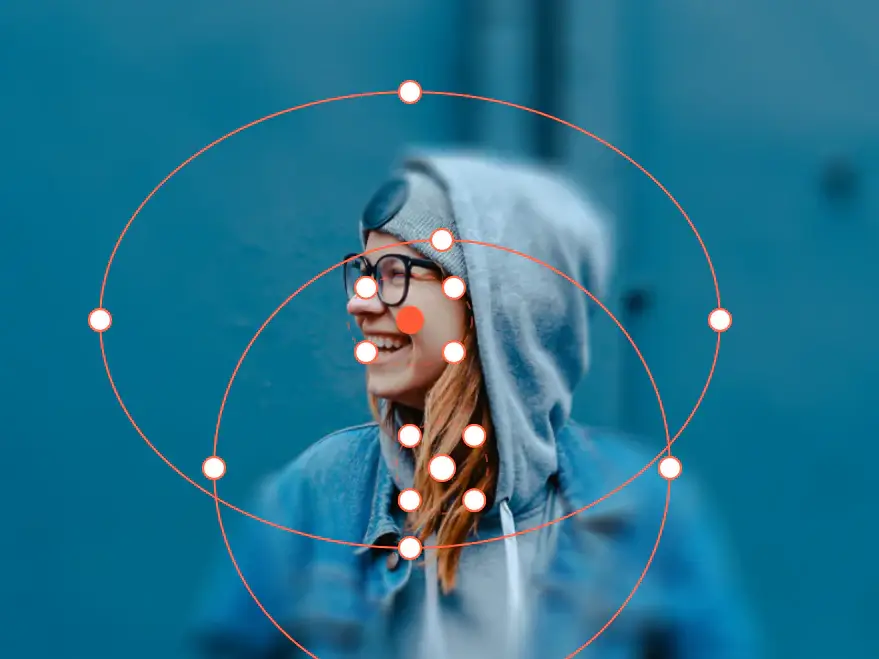 Blur the background of a photoKeep the subject sharp and soften the rest.
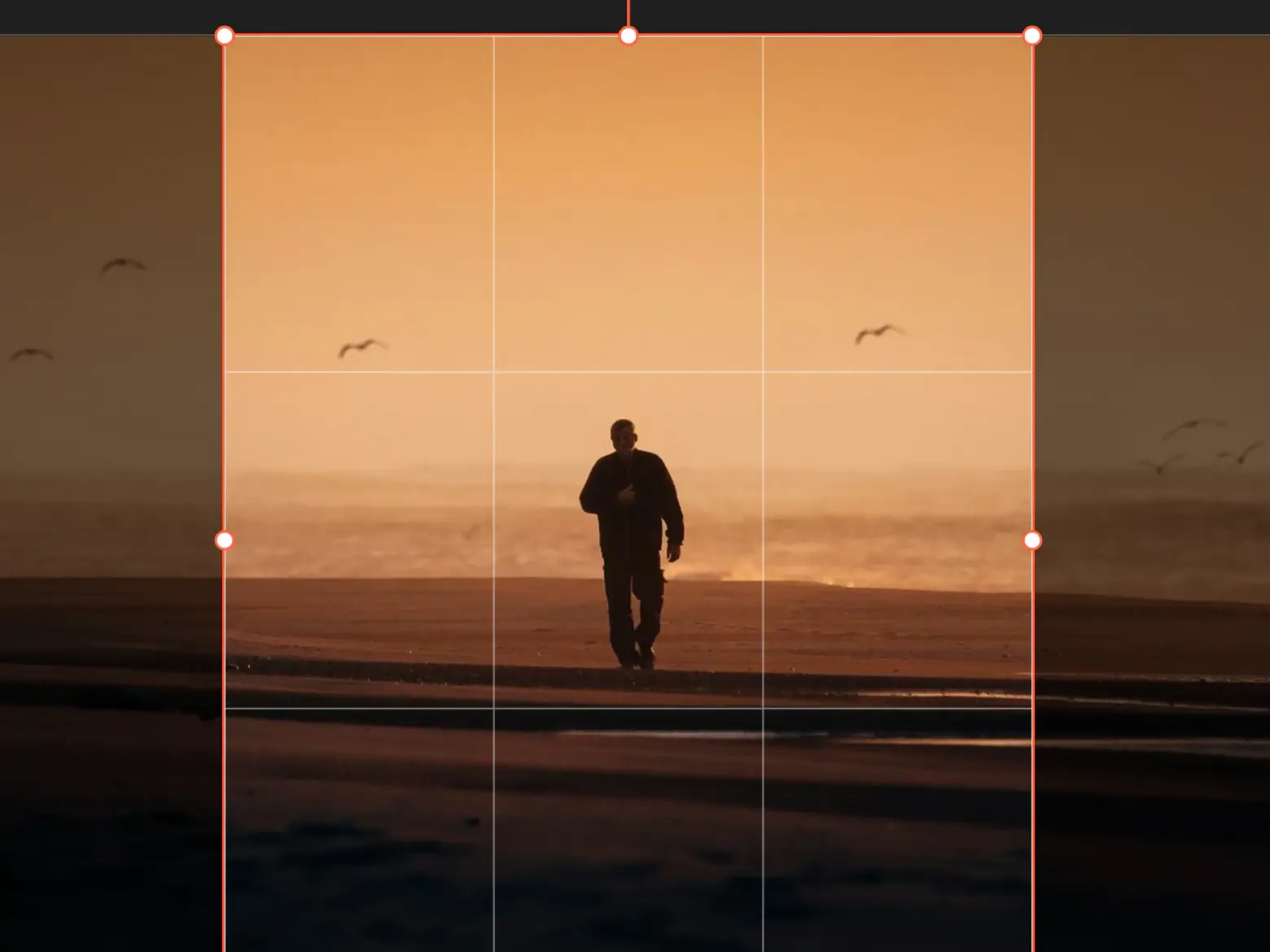 Crop a photo for social mediaCrop to 1:1, 4:5, 16:9 or 9:16 for any post.
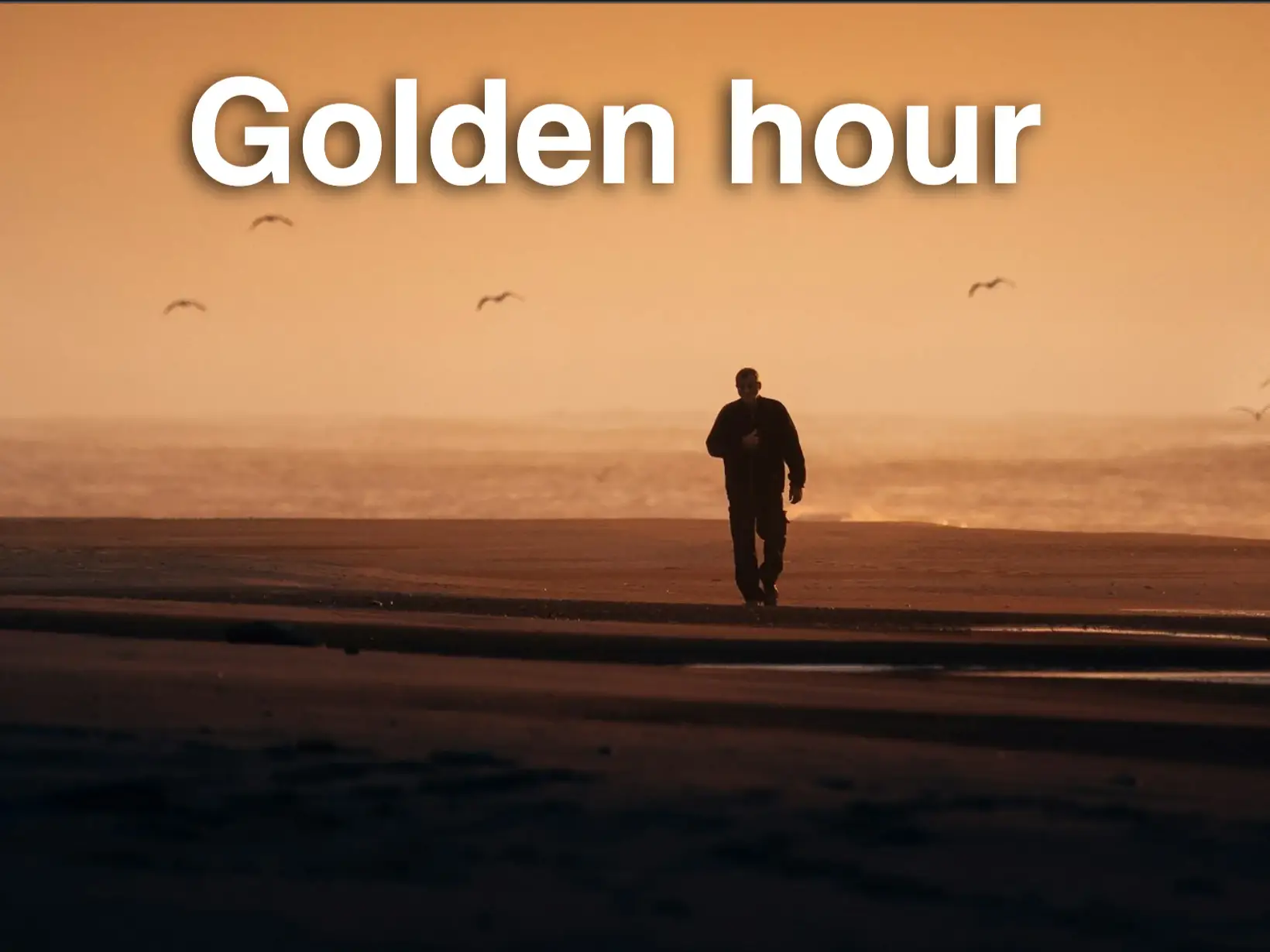 Add text to a photoType on a photo, style it and keep it editable.
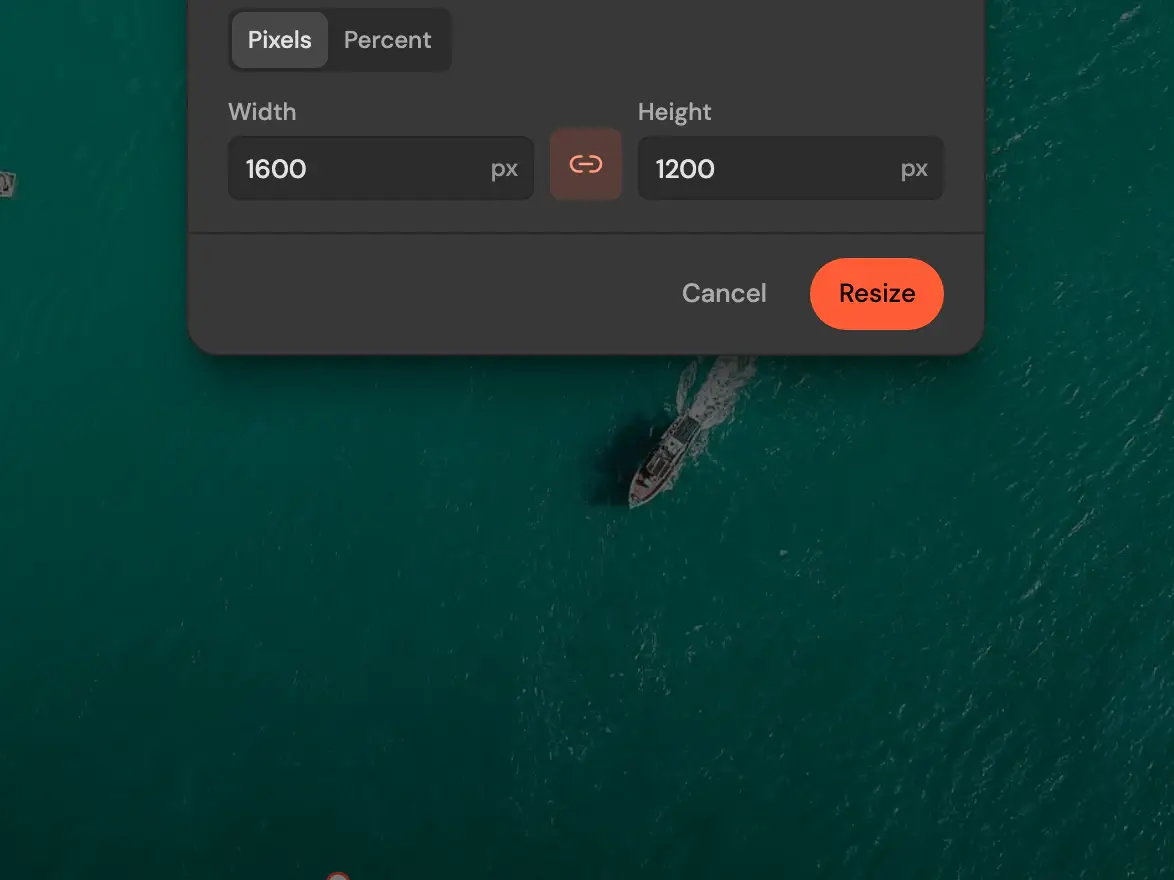 Resize an imageSet exact pixels or a percentage, ratio linked.
 Liquify a photo onlinePush, bloat, pinch and swirl pixels, then restore.
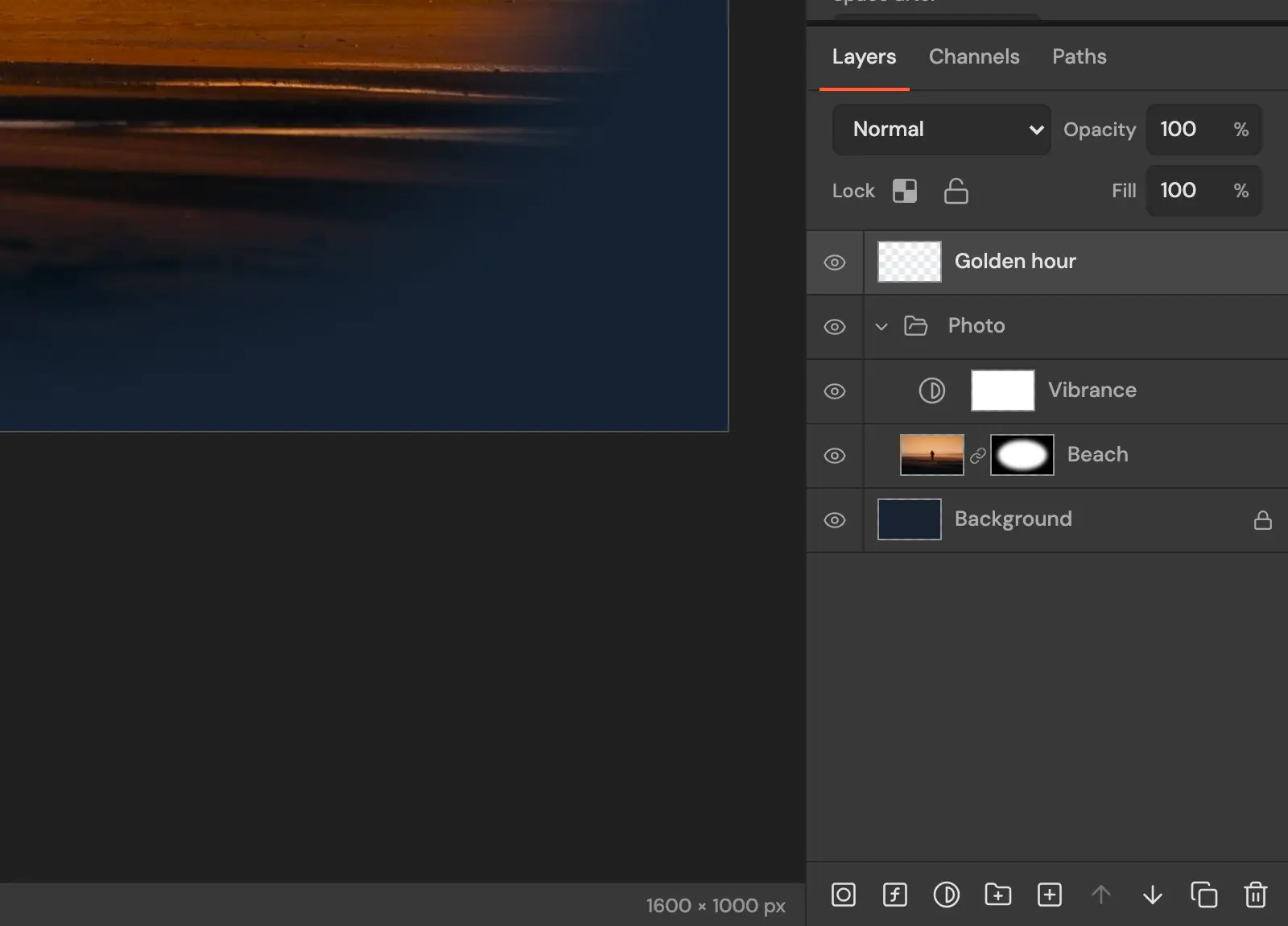 Edit PSD files onlineOpen a layered PSD, edit it and save it back as PSD.
 Edit PSD files on your phoneOpen a layered PSD on Android, iPhone or iPad.
Ready to create? Open a photo and make it better.
Start editingDrop it on the Editor, paste it, or pick it from your phone's photos.