Resize an image
Drop one image or a whole batch on this page. Pick a percentage, or type a width or height in pixels; with Keep proportions on, nothing stretches. Each image resizes on the page, ready to download on its own or with the others as a ZIP, or to keep editing in the Studio or the Editor.
Pixuvia is an online photo and image editor with AI tools: a classic editor for detailed work and PSD files, and a modern studio for one-tap edits. It runs in your browser on a computer, tablet or phone.
How to do it
Drop your images on this page, or choose them from your files.
Pick Percent and a size such as 50%, or Pixels and type a width or height. Keep proportions stops the images from stretching.
To change the file type too, pick JPG, PNG or WebP in Options.
Download each image, or all of them as a ZIP, or keep editing one in the Studio or the Editor.
Keep the proportions
With Keep proportions on, the width and height you type are the largest an image may be, so every image keeps its shape. Turn it off to get exactly that size, which stretches an image of another shape.
Size limits
Sizes the device cannot handle are lowered to fit: 16384 px per side or 67.1 MP on a computer, and 8192 px or 16.7 MP on a phone or tablet.
File types
Same as original keeps JPG, PNG and WebP files as they are. HEIC, AVIF, TIFF and BMP photos become JPG, and GIF, SVG and PSD files become PNG, so their transparency stays.
Layers in the Editor
A PSD resizes here as one flat image of its visible layers. To keep the layers, open it in the Editor and choose Image > Image Size (Ctrl+Alt+I, or ⌥⌘I on a Mac).
Questions
How do I resize without stretching?
Keep proportions on. Type a width or a height, and the other side follows each image’s own shape.
How do I make the file smaller?
Resize it to fewer pixels, then pick JPG or WebP in Options and lower the Quality slider.
Can I resize to an exact size such as 1080 × 1350?
Yes. Turn Keep proportions off and type both sides. An image of another shape would stretch, so crop it to that shape first with Crop for social media, which has the common post sizes.
Can I resize many images at once?
Yes. Drop them together: each gets its own row, and Download all saves them as one ZIP.
Does making an image larger add detail?
No. Enlarging spreads the same pixels over more space, so the image gets softer. For new detail, use the Image upscaler.
More tools
 Remove the background with a layer maskMask out the background and save a transparent PNG.
 Blur the background of a photoKeep the subject sharp and soften the rest.
 Crop a photo for social mediaCrop to 1:1, 4:5, 16:9 or 9:16 for any post.
 Add text to a photoType on a photo, style it and keep it editable.
 Liquify a photo onlinePush, bloat, pinch and swirl pixels, then restore.
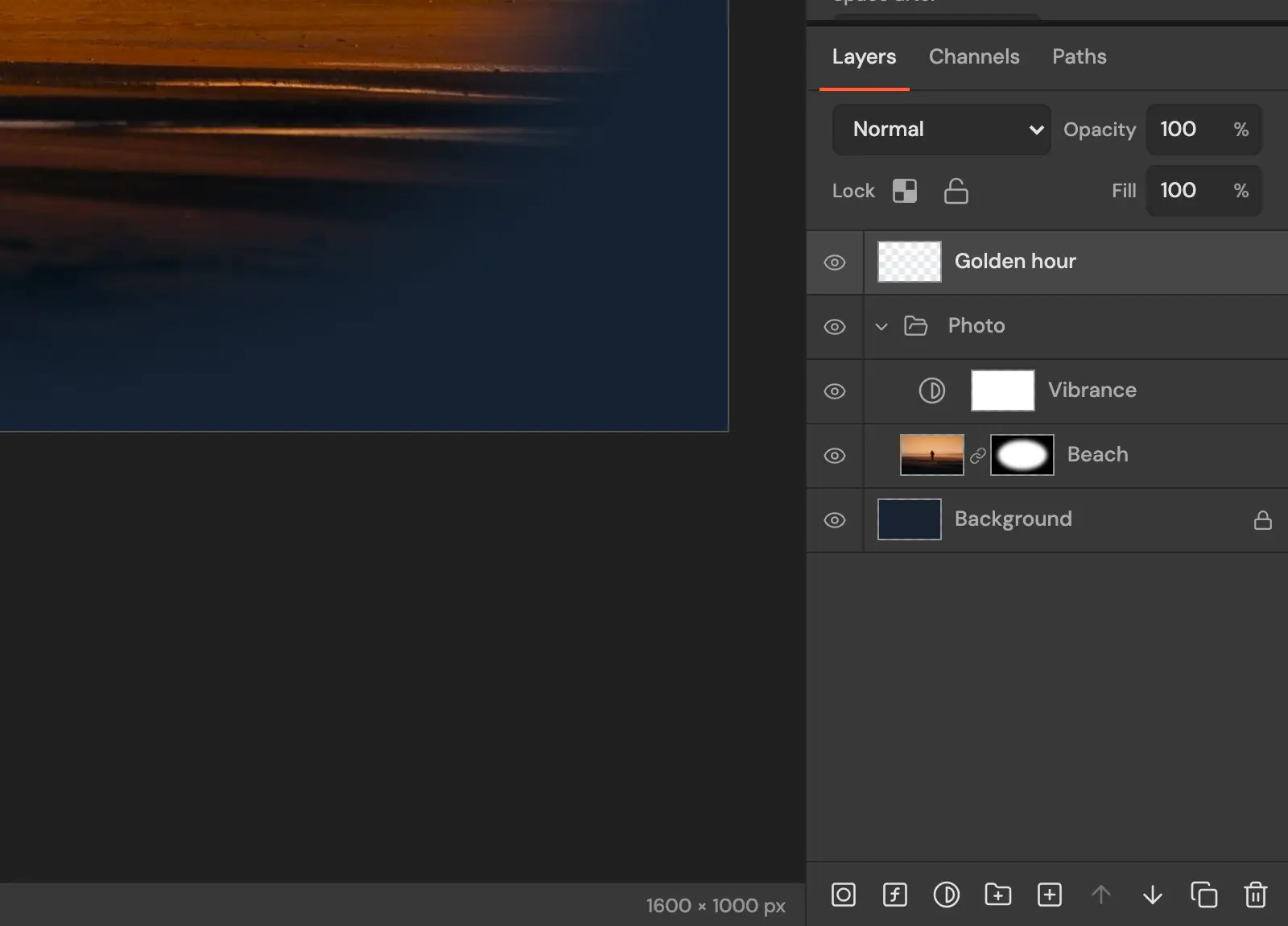 Edit PSD files onlineOpen a layered PSD, edit it and save it back as PSD.
 Edit PSD files on your phoneOpen a layered PSD on Android, iPhone or iPad.
Ready to create? Open a photo and make it better.
Start editingDrop it on the Editor, paste it, or pick it from your phone's photos.