Photo and image editing tools
Every tool in one place: AI tools, everyday photo jobs and PSD files. Open one and get started.
Which tool should I use?
AI tools
One job each, done on its page: remove or change a background, erase an object, make a photo bigger or sharper, extend it, edit it by prompt or generate a new image. AI runs use credits; the background remover, object remover, upscaler and unblur also have a Standard method that uses none.
Photo tools
Step-by-step guides for everyday edits. Resize, crop for social media and blur a background work right on their page; the other guides open your photo in the Editor with the job started.
PSD files
Open a layered PSD on a computer or a phone, edit its layers, masks and text, and save it back as PSD.
Converters
Change a file's format, one image or a batch: HEIC, PSD, WebP and more to JPG, PNG or WebP, downloaded as one ZIP.
AI tools
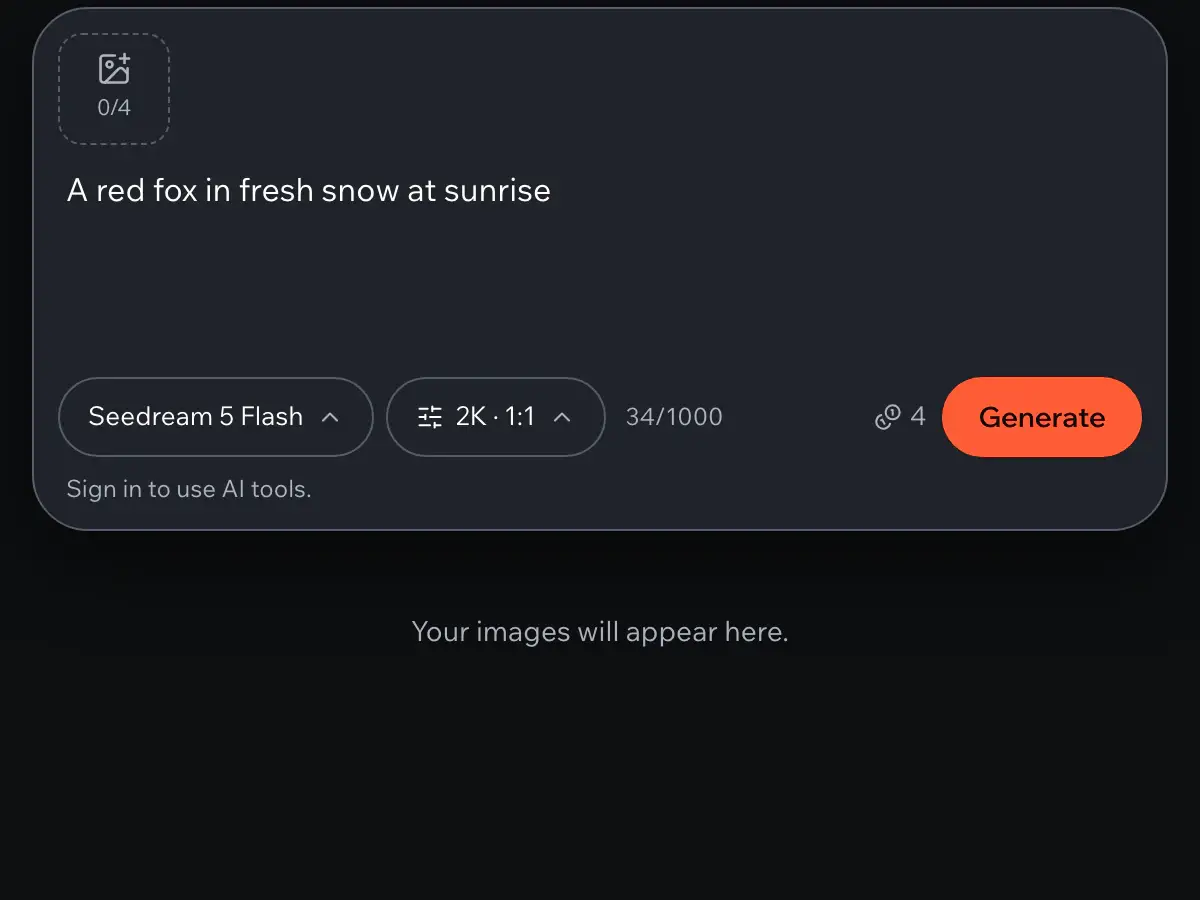 AI image generatorMake an image from your words
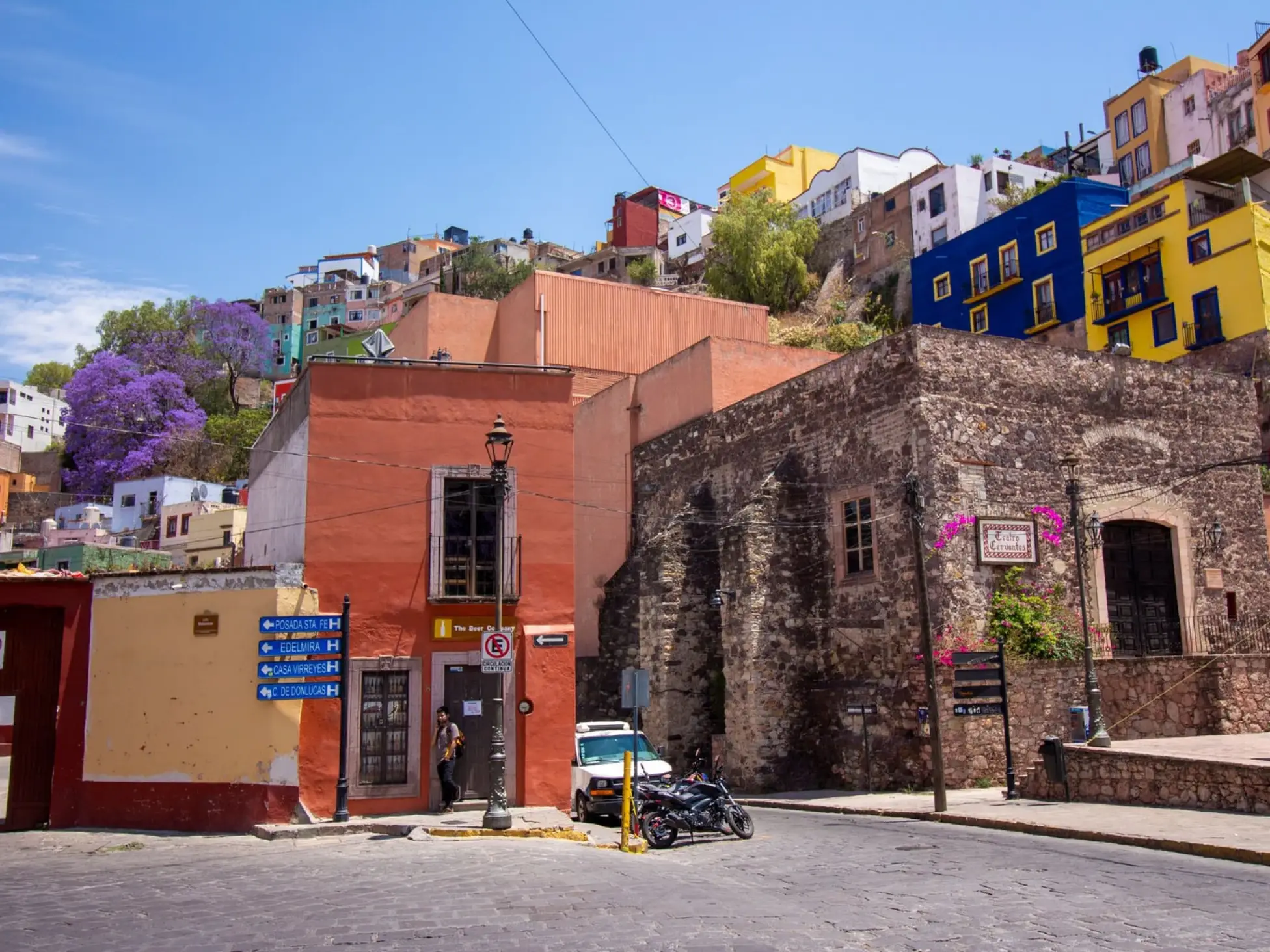 AI photo editorDescribe a change to your photo
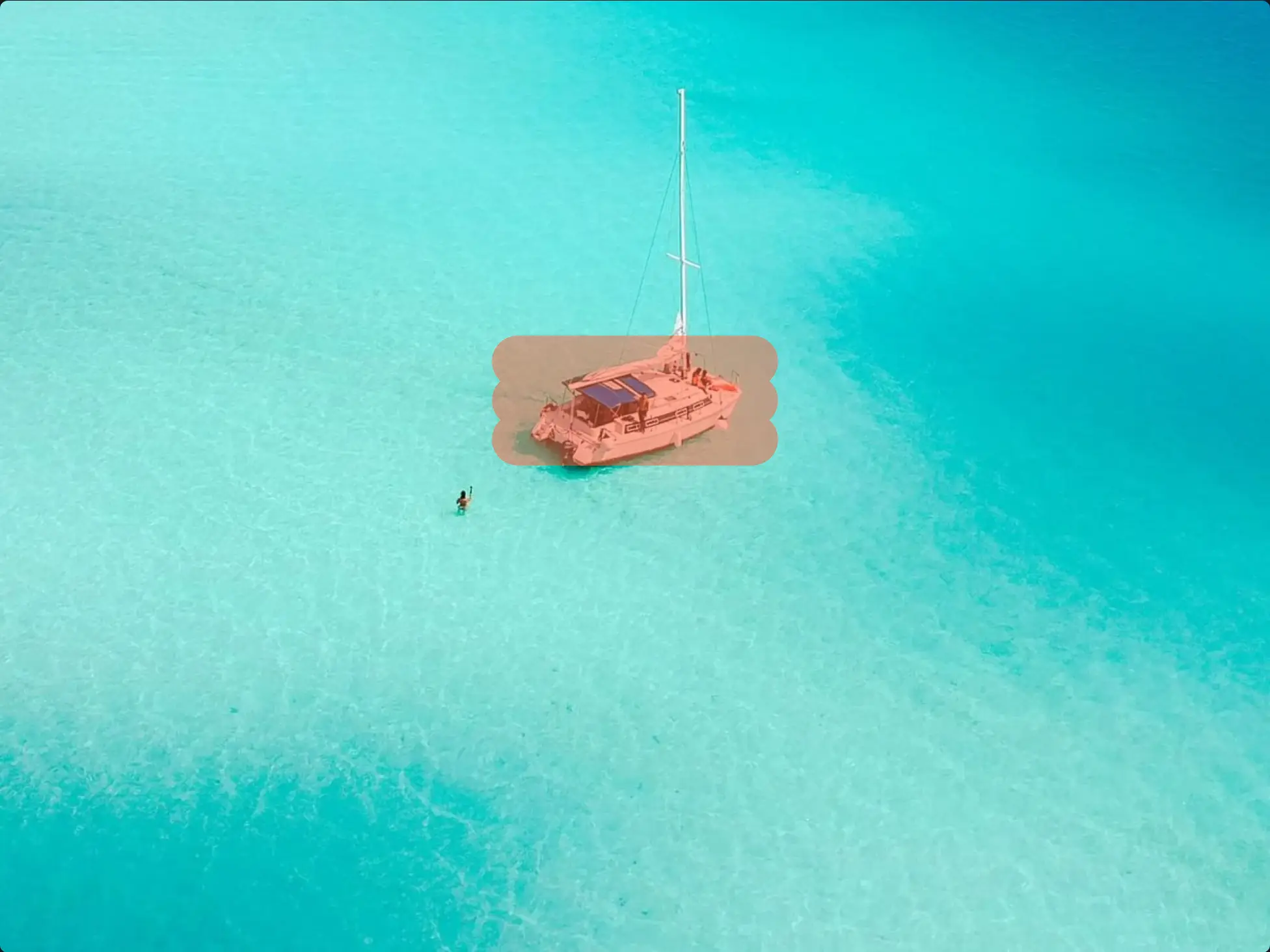 Object removerPaint over what you want gone
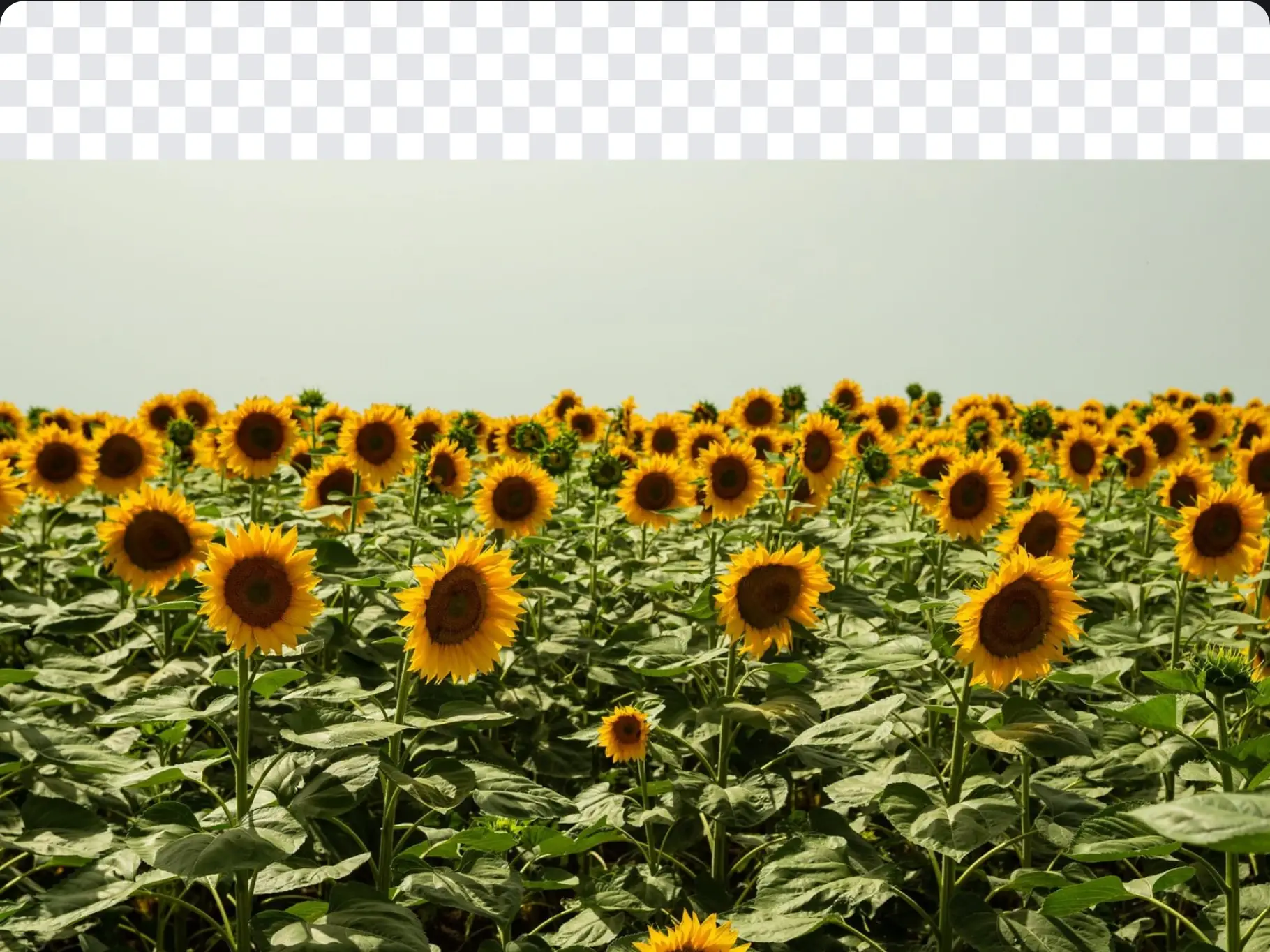 Image extenderMake a photo wider or taller
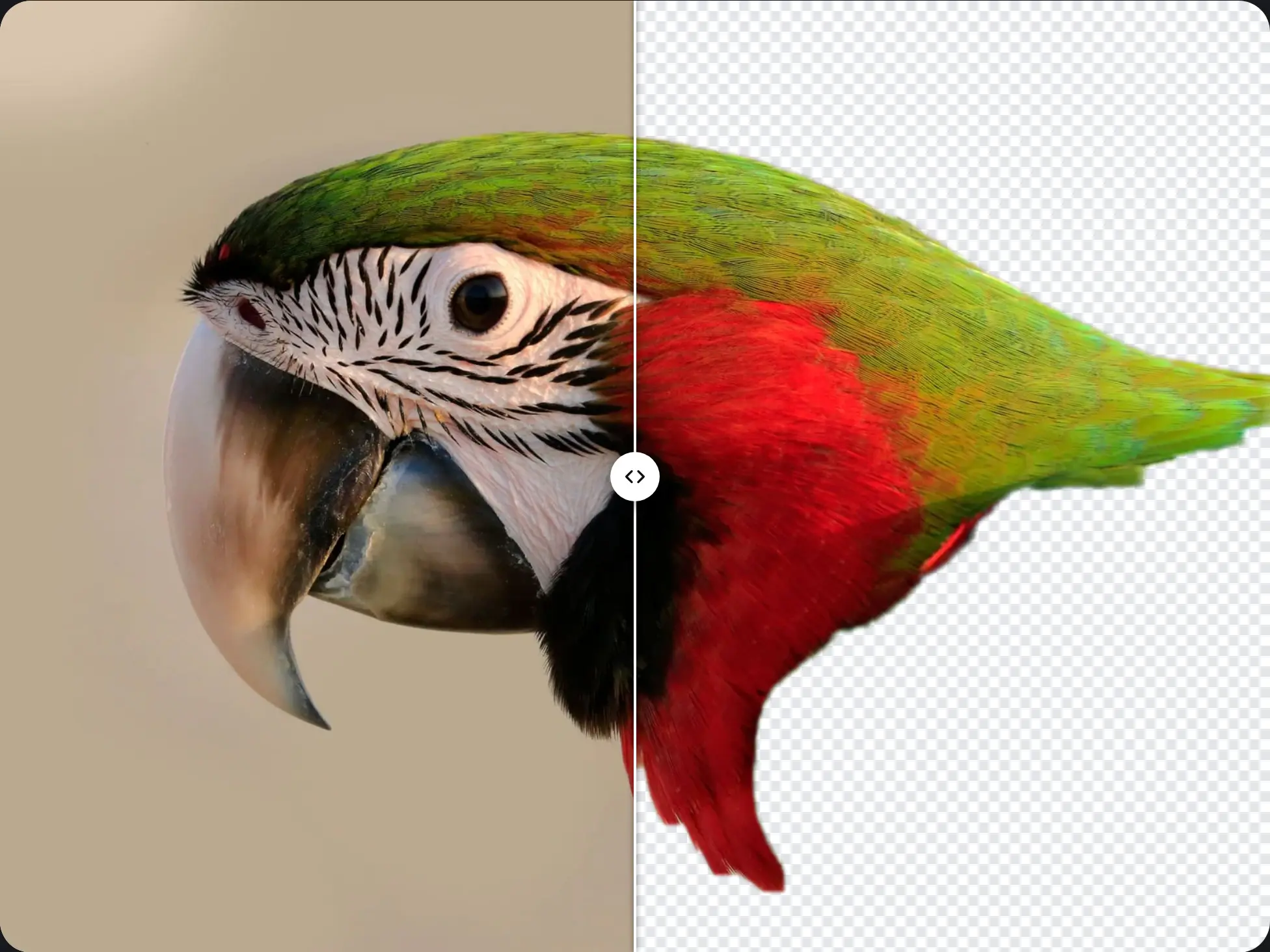 Background removerA transparent PNG in seconds
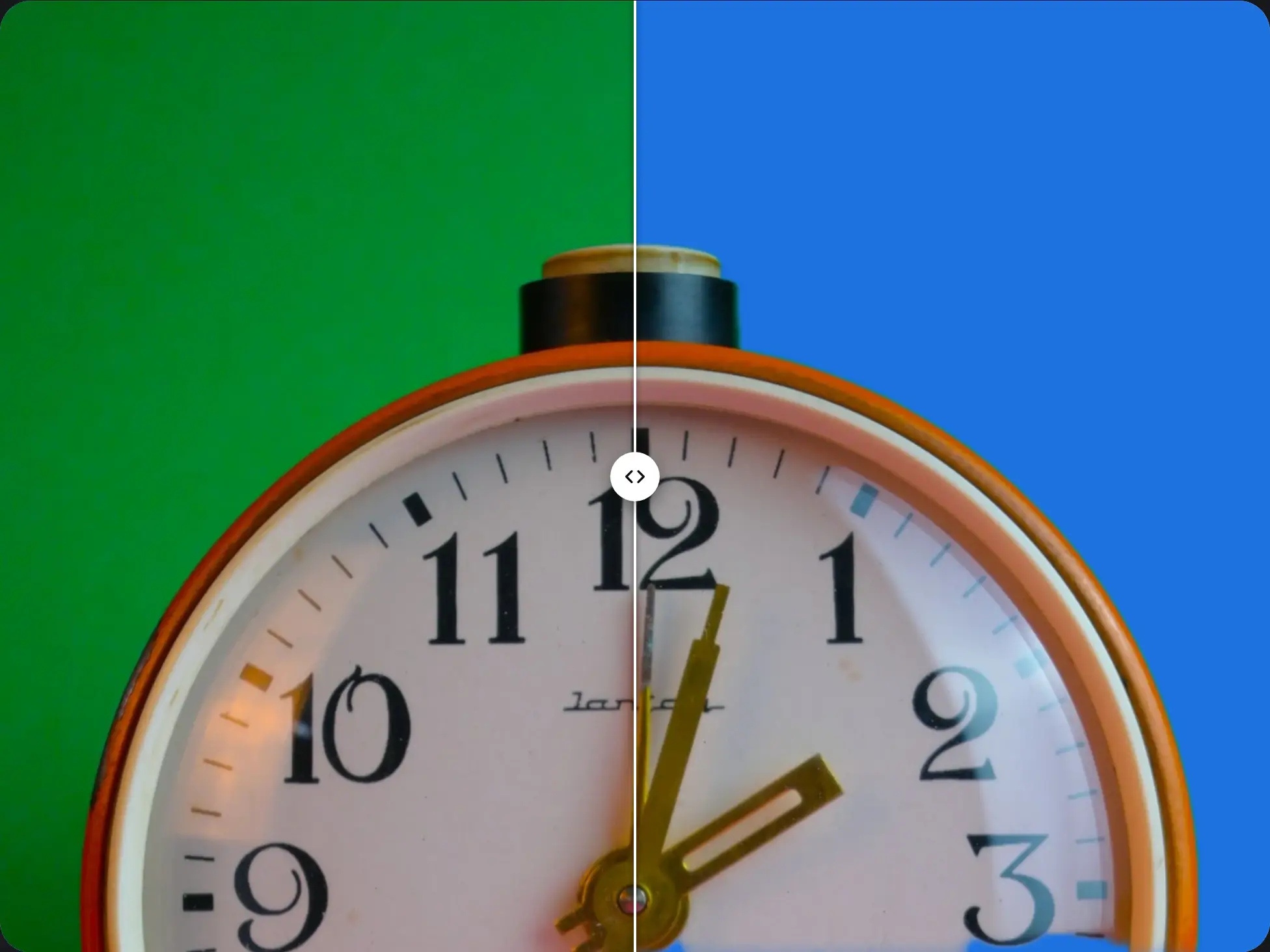 Change backgroundA color, a photo or your words
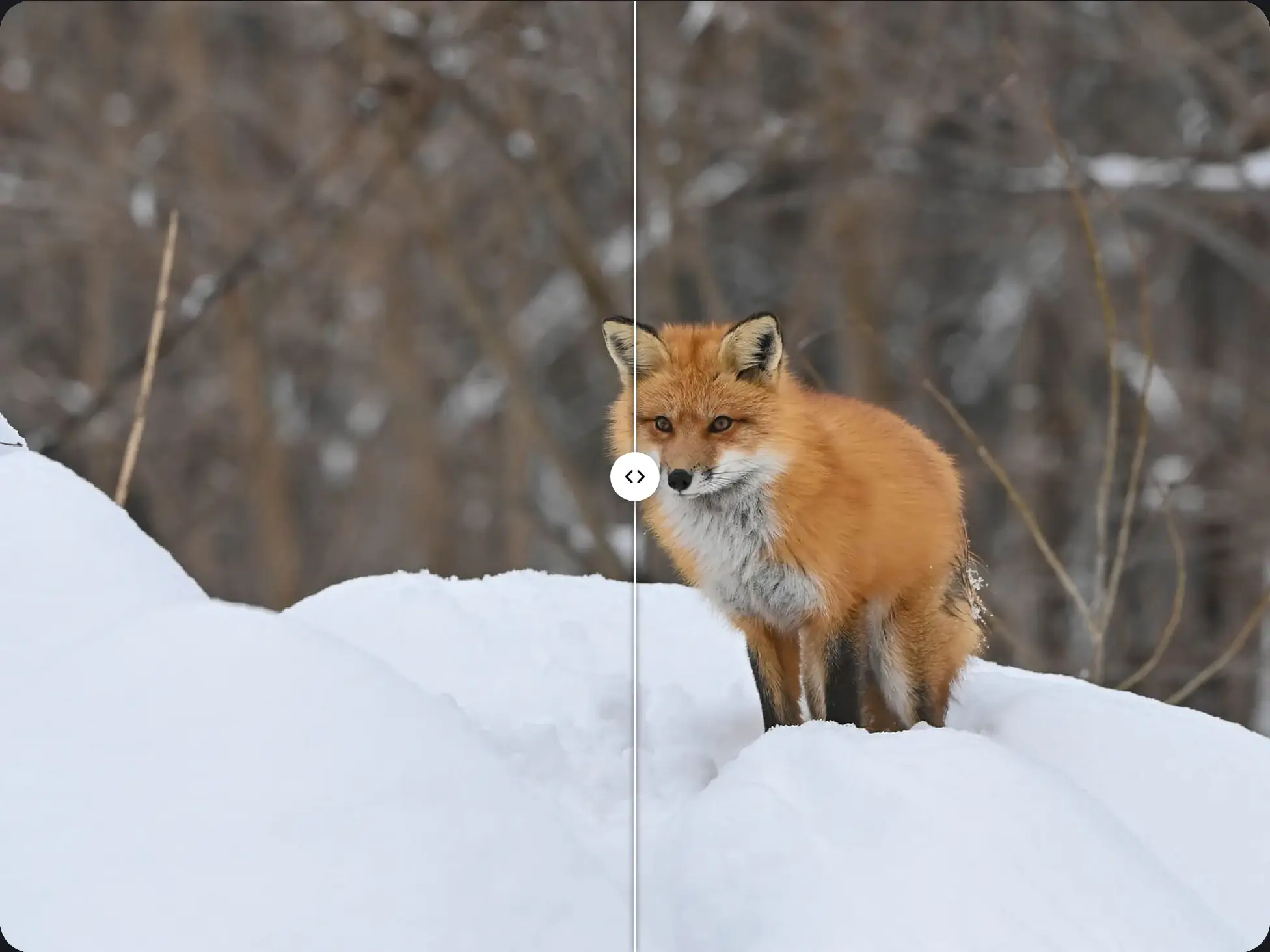 Image upscalerEnlarge at 2x or 4x
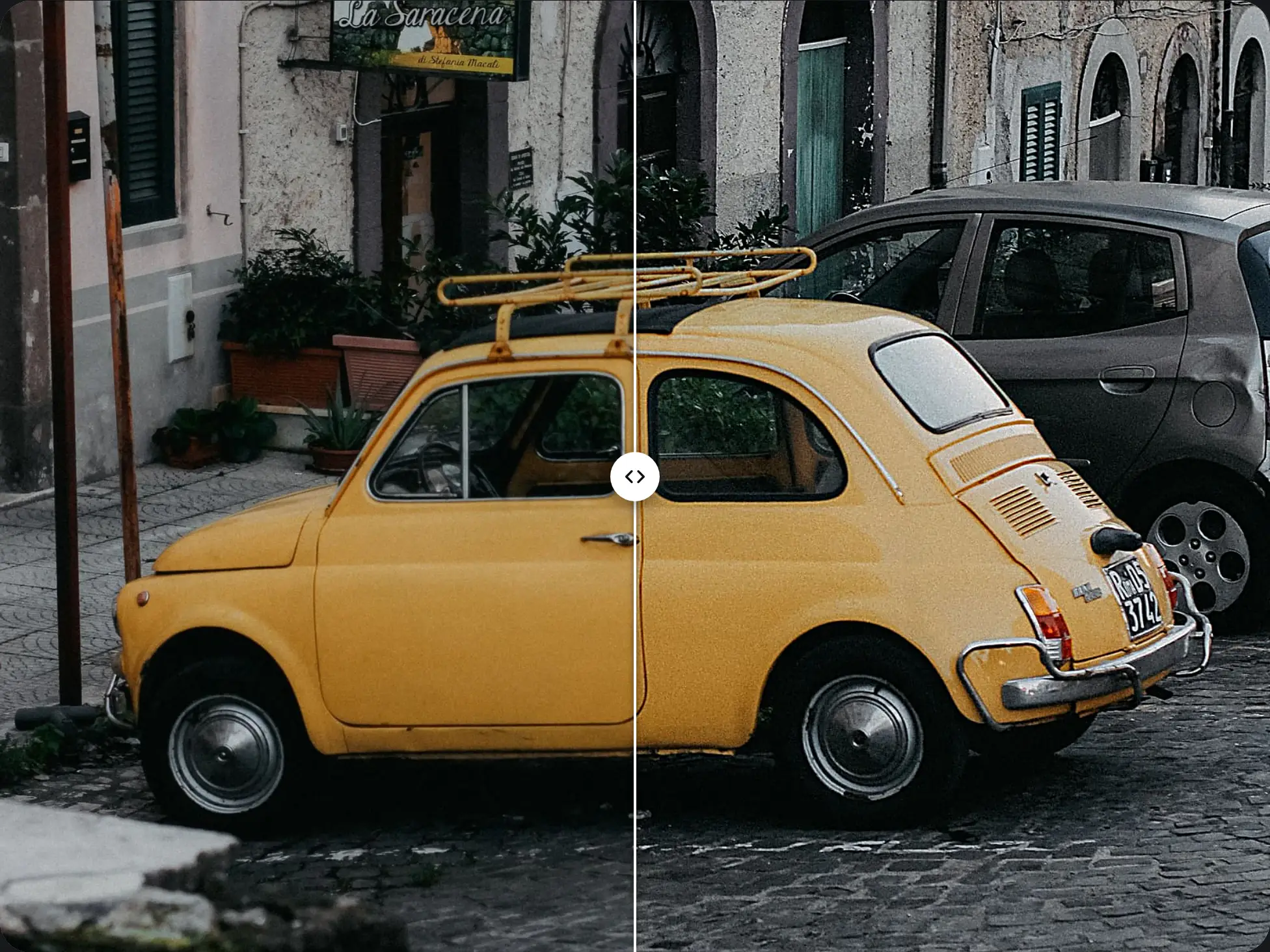 Unblur imageFix blurry and noisy photos
Photo tools
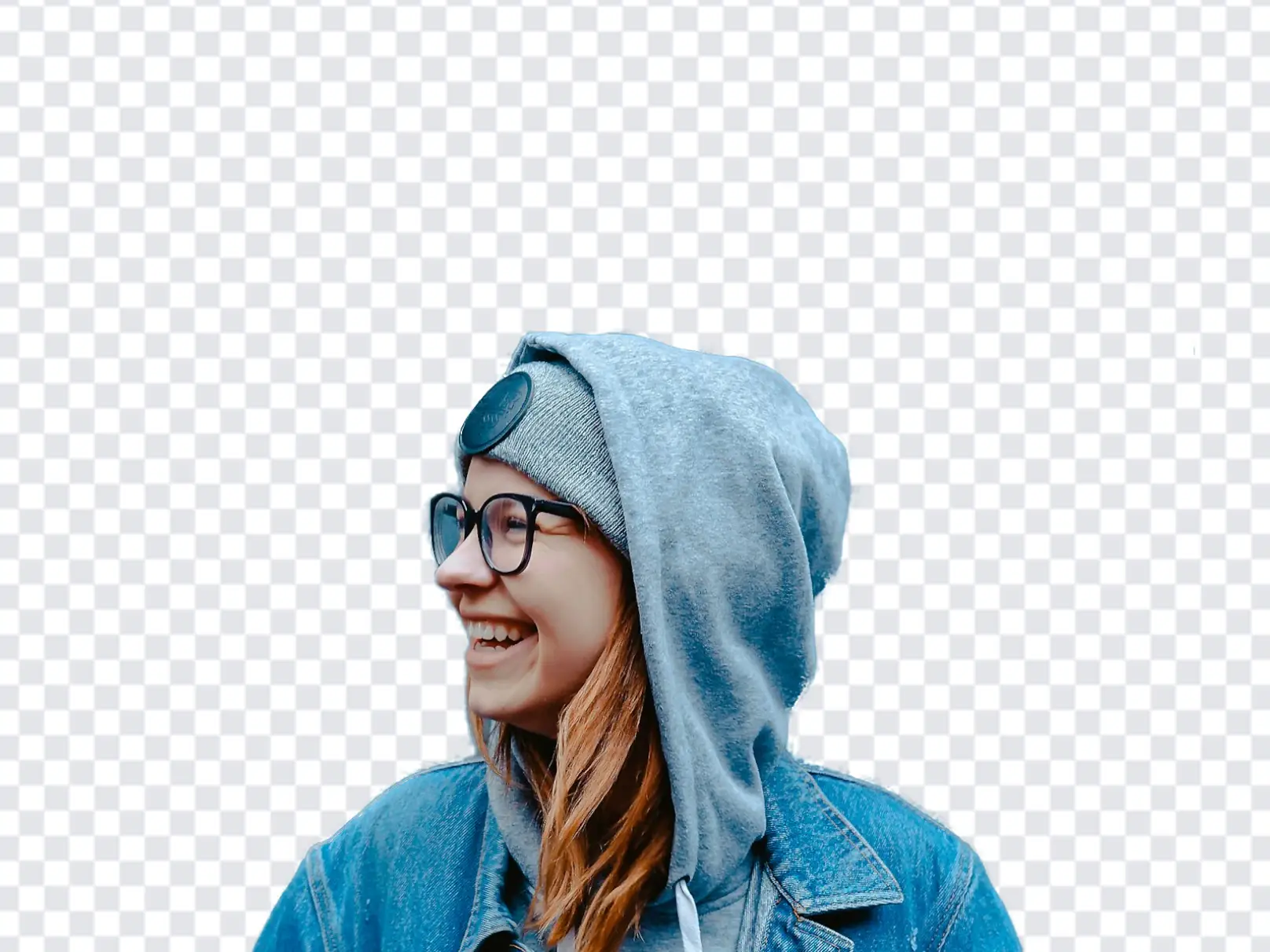 Remove the background with a layer maskMask out the background and save a transparent PNG.
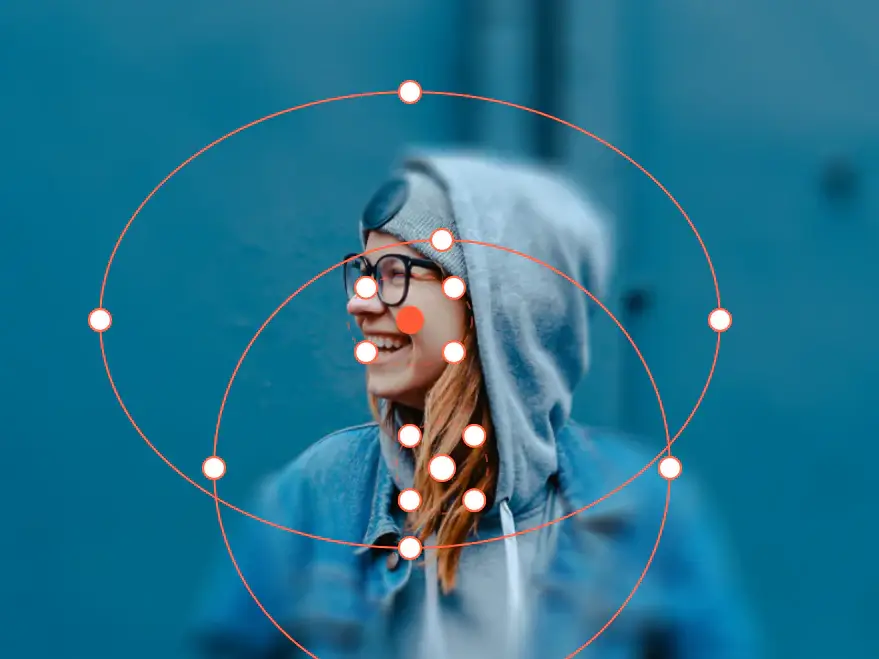 Blur the background of a photoKeep the subject sharp and soften the rest.
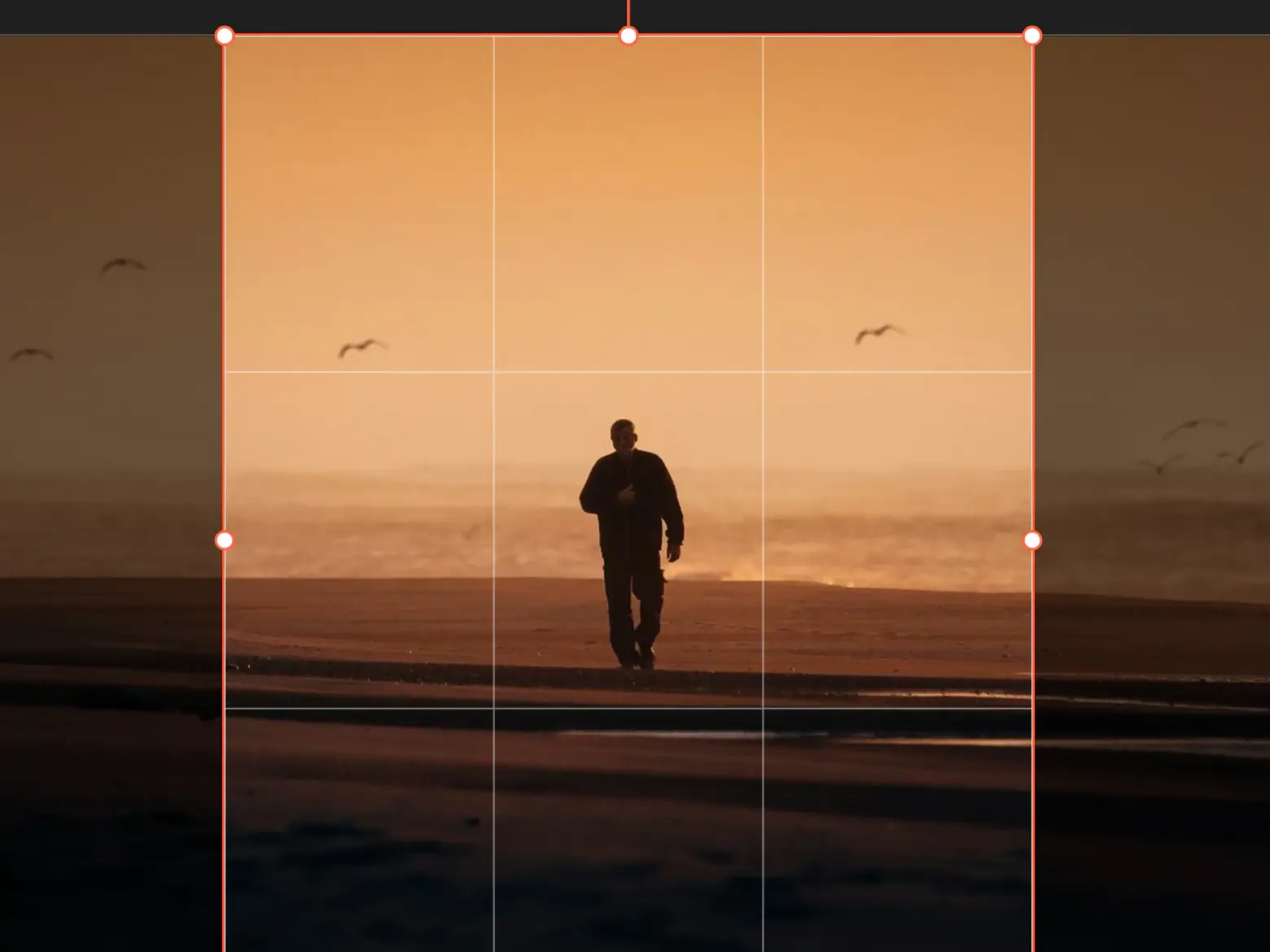 Crop a photo for social mediaCrop to 1:1, 4:5, 16:9 or 9:16 for any post.
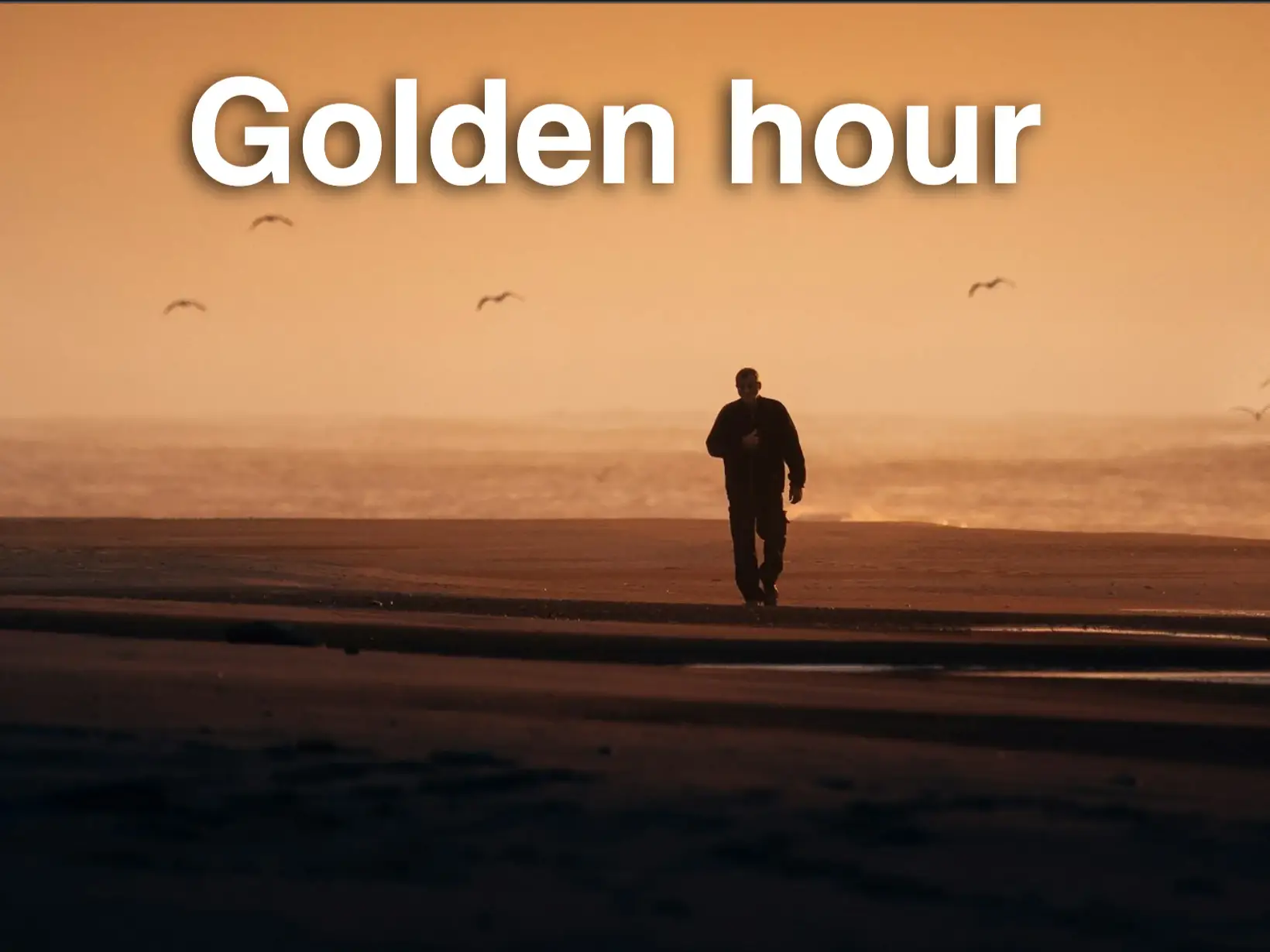 Add text to a photoType on a photo, style it and keep it editable.
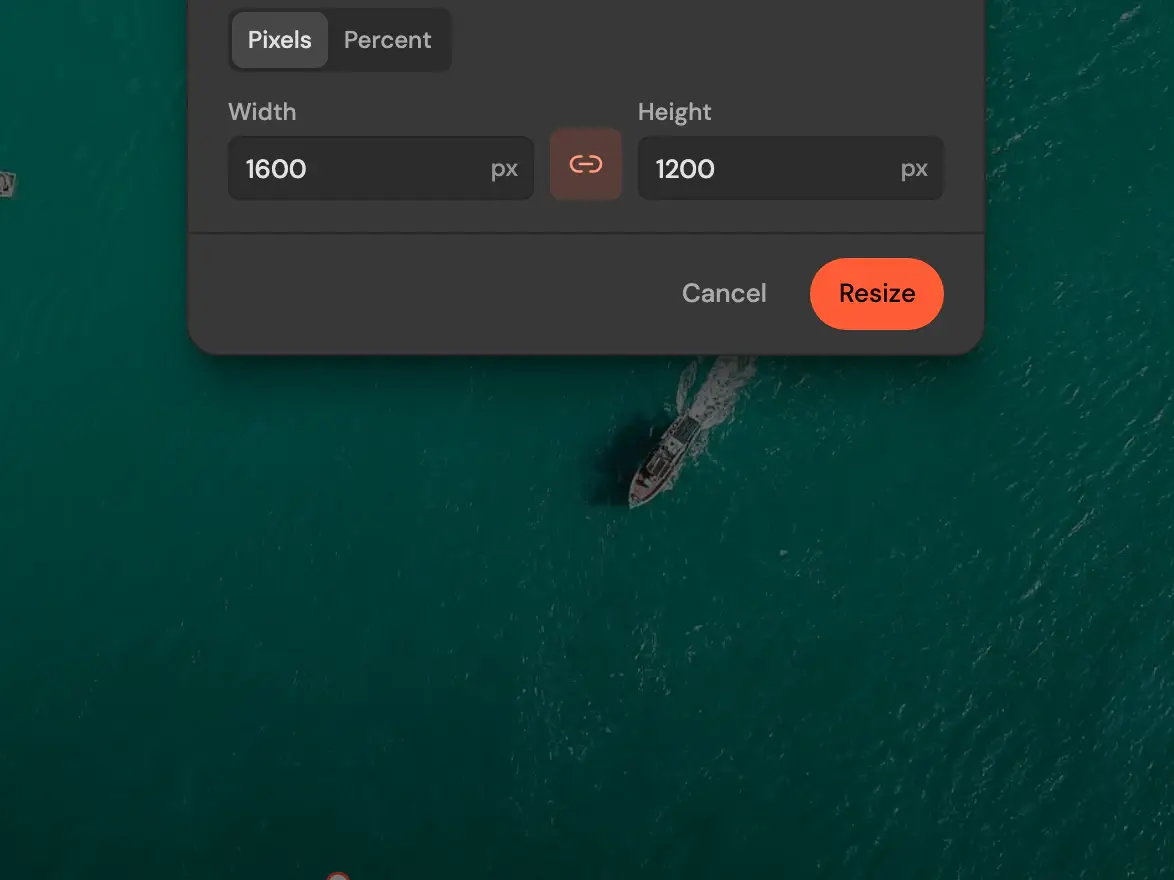 Resize an imageSet exact pixels or a percentage, ratio linked.
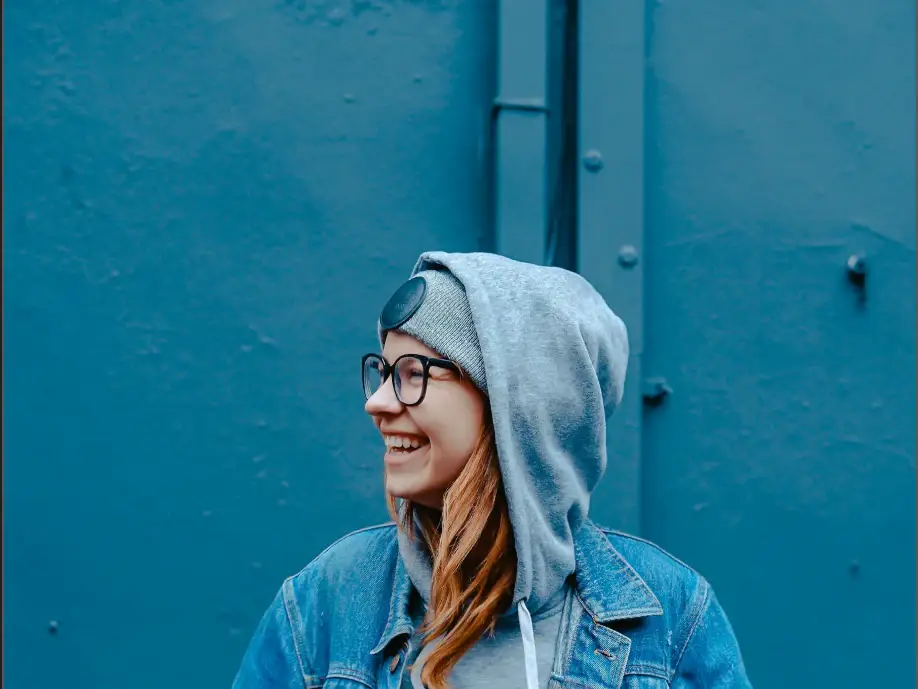 Liquify a photo onlinePush, bloat, pinch and swirl pixels, then restore.
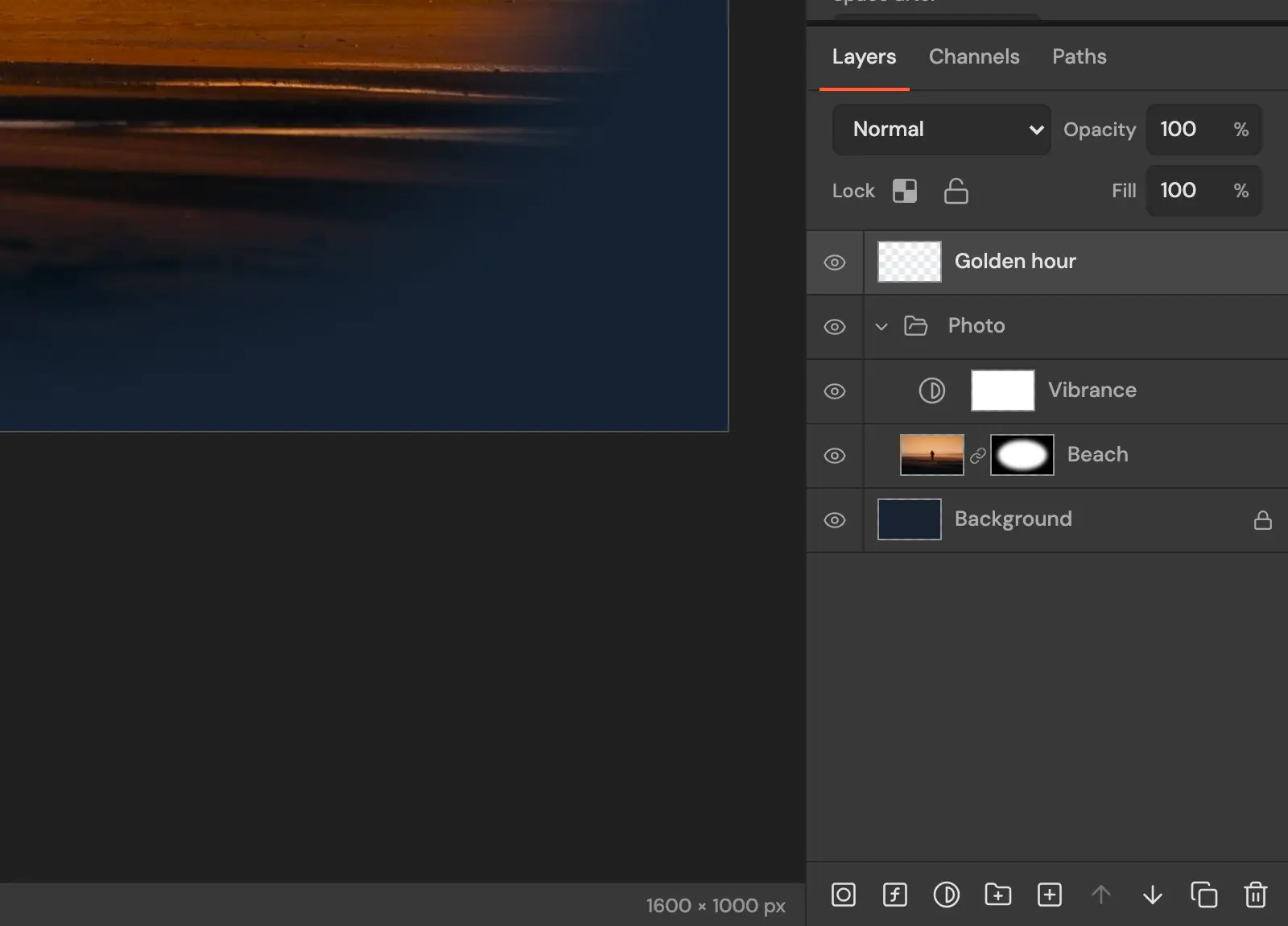
Ready to create? Open a photo and make it better.
Start editingDrop it on the Editor, paste it, or pick it from your phone's photos.