Liquify a photo online
The Liquify tools reshape a photo by moving its pixels with a brush. Push drags them along your stroke, Bloat swells an area, Pinch shrinks it and Swirl twists it. Restore brushes any part back to how it was.
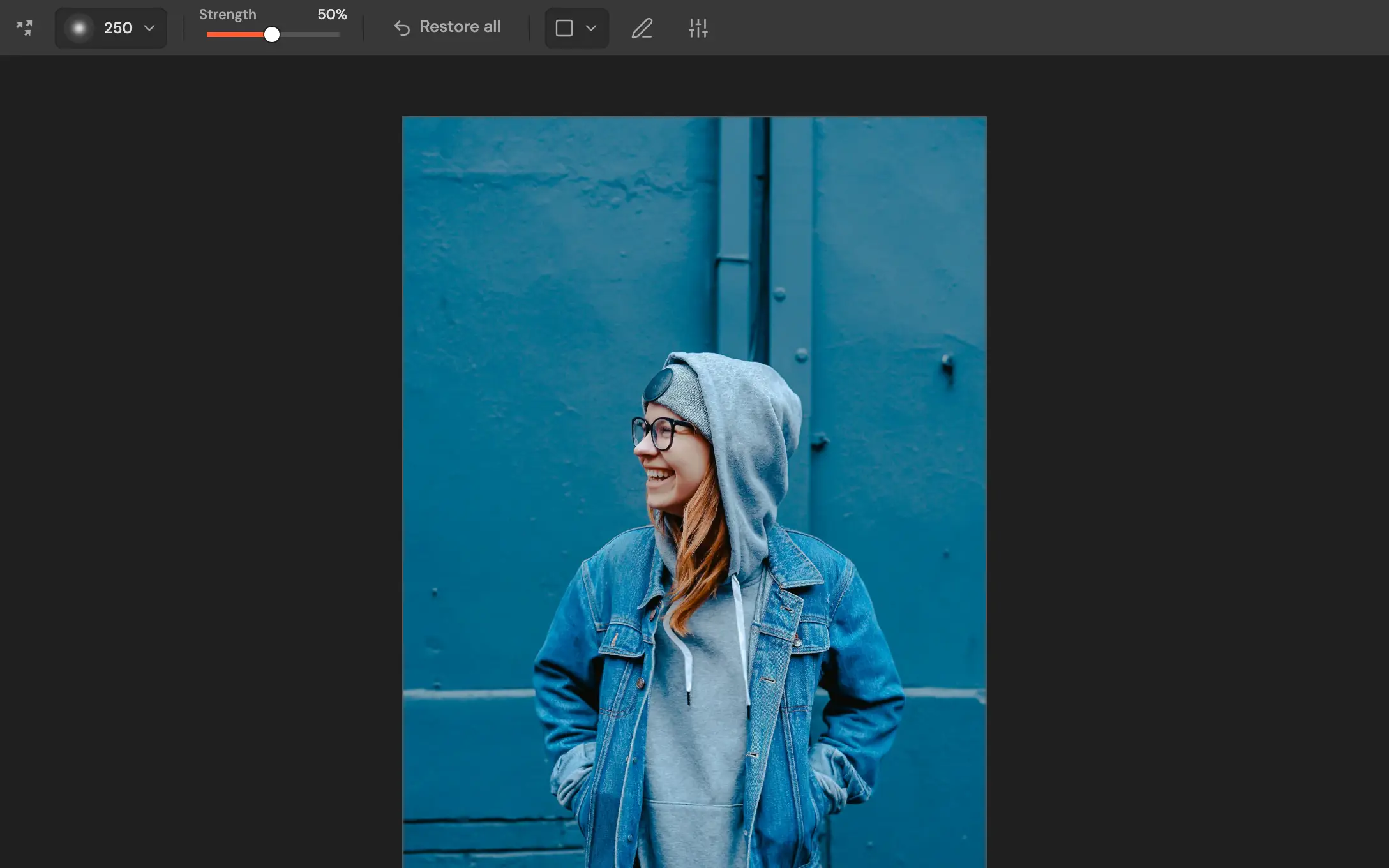
Drop a photo or PSD file here
This browser could not pass the file on. Open the Editor and choose it there.
Pixuvia is an online photo and image editor with AI tools: a classic editor for detailed work and PSD files, and a modern studio for one-tap edits. It runs in your browser on a computer, tablet or phone.
How to do it
Open your photo in the Editor.
Pick Push in the tool bar, where it shares a button with Bloat, Pinch, Swirl and Restore.
Set the brush size and Strength in the options bar. A large, soft brush with low strength gives natural results.
Brush in short strokes. Switch to Bloat, Pinch or Swirl for other effects, and use Restore or Restore All to undo parts of the warp.
The five tools
Push moves pixels along the stroke. Bloat enlarges what is under the brush, Pinch makes it smaller, Swirl turns it clockwise or counterclockwise, and Restore paints the original back.
Keep it subtle
Several small strokes look more natural than one big one. Duplicate the layer first if you want to compare before and after.
Only inside a selection
Make a selection first and the Liquify tools move only the pixels inside it, so the rest of the photo stays put.
Text and shapes
Liquify works on pixels. On a text, shape or smart object layer the Editor asks to rasterize it first.
Questions
Can I undo part of a Liquify edit?
Yes. Paint over that area with the Restore tool, or click Restore All to start the warp again. Every stroke can also be undone from the History panel.
Does Liquify work on a phone?
Yes. Pick a Liquify tool from the dock and drag with one finger. Pinch with two fingers to zoom in on the area you are shaping.
Can I liquify a layer in a PSD?
Yes. Open the PSD, select a pixel layer in the Layers panel and use the Liquify tools on it. Save as PSD to keep the other layers.
How far back does Restore All go?
To how the layer looked when you started liquifying it. Once you edit the layer another way or pick a tool other than the five Liquify tools, the result becomes the new starting point, and the History panel takes you further back.
How many steps can I undo?
The History panel keeps the last 50 steps, and each Liquify stroke is one of them.
More tools
 Remove the background with a layer maskMask out the background and save a transparent PNG.
 Blur the background of a photoKeep the subject sharp and soften the rest.
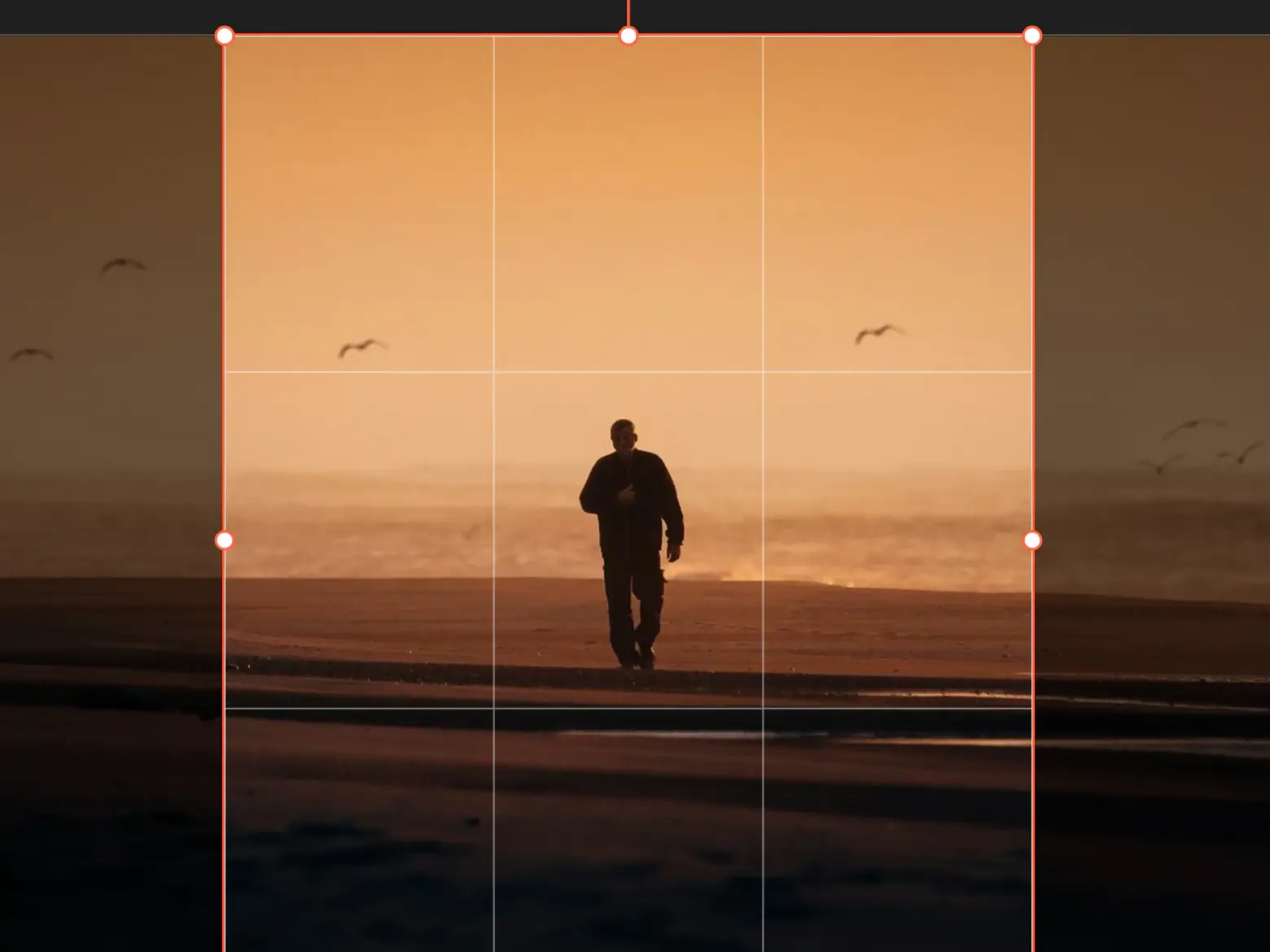 Crop a photo for social mediaCrop to 1:1, 4:5, 16:9 or 9:16 for any post.
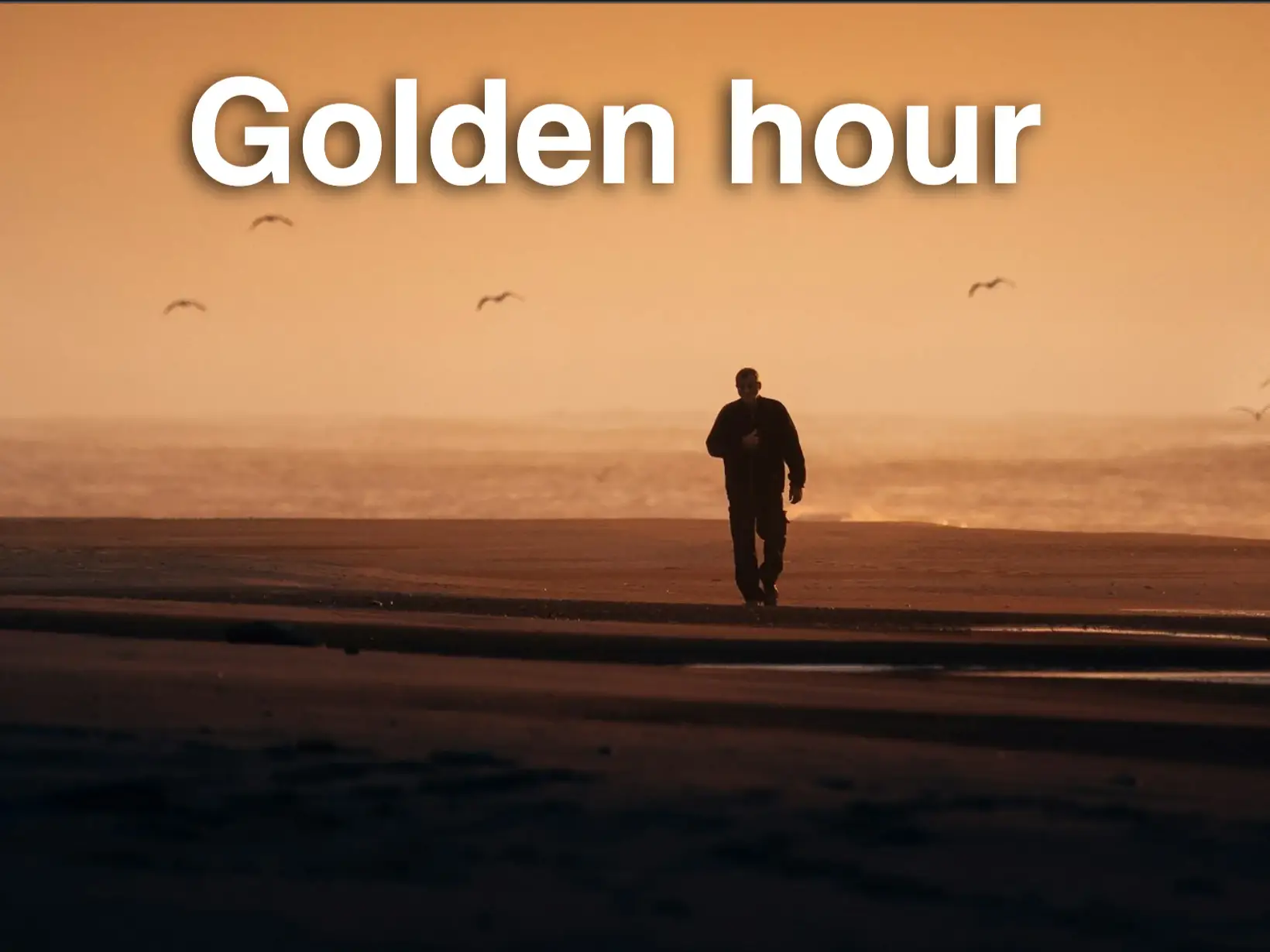 Add text to a photoType on a photo, style it and keep it editable.
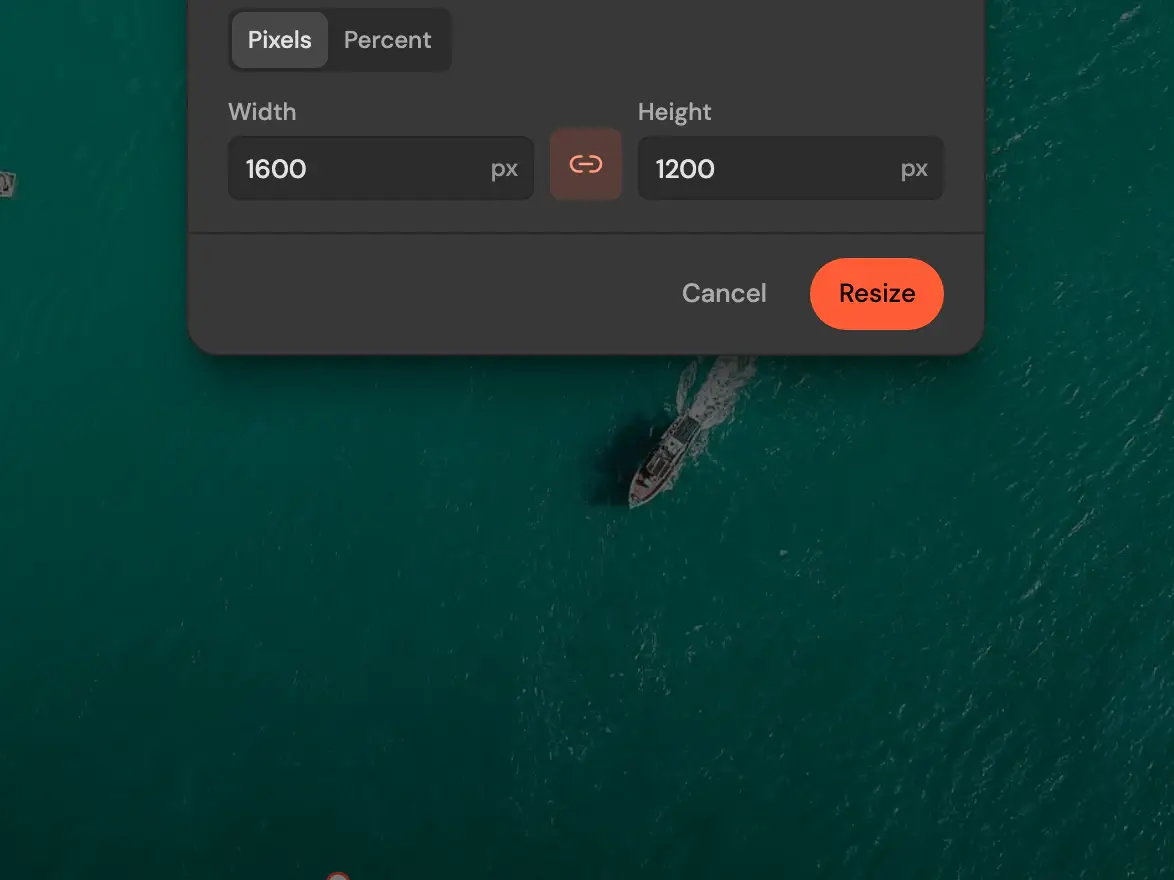 Resize an imageSet exact pixels or a percentage, ratio linked.
 Edit PSD files onlineOpen a layered PSD, edit it and save it back as PSD.
 Edit PSD files on your phoneOpen a layered PSD on Android, iPhone or iPad.
Ready to create? Open a photo and make it better.
Start editingDrop it on the Editor, paste it, or pick it from your phone's photos.