Photopea vs Photoshop: can a browser editor replace Photoshop?
By Pixuvia · · Updated
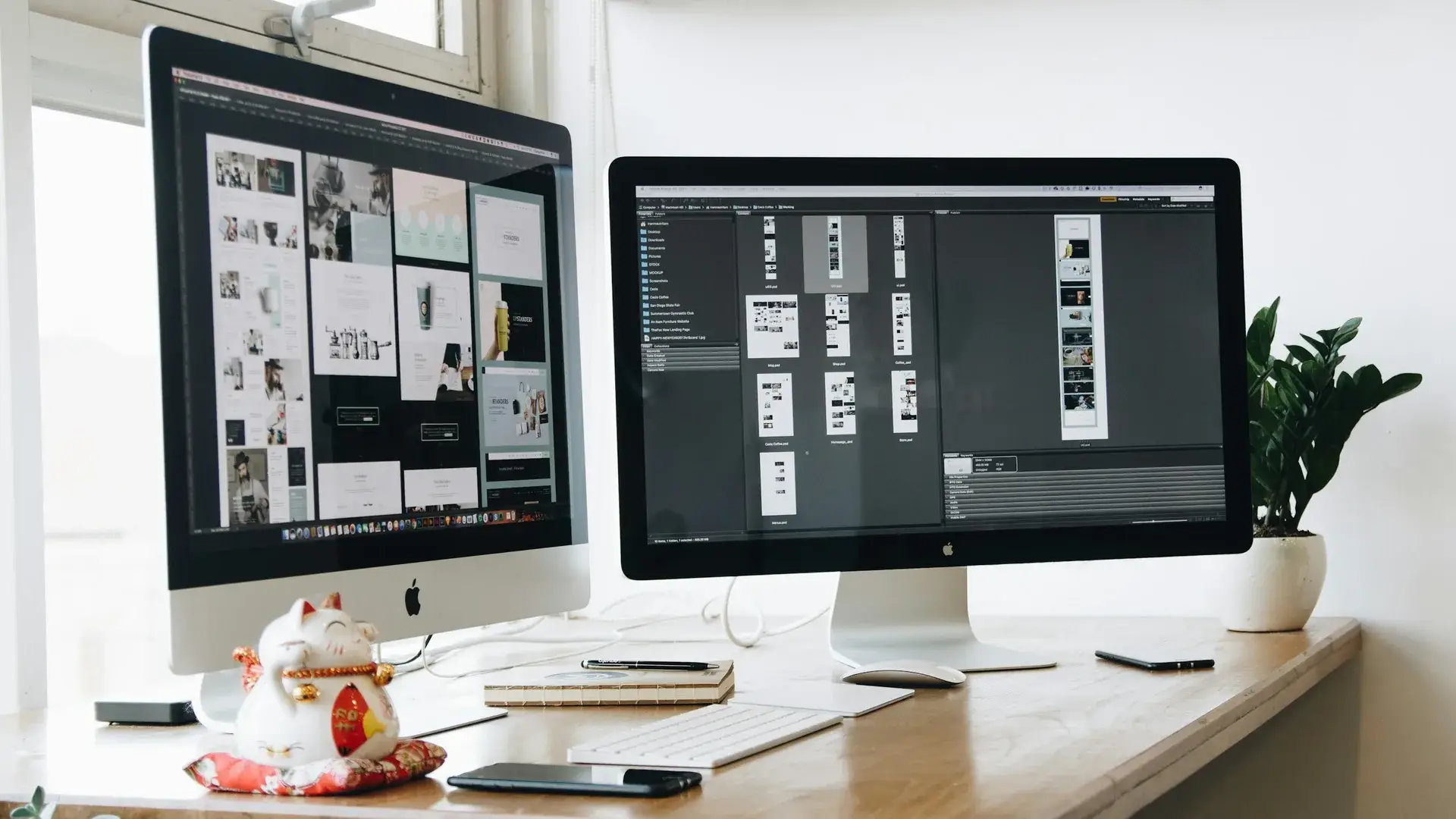
Photopea can replace Photoshop for a lot of PSD work, but not all of it. Photopea runs in any browser, opens and saves PSD with layers, masks, adjustment layers, smart objects and text, needs no account, and is paid for with ads or an optional one-time Premium payment. Photoshop is the app the PSD format belongs to, adds generative AI paid with credits, handles very large documents, and runs on desktop, the web, iPad and phones, but only with a subscription.
A note before the details: we make Pixuvia, a browser photo editor, and we cover it briefly near the end. Every fact about Photopea and Photoshop below comes from their own websites and apps, checked in November 2026, with links in the sources. We opened our own test PSD in Photopea; we did not test Photoshop hands-on, so everything said about it comes from Adobe's pages.
On this page
Photopea vs Photoshop at a glance
| Question | Photopea | Photoshop |
|---|---|---|
| Where it runs | In the browser; the site says it runs on any device | Desktop app for Windows and macOS, Photoshop on the web, an iPad app and a phone app |
| Account to edit | Not needed; log in only for Premium or synced settings | Needed, with a Photoshop plan or a 7-day trial |
| How you pay | Ads, or a one-time Premium payment for a set period | Subscription only, paid monthly or annually, alone or in a multi-app plan |
| PSD | Opens and saves; its main format | Its native format, plus PSB for very large documents |
| Other formats | Opens PNG, JPG, GIF, WebP, SVG, PDF, AI, AVIF and about 40 more | Desktop saves many formats, including TIFF, PDF, PNG, JPEG and WebP |
| Smart objects | Yes, with linked copies and smart filters | Yes, embedded and linked, with smart filters (limited on the web) |
| Generative AI | Remove BG in the Select menu; Premium lists monthly AI credits | Generative Fill, Expand, Upscale, Generate Image and more, paid with generative credits |
| Best for | PSD edits without a subscription, on any computer | Professional work, very large files, heavy AI use, Adobe workflows |
How you pay for Photopea and Photoshop
Photoshop is subscription only. On Adobe's plans page, the answer to "Can I buy Photoshop outright?" is "No. Photoshop is available only through a Creative Cloud subscription that you pay for either monthly or annually." You can take Photoshop on its own or inside a larger plan such as Photography or Creative Cloud Pro, and the plans differ in more than price: Adobe lists the Photoshop plan with desktop, web and mobile, the Photography plan with desktop and mobile, and the Firefly Pro plan with Photoshop on web and mobile only. The plans for individuals start with a 7-day trial that turns into a paid membership unless you cancel.
Read the cancellation terms before picking the annual plan billed monthly. Under Adobe's subscription terms, cancelling it after the first 14 days means a lump sum of 50% of the remaining contract (30% of the annual commitment in California). A month-to-month plan can be cancelled with service running to the end of that month.
Photopea has no subscription. Its terms say the editor can be used by anyone for any purpose, and the app is supported by ads. Premium is a one-time payment for a set period: the terms give a 90-day Premium as the example, after which the account goes back to the standard version, and Photopea says it never sends emails, so there is no renewal to cancel. In the app's account window, Premium adds no ads, more PeaDrive storage, monthly AI credits and twice as many history steps, while the standard account lists "All Features".
PSD and file support
PSD is Photoshop's own format, so Photoshop is the reference for every PSD feature. For documents too big for PSD, Adobe's guide to saving large documents says to use the Large Document Format (PSB) for images over 30,000 pixels wide or high, or documents over 2 GB, and that PSB keeps full Photoshop feature support. Photoshop on the web imports PSD, PSDC, PSB, PNG, JPEG, TIFF, HEIC, RAW and WebP, and exports PSD, PNG, JPEG, TIFF and WebP; it saves your work as a cloud document by default.
Photopea is built around PSD too. Its opening and saving guide says it uses PSD as its main format and converts every other file you open (PNG, JPG, Sketch and so on) to a PSD document, and its home page says it "fully supports" PSD for both opening and saving. It also opens GIF, BMP, WebP, SVG, PDF, AI, AVIF, DDS and, by its count, about 40 other formats, and exports JPG, PNG, SVG, PDF and more for the web.
To see how that holds up, we built a layered PSD, Morning pour: a latte photo, a Warm grade group with Curves and Vibrance adjustment layers (Vibrance masked to the cup), a Shade layer with a gradient mask, and a Title group with a live text layer. Photopea opened it with every layer in place.
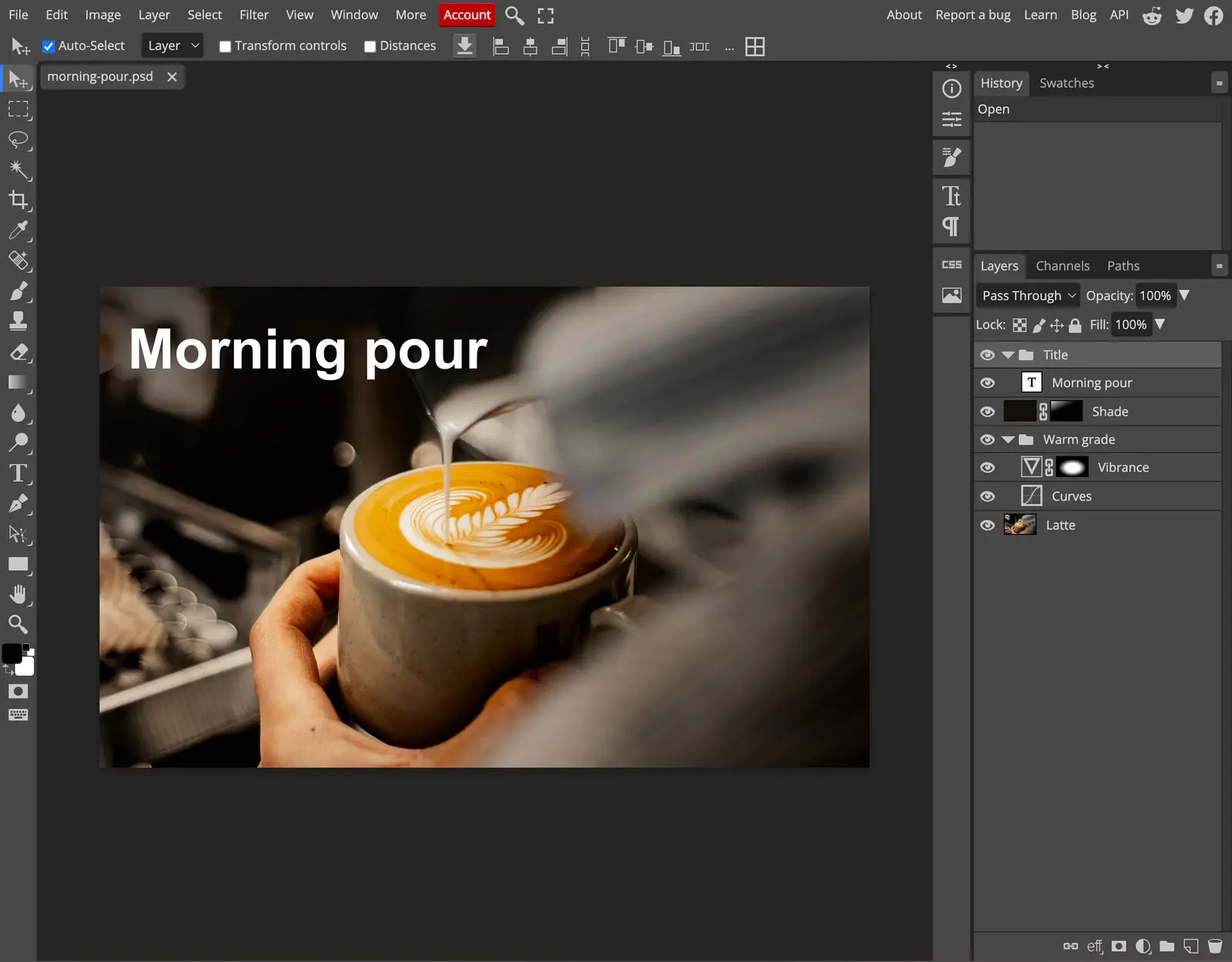
One test file is not a guarantee. Effects that only Photoshop renders, and anything you depend on for print or a client handover, are worth checking on a copy before you commit a project. Our guide on how to open a PSD file without Photoshop walks through what to look for.
Editing tools: layers, masks, smart objects and more
Photoshop's desktop help covers the full professional set: layers and groups, layer masks, vector masks, clipping masks and alpha channels, adjustment and fill layers (from Brightness/Contrast, Levels and Curves to Color Lookup, Gradient Map and Selective Color), embedded and linked Smart Objects with Smart Filters, Content-Aware Fill and the Remove tool, type with glyphs and text on a path, brushes, actions for automation, and video and animation.
Photopea's Learn pages mirror much of that vocabulary. They cover layers, raster and vector masks, layer styles, smart objects (several copies can share one source, and smart filters stack under the layer with their own mask), adjustment layers and fill layers, selections with Refine Edge, channels, brushes (including loading Photoshop .ABR brush files), point, paragraph and curved text, vector shapes, actions, scripts, variables, artboards, animations, slices, Vanishing Point, Blur Gallery and layer comps. In the app, the Edit menu also offers Content-Aware Scale, Puppet Warp and Perspective Warp, and the Filter menu has Filter Gallery, Lens Correction, Camera Raw and Liquify.
Photoshop's newer tools, such as Relight, Generative Restyle, Harmonize and its AI Assisted Editor, aren't mentioned on the Photopea pages we checked. If you learned on Photoshop, Photopea will feel familiar; if your work depends on Photoshop's latest features, it won't replace them. Our guide to using layer masks covers a technique both editors share.
AI features
Photoshop has the much larger AI toolset. Adobe's overview of generative AI in Photoshop lists Generative Fill, Generative Expand, Generate Image, Generate Background, Generate Similar, Generative Upscale and Harmonize, and Generative Fill lets you pick Adobe Firefly models or partner models such as FLUX and Gemini. These features need an internet connection and use generative credits: Adobe's FAQ says each generation costs one credit. The Photoshop plan includes 25 credits a month; the multi-app plans include more, and Creative Cloud Pro and Firefly Pro list unlimited access to standard AI features like Generative Fill.
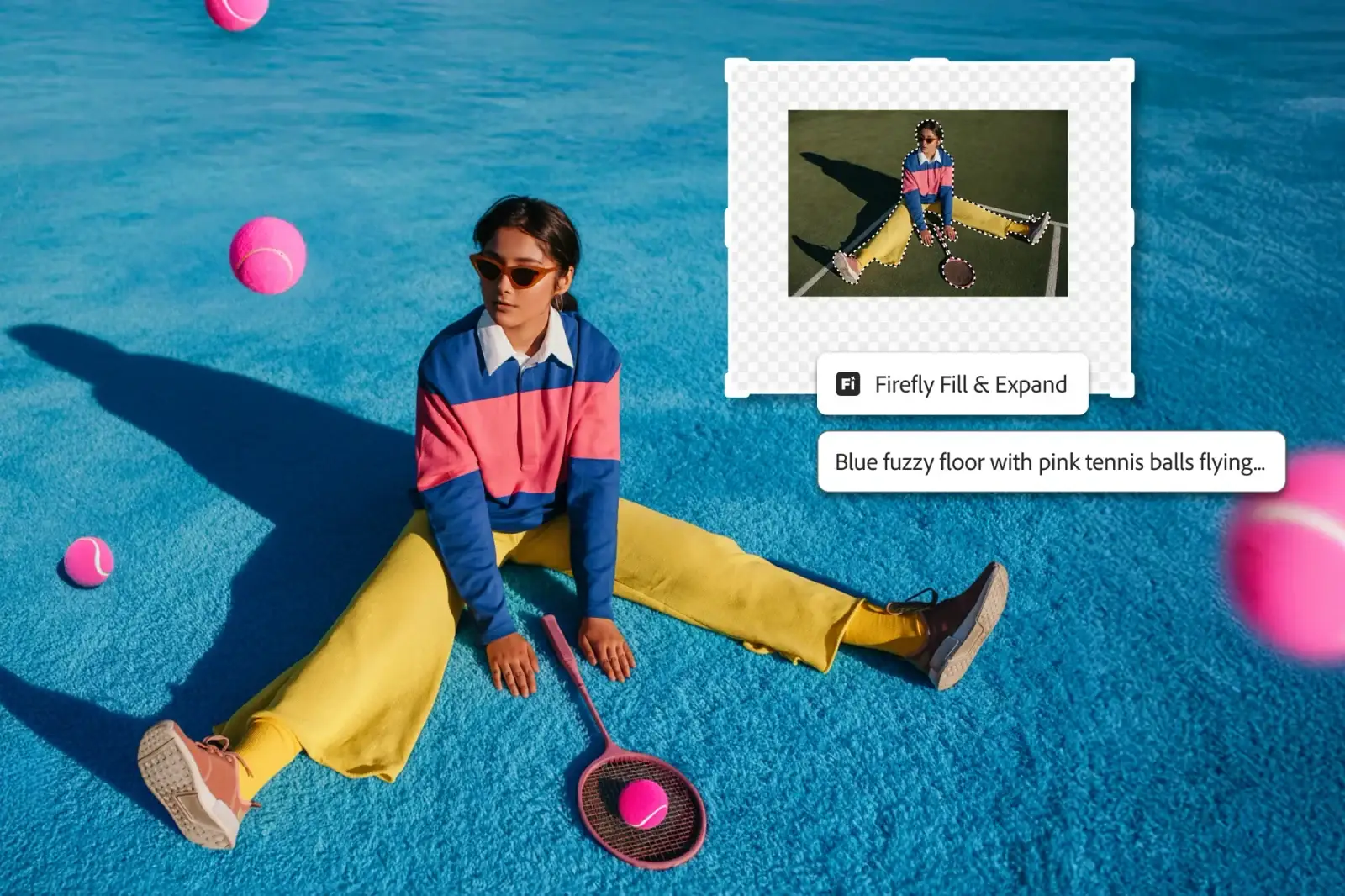
Photopea's AI is small by comparison. Its Select menu offers Remove BG, its home page promises background removal with one click, and the account window lists 3,000 AI credits a month for Premium. Its Learn pages don't document a generative fill or expand tool, so if AI edits are the reason you're choosing an editor, Photoshop is ahead. If you mostly retouch, composite and export, Photopea's classic tools cover that without credits.
Where each one runs
Photoshop comes in four forms. The desktop app runs on Windows and macOS (Adobe's technical requirements list 8 GB of RAM as the minimum). Photoshop on the web runs in Chrome, Edge and Firefox on desktop, with Safari in beta, on Windows, macOS and ChromeOS; you can only view and comment from a mobile browser. There is also a Photoshop app for iPad and one for iPhone and Android.
Photoshop on the web is not the whole of Photoshop. Adobe's web and desktop comparison marks the Pen and Pencil tools, Magic Wand, Polygonal Lasso, Warp, Puppet Warp, the Patch tool, text on a path, Actions, Smart Filters, Neural Filters and Filter Gallery as not available on the web, and smart objects and Levels and Curves as limited. Its generative AI tools are all there.
Photopea is one web app. Its home page says it runs on any device, using your CPU and GPU, and that "the better hardware you have, the better it runs"; we found no file size limit stated on the pages we checked. There is nothing to install. Its terms say files you open never leave your device, and they also warn that closing Photopea without saving loses your work, so save to your device or a storage service as you go.
Weighing Photoshop against an open-source desktop editor instead? See GIMP vs Photoshop or Photopea vs GIMP.
Who should choose Photopea, and who should choose Photoshop
Choose Photopea if you:
- open, edit and send back PSD files now and then, and don't want a subscription for it
- work on computers where you can't install software, or switch between several
- can live with ads, or prefer a one-time Premium payment
- need Photoshop-style layers, masks, smart objects and actions more than generative AI
Choose Photoshop if you:
- work with PSD files professionally and need every feature the format holds, including PSB for huge documents
- use generative AI often: Generative Fill, Expand, Upscale and the choice of models
- want the desktop app plus the web, iPad and phone apps with cloud documents shared between them
- already work in other Adobe apps, or your clients and team expect Photoshop
A third option: Pixuvia
Pixuvia is another browser editor with Photoshop's way of working. Its Editor uses Photoshop-style tools and menus and opens and saves layered PSD files, and its Studio is built around one-job AI tools. Both run in the browser on Windows, macOS, Linux, Android, iPhone and iPad.
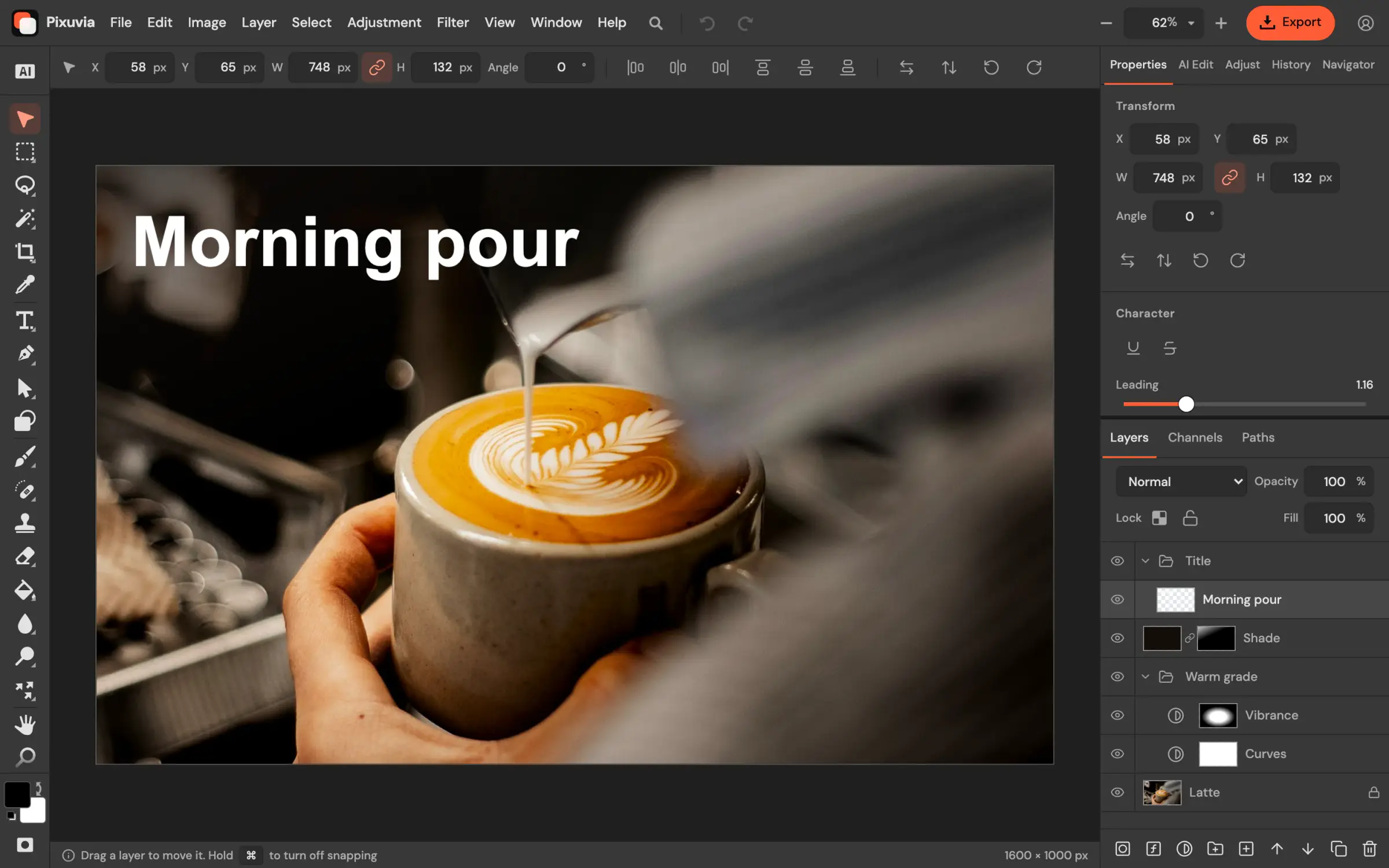
- About 50 tools, including the Pen, Quick Selection, Healing, Patch, Liquify and Puppet Warp
- 18 kinds of adjustment layers, each with its own mask, plus layer masks, vector masks and clipping masks
- Smart objects with smart filters, 10 layer styles and Photoshop blend modes
- Opens PSD files up to 60 MB with layers, groups, masks, editable text and shapes, and saves PSD, PNG, JPG, WebP, GIF, SVG, PDF and TIFF
- AI tools (remove background, erase objects, generative fill, expand, upscale, relight, edit by prompt) in both editors, which need a sign-in and use AI credits; see pricing
It has limits too: Pixuvia exports 8-bit RGB, doesn't keep alpha channels or masks and effects on groups, opens warped or linked smart objects and text on a path as pixels, and doesn't open PSB files. If your files rely on those, Photoshop is the safer choice. Otherwise, try your own PSD in the online PSD editor, or compare more options in our list of Photoshop alternatives.
Questions
Is Photopea as good as Photoshop?
For everyday layer work on PSD files, Photopea covers a lot of the same ground: layers, masks, adjustment layers, smart objects with smart filters, layer styles, text and actions, all in a browser tab. Photoshop goes further in AI (Generative Fill, Generative Expand, Generative Upscale and a choice of AI models), in very large documents (its PSB format) and in its desktop, iPad and phone apps. Which one is better depends on which of those you need.
Can Photopea open and save Photoshop files?
Yes. Photopea says it fully supports PSD for both opening and saving, and PSD is the format it works in. In our test, a PSD with two groups, two adjustment layers, a layer mask and a text layer opened in Photopea with all of them listed and the text still editable. Keep the original file and check the layers you rely on before you send it back to a Photoshop user.
Do I need an account or a subscription for Photopea?
No. Photopea says you can use the editor without logging in, and it is supported by ads. Logging in is only needed for Premium, which removes the ads and is a one-time payment for a set period with no subscription.
Can I buy Photoshop with a one-time payment?
No. Adobe answers "Can I buy Photoshop outright?" with "No": Photoshop is available only through a Creative Cloud subscription, paid monthly or annually, either on its own or as part of a multi-app plan.
Is Photoshop on the web the same as Photopea?
No. Photoshop on the web is Adobe's browser version of Photoshop. It needs a Photoshop plan, works in desktop browsers (not for editing on a phone browser), saves to cloud documents, and Adobe's own comparison lists features such as the Pen tool, Magic Wand, Warp, Actions and Smart Filters as not available on the web. Photopea is a separate browser editor from another company.
Does Photopea have Generative Fill like Photoshop?
Photopea's Select menu has Remove BG, and its account window lists monthly AI credits for Premium. Its Learn pages don't document a generative fill tool. Photoshop documents Generative Fill, Generative Expand, Generate Image, Generative Upscale and more, each paid with Adobe generative credits.
Sources
- Photopea: home page, and the app's menus and Account window (checked signed out)
- Photopea Learn: Opening and saving files
- Photopea Learn: topic index
- Photopea Learn: Smart objects
- Photopea Learn: Adjustments and filters
- Photopea Learn: Masks
- Photopea Learn: Brush tools
- Photopea Learn: Text
- Photopea: Accounts
- Photopea: Terms of use
- Adobe: Compare Photoshop plans and FAQ
- Adobe: Photoshop product page
- Adobe: Subscription and cancellation terms
- Adobe Help: Compare Photoshop web and desktop features
- Adobe Help: Photoshop on the web FAQ
- Adobe Help: Photoshop on the web technical requirements
- Adobe Help: Photoshop on the web supported file formats
- Adobe Help: Photoshop on desktop technical requirements
- Adobe Help: Save large documents
- Adobe Help: Smart Objects overview
- Adobe Help: Work with adjustment and fill layers
- Adobe Help: Generative AI features overview
- Adobe Help: Generative AI features in Photoshop FAQ
- Adobe Help: Edit images with Generative Fill
- Adobe Help: Generative credits overview