Add text to a photo
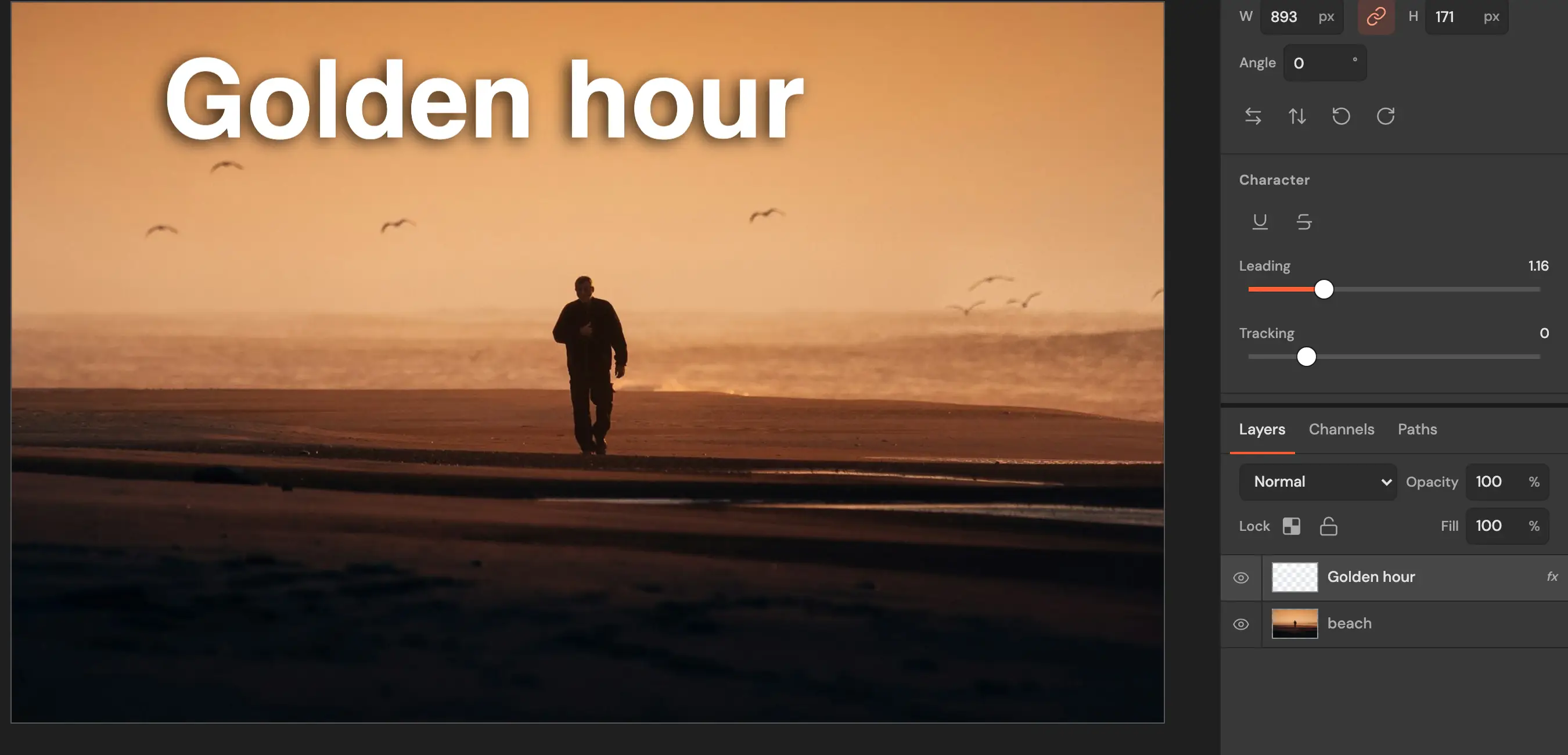
Pick the Text tool and click on the photo to start typing. Set the font, size, color and alignment in the options bar, then add a drop shadow or stroke from Layer Style so the words stay readable on a busy background. The text sits on its own layer, so you can change it later.
Drop a photo or PSD file here
This browser could not pass the file on. Open the Editor and choose it there.
Pixuvia is an online photo and image editor with AI tools: a classic editor for detailed work and PSD files, and a modern studio for one-tap edits. It runs in your browser on a computer, tablet or phone.
How to do it
Open your photo in the Editor.
Pick the Text tool (T) and click where the text should start, or drag a box for text that wraps.
Type, then set the font, size, color and alignment in the options bar. Press Ctrl+Enter (⌘Enter on a Mac) or click the check mark to finish.
Choose Layer > Layer Style > Drop Shadow or Stroke to make it stand out, then click Export.
Change it later
Click the text with the Text tool to change its words or style. Saving as PSD keeps it as editable text; PNG and JPG flatten it into the image.
Bend the words
Create Warped Text in the options bar, also under Layer > Text > Warp Text, bends the text into arcs, waves, flags and other shapes.
Fonts
The font list has web fonts that work on any device, plus Arial, Georgia, Impact, Verdana and other common fonts. Those common fonts show only if your device has them, so a phone may draw some of them in a fallback font.
Vertical text
The Vertical Text tool shares a button with Text and sets the characters in columns.
Questions
How do I make text readable on a busy photo?
Add a Drop Shadow or Stroke from Layer > Layer Style, or draw a shape behind the text with the Shape tool and lower its opacity in the Layers panel.
Can I change the text after adding it?
Yes. Click it with the Text tool to change the words, font or size. It stays editable until you rasterize the layer.
How big can the text be?
The Size field in the options bar takes 1 to 2000 px.
Can I add text on a phone?
Yes. Pick Text in the dock, tap the photo and type with the phone keyboard.
More tools
 Remove the background with a layer maskMask out the background and save a transparent PNG.
 Blur the background of a photoKeep the subject sharp and soften the rest.
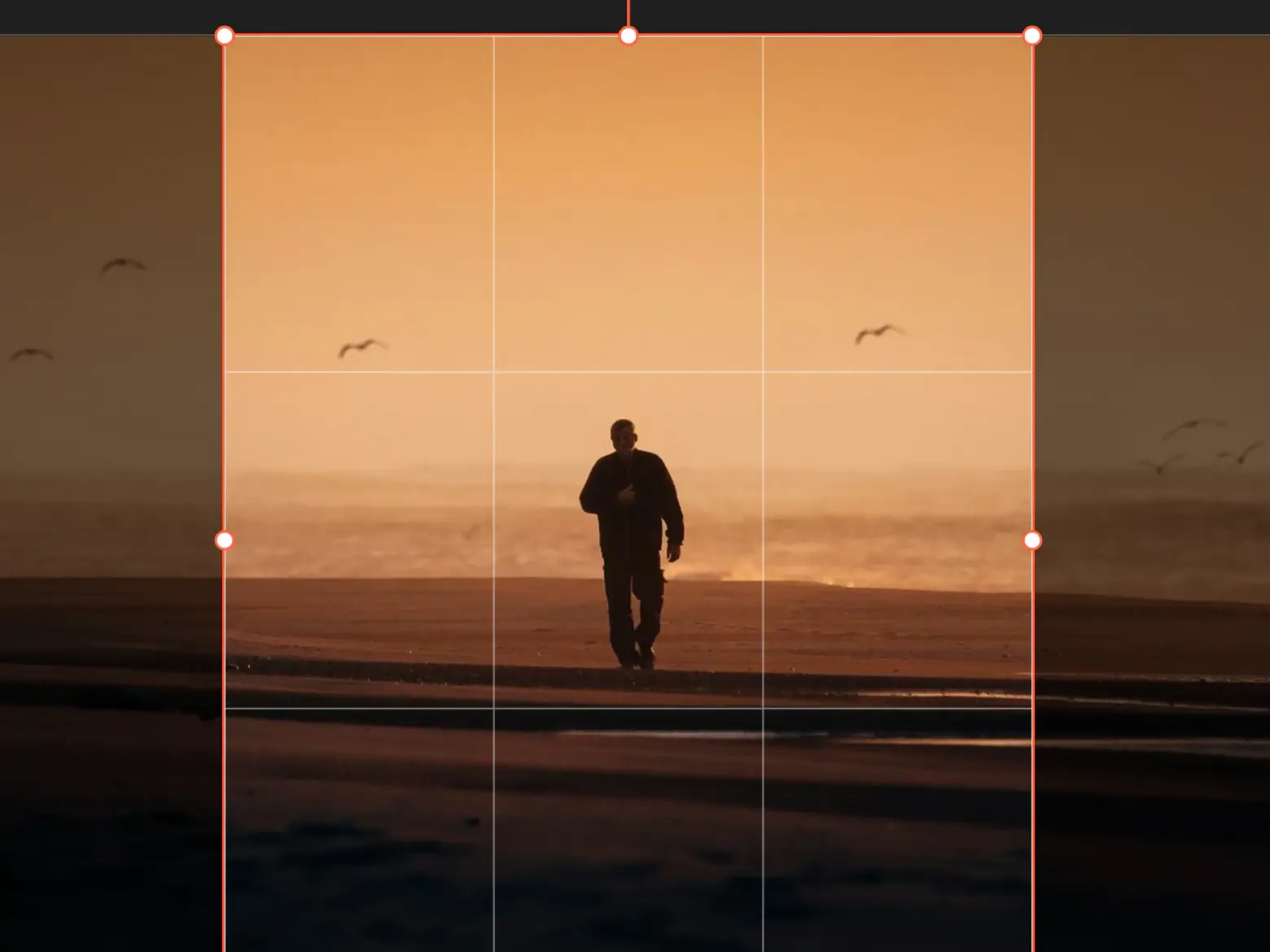 Crop a photo for social mediaCrop to 1:1, 4:5, 16:9 or 9:16 for any post.
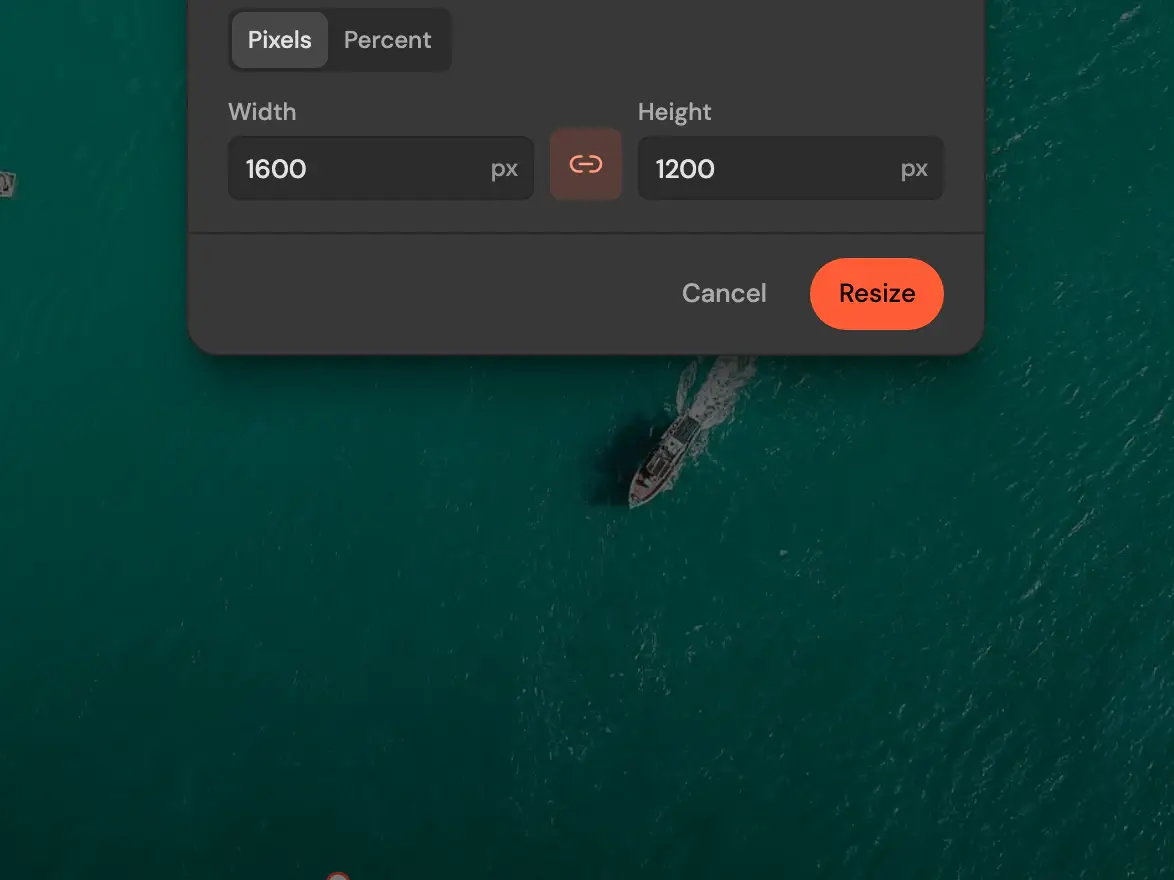 Resize an imageSet exact pixels or a percentage, ratio linked.
 Liquify a photo onlinePush, bloat, pinch and swirl pixels, then restore.
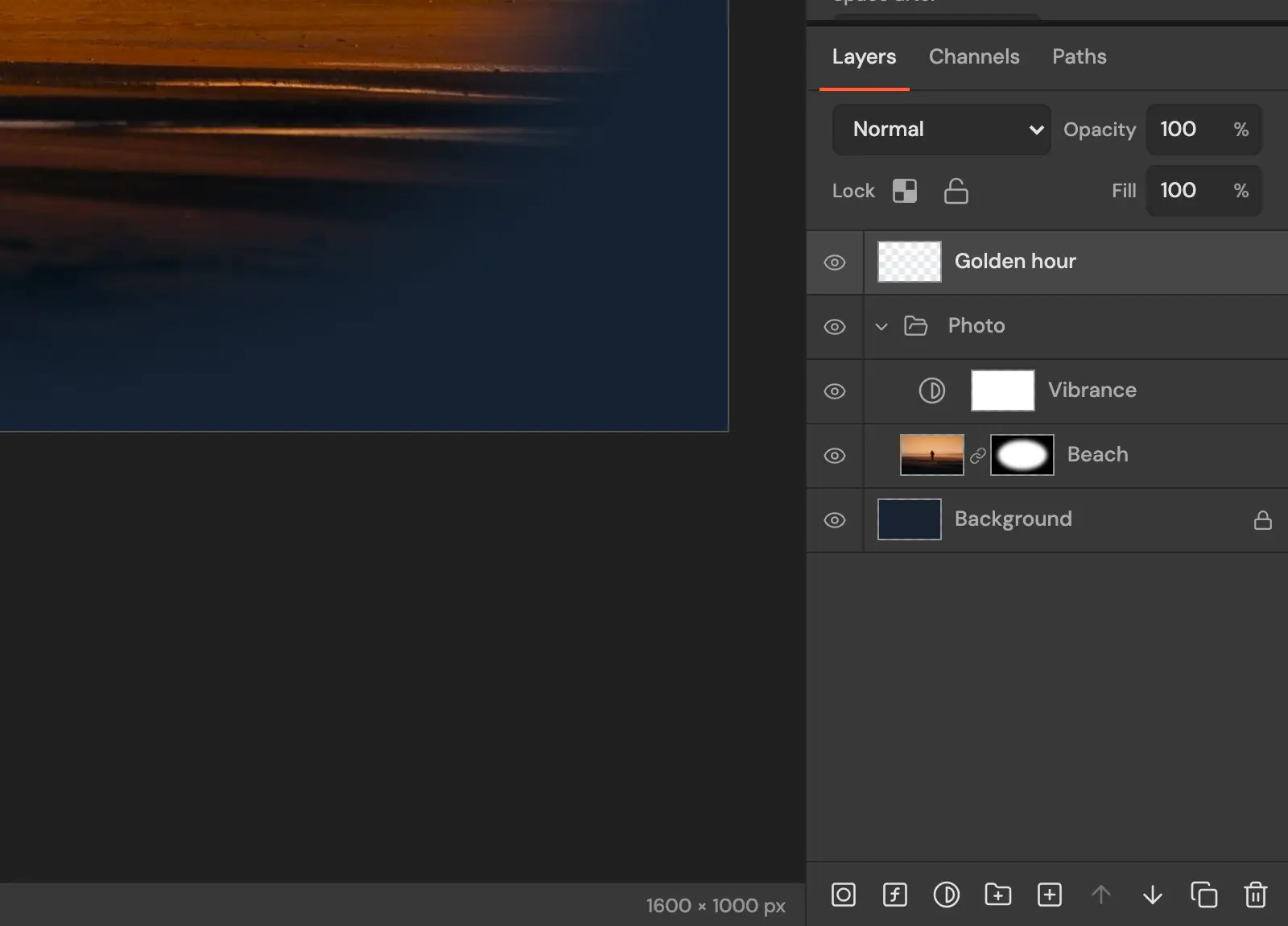 Edit PSD files onlineOpen a layered PSD, edit it and save it back as PSD.
 Edit PSD files on your phoneOpen a layered PSD on Android, iPhone or iPad.
Ready to create? Open a photo and make it better.
Start editingDrop it on the Editor, paste it, or pick it from your phone's photos.