Photopea alternatives: editors that open your PSD files
By Pixuvia · · Updated
The right Photopea alternative depends on which part of Photopea you want to keep. To stay in a browser tab with PSD files, try Pixuvia, or Photoshop on the web if you already pay for Photoshop. For quick edits and AI tools across web, desktop and phone apps, look at Pixlr. For an open-source desktop app, pick GIMP for photos or Krita for painting. For photo, vector and layout work in one installed app, try Affinity.
We opened the same layered PSD in three of the browser editors below, so you can see what each one kept, not only what its website says.
We make Pixuvia, so it is one of the entries. Every fact about Photopea and the other editors comes from their own websites and apps, checked in November 2026, with links in the sources.
On this page
- Why people look for a Photopea alternative
- What to look for in a Photopea alternative
- Photopea alternatives compared
- One PSD, three browser editors
- 1. Pixuvia: Photoshop-style editing and PSD in the browser
- 2. Photoshop on the web and mobile: Adobe's own browser version
- 3. Pixlr: quick edits, AI tools and mobile apps
- 4. GIMP: the open-source desktop photo editor
- 5. Krita: open-source painting, including on Android
- 6. Affinity: photo, vector and layout in one installed app
- Which Photopea alternative to choose
- Questions
- Sources
Why people look for a Photopea alternative
Photopea runs in the browser and treats PSD as its own format; its documentation says files you open in other formats are converted to PSD inside the app. People who leave it usually still want both of those, plus one of these:
- An editor without ads. Photopea's account page says a Premium account "lets you use Photopea without advertisement". Its terms describe Premium as a one-time payment for a set number of days, after which the account switches back.
- A phone or tablet. Photopea says it can run on any device, but it recommends a big screen, a mouse or stylus, and a keyboard for comfortable work.
- An installed app. Some people prefer a desktop program for long sessions and very large files. Photopea's Learn pages say you can load the site, disconnect and keep editing, so working offline alone is no reason to switch.
- Saved work. Photopea's terms say that if you close it without saving, your work is lost. Some editors keep a copy for you as you go.
- AI tools or a different payment model. Background removal, generative fill and upscaling are paid differently in each editor: credits, a subscription, or a separate premium plan.
What to look for in a Photopea alternative
- What survives from your PSD. Check whether groups, layer masks, adjustment layers and text stay editable. Then check whether the editor can save a PSD back, or only export flat images.
- Browser or desktop. A browser editor opens on any computer with nothing to install. A desktop app keeps working without the site and suits long sessions.
- How it is paid for. Ads, a one-time pass, a subscription, AI credits, or open source at no cost. Check which plan includes the tools you need.
- Platforms. Windows, macOS, Linux, iPad, iPhone and Android support differs a lot between these editors.
- AI tools. If you remove backgrounds or extend images often, compare what each editor offers and how it is billed.
Photopea alternatives compared
The table sums up the six, with Photopea itself in the first row for reference. Pixuvia, Photoshop on the web and Pixlr are the closest sites like Photopea; GIMP, Krita and Affinity are apps you install.
| Editor | Runs on | How you pay | PSD | Best for |
|---|---|---|---|---|
| Photopea (for reference) | Browser | Ads, or a one-time Premium for a set number of days | Opens and saves; its main format | PSD work and many file formats in a browser |
| Pixuvia | Browser on computers, tablets and phones | Editing in the browser; AI tools use credits | Opens and saves; keeps groups, masks, text and most adjustment layers | Photoshop-style editing plus AI tools in a browser |
| Photoshop on the web and mobile | Desktop browsers; mobile app for iPhone and Android | Photoshop subscription; the mobile app downloads at no charge | Opens and exports PSD; saves cloud documents | People whose files already live in Photoshop |
| Pixlr | Browser, Windows and Mac apps, iOS and Android | Subscription plans that remove ads and add AI credits | Says it opens layered PSD; lists JPEG, PNG and WebP for export | Quick edits and AI tools |
| GIMP | Windows, macOS, Linux | Open source at no cost | Imports and exports PSD; exports PSB since 3.2 | Desktop photo editing, open source |
| Krita | Windows, macOS, Linux, Android | Open source; paid store versions too | Loads and saves layers, groups, text, styles and transparency masks | Painting and illustration |
| Affinity | Windows, macOS, iPad | No charge for individuals; AI tools need a Canva premium plan | Imports with layers and structure; PSD export not listed on its site | Photo, vector and layout work in one app |
One PSD, three browser editors
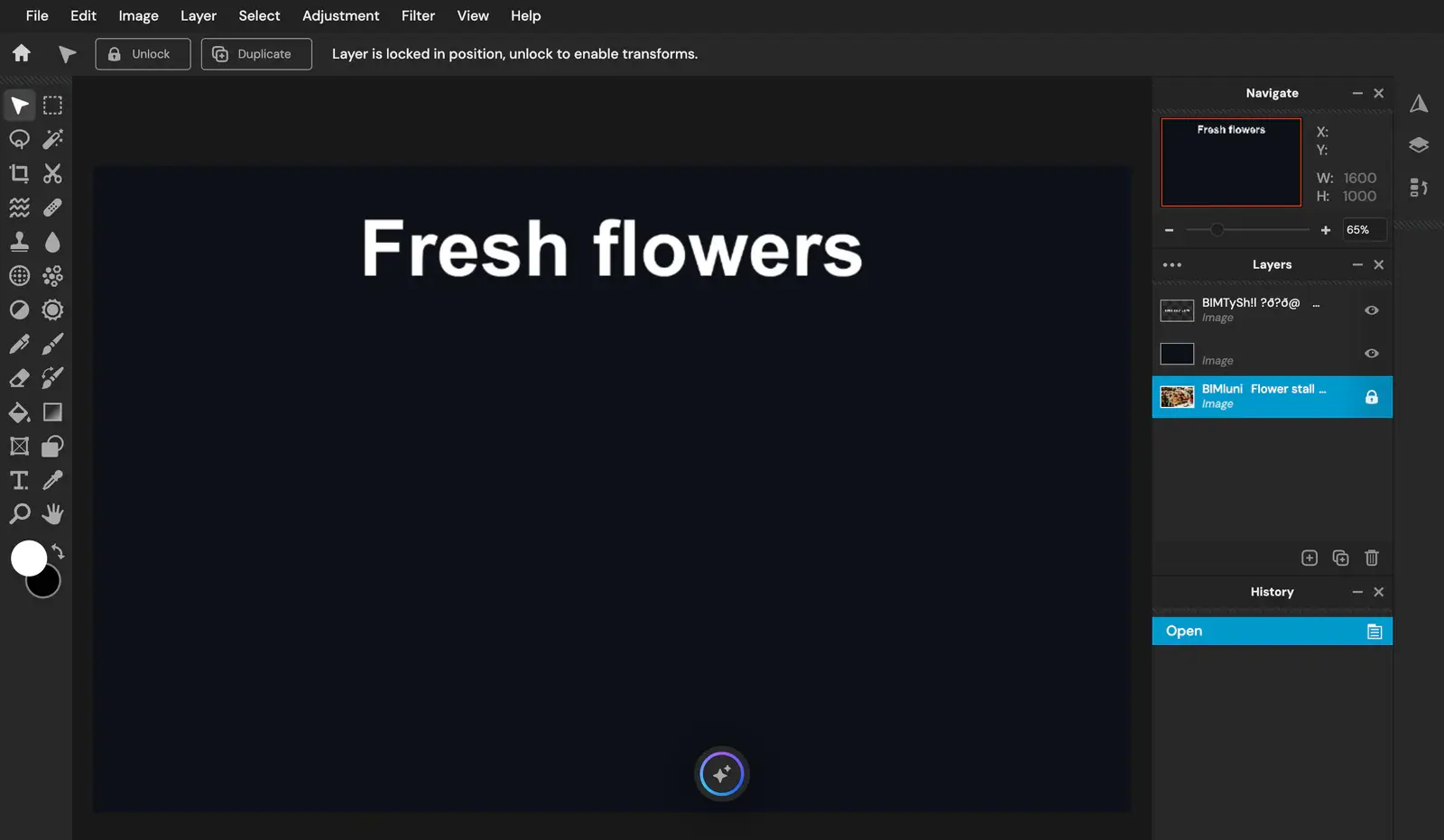
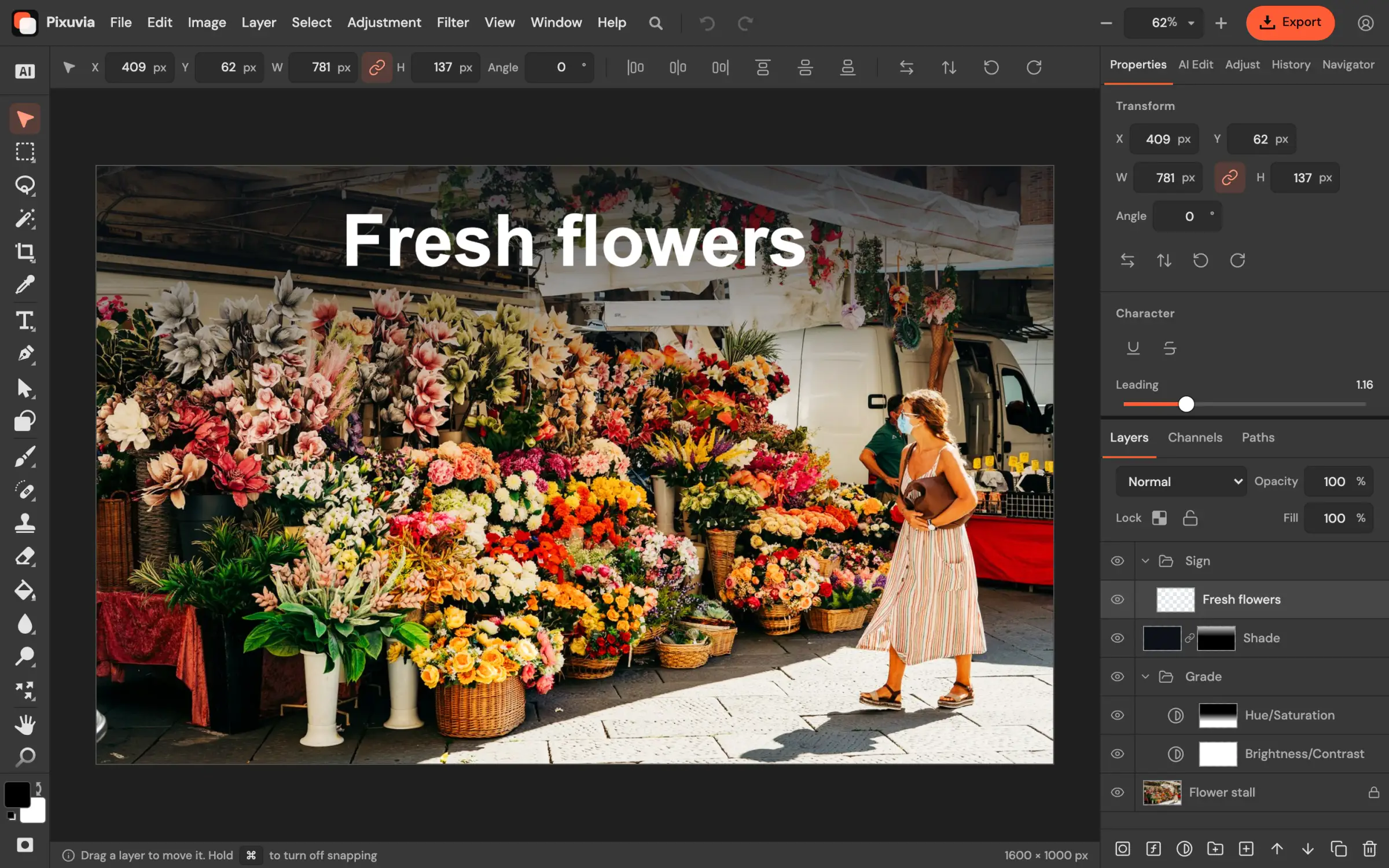
To see what each browser editor really keeps, we built one test file: a photo of a flower stall, a "Grade" group with a Brightness/Contrast and a Hue/Saturation adjustment layer (the second with a gradient layer mask), a dark "Shade" layer faded in by its own mask, and a "Sign" group holding the text layer "Fresh flowers". That is seven rows in the Layers panel. On 13 November 2026 we opened it, signed out, in Pixuvia, Photopea and Pixlr Editor.
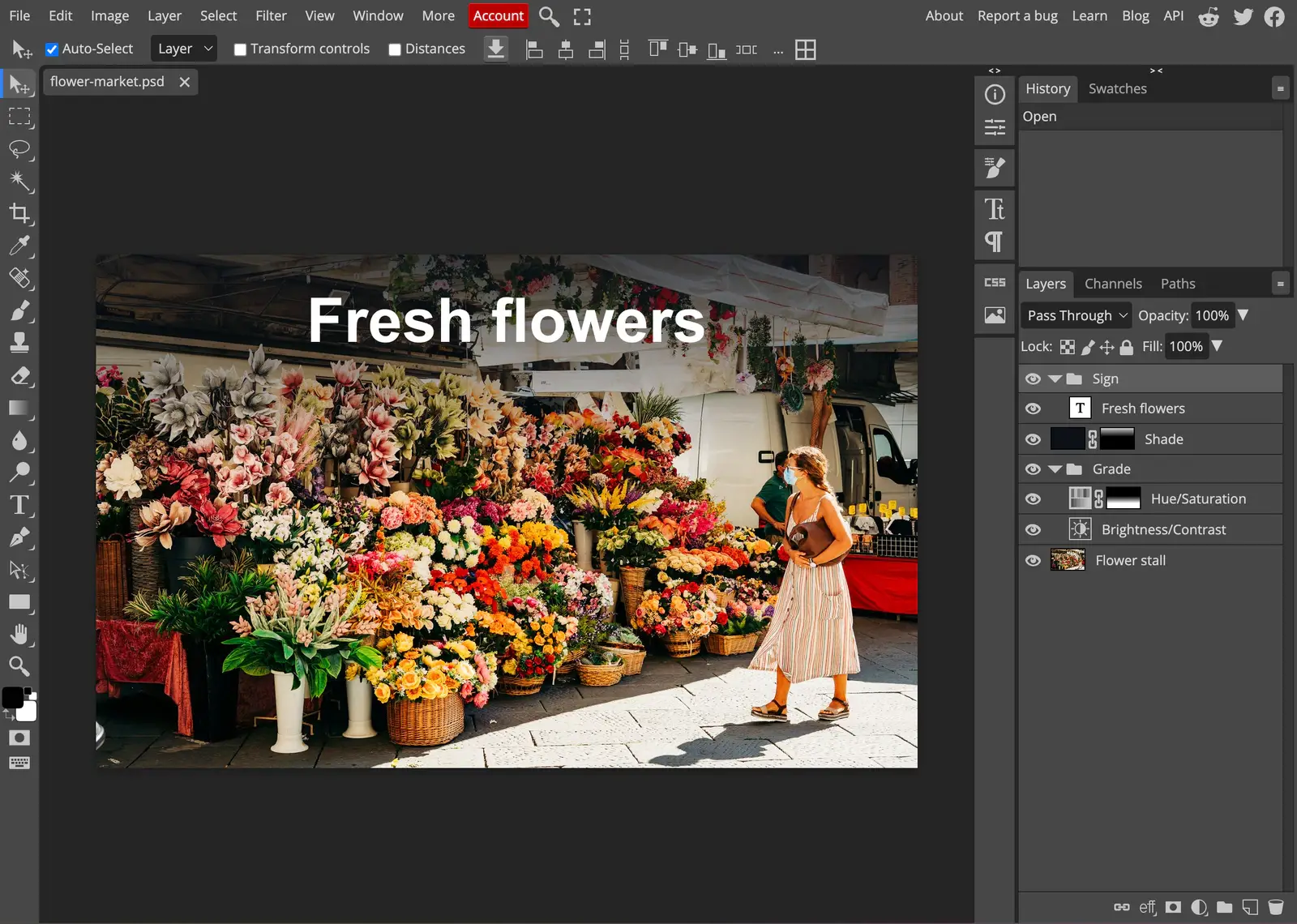
Photopea kept all seven rows, as you would expect from an editor built around PSD. Pixuvia kept the same seven rows. Pixlr Editor opened the file as three image layers: the photo, the Shade layer without its mask, so it covered the photo in solid dark blue, and the title as pixels. The groups and adjustment layers were not in its Layers panel, and two layer names showed stray characters.
One file is not a full test, and your PSDs may use features ours does not. Still, it is the quickest check you can run yourself: open a copy of a real project in each editor you are considering and compare the Layers panel row by row.
1. Pixuvia: Photoshop-style editing and PSD in the browser
Pixuvia is a browser editor with two workspaces. The Editor follows Photoshop's menus and tool groups for layered work. The Studio is a simpler editor built around one-job AI tools: remove background, erase objects, generative fill, expand, upscale, relight and edit by prompt.
Good at
- Opening PSD files up to 60 MB and saving PSD back, with groups, layer masks, editable text and shapes, most adjustment layers and embedded smart objects.
- Photoshop names for tools and menus, so moving over from Photopea or Photoshop takes little relearning.
- AI tools in both workspaces, next to the layered editor.
- Runs in the browser on computers, tablets and phones, and keeps the open document saved in the browser as you work.
Keep in mind
- PSD export is 8-bit RGB, and alpha channels, group masks and group effects are not kept.
- Warped or linked smart objects and text on a path open as pixels, and PSB files don't open.
- It opens fewer file types than Photopea, which also reads formats such as Sketch and many RAW files.
- AI tools need a sign-in and use credits; plans are on the pricing page.
Best for: people who like Photopea's browser and PSD way of working and also want AI tools in the same place. The online PSD editor page shows the PSD features in more detail.
2. Photoshop on the web and mobile: Adobe's own browser version
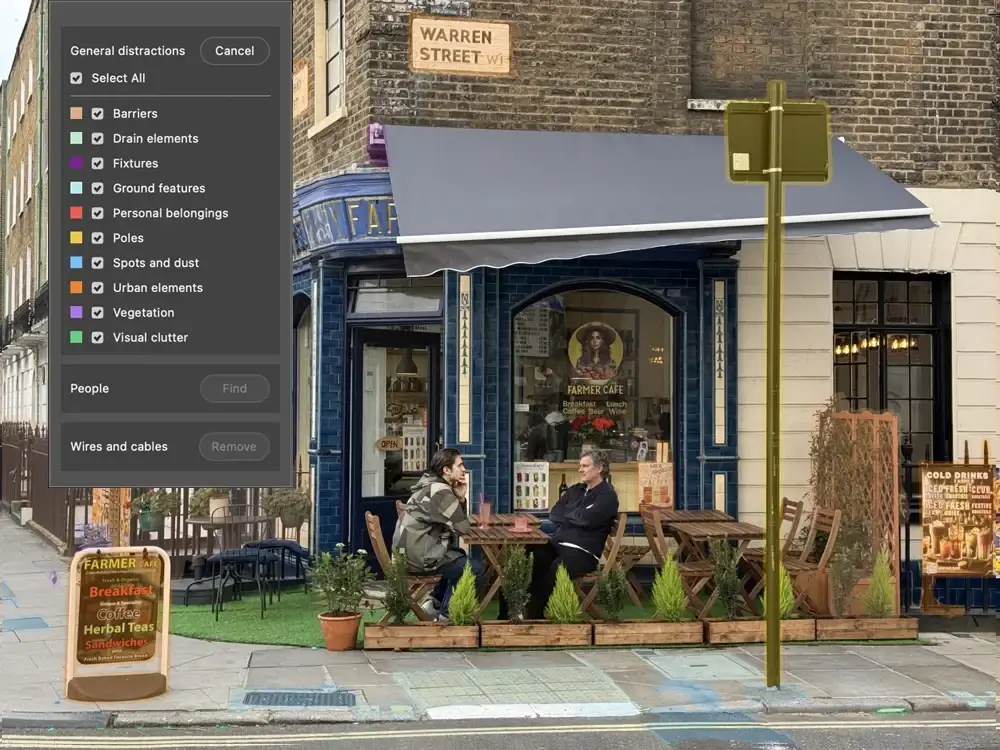
If you want the real thing in a browser, Adobe has Photoshop on the web. Its file format page lists PSD for both import and export, and says documents are saved as cloud documents by default, with a download option. Adobe also has Photoshop on mobile for iPhone and Android.
Good at
- The same file format and company as desktop Photoshop, so files move between them.
- Opens PSD, PSB, RAW, HEIC and TIFF on the web, and exports PSD, PNG, JPEG, TIFF and WebP.
- A mobile app for iPhone and Android that Adobe offers as a download at no charge.
Keep in mind
- Adobe answers "Can I buy Photoshop outright?" with "No": it comes only with a Creative Cloud subscription, paid monthly or yearly.
- Its technical requirements list Chrome, Edge, Firefox and Safari on Mac (beta) on desktop; on a mobile device you can view and comment but not edit.
- Adobe's web and desktop comparison marks the Pen tool, Magic Wand, Warp, Puppet Warp, Actions, the Patch tool and Smart Filters as not available on the web.
Best for: people who already pay for Photoshop and want to edit their files away from their main computer. Photopea vs Photoshop compares the two directly.
Link: adobe.com/products/photoshop
3. Pixlr: quick edits, AI tools and mobile apps
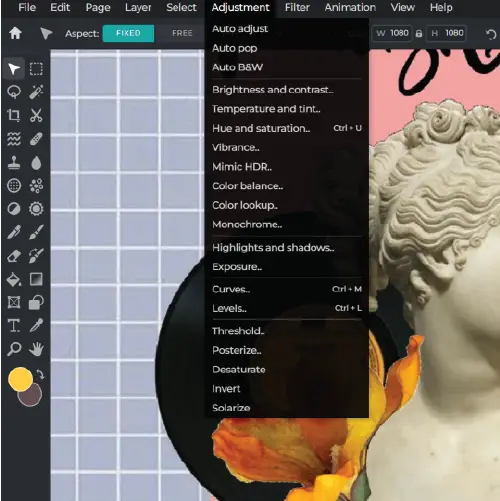
Pixlr runs in the browser as Pixlr Editor, for layered work, and Pixlr Express, for quick edits. Its suite page says it is also "a desktop app for Windows and Mac, and mobile apps for iOS and Android", and that it "supports layered PSD files". Our test above shows how far that support went with our file.
Good at
- Many AI tools in the Editor's menus, such as generative fill, generative expand, super scale and noise removal.
- Layer masks and a Cutout tool for layered edits in the browser.
- Apps on every major platform under one account.
Keep in mind
- The export formats its suite page lists are JPEG, PNG and WebP, so check before you plan to send a PSD back. To keep layers, it saves its own Pixlr document (PXZ).
- Its pricing page lists Plus, Premium and Ultra subscriptions; Plus is marked as showing no ads, and each plan includes monthly AI credits.
- In our test, groups, adjustment layers and live text did not survive the import.
Best for: social posts and quick fixes on web and phone, where AI tools matter more than keeping a PSD's structure. See Photopea vs Pixlr and Pixlr alternatives for more.
Link: pixlr.com
4. GIMP: the open-source desktop photo editor
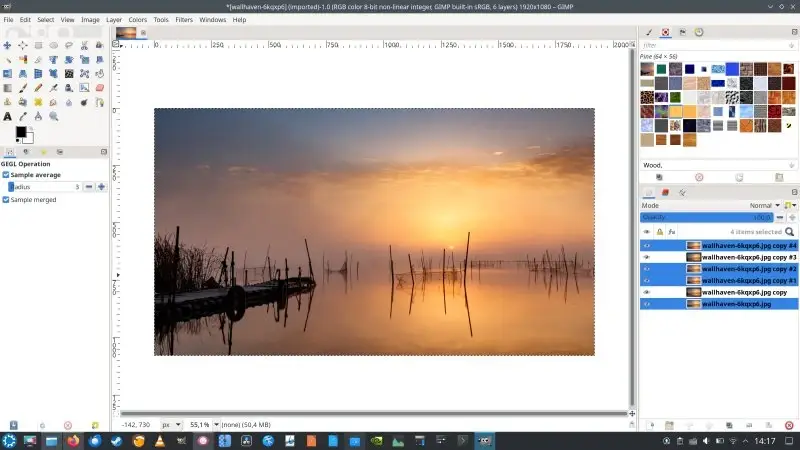
GIMP is an open-source image editor for Windows, macOS and Linux; version 3.2.8 came out on 2 November 2026. The 3.0 release notes report "improved compatibility for importing and exporting PSD project files", and the 3.2 notes add export of PSB, Photoshop's large-document format, and import of more layer styles such as Drop Shadow and Outer Glow.
Good at
- Photo retouching and compositing without a plan or an account.
- Non-destructive filters, plus text, link and vector layers you can edit later (3.2).
- Runs on Linux as well as Windows and macOS.
Keep in mind
- It is a desktop program, so there is nothing to open in a browser or on a phone.
- Menus and tool names differ from Photopea and Photoshop.
- Its notes describe improved PSD compatibility, so check complex files layer by layer.
Best for: open-source photo editing on a computer, including Linux. Photopea vs GIMP goes deeper.
Link: gimp.org
5. Krita: open-source painting, including on Android
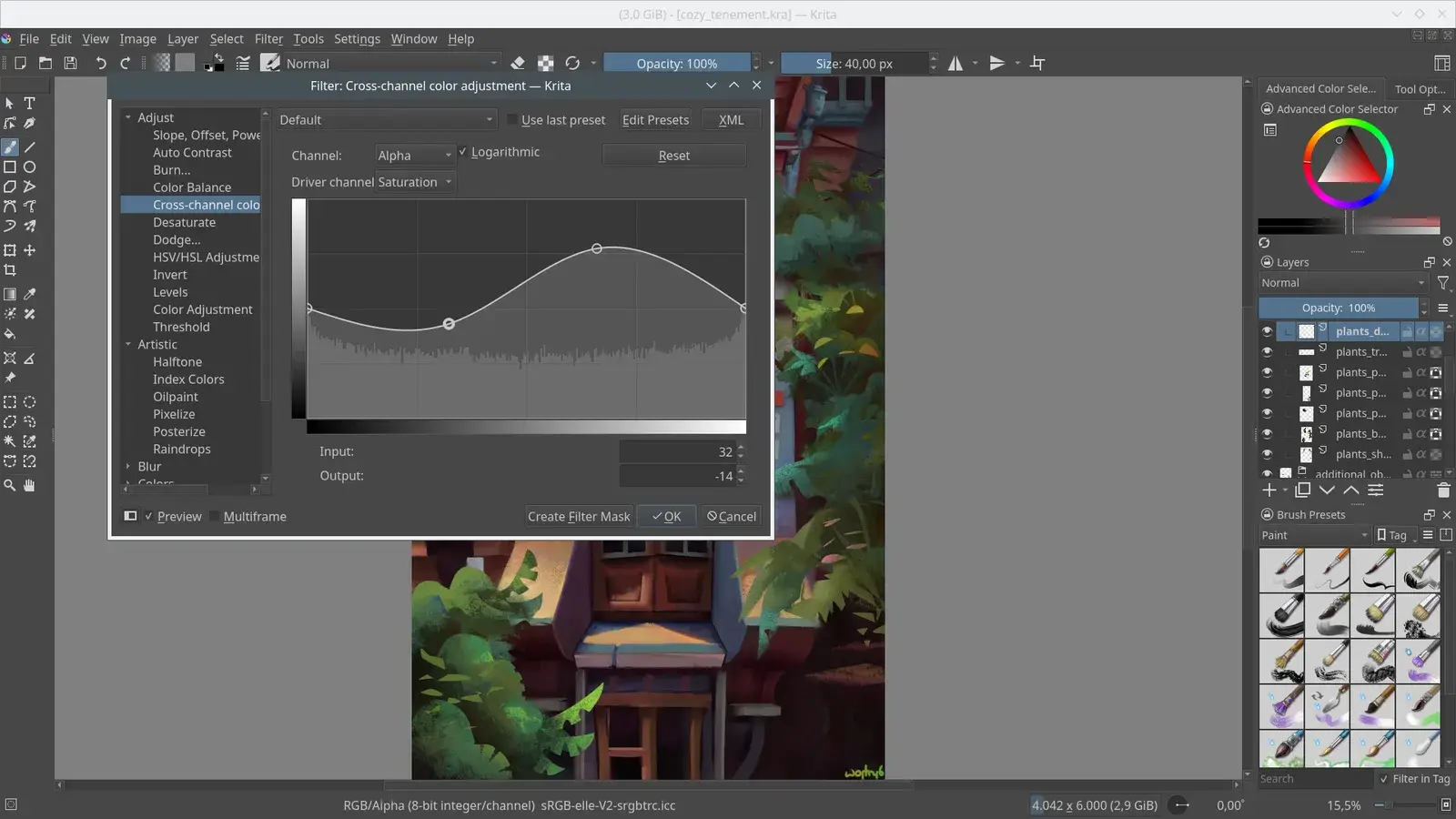
Krita is an open-source app made for digital painting. Its download page lists Windows, macOS, Linux and Android (through Google Play), and says Apple iPads and iPhones are not supported. Its PSD page lists raster layers, blending modes, layer styles, vector shapes, text layers, layer groups and transparency masks as loaded and saved.
Good at
- Brushes, brush engines and drawing tablets.
- A clear public list of what its PSD support covers.
- An Android version, for tablets and phones.
Keep in mind
- It is built for painting; photo retouching is not its focus.
- Krita says PSD can't be supported 100% by any program outside Photoshop, and recommends other formats for exchange.
- Store versions on Steam, the Microsoft Store and the Mac App Store are paid; the direct downloads are not.
Best for: illustrators who trade layered files with Photopea or Photoshop users.
Link: krita.org
6. Affinity: photo, vector and layout in one installed app
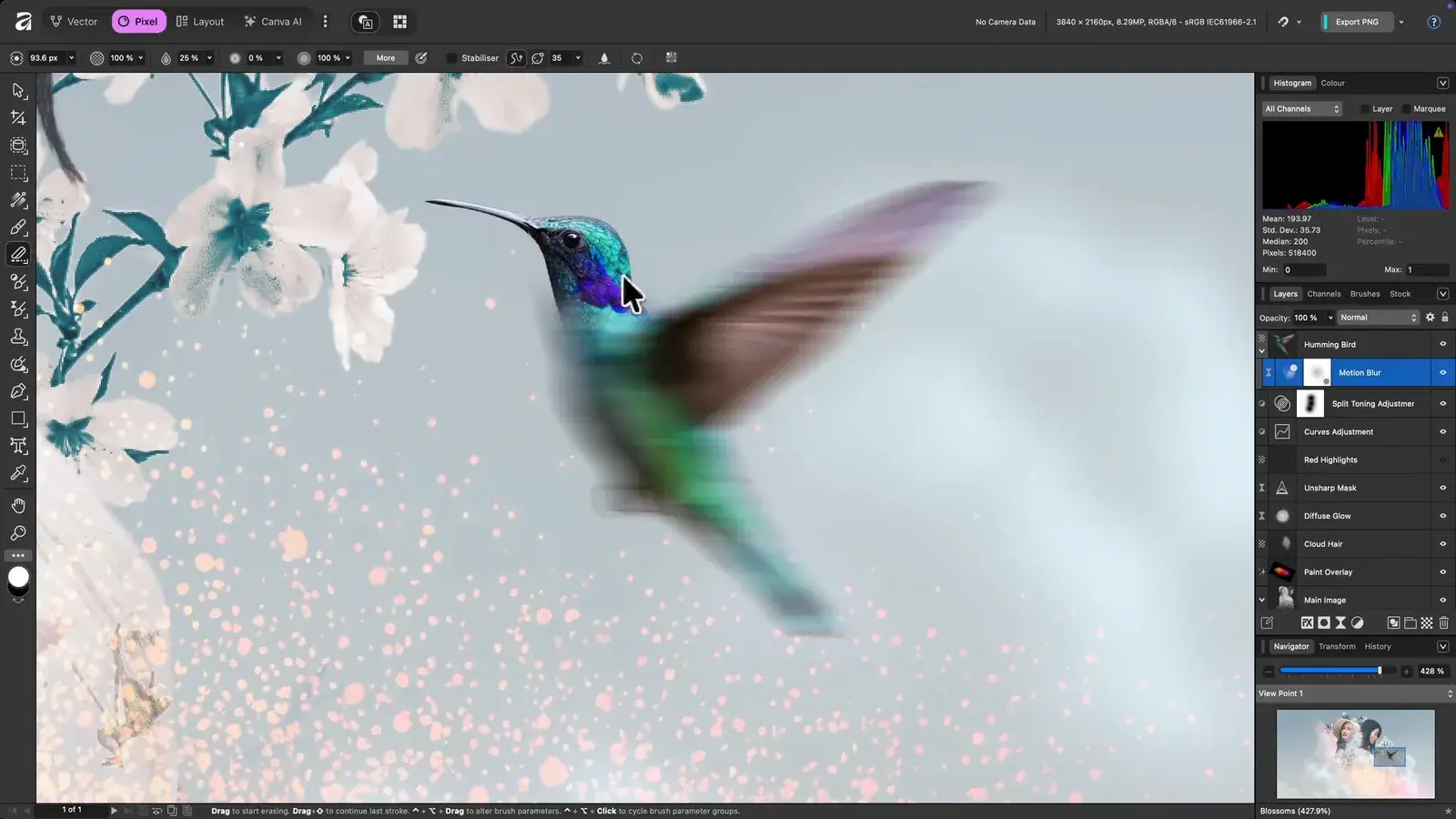
Affinity, now part of Canva, puts photo editing, vector design and page layout in one app for Windows, macOS and iPad. Its site says you can bring in PSD, AI, IDML and DWG files "with layers and structure preserved", and that it costs nothing for individuals.
Good at
- Mixing photos, vector graphics and page layout in one document.
- A native app for Apple silicon and Intel Macs, Windows, and iPad with Apple Pencil.
- No charge for individual use.
Keep in mind
- Its site describes PSD import; PSD export is not listed there, so test it before you rely on sending files back.
- Its AI tools need a Canva premium plan.
- It is not a browser editor, and there is no Android version listed on its site.
Best for: designers who outgrow a browser editor and want photo, vector and layout tools in one desktop app.
Link: affinity.studio
Which Photopea alternative to choose
- You want to stay in the browser and keep PSD layers: Pixuvia, or Photoshop on the web if you already have a Photoshop plan.
- You want AI tools next to a layered editor: Pixuvia, or Pixlr if you mainly export JPEG and PNG.
- You edit on an Android phone or tablet: Krita for painting, Pixlr or Photoshop on mobile for photos, or a browser editor such as Pixuvia.
- You prefer open source: GIMP for photos, Krita for painting.
- You want an installed app for long sessions: GIMP, Krita or Affinity.
- You only need a flat image from a PSD: convert the PSD to PNG on the page.
- Photopea already does what you need: stay with it. Its Premium removes the ads, and it works offline once loaded.
New to opening Photoshop files outside Photoshop? How to open a PSD file without Photoshop walks through the checks step by step.
Questions
Which Photopea alternative opens PSD files online?
Pixuvia and Photoshop on the web both open and save PSD in a browser tab. Photoshop on the web needs an Adobe plan and a supported desktop browser. Pixlr says it opens layered PSD files, but the export formats it lists are JPEG, PNG and WebP, and in our test it kept only three flat layers of a seven-row file.
Is there an open-source alternative to Photopea?
Yes: GIMP and Krita are both open source and open PSD files. GIMP is a general photo editor for Windows, macOS and Linux, and its 3.2 release added PSB export. Krita is built for painting, runs on Windows, macOS, Linux and Android, and documents which PSD layer types it loads and saves. Both are desktop apps, not websites.
Is there a Photopea alternative for Android?
Krita is on Google Play, Pixlr has mobile apps for iOS and Android, and Adobe offers Photoshop on mobile for iPhone and Android. Browser editors such as Pixuvia also open in a phone's browser. Photopea itself says it runs on phones too, though it recommends a big screen, a mouse or stylus and a keyboard.
Can Photopea work offline?
Photopea's Learn pages say you can load photopea.com, disconnect from the internet and keep working. If you want an app installed on your computer instead, GIMP, Krita and Affinity are desktop programs.
Is Photoshop on the web a good replacement for Photopea?
It opens and exports PSD and saves cloud documents, but it comes with a Photoshop subscription, edits only in supported desktop browsers, and Adobe's own comparison lists the Pen tool, Magic Wand, Warp, Actions and Smart Filters as not available on the web.
Will my PSD look the same in another editor?
Not always. Pixel layers usually come through; groups, masks, adjustment layers and live text are where editors differ. Krita's documentation says no program outside Photoshop can support PSD completely. Open a copy of a real file, compare the Layers panel with the original, and keep the original until you are sure.
Sources
- Photopea: Opening and saving
- Photopea: Learn (offline use, devices)
- Photopea: Accounts and Premium
- Photopea: Terms of use
- Photopea: Home page (supported formats)
- Adobe: Compare Photoshop plans (FAQ "Can I buy Photoshop outright?")
- Adobe: Photoshop on the web supported file formats
- Adobe: Photoshop on the web technical requirements
- Adobe: Compare Photoshop web and desktop features
- Adobe: Photoshop on mobile
- Pixlr: Pixlr Suite
- Pixlr: Pixlr Editor
- Pixlr: Pricing
- GIMP: Home page (current release)
- GIMP: GIMP 3.0 release notes
- GIMP: GIMP 3.2 release notes
- Krita: Download
- Krita: PSD file format
- Affinity: Product page