Pixlr alternatives: online editors for quick edits and layers
By Pixuvia · · Updated
Pixlr is two web editors under one account: Pixlr Editor for layered work and Pixlr Express for quick edits, with AI tools paid for in credits. The right Pixlr alternative depends on which half you use. For layers and PSD files in the browser, look at Pixuvia or Photopea. For fast one-screen edits, look at BeFunky, Fotor or Adobe Express. For designs built from templates, Canva or Adobe Express. For AI effects aimed at social media, Picsart.
We make Pixuvia, and it appears in this list as one entry, with what it lacks. Every fact about Pixlr and the other editors comes from their own websites and apps, checked in November 2026, with links in the sources. Where we opened a file ourselves, we say so: each web editor got the same layered PSD of a surfer, or its PNG export when it would not take the PSD.
On this page
- Why people look for a Pixlr alternative
- What to look for in a Pixlr alternative
- Pixlr alternatives compared
- 1. Pixuvia: a layered editor and an AI studio, like Pixlr's two apps
- 2. Photopea: the browser editor built around PSD
- 3. Adobe Express: quick edits inside designs, with Photoshop file import
- 4. Canva: templates first, photo edits second
- 5. Fotor: one-click AI touch-ups and quick designs
- 6. Picsart: AI edits and effects for social media
- 7. BeFunky: quick edits and photo effects in a simple panel
- Which Pixlr alternative fits your work
- Questions
- Sources
Why people look for a Pixlr alternative
Pixlr's pricing page sets out its model. There are three subscription tiers, Plus, Premium and Ultra (with an Ultra MAX upgrade), billed monthly or yearly. Each lists an experience without ads, unlimited saves and a monthly allowance of AI credits, and the higher tiers add more credits and more AI generations at once. The same page says Pixlr does not process refunds once a payment is complete, and that subscription credits drop to zero when you cancel (credit packs bought separately stay).
Files are the other reason. Pixlr's Suite page says it supports layered PSD files, and its FAQ lists JPEG, PNG and WebP for export. Projects with layers are kept in Pixlr's own .PXZ format, and the Editor and Express pages both say history is only saved temporarily in the browser cache. If someone sends you a PSD and wants a PSD back, that matters.
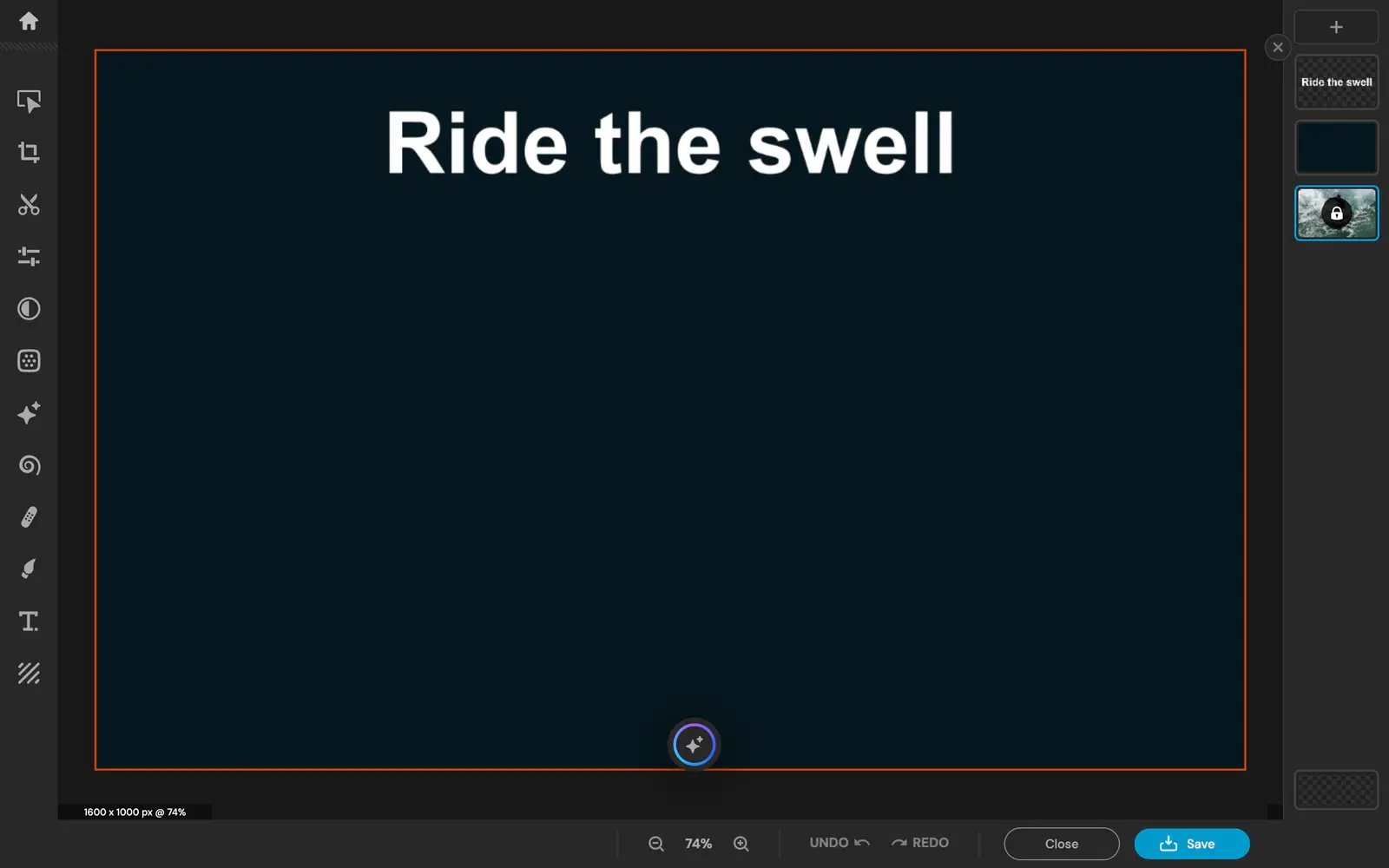
In our own test, Pixlr Express opened the PSD without complaint, but it lost the structure that makes a PSD worth keeping. The layer mask that fades the dark Haze layer was gone, so the whole photo turned dark blue, and the two adjustment layers and both groups were missing. Our Photopea vs Pixlr comparison shows the same pattern in Pixlr Editor.
What to look for in a Pixlr alternative
Sites like Pixlr differ most on five points:
- Which Pixlr you are replacing. Pixlr Editor users need layers, masks and selections. Pixlr Express users need a short path from upload to export.
- What it does with a PSD. Opens it with layers, converts it into its own format, or turns it away. Check whether it can save a PSD back out.
- How AI is paid for. Almost every editor here sells AI runs as credits inside a plan. Read what each tier includes and what happens to unused credits.
- Where your work is kept. Browser storage, an account, or a project file you download. Pixlr keeps history in the browser cache, so check where an alternative saves before you rely on it.
- Templates. If most of your Pixlr time goes into social posts, an editor built around templates may suit you better than a photo editor.
Pixlr alternatives compared
| Editor | Replaces | How you pay | PSD | Best for |
|---|---|---|---|---|
| Pixuvia | Editor and Express (Editor and Studio) | AI tools use credits (see pricing) | Opens and saves, with layers, masks, text and adjustment layers | Layered editing plus one-job AI tools |
| Photopea | Pixlr Editor | Supported by ads; Premium removes them | Opens and saves; its main format | PSD files and Photoshop-style work |
| Adobe Express | Pixlr Express | A plan at no cost; Premium and other paid plans add generative credits | Converts a PSD into an editable Express file | Quick edits inside social and marketing designs |
| Canva | Pixlr Express (for designs) | A plan at no cost; Pro, Business and Enterprise plans | Imports as an editable design (beta); some elements may be rasterized | Templates for social posts, presentations and print |
| Fotor | Pixlr Express | Basic plan at no cost; Pro, Pro+ and Max add credits and HD exports | Not among its listed upload formats | One-click AI touch-ups from JPG or PNG |
| Picsart | Pixlr Express and its AI tools | Pro and Ultra subscriptions with monthly AI credits | Says it opens layered PSD and exports JPG, PNG and other formats | AI edits, effects and templates for social media |
| BeFunky | Pixlr Express | Essential tools at no cost; Plus and Pro subscriptions | Not among its listed formats; its own BFD project keeps layers | Quick edits, photo effects and batch edits |
1. Pixuvia: a layered editor and an AI studio, like Pixlr's two apps
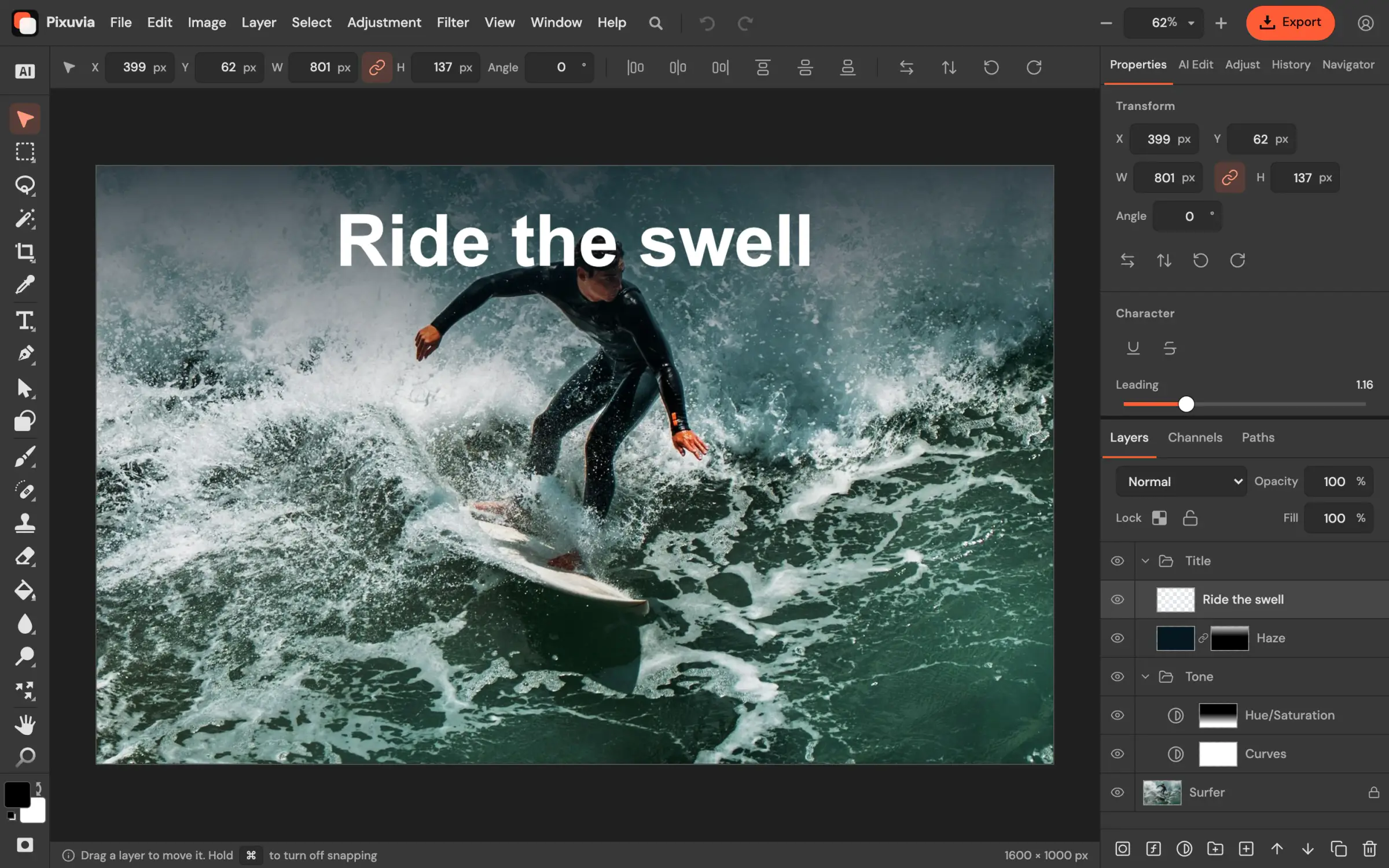
Pixuvia has the same split as Pixlr. The Editor is a Photoshop-style layered editor with about 50 tools and menus from File to Window. The Studio is the quick side: one-job AI tools (remove background, erase objects, generative fill, expand, upscale, relight and edit by prompt), plus filters, text and collages. The difference from Pixlr is the file format: the Editor opens Photoshop files up to 60 MB and saves PSD back.
Good at
- PSD in and out, keeping layers, nested groups, masks, editable text and shapes, most adjustment layers and embedded smart objects.
- 18 adjustment layer types, layer masks, vector and clipping masks, 10 layer styles and Photoshop blend modes.
- AI tools in both the Editor and the Studio, such as the background remover and object remover.
- Exports PSD, PNG, JPG, WebP, GIF, SVG, PDF and TIFF, and runs in the browser on computers, phones and tablets.
Keep in mind
- PSD export is 8-bit RGB without alpha channels or group masks and effects; warped or linked smart objects and text on a path open as pixels, and PSB files don't open.
- AI tools need a sign-in and use credits; plans are on the pricing page.
Best for: Pixlr users who want both halves, layered editing and quick AI edits, with PSD files that keep their layers.
2. Photopea: the browser editor built around PSD
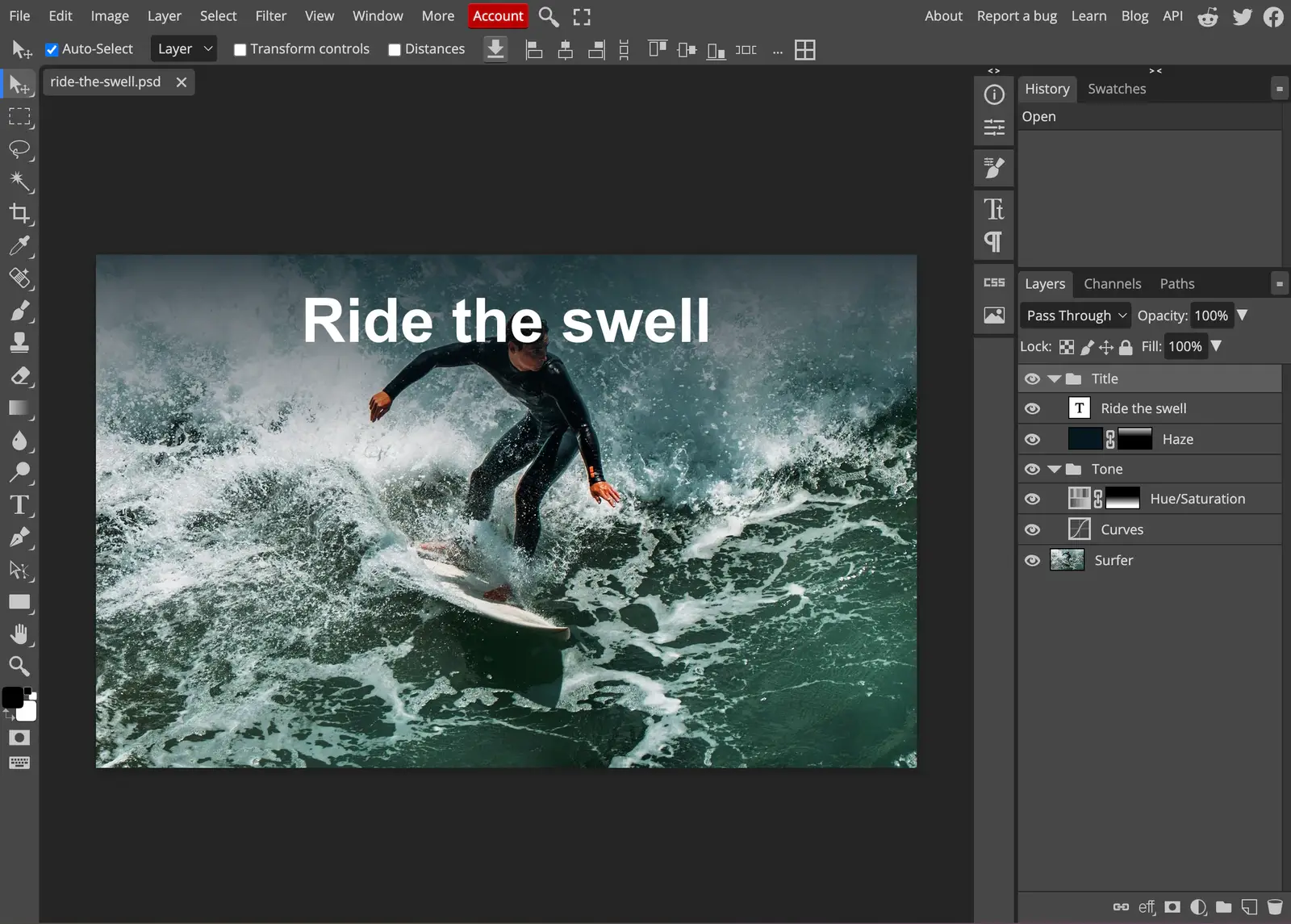
Photopea is the closest match for people who use Pixlr Editor for layer work. Its opening and saving guide says it uses PSD as its main format and converts every file you open into a PSD document, which you save with File, Save as PSD. Other formats such as JPG, PNG, SVG and PDF are for export.
Good at
- Opening and saving PSD with groups, masks, adjustment layers and live text, as in our test above.
- Photoshop's menu layout and vocabulary, so tutorials written for Photoshop mostly apply.
- AI that its home page names: one-click background removal and replacing part of an image from a text description.
Keep in mind
- Ads run beside the canvas; its accounts page says Premium lets you use Photopea without them, and Premium needs a login.
- It has far fewer one-click tools than Pixlr Express, and its dense menus take time to learn.
Best for: Pixlr Editor users who mainly open, fix and return PSD files. For more on the two, read Photopea vs Pixlr, or see other options in our Photopea alternatives.
Link: photopea.com
3. Adobe Express: quick edits inside designs, with Photoshop file import
Adobe Express is Adobe's web and mobile design app. Its photo editor page covers the jobs Pixlr Express handles: filters, brightness, contrast and saturation sliders, blur, background removal, crop and resize to social sizes, text and effects, with templates, fonts and icons next to them. It opens JPEG, PNG and WebP photos under 40 MB.
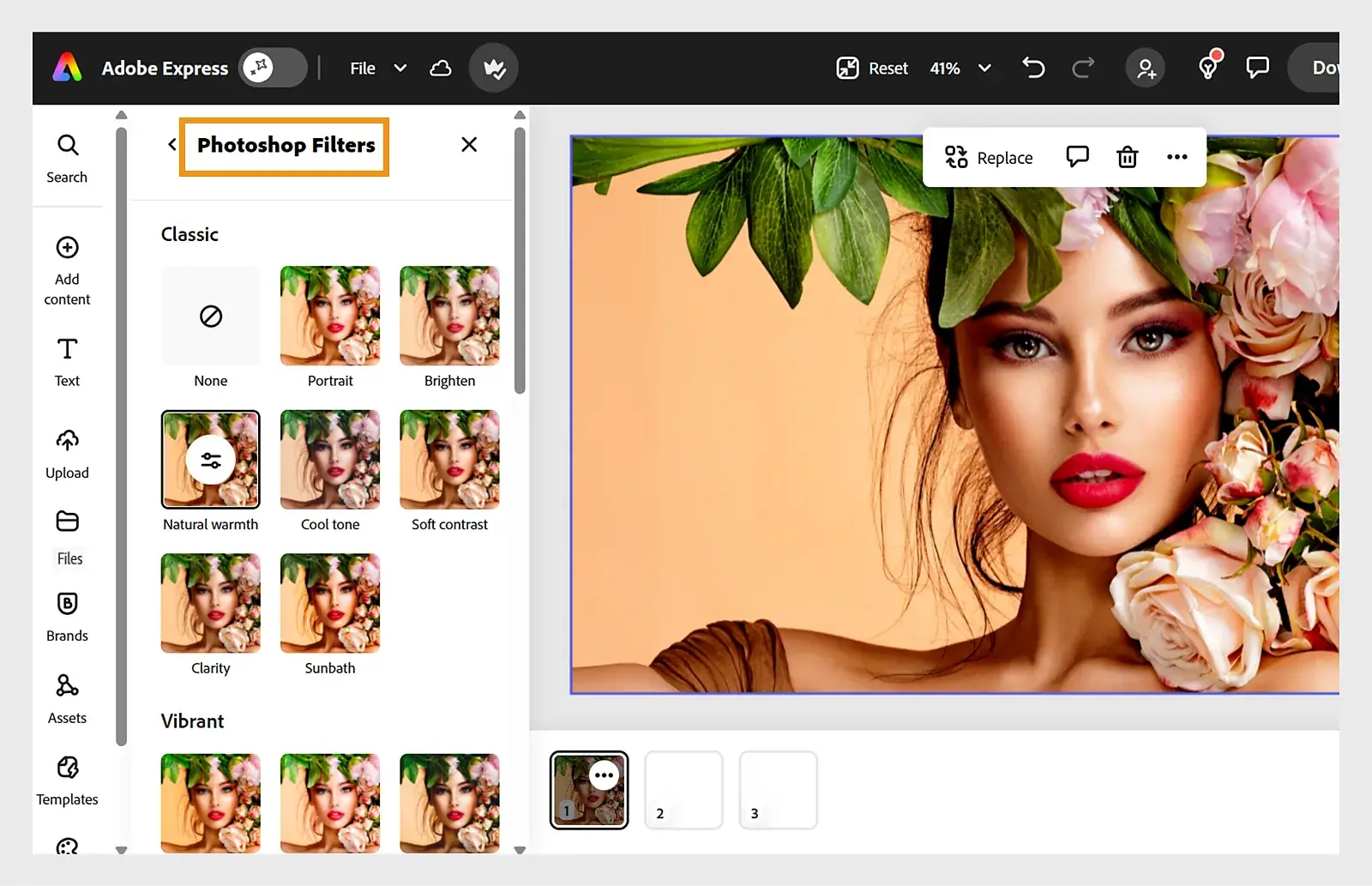
Photoshop files go a different way. Adobe's help center describes two options: add the PSD as a linked, flattened image, or convert it into an Express file "with each element independent of others". It also warns that text may not convert exactly, that only the Multiply and Screen blend modes are supported, and that PSD files up to 500 MB and canvases up to 8000 × 8000 px are accepted.
Good at
- Quick photo edits and social formats in the same app as templates and brand kits.
- Generative AI from Adobe Firefly, with generative credits in its paid plans.
- Converting PSD and Illustrator files into editable designs.
Keep in mind
- A converted file is no longer connected to the original PSD, and Adobe lists fidelity limits for text and blend modes.
- Its pricing page lists a plan at no cost with limited assets; Premium, Teams and Firefly Pro plans add premium templates and monthly generative credits.
Best for: people who use Pixlr Express for social posts and flyers and want templates, brand kits and scheduling in the same place.
Link: adobe.com/express
4. Canva: templates first, photo edits second
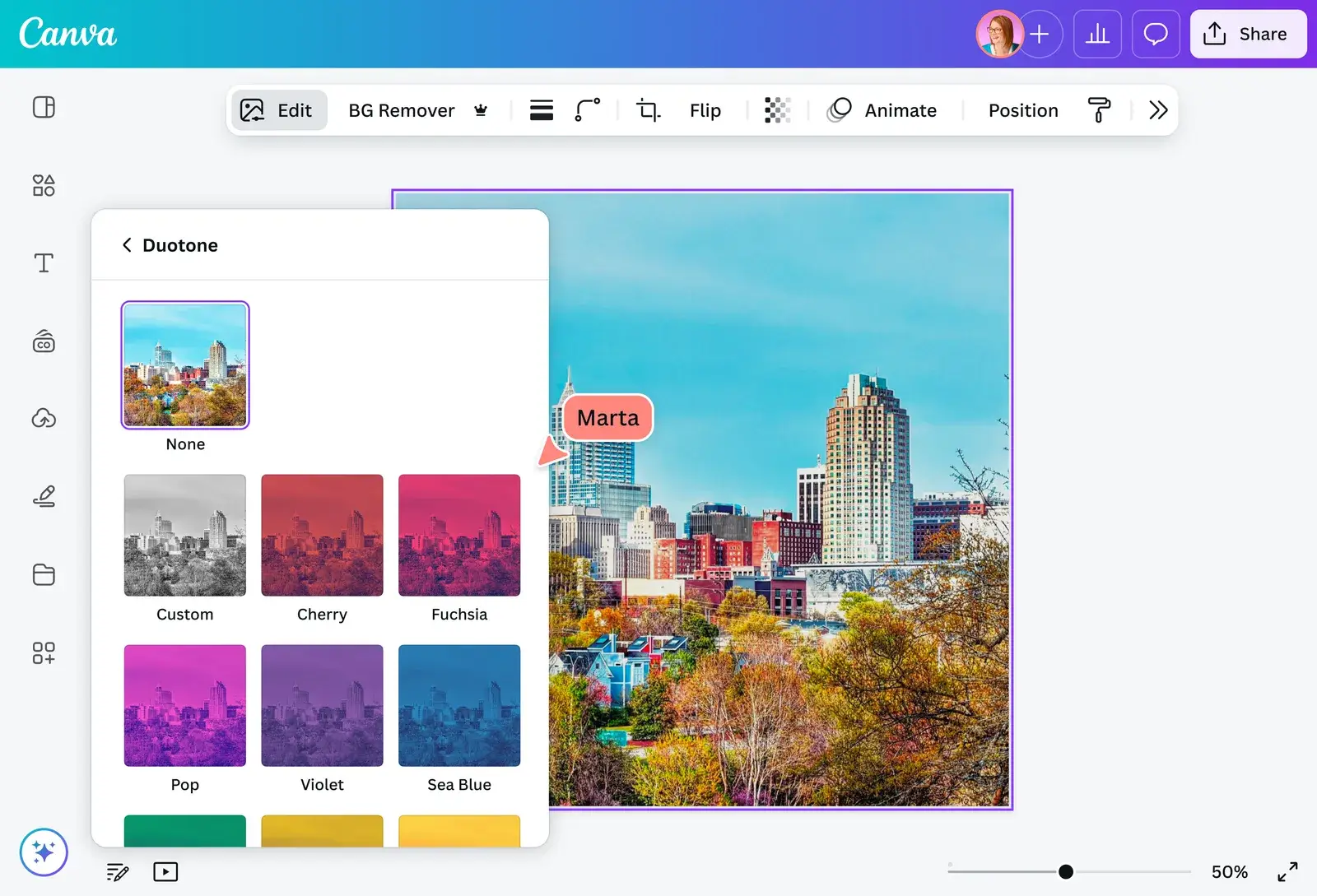
Canva is a design app built around templates for social posts, presentations and print. Photo adjustments and filters sit in the same editor as text and layout. Its help center says it imports Photoshop files as editable designs in an early beta, on canva.com in a desktop browser, for PSD files up to 300 MB, and that "designs with layers, gradients, and masks are supported, but some elements might be rasterized."
Good at
- A very large template and element library for social, marketing and print work.
- Team features in its Business and Enterprise plans, such as brand kits and approvals.
- Turning a PSD into a Canva design you can keep editing there.
Keep in mind
- Its PSD import is a beta and runs only on canva.com in a desktop browser; the help page describes bringing PSD in, not saving one back out.
- Its pricing page lists a plan at no charge plus Pro, Business and Enterprise plans, with AI use counted against an allowance that grows with the plan.
Best for: Pixlr users whose edits end up in social posts or presentations, where the layout matters more than pixel work.
Link: canva.com
5. Fotor: one-click AI touch-ups and quick designs
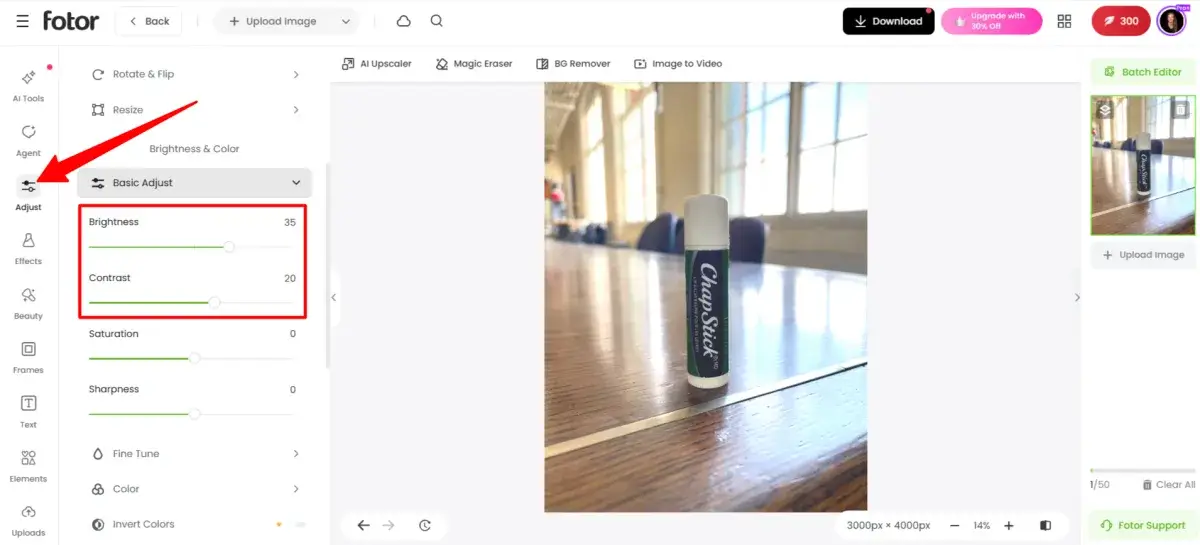
Fotor is an online photo editor and design tool, with apps for Windows, Mac, iOS and Android. Its home page lists AI portrait tools, a background remover, an image enhancer and upscaler, and AI image and video generators. Its pricing page lists a Basic plan with limited credits and Pro, Pro+ and Max plans with a monthly credit allowance, billed monthly or yearly. Pro and above add HD and transparent PNG downloads, and unused credits roll over for up to five months while you stay subscribed.
Good at
- One-click edits for portraits and product photos.
- AI image and video generation with models such as Flux, Nano Banana, Kling and Veo, paid with credits.
- Templates and collages next to the photo editor.
Keep in mind
- Its help center lists JPG, JPEG and PNG (plus SVG in the Editor and Design tools) as upload formats, so a PSD needs a PNG or JPG export first.
- Basic exports are normal-quality JPG, PNG or PDF; HD downloads come with the paid plans.
Best for: Pixlr Express users who mostly run quick AI touch-ups on JPG or PNG photos.
Link: fotor.com
6. Picsart: AI edits and effects for social media
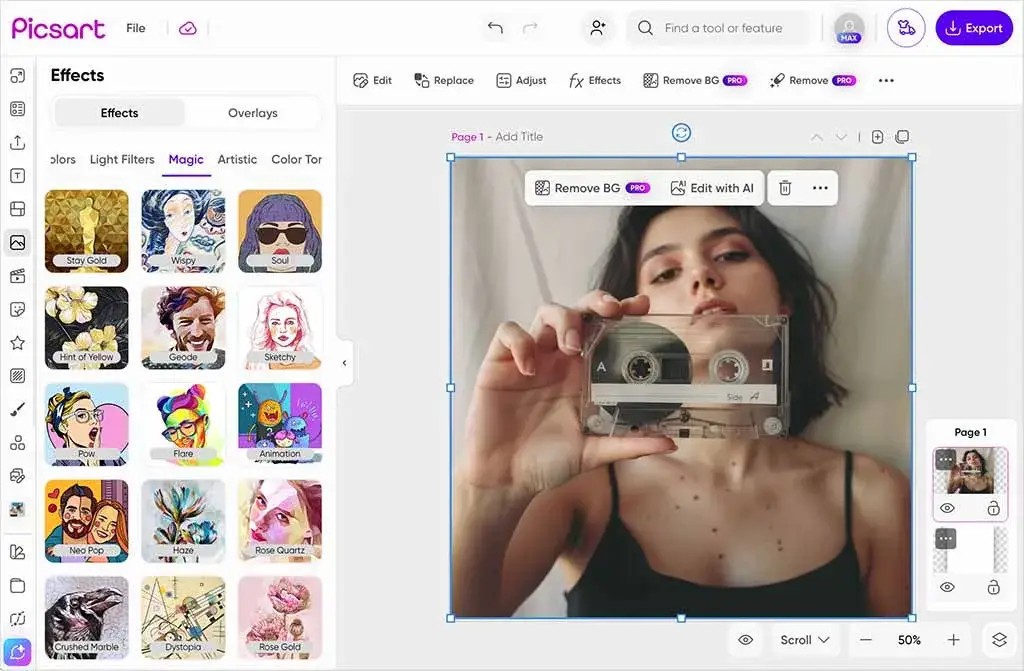
Picsart is a photo and video editor in the browser, with a desktop app, aimed at social media creators and built around AI generation. Its PSD to JPG page says you can open layered PSD files online, adjust layers, text, images and effects, and then export, with JPG, PNG, PDF, WEBM, MP4 and HTML listed as export options. The page does not say whether you need an account for this.
Good at
- Background and object removal, a one-tap enhancer and AI image and video generation.
- Stickers, fonts, stock and templates made for social posts.
- Bulk edits of up to 50 images on Pro and up to 100 on Ultra.
Keep in mind
- Its pricing page lists Pro and Ultra subscriptions, monthly or yearly, with AI use counted in monthly credits.
- Its PSD page describes exporting images and video, not saving a PSD back.
Best for: creators who use Pixlr mostly for its AI tools and want many generation models and effects ready for social feeds.
Link: picsart.com
7. BeFunky: quick edits and photo effects in a simple panel
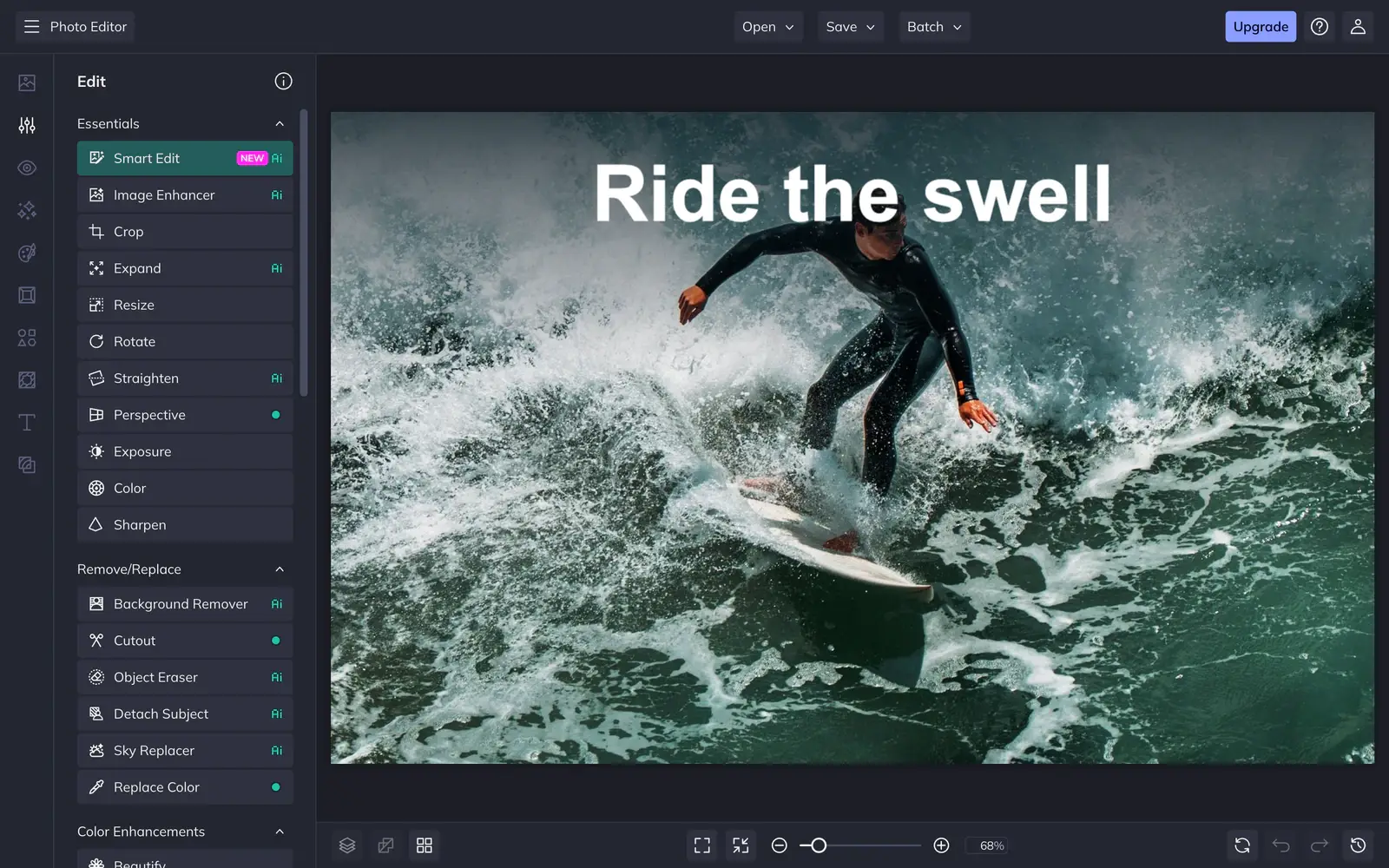
BeFunky's Photo Editor is the closest in feel to Pixlr Express: one side panel with essentials such as crop, resize, exposure and color, then touch-up, object removal, text, frames and Photo-to-Art effects. Its page says you can start without an account and download photos made with its basic tools without a watermark. AI tools such as Smart Edit, background removal and upscaling need Plus or Pro.
Good at
- A short, plain path from opening a photo to saving it.
- Photo effects that turn a photo into a painting, sketch or cartoon.
- Batch editing of crops, resizes and adjustments, with AI batch tools on Pro.
Keep in mind
- Its help center lists JPEG, GIF, BMP, PNG and AVIF as the files it opens, and images up to 4088 × 4088 px.
- It saves JPG, PNG and PDF; layers survive only in its own BFD project file.
- Its pricing page lists Plus and Pro subscriptions, monthly or annual, with AI credits that don't roll over.
Best for: Pixlr Express users who want the simplest quick editor, with effects and batch edits.
Link: befunky.com
Which Pixlr alternative fits your work
You use Pixlr Editor for layered editing
Pick Pixuvia or Photopea. Both keep groups, masks, adjustment layers and live text from a PSD, and both save PSD again, which Pixlr's listed export formats don't include. Choose Photopea if you want Photoshop's exact layout and can work beside ads; choose Pixuvia if you also want one-job AI tools in a simpler Studio. If you are new to layers, start with our guide to how layers work.
You use Pixlr Express for quick edits
Pick BeFunky for the plainest set of tools, Fotor for one-click portrait and product touch-ups, or the Pixuvia Studio if your quick edits are mostly AI jobs such as removing a background or an object.
You mostly use Pixlr's AI tools
Every editor here sells AI the way Pixlr does, as credits inside a plan. Compare what a credit buys and whether unused credits roll over: Fotor's roll over for up to five months, BeFunky's monthly credits do not, and Pixlr's subscription credits reset to zero when you cancel. Picsart's Ultra plan lists more than 200 AI models and Fotor names a dozen image and video models; Pixuvia focuses on editing a photo you already have.
You make social posts from templates
Pick Canva or Adobe Express. Both import PSD files into their own editable designs, and both put templates, fonts and brand kits next to the photo tools. Picsart fits if your posts lean on AI effects and video.
Whichever you choose, open a copy of a real file first, check what came through, and keep the original.
Questions
What is the best alternative to Pixlr?
It depends on which Pixlr you use. To replace Pixlr Editor and its layers, try Pixuvia or Photopea, both of which open and save PSD files in the browser. To replace Pixlr Express for quick edits, try BeFunky, Fotor or Adobe Express. For social posts built from templates, Canva and Adobe Express fit best, and for AI effects and generation for social media, Picsart.
What is the closest alternative to Pixlr Editor (Pixlr E)?
Pixuvia and Photopea. Both are layered editors in the browser with masks, blend modes and adjustment layers, and both open and save PSD files. Pixuvia also has a Studio of one-job AI tools, which matches Pixlr's mix of a full editor and a quick one.
Which Pixlr alternative is closest to Pixlr Express?
BeFunky's Photo Editor and Fotor's editor work the same way: open a photo, pick a tool from a side panel, export. Adobe Express adds templates and social sizes around the same quick tools. In Pixuvia, the Studio covers quick edits and AI tools.
Can Pixlr open and save PSD files?
Pixlr says it supports layered PSD files, and its FAQ lists JPEG, PNG and WebP as export formats. To keep layers between sessions it saves its own .PXZ project file. In our test, Pixlr Express opened our layered PSD as three plain layers, without its groups, adjustment layers or layer mask.
Which Pixlr alternatives open PSD files?
Pixuvia and Photopea open and save PSD. Adobe Express converts a PSD into an editable Express file, and Canva imports PSD as an editable design in a beta. Picsart says it opens layered PSD files and exports images. Fotor's and BeFunky's help centers do not list PSD among the formats they open.
Do Pixlr alternatives charge for AI tools?
Most do, in the same way Pixlr does: AI runs use credits that come with a plan. Fotor, Picsart, Adobe Express and BeFunky all list monthly AI credits or generative credits in their paid plans. Pixuvia's AI tools also use credits and need a sign-in; the classic editing tools in its Editor do not.
Sources
- Pixlr: Pricing and FAQ
- Pixlr: Pixlr Suite (file formats and devices)
- Pixlr: Pixlr Editor
- Pixlr: Pixlr Express
- Photopea: home page
- Photopea Learn: Opening and saving
- Photopea: Accounts
- Adobe Express: Online photo editor
- Adobe Express Help: Photoshop and Illustrator files in Adobe Express
- Adobe Express Help: Convert Photoshop and Illustrator assets
- Adobe Express: Pricing
- Canva Help Center: Import Adobe Illustrator or Photoshop files
- Canva: Pricing
- Fotor: Pricing
- Fotor Help Center: Importing images, supported file types
- Picsart: Pricing
- Picsart: PSD to JPG
- BeFunky: Photo Editor
- BeFunky: Pricing
- BeFunky Help Center: Opening a photo
- BeFunky Help Center: File formats for saving
- BeFunky Learn: Ways to save your work