How to convert HEIC to JPG on Windows, Mac and iPhone
By Pixuvia · · Updated
To convert HEIC to JPG on a Mac, open the photo in Preview, choose File > Export and pick JPEG. On Windows, install two Microsoft Store extensions so it can read HEIC, then open the photo in Photos and use Save as to pick JPEG. On an iPhone, Settings > Camera > Formats > Most Compatible makes new photos JPEG. On any device, a browser converter turns a whole batch into JPGs.
Find your device in the table, then follow its section. The Windows, Mac and iPhone steps come from Microsoft's and Apple's own help pages and support staff; where a detail comes from a tech site instead, the text says so. Wondering whether to convert at all? HEIC vs JPG covers what each format is good for.
On this page
Which way works on my device?
| Device | Built-in way | Needs anything extra? | Many photos at once? |
|---|---|---|---|
| Windows 11 or 10 | Photos: ... > Save as, then JPEG; Paint: File > Save as > JPEG picture | HEIF Image Extension and HEVC Video Extensions (a paid download) from the Microsoft Store | One photo at a time in Photos or Paint; all of them when the iPhone converts photos it copies over a cable |
| Mac | Preview: File > Export as JPEG; Finder: Quick Actions > Convert Image | No | Yes, in Preview: several photos in one window |
| iPhone or iPad | Settings > Camera > Formats > Most Compatible | No | Every new photo; existing ones stay HEIC |
| Any browser | HEIC to JPG converter | No, a current browser | Yes, with Download all (ZIP) |
How do I convert HEIC to JPG on Windows 11 or 10?
Windows does not read HEIC on its own. Install two Microsoft Store add-ons so it can open the photos, then open a photo in Photos or Paint and save a JPEG copy with Save as. Both apps convert one photo at a time.
How do I open HEIC files on Windows?
If Photos says "You need an extension to use this file", Microsoft's fix is to install the HEIF Image Extension and the HEVC Video Extensions from the Microsoft Store, both of them even if you only open photos, and then restart Photos. The HEIF package lets Windows read and write the HEIF format, but its Store listing says the HEVC package must also be installed to view images in .heic, .hif or .heif files. HEVC Video Extensions is a paid download.
How do I save a HEIC as JPG in Photos?
- In File Explorer, right-click the HEIC photo and choose Open with > Photos.
- Click the three dots at the top right of the Photos window and choose Save as.
- In the Save as type list, choose JPEG (.jpg), pick a folder and a name, then click Save.
These are the steps a Microsoft support moderator gives on Microsoft Q&A. Microsoft's help pages don't describe the dialog itself, so the Save as type label comes from SlashGear's guide. The HEIC stays as it was next to the new JPG. MakeUseOf's guide for Windows 10 and 11 reaches the same Save as by right-clicking the open photo, and the Photos app's Store listing covers both versions.
Microsoft says the redesigned Photos app, rolling out to Windows 11 since October 2026, edits and saves HEIC photos in their original format. Saving an edit there leaves you with a HEIC, so use Save as when you want a JPG. If your Photos window doesn't match these steps, Paint gives the same result.
How do I save a HEIC as JPG in Paint?
- Right-click the HEIC photo and choose Open with > Paint.
- Choose File > Save as > JPEG picture.
- Pick a folder, type a name and click Save.
The same Microsoft moderator gives these steps, and Microsoft's Paint page says you choose the format when you save, with PNG, JPEG, BMP and GIF among them. Paint reads HEIC through the same two extensions as Photos. Today's Paint comes from the Microsoft Store and its listing names Windows 11.
How do I get JPG copies without converting on the PC?
Microsoft's help offers two more routes, which get JPGs onto the PC in the first place. Many phones convert their photos when you copy them to the PC over a cable or email them to yourself. Apple confirms that photos imported over USB into Photos, Image Capture or a PC might be converted to JPEG, unless Keep Originals is selected on the iPhone under Settings > Apps > Photos. And OneDrive can take JPGs from the start: Microsoft's OneDrive help points to the iPhone's Most Compatible camera setting below.
For a whole folder of HEIC photos already on the PC, use the browser route below: it converts the batch in one go and needs neither extension.
How do I convert HEIC to JPG on a Mac?
A Mac opens HEIC out of the box, so the conversion is an export. Apple documents two ways.
In Preview
- Open the photo in Preview.
- Choose File > Export.
- Click the Format pop-up menu and choose JPEG. A quality slider appears for JPEG.
- Type a new name or pick another folder if you like, then click Save.
For several photos, open them all in one Preview window, select them in its sidebar, then export them the same way. Preview's Format menu also lists HEIC, JPEG-2000, OpenEXR, PDF, PNG and TIFF.
From Finder with Quick Actions
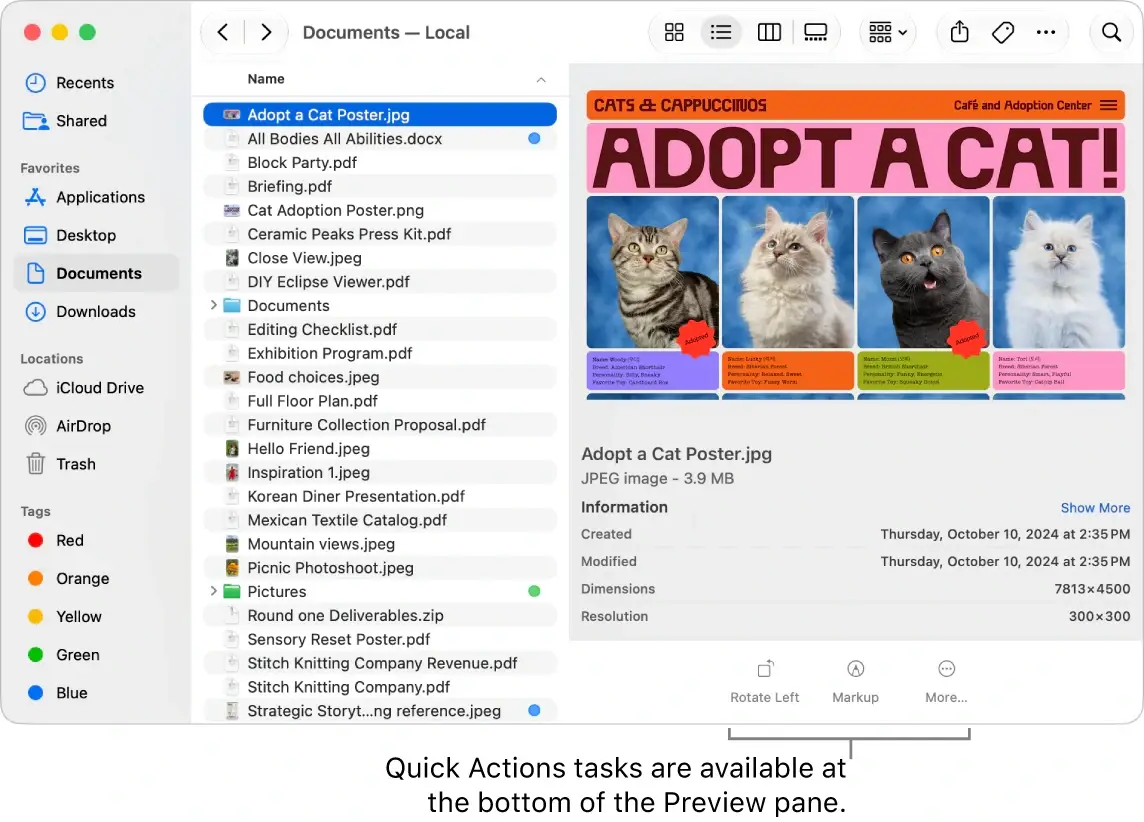
In a Finder window, select the photo, Control-click it and choose Quick Actions. Choose Convert Image (Apple's guide reaches it through More), then pick a format and a size. Apple's own example is turning an iPhone .heic into a .jpeg or .png. The same Quick Actions sit at the bottom of the Preview pane when the Finder shows it.
How do I get JPG photos from an iPhone?
Change the camera format for new photos, and know which ways of sharing convert the ones you already have.
- New photos as JPEG: open Settings, tap Camera, tap Formats, then tap Most Compatible. New photos are then saved as JPEG. Choose High Efficiency to switch back. Photos you already took stay HEIC. Microsoft's OneDrive help notes that some iOS devices no longer offer Most Compatible; if yours doesn't, use the routes below.
- Sharing: by AirDrop, Messages or email, Apple says a photo might be sent in a more compatible format such as JPEG when the receiving device doesn't support HEIF. It is a "might", so check what arrives.
- Copying to a computer: over a cable, photos may be converted to JPEG unless Keep Originals is selected under Settings > Apps > Photos.
- iCloud Photos: keeps each photo in its original format, so HEIC photos stay HEIC there.
For photos already on the iPhone, open the HEIC to JPG converter in Safari and choose them from your library. On a phone, photos longer than 4096 px on a side come out scaled down to 4096 px.
How do I convert HEIC to JPG in any browser?
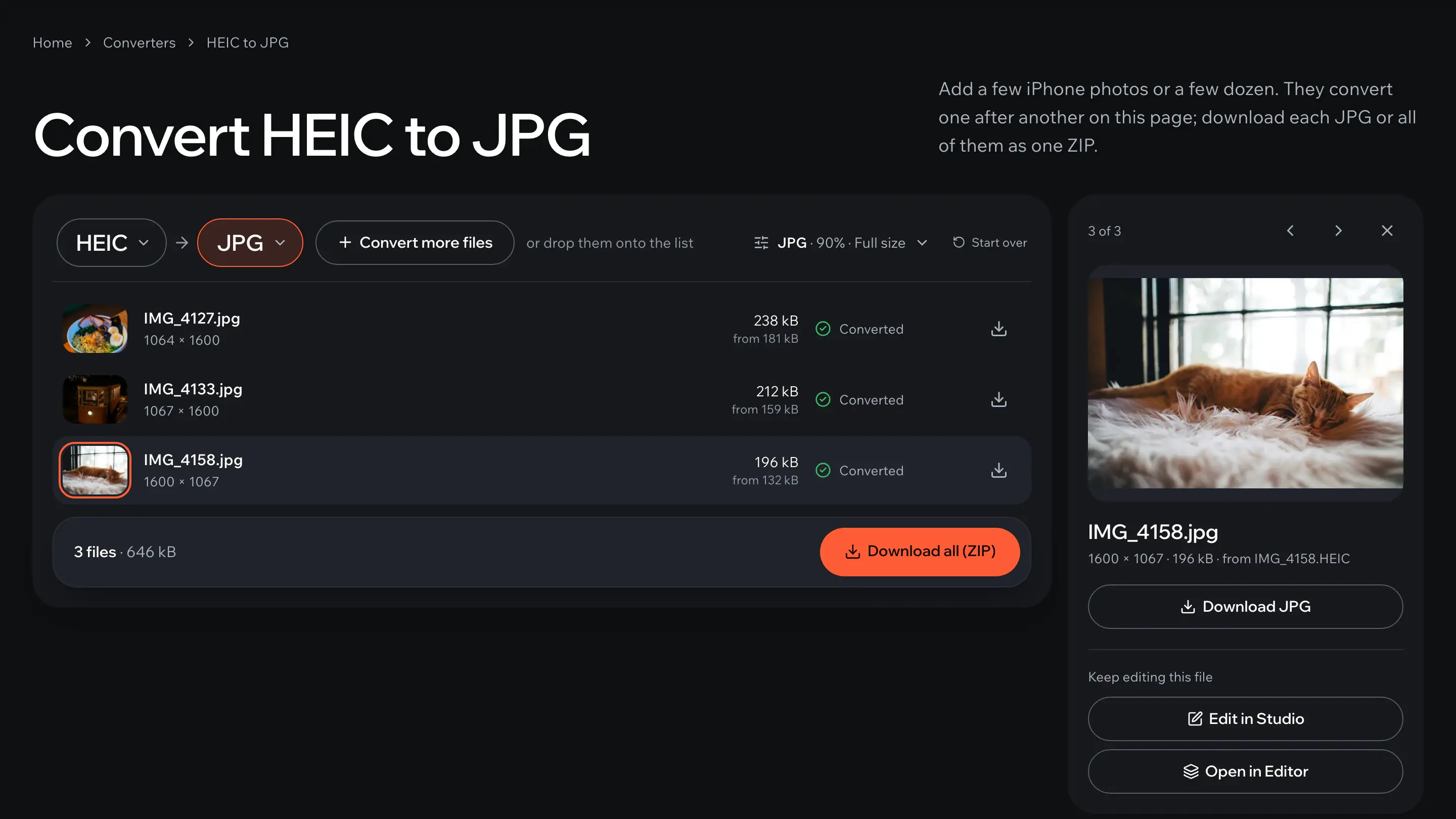
The Pixuvia HEIC to JPG converter works the same on Windows, Mac, Linux, a Chromebook or a phone, needs no extension, and converts a batch in one go. Here are the steps:
- Open the HEIC to JPG converter in any current browser and click Choose HEIC files, or drop the photos onto the drop area. One photo or a whole folder's worth both work.
- Wait while the list fills. The photos convert one after another, and each row shows the new JPG name, its size in pixels and its file size, then Converted.
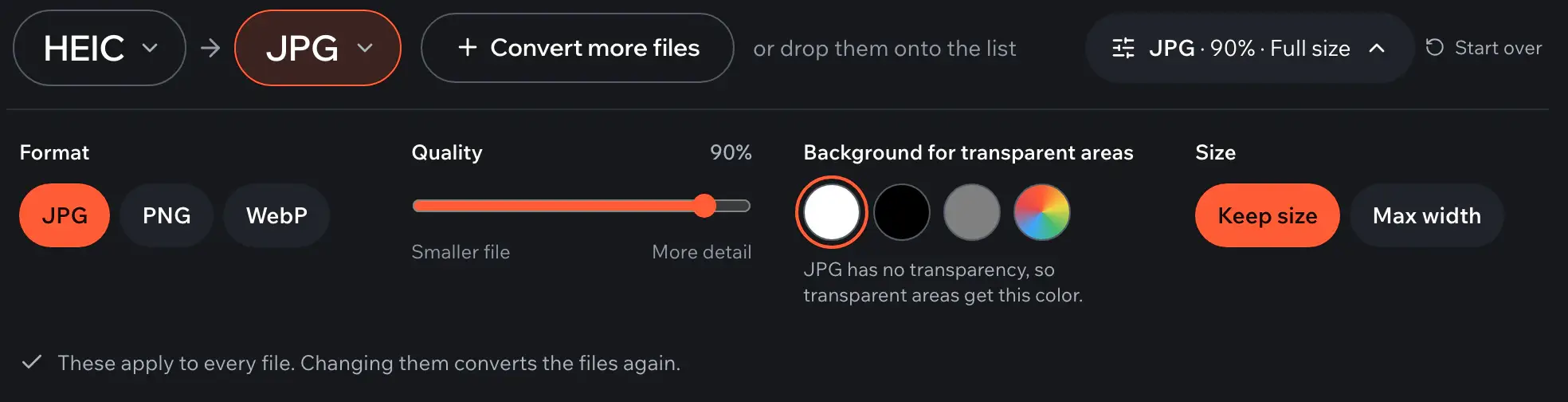
- To change the output, click the options pill (it reads JPG · 90% · Full size) and set Quality, Max width or another format. The options apply to every file, and changing them converts the files again.
- Click Download all (ZIP) for every JPG in one file, or the download button on a row for a single photo. Pick a row to see it larger, with Download JPG, Edit in Studio and Open in Editor.
What comes out:
- Upright: each JPG follows the rotation stored in the photo, so nothing comes out sideways.
- Full size: on a computer, photos up to 8192 px on a side keep their size, enough for a 48 MP iPhone shot. Choose Max width to make smaller copies for email or the web.
- Quality: starts at 90% and goes from 10% to 100%. For every pixel kept, use HEIC to PNG instead, at a much larger file size.
- Photo details: the camera, date and location stored in the HEIC are not copied into the JPG. Keep the originals if you sort photos by date.
- Bursts: a HEIC that holds several images gives a JPG of its main one.
Need to fix a photo before it goes out? Edit in Studio opens the JPG in the simple Studio, and Open in Editor opens the original in the layered Editor, which reads HEIC and saves JPG, PNG, WebP or PSD. Other formats, such as PSD or WebP, are on the image converters page.
Questions
Can I just rename a .heic file to .jpg?
No. The name changes but the picture inside is still HEVC-coded HEIF, so apps that can't read HEIC still can't open it, and some will call the file damaged. Converting decodes the photo and saves it again as a real JPEG.
Why will a HEIC file not convert in the browser?
Files over 60 MB are refused, and a damaged or half-copied file shows "Could not read this image." Copy the photo from the phone again and add it once more; the rest of the batch keeps converting either way.
Can I convert HEIC to JPG on a Chromebook or Linux?
Yes, in the browser. The HEIC to JPG converter runs in current versions of Chrome, Edge, Firefox and Safari; outside Safari it decodes the HEIC itself, which takes a moment the first time.
Sources
- Microsoft Support: Photos app Video Editor error: Can't view this file type
- Microsoft Store: HEIF Image Extension
- Microsoft Store: HEVC Video Extensions
- Microsoft Q&A: converting HEIC photos to JPEG on Windows 11, answer by a Microsoft support moderator (in French)
- Microsoft Store: Microsoft Photos
- Windows Experience Blog: Meet the new Photos app on Windows 11
- Microsoft: Draw, create, and edit with Paint
- Microsoft Store: Paint
- SlashGear (tech site): How to convert HEIC images to JPG on Windows
- MakeUseOf (tech site): How to natively convert HEIC files in Windows 10 and 11
- Microsoft Support: Upload HEIF and HEVC photos and videos to OneDrive
- Apple Support: Using HEIF or HEVC media on Apple devices
- Apple: Convert image file types using Preview on Mac
- Apple: Perform quick actions in the Finder on Mac