How to resize an image for social media
By Pixuvia · · Updated
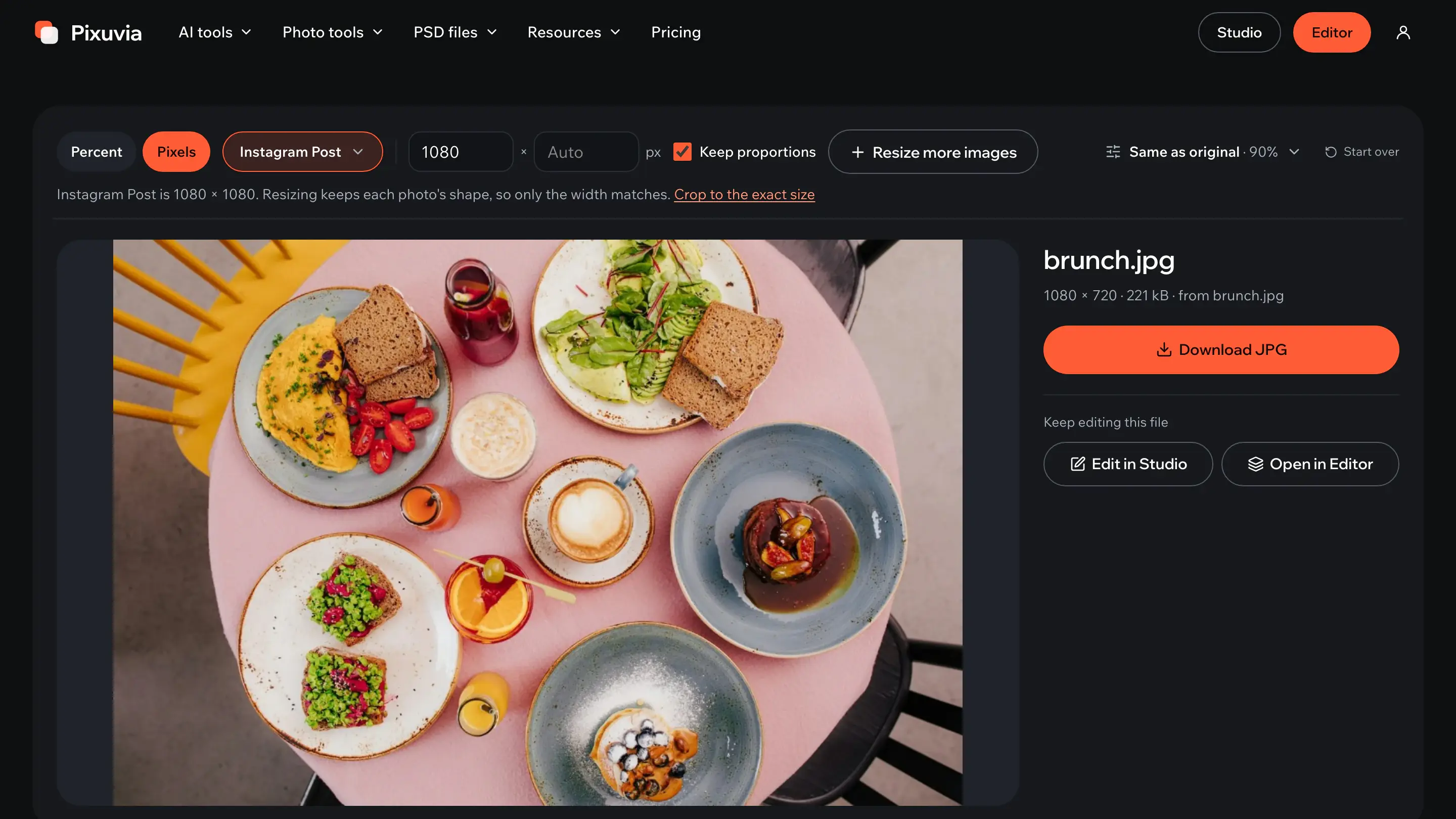
To resize an image for social media, find the platform's size for the place the image will appear, then scale the photo to that width with its proportions locked. If the photo's shape is outside the ratio the platform accepts, crop it or extend it first, because resizing alone never changes the shape. Most feed photos only need a width of 1,080 pixels.
Below is one size table for Instagram, Facebook, YouTube, TikTok, LinkedIn and X, with every number taken from the platform's own help or developer pages. After it: how to tell whether a photo needs resizing, cropping or extending, how to resize it with the Pixuvia image resizer and its Post sizes list, and the file size and format limits the platforms state.
On this page
What size should a social media image be?
Each platform publishes sizes for some placements and not for others. Where a platform gives no number, the table says "Not published" instead of repeating a figure from an unofficial chart. Rows marked "ad spec" come from the platform's advertising guide, the closest official number when the help center gives none.
| Platform and placement | Size in pixels | Ratio | What the platform says |
|---|---|---|---|
| Instagram feed photo | 1080 wide, 566 to 1440 tall | 1.91:1 to 3:4 | Wider photos are sized down to 1,080 px; other ratios are cropped to fit. |
| Instagram story | 1080 × 1920 | 9:16 | Ad spec; minimum 600 × 1067. |
| Instagram reel cover | 420 × 654 | 1:1.55 | Can't be edited after upload. |
| Instagram profile photo | Not published | - | - |
| Facebook Page profile picture | 320 × 320 | 1:1 | Shown at 176 × 176 on computers, 196 × 196 on phones, cropped to a circle. |
| Facebook Page cover | 851 × 315, at least 400 × 150 | Shown 16:9 on computers, 2.4:1 on phones | The profile picture covers part of the left side. |
| Facebook profile cover | At least 720 wide | Not published | - |
| Facebook link preview | 1200 × 630, at least 600 × 315 | 1.91:1 | Keeps the whole image uncropped in the feed. |
| Facebook feed photo | 1440 × 1800 | 4:5 | Ad spec; no size published for ordinary posts. |
| YouTube video thumbnail | 3840 × 2160, at least 640 wide | 16:9 | Also the preview image in embedded players. |
| YouTube Shorts thumbnail | 2160 × 3840, at least 640 tall | 9:16 | - |
| YouTube channel banner | 2560 × 1440, at least 2048 × 1152 | 16:9 | Keep text and logos inside the middle 1235 × 338 (at 2048 × 1152). |
| YouTube profile picture | Shown at 98 × 98 | 1:1 | Upload size not published. |
| YouTube video watermark | At least 150 × 150 | 1:1 | - |
| TikTok photo post | Up to 1080p | Not published | From TikTok's developer docs; the help center gives no size. |
| TikTok carousel ad image | 720 × 1280, 640 × 640 or 1200 × 628 | 9:16, 1:1 or 1.91:1 | Ad spec. |
| TikTok profile photo | Not published | - | Ad profile images are 98 × 98. |
| LinkedIn post photo | 1080 wide, at least 552 × 276 | 3:1 to 4:5 | Taller or wider photos are centered and cropped to fit. |
| LinkedIn link post image (Page) | 1200 × 627 | 1.91:1 | Under 200 px wide shows as a small thumbnail. |
| LinkedIn profile photo | 400 × 400 to 7680 × 4320 | Not published | - |
| LinkedIn profile cover | 1584 × 396 | 4:1 | - |
| LinkedIn Page logo | 400 × 400, at least 268 × 268 | 1:1 | Transparent logos show on white. |
| LinkedIn Page cover | 1512 × 256 | About 6:1 | Keep details away from the edges, mainly the lower right. |
| X post photo | Not published | 2:1 to 3:4 | A single photo in this range shows in full. |
| X profile photo | 400 × 400 | 1:1 | - |
| X header | 1500 × 500 | 3:1 | Up to 60 px at the top and bottom may be cropped. |
Two numbers differ from many size charts. Instagram's help page allows feed photos up to 3:4 (1080 × 1440), taller than the 4:5 most charts still list, and YouTube now asks for 3840 × 2160 thumbnails rather than 1280 × 720. Ad guides also use their own sizes, so a chart that mixes ad specs with ordinary posts can give two answers for the same feed.
Resize, crop or extend: which one does your photo need?
Resizing changes how many pixels a photo has and keeps its shape. Compare your photo's ratio with the Ratio column before you start: a phone photo is usually 4:3 or 3:4, a camera photo 3:2.
- The ratio already fits: resize. A 3:2 landscape photo is inside Instagram's 1.91:1 to 3:4 range, so it only needs a width of 1,080 px.
- The ratio doesn't fit and you can lose the edges: crop to the platform's shape. The crop tool for social media has the plain ratios and a Post sizes list that crops and scales in one step.
- The ratio doesn't fit and the edges matter: extend the photo instead, so a landscape shot gains sky and ground to fill a 9:16 story. The guide to extending a photo's background covers it; the AI fill uses AI credits.
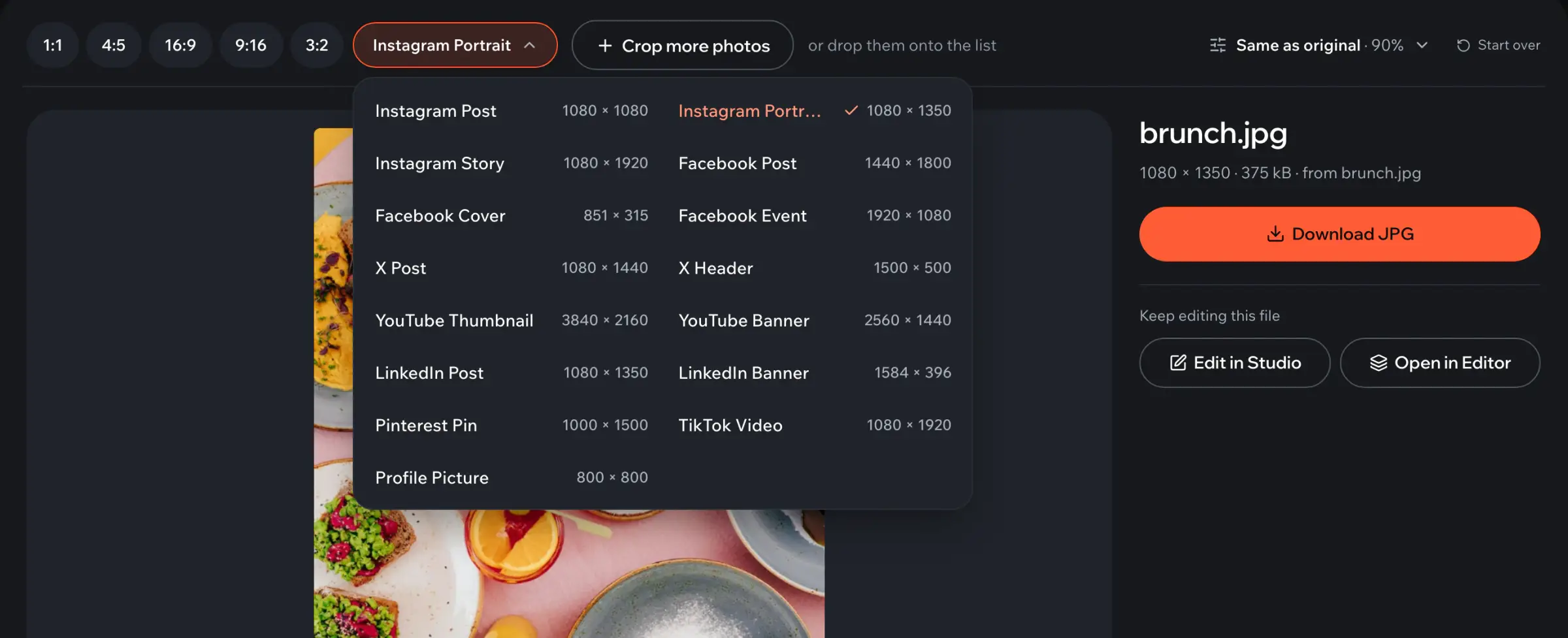
Turning off Keep proportions in the resizer and typing both sides also reaches an exact size, but it squeezes the picture: a 3:2 photo forced to 1080 × 1350 makes plates oval and faces narrow. Crop first, then resize.
How to resize an image for social media
The Resize an image page works on the page itself and needs no AI credits. It takes JPG, PNG, WebP, HEIC and PSD files up to 60 MB each, and every photo in a batch gets the same setting.
- Open Resize an image and drop your photos on the page, or click Choose images. One photo or a whole batch works the same way.
- Open Post sizes and pick the platform and placement, for example Instagram Post. The tool switches to Pixels, puts the platform's width in the first box (1080) and leaves the height on Auto. For a placement that isn't in the list, click Pixels and type the width from the size table instead.
- Leave Keep proportions ticked. The height follows the photo's own shape, so nothing stretches: a 1600 × 1067 photo becomes 1080 × 720. When the photo's shape differs from the size you picked, a note under the bar says so and links to the crop tool; you only need it if the platform crops other shapes.
- Open Options (the button that reads Same as original · 90%) and pick JPG if the original is a PNG, HEIC or other format. Lower Quality only if the platform sets a file size limit you are over.
- Check the new size under the file name, then click Download JPG, or Download all (ZIP) for a batch. To keep working on one photo, click Edit in Studio or Open in Editor.
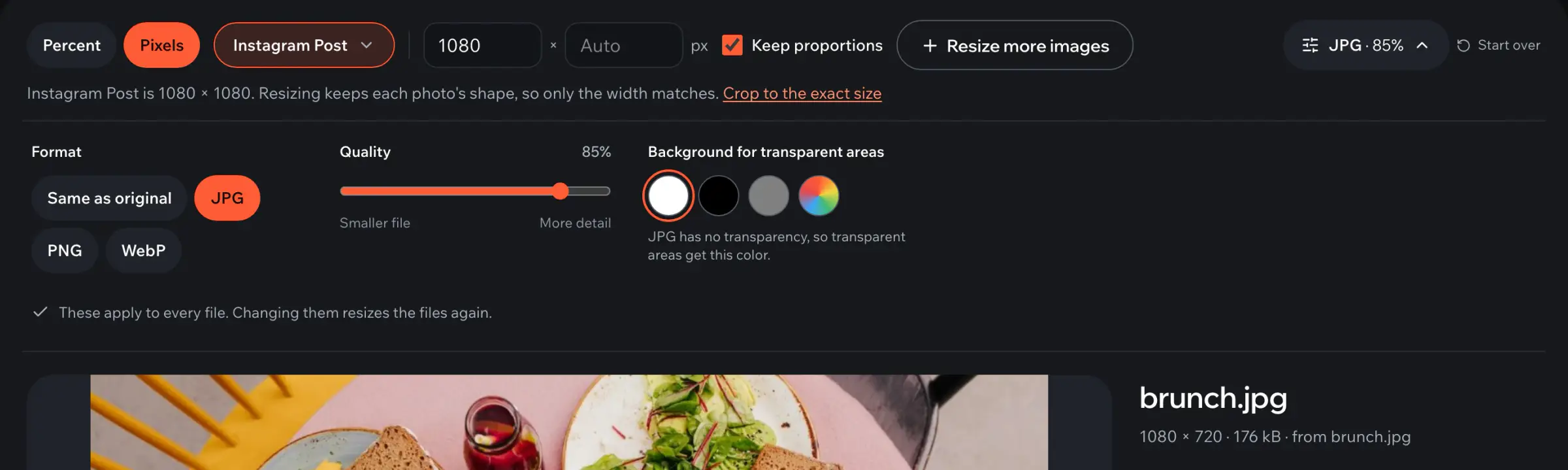
Post sizes always fills in the width alone, because resizing can't change a photo's shape and the width is what the platforms size photos by. With Keep proportions on, the numbers you type are the largest each side may be. Typing 1080 × 1350 for a portrait post therefore gives a 3:2 photo a size of 1080 × 720, which still fits Instagram. Percent is faster when you only need a smaller file: 25%, 50% and 75% are one click, and the box beside them takes any value from 1% to 400%.
Enlarging a photo past its own pixels makes it softer, never sharper, and the resizer says so under the bar when a photo grows. If a thumbnail has to reach 3840 × 2160 from a small original, read how to upscale an image first. For a layered PSD, the resizer flattens the visible layers into one image; to keep the layers, open the file in the Editor and choose Image > Image Size…. The Editor's File > New… dialog also has a Social tab with blank canvases at post sizes, for designing a graphic from scratch.
File size and format limits by platform
Only some platforms state a file size or format, and those that do mostly state them for profile images, covers and ads. These are the limits they publish; where a platform is silent, a JPG at the size in the table is the safe choice.
- Instagram: story ad photos are JPG or PNG up to 30 MB. No limit is published for ordinary posts.
- Facebook: a Page cover loads fastest as an sRGB JPG of 851 × 315 under 100 KB; Facebook suggests PNG for profile pictures and covers with a logo or text. Link preview images can be up to 8 MB.
- YouTube: thumbnails are JPG or PNG, up to 2 MB from a phone and 50 MB from a computer. Banners are 6 MB or smaller, profile pictures up to 15 MB (JPG, GIF, BMP or PNG, not animated), and watermarks under 1 MB.
- TikTok: photos posted through its developer API are JPEG or WebP, up to 20 MB each. Carousel ad images are JPG or PNG, ideally 100 KB or less.
- LinkedIn: post photos up to 5 MB, profile photos and covers up to 8 MB, and Page images PNG or JPEG up to 3 MB.
- X: profile photos are JPEG, GIF or PNG up to 2 MB, and animated GIFs aren't accepted for profile or header images.
When a file is over a limit, resize it to the table's size first, since fewer pixels shrink a file the most. Then lower Quality in Options, a few points at a time, until it fits. PNG has no quality setting, so a large PNG photo gets much smaller as a JPG. iPhone photos in HEIC become JPG when Options is left on Same as original, so they upload anywhere.
Questions
Is there one size that works on every platform?
For a feed post, 1080 × 1350 comes closest. Its 4:5 shape is inside the ranges Instagram, LinkedIn and X publish for photos, and 1080 pixels is the width Instagram keeps and LinkedIn recommends. Covers, banners, thumbnails and stories each need their own size.
Should I upload a bigger image than the platform asks for?
It rarely helps. Instagram sizes any photo wider than 1,080 pixels down to that width, so the platform does the resizing with its own settings. Uploading at the exact size lets you choose the format and quality yourself.
Does resizing lower the quality of a photo?
Making a photo smaller keeps it sharp at the new size, though the removed pixels cannot come back. Making it larger spreads the same pixels over more space and softens it, so start from the largest original you have.
Sources
Every page below was opened and checked on November 13, 2026.
- Instagram Help: Image resolution of photos you share on Instagram
- Instagram Help: Reel size and aspect ratios on Instagram
- Meta Business Help: Design requirements for Instagram Stories ads
- Facebook Help: Facebook Page profile picture and cover photo dimensions
- Facebook Help: Add or change your cover photo on Facebook
- Meta for Developers: Images in link shares
- Meta Ads Guide: Image ad specs on Facebook Feed
- YouTube Help: Add custom thumbnails on YouTube
- YouTube Help: Manage your channel branding
- TikTok for Developers: Media transfer guide (image restrictions)
- TikTok for Business: Specifications for carousel ads
- TikTok for Business: Auction in-feed ads (profile image)
- LinkedIn Help: Share photos on LinkedIn
- LinkedIn Help: Photo won't upload to your profile
- LinkedIn Help: Add or change the cover image on your profile
- LinkedIn Help: Image specifications for LinkedIn Pages and Career Pages
- X Help Center: How to post photos or GIFs on X
- X Help Center: Help with uploading a profile photo