GIMP alternatives: 7 editors online, for Windows and for Mac
By Pixuvia · · Updated
The best GIMP alternative depends on why GIMP isn't working for you. If you want an editor in the browser with Photoshop's menus and PSD files, try Pixuvia. If you want another desktop app at no cost, Affinity covers photo, vector and layout work in one app, and Krita is built for painting. For something simpler, Paint.NET fits Windows and Pixelmator Pro fits the Mac. If you have decided to go to Photoshop itself, it comes with a subscription, and Pixlr suits quick edits and AI tools online.
We make Pixuvia, and it appears in this list as one entry, with what it lacks. Every fact about GIMP and the other editors comes from their own websites, help pages and release notes, or from news coverage where we say so, checked in November 2026, with links in the sources. We did not install the desktop apps for this page, so their screenshots come from their makers.
On this page
- Why people look for a GIMP alternative
- What to look for in a GIMP alternative
- GIMP alternatives compared
- 1. Pixuvia: a GIMP alternative online, with Photoshop-style menus
- 2. Affinity: a desktop editor at no charge, with photo, vector and layout in one app
- 3. Krita: open source like GIMP, made for painting
- 4. Paint.NET: an easier GIMP alternative for Windows
- 5. Pixelmator Pro: a GIMP alternative for Mac
- 6. Photoshop: the editor GIMP is usually compared with
- 7. Pixlr: quick edits and AI tools online
- What GIMP still does better
- Which GIMP alternative fits your work
- Questions
- Sources
Why people look for a GIMP alternative
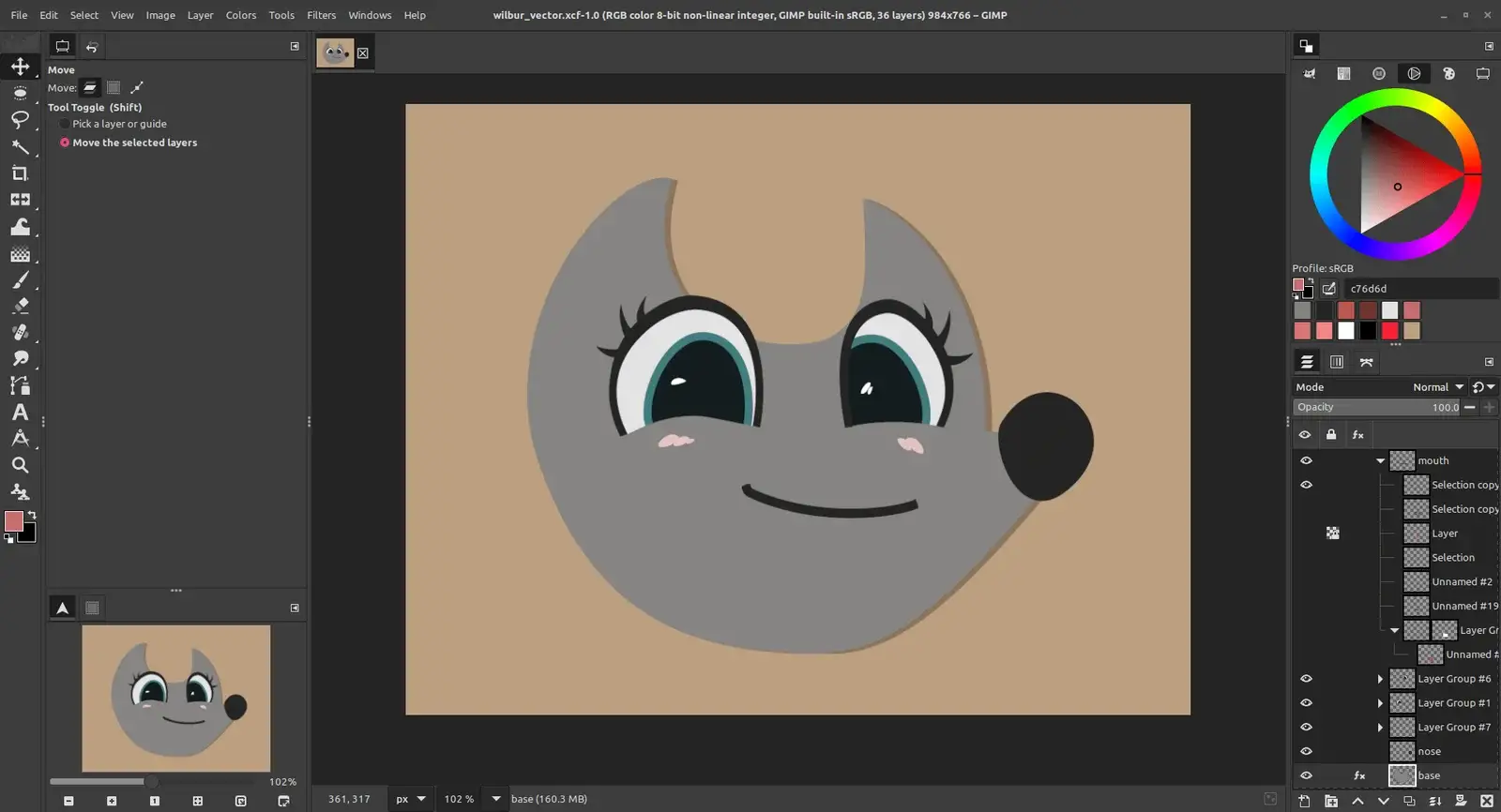
GIMP is a capable editor. It is open-source software under the GNU General Public License, it costs nothing, and its FAQ says you can use it for any kind of work, commercial work included. GIMP 3.0 made most filters non-destructive, and GIMP 3.2, released on March 14, 2026, added link layers that update when their source file changes and vector layers whose fill and stroke stay editable. The current version is GIMP 3.2.8.
These are the usual reasons to look elsewhere:
- It works differently from Photoshop. GIMP's FAQ says the project isn't trying to build a Photoshop replacement and prefers its own design, so menu names, tools and habits learned in Photoshop don't always carry over. The FAQ also notes that the interface has changed between versions, so older tutorials may not match what you see.
- It has to be installed. GIMP is a desktop app for Linux, Windows and macOS. gimp.org lists no web version, and the FAQ says no mobile version is planned.
- PSD files are not its home. GIMP's help on saving and exporting says XCF is the only format that keeps everything about an image, and its layer effects are merged when you export, even to PSD. If clients send you Photoshop files, that matters.
- No built-in generative AI. The GIMP 3.0 and 3.2 release notes list no generative AI tools, so jobs such as removing an object or extending a background are done by hand with tools like Heal and Clone.
Our GIMP vs Photoshop comparison covers these points in more depth.
What to look for in a GIMP alternative
- Where it runs. A browser editor opens on any computer, tablet or phone without an install. A desktop app works without visiting a website and is often the better home for very large files.
- How close it is to Photoshop. If you came to GIMP from Photoshop tutorials, an editor with Photoshop's menus, tool names and adjustment layers saves relearning.
- How you pay. Open source, no charge with an account, a one-time purchase, a subscription, or credits for AI tools. Check which features sit behind a plan.
- What it does with PSD and XCF. Check whether it opens GIMP's XCF files; if not, export your projects from GIMP as PSD, which most alternatives open.
- How much you need. Retouching and compositing call for layers, masks and selections. Cropping, resizing and a quick fix call for a short path from opening a photo to saving it.
GIMP alternatives compared
| Editor | Runs on | How you pay | PSD | Best for |
|---|---|---|---|---|
| Pixuvia | Browser: Windows, macOS, Linux, Android, iPhone, iPad | AI tools use credits (see pricing) | Opens and saves, with layers, masks, text and adjustment layers | Photoshop-style editing online, plus AI tools |
| Affinity | Windows, macOS, iPad | No charge for individuals with a Canva account; AI tools need a Canva premium plan | Imports with layers and structure | Photo, vector and layout work in one desktop app |
| Krita | Windows, macOS, Linux, Android | Open source; paid store versions fund development | Loads and saves layers, groups, styles, text and masks | Digital painting and illustration |
| Paint.NET | Windows only | Download at no charge; also sold in the Microsoft Store to support it | Not among its listed formats; community plugins add it | Quick, simple edits on Windows |
| Pixelmator Pro | Mac, iPad | One-time purchase on Mac, or the Apple Creator Studio subscription | Listed among its supported formats | A native photo and design editor on Apple devices |
| Photoshop | Windows, macOS, plus web and mobile | Subscription only; AI uses generative credits | Its own format | Professional PSD work, CMYK print and generative AI |
| Pixlr | Browser, desktop, mobile | Subscription plans with AI credits | Says it opens layered PSD; exports JPEG, PNG and WebP | Quick edits and AI tools online |
1. Pixuvia: a GIMP alternative online, with Photoshop-style menus
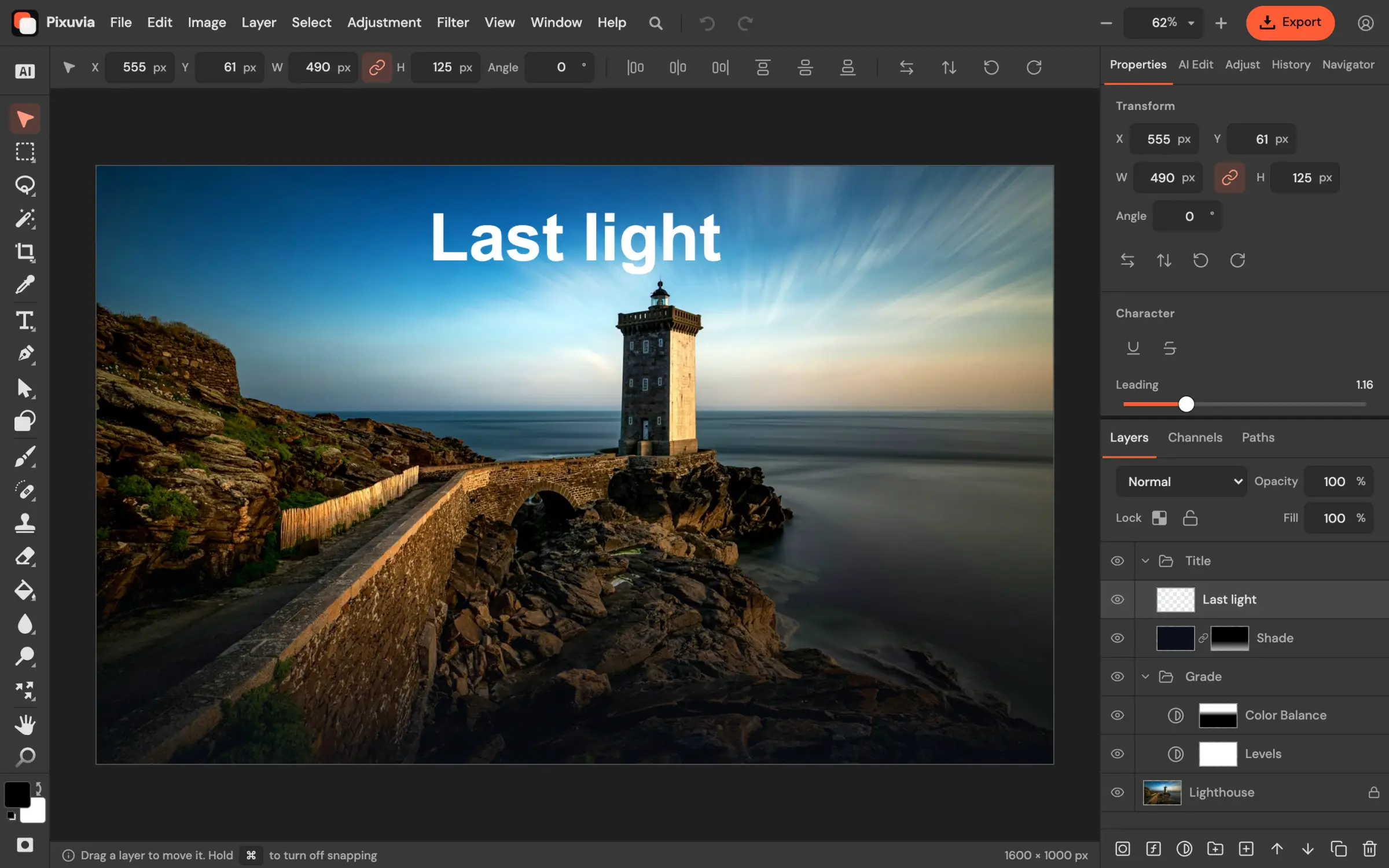
Pixuvia is the option here for people who want to stop installing anything. It runs in the browser on Windows, macOS, Linux, Android, iPhone and iPad, and has two editors. The Editor follows Photoshop's layout, with about 50 tools under Photoshop's names, menus from File to Window and familiar shortcuts such as Ctrl+J to duplicate a layer, Ctrl+L for Levels and Ctrl+M for Curves (Cmd on a Mac). The Studio is the simpler one: one-job AI tools, filters, text and collages, for when a full editor is more than the job needs.
Good at
- Opening Photoshop files up to 60 MB and saving PSD back, keeping layers, nested groups, masks, editable text and shapes, most adjustment layers and embedded smart objects.
- 18 adjustment layer types, each with its own mask, plus layer masks, vector and clipping masks, 10 layer styles and Photoshop blend modes. New to layers? Start with how layers work.
- AI tools that GIMP doesn't have: the background remover, object remover, image extender, upscaler, generative fill, relight and editing by prompt.
- Exports PSD, PNG, JPG, WebP, GIF, SVG, PDF and TIFF, and the document autosaves in the browser as you work.
Keep in mind
- It doesn't open XCF files, so export a PSD from GIMP first.
- It works in 8-bit RGB, with no CMYK mode, and has no plug-ins or scripting, two areas where GIMP goes further.
- PSD export leaves out alpha channels and group masks or effects; warped or linked smart objects and text on a path open as pixels, and PSB files don't open.
- It runs in a browser tab, so it needs the website to load, where GIMP is installed on your computer.
- AI tools need a sign-in and use credits; plans are on the pricing page. Standard background removal uses no credits.
Best for: GIMP users who want an online editor with Photoshop's menus, PSD files that keep their layers, and AI tools for the jobs GIMP leaves to hand work. To try it on a file, open the online PSD editor.
2. Affinity: a desktop editor at no charge, with photo, vector and layout in one app
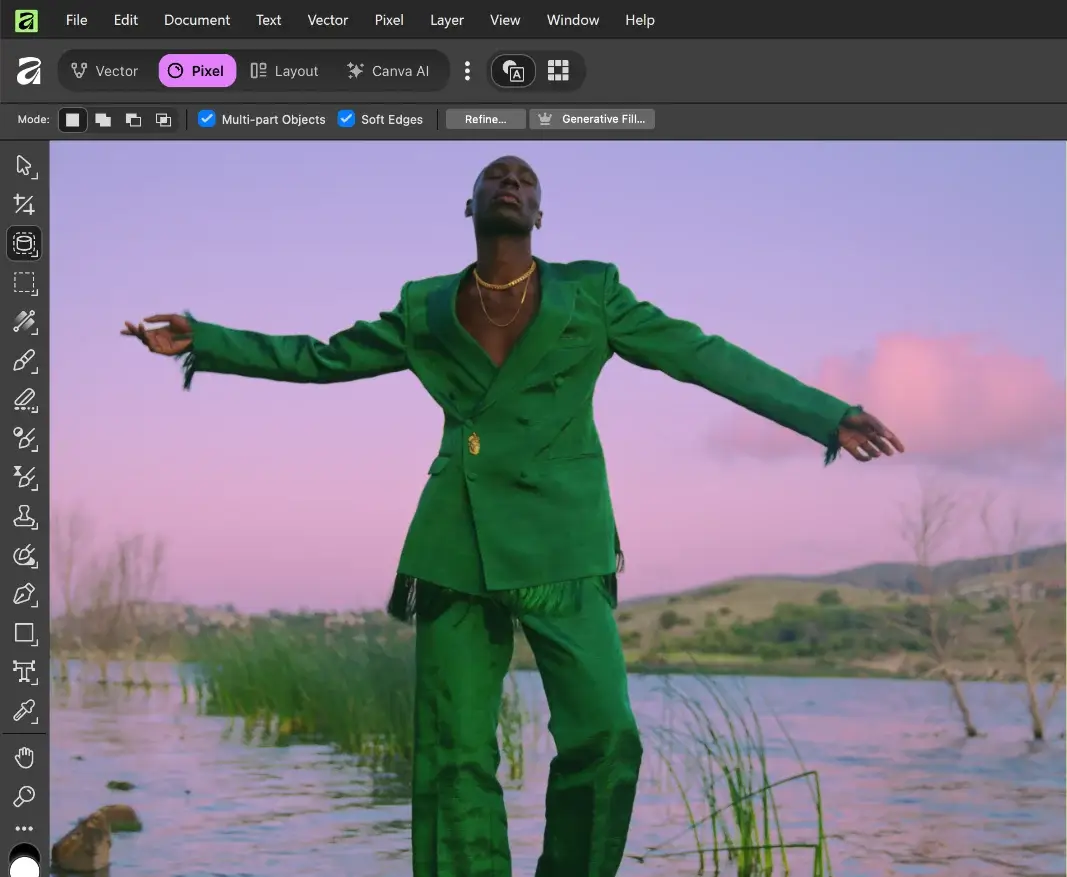
Affinity changed shape in the months after GIMP 3.0. On October 30, 2025, Canva relaunched it as a single app that replaces Affinity Photo, Designer and Publisher, with Pixel, Vector and Layout modes in one window, as AppleInsider and MacRumors reported. Affinity's site says individuals pay nothing for it, and MacRumors notes that everyone now needs a Canva account to use it, which you can open at no charge.
Good at
- Photo editing, vector illustration and page layout in one document, switching between modes.
- A native app that its site says runs on Apple silicon and Intel Macs, on Windows, and on iPad with Apple Pencil.
- Bringing in PSD, AI, IDML and DWG files "with layers and structure preserved", in its site's words.
Keep in mind
- Its AI tools need a Canva premium plan; MacRumors lists Generative Fill, Expand and Edit, and Remove Background among them.
- It runs only with a Canva account, and its site lists no Linux version.
- Its site confirms PSD import; check PSD export in the app before you rely on sending files back.
Best for: GIMP users who want another full desktop editor at no charge, especially designers who mix photos with vector graphics and layouts. Our GIMP vs Affinity comparison goes deeper.
Link: affinity.studio
3. Krita: open source like GIMP, made for painting
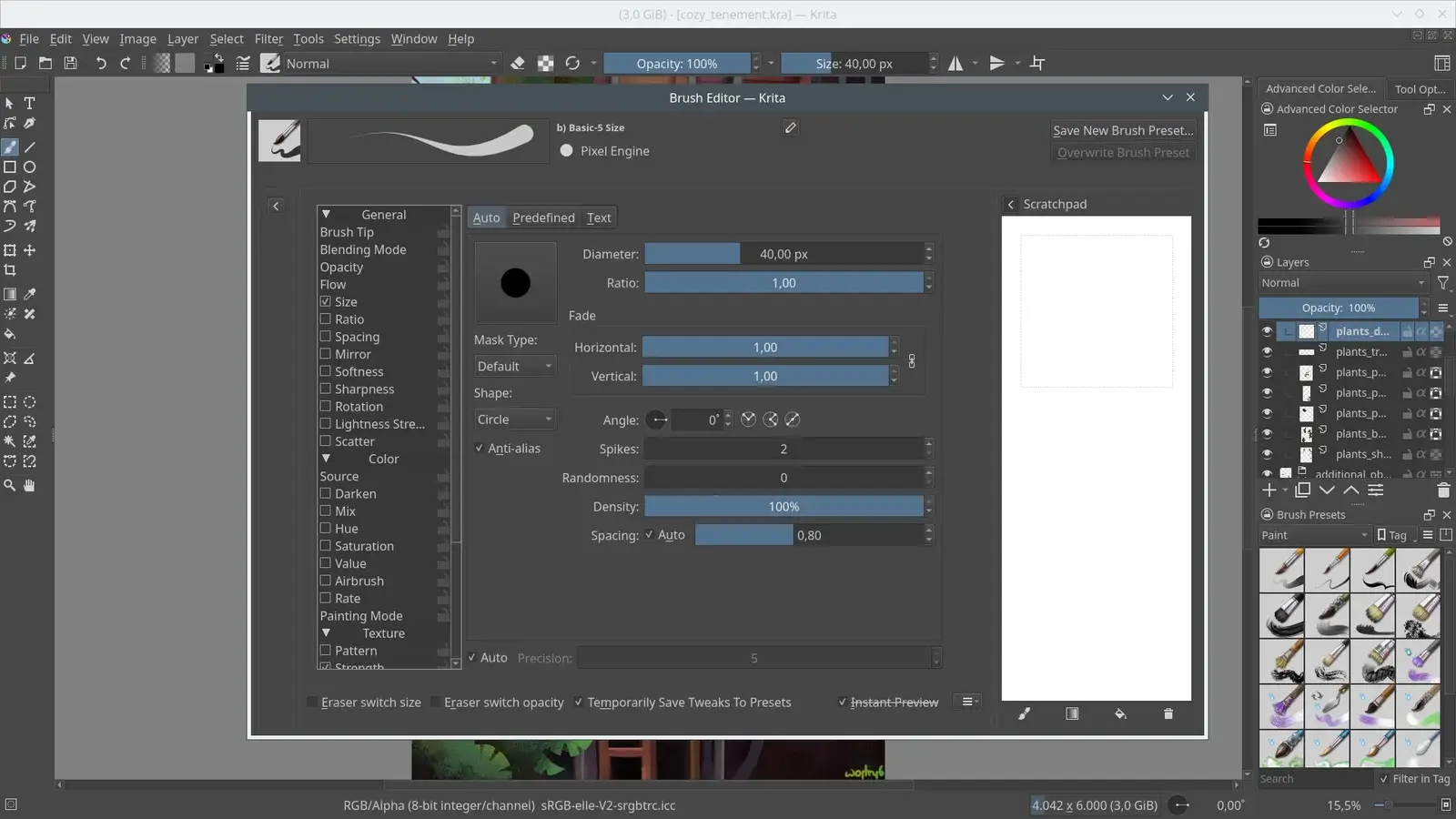
Krita shares GIMP's model: its site calls it a professional open-source painting program, licensed under the GNU GPL and owned by its contributors. Its download page offers builds for Windows, macOS, Linux and Android (not iPad or iPhone), and also lists paid versions in the Microsoft Store, Steam, the Epic Games Store and the Mac App Store, whose proceeds fund development. Krita 5.3.4 and 6.0.4 came out in September 2026.
Good at
- Brushes, brush engines, stabilizers and drawing-tablet support, plus animation tools.
- A clear list of PSD support: its manual says it loads and saves raster layers, blending modes, layer styles, vector shapes, text layers, layer groups and transparency masks.
- Linux as well as Windows and macOS, like GIMP.
Keep in mind
- It is a painting app first; photo retouching is not its focus.
- Its manual says no program outside Photoshop can support PSD completely.
Best for: GIMP users who mostly paint, draw or make comics and want to stay with open-source software.
Link: krita.org
4. Paint.NET: an easier GIMP alternative for Windows
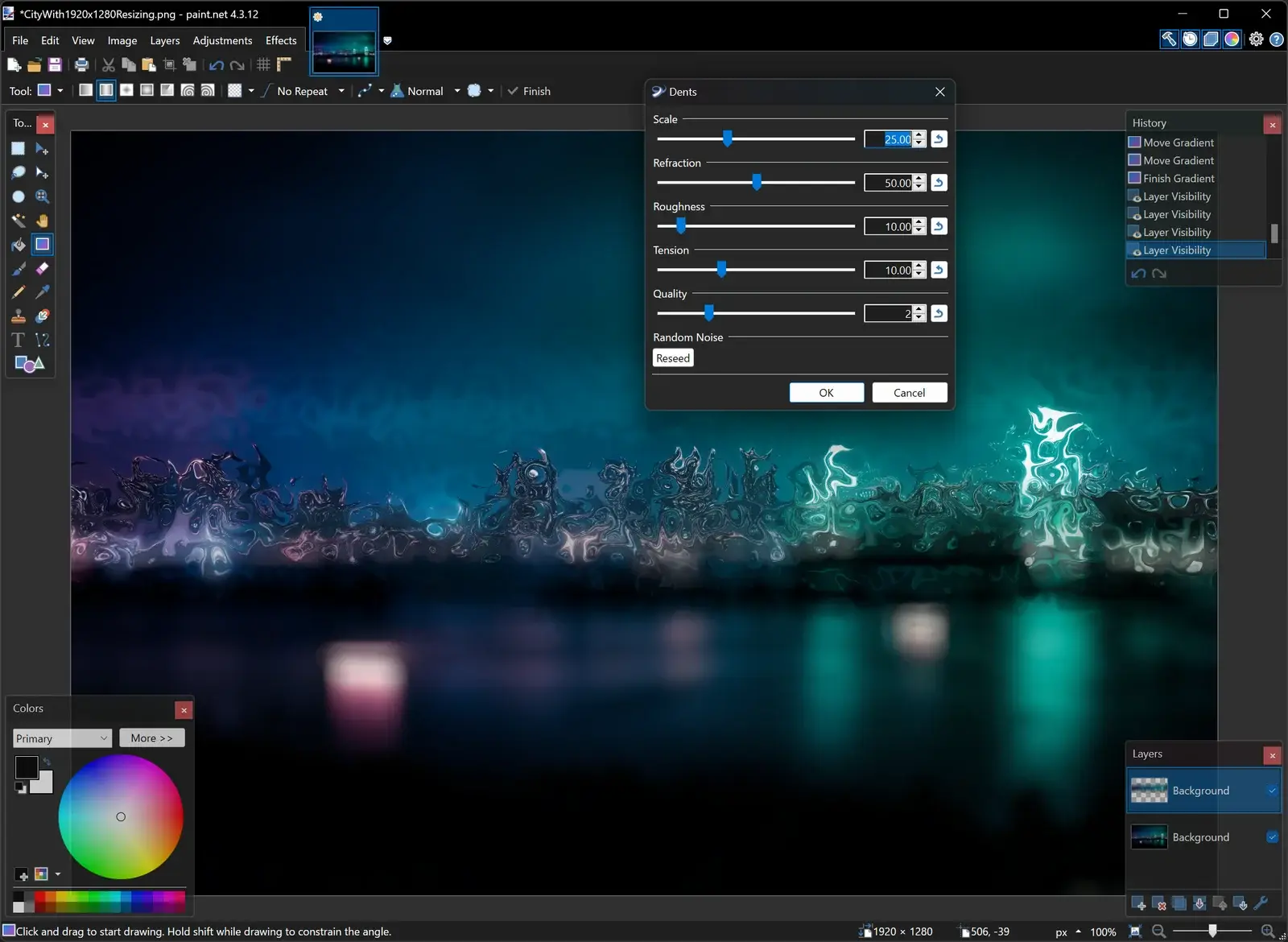
Paint.NET is image and photo editing software for Windows PCs. Its home page describes an intuitive interface with layers, unlimited undo, special effects and a range of tools, and the download costs nothing; you can also buy it in the Microsoft Store to support its development. Paint.NET 5.2 was released on November 10, 2026.
Good at
- A short path for everyday edits: crop, resize, adjust, add an effect, save.
- Layers, adjustments and effects, with an active community that writes tutorials and plugins.
- Many formats out of the box, including PNG, JPEG, WebP, AVIF, HEIC, TIFF and JPEG XL, according to its documentation.
Keep in mind
- It runs only on Windows.
- PSD is not in its documented list of formats; community-made plugins add PSD support, so check one works with your version.
- Layers are kept in its own .pdn format; its documentation says it warns you when a format can't hold a change, such as adding a layer to a JPG.
Best for: Windows users who found GIMP too much for crops, resizes and quick fixes.
Link: paint.net
5. Pixelmator Pro: a GIMP alternative for Mac
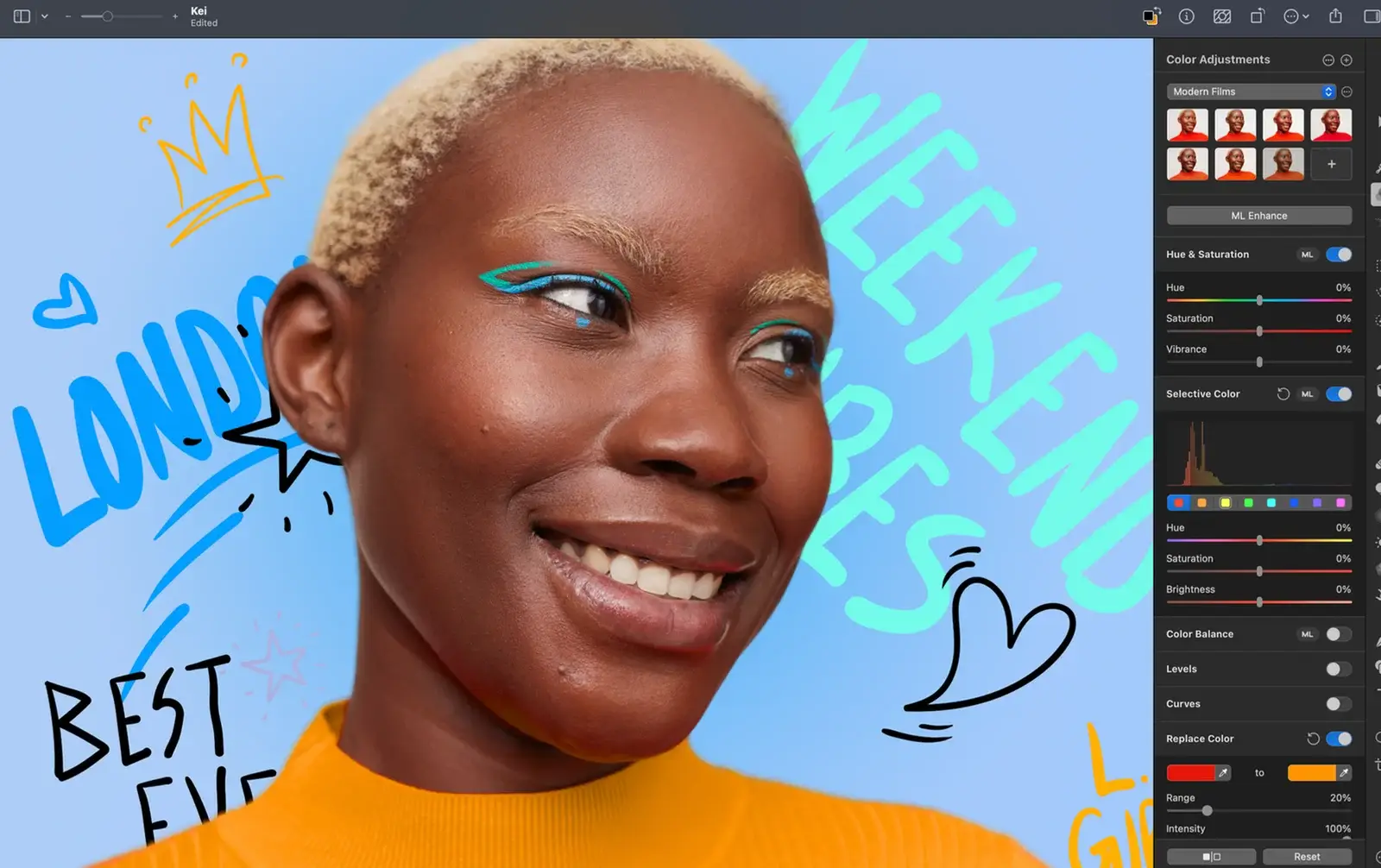
Pixelmator Pro is Apple's image editing and design app. Its product page says it runs on macOS 26 and on iPadOS 26 (iPads with an M1 chip or later, iPad with A16, or iPad mini with A17 Pro), and that "Pixelmator Pro supports PSD, SVG, PDF, Adobe Illustrator, and Illustrator EPS."
Good at
- Non-destructive, layer-based editing with effects, fills, strokes and shadows.
- AI features built on Apple Intelligence, such as Super Resolution, one-click background removal, Intelligent Denoise and Auto Crop.
- A native Mac app that looks and behaves like other Mac apps.
Keep in mind
- It runs only on Apple devices, and only on their latest systems.
- On a Mac it is sold once or with the Apple Creator Studio subscription; on iPad it comes only with the subscription, and Apple says the Warp tool comes with the subscription version.
Best for: Mac users who want a native photo editor that opens PSD files, without GIMP's layout.
Link: apple.com/pixelmator-pro
6. Photoshop: the editor GIMP is usually compared with
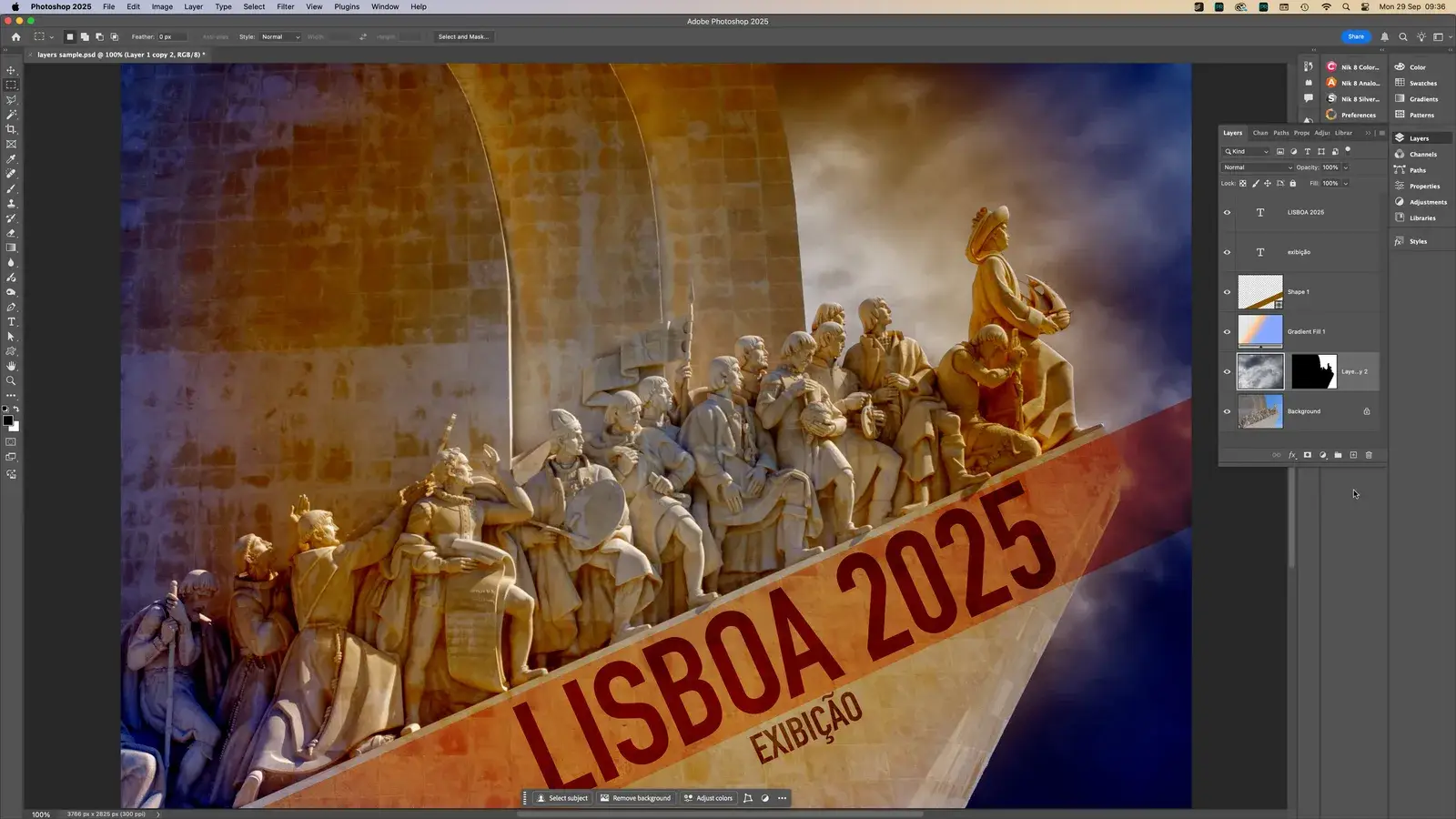
If you chose GIMP to avoid a subscription and now need Photoshop's own file handling, this is the original. Photoshop runs on Windows and macOS, with web and mobile versions, and Adobe's plans page answers "Can I buy Photoshop outright?" with "No": it comes only with a Creative Cloud subscription, on its own, in the Photography plan with Lightroom, or in Creative Cloud Pro.
Good at
- PSD as its own format, with adjustment layers, fill layers and embedded or linked smart objects.
- A CMYK Color mode for commercial printing, which GIMP's FAQ lists as on its roadmap with no timeline.
- Generative AI such as Generative Fill, Generative Expand and Generative Upscale, paid with the generative credits that come with each plan.
Keep in mind
- There is no one-time purchase, and the credit allowance depends on the plan.
- Adobe's technical requirements list no Linux version, and the desktop app needs an internet connection for activation and membership checks.
Best for: people who exchange PSD files with clients every day, print in CMYK or use generative AI often. See GIMP vs Photoshop, or other options in our Photoshop alternatives.
Link: adobe.com/products/photoshop
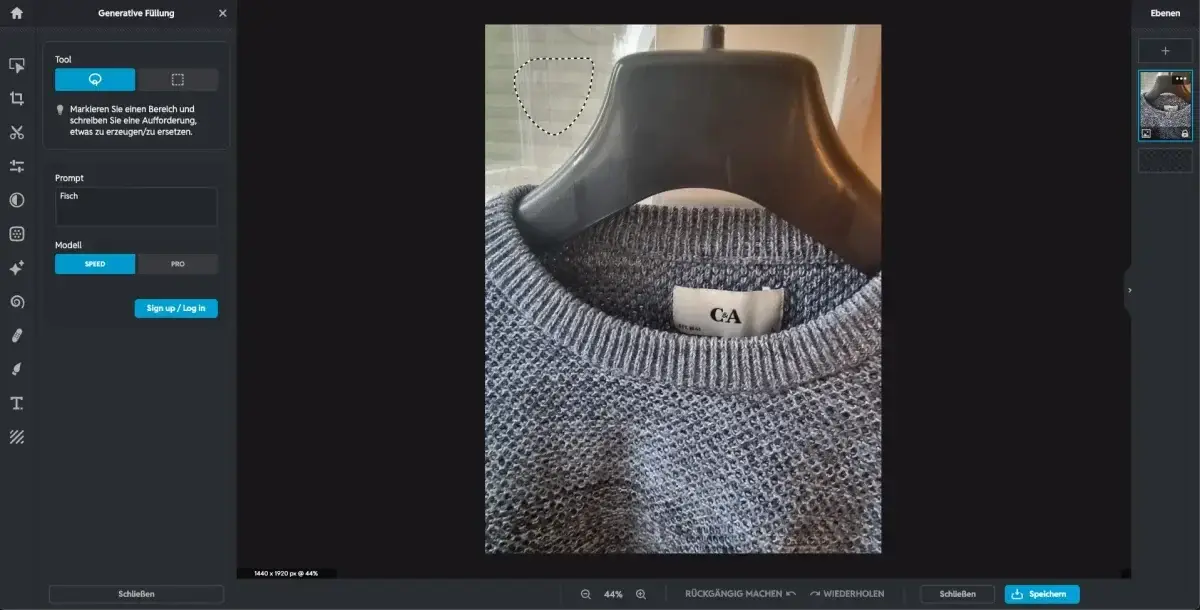
7. Pixlr: quick edits and AI tools online
Pixlr is a web editor split in two: Pixlr Editor for layered work and Pixlr Express for quick edits, with apps for desktop and mobile on the same subscription. Its pricing page lists Plus, Premium and Ultra plans, billed monthly or yearly, each with a monthly allowance of AI credits.
Good at
- Express for fast crops, filters, text and cutouts, which suits people who found GIMP too heavy for small jobs.
- A wide set of AI tools, from generative fill to background removal and upscaling.
- Layers, masks and blend modes in Pixlr Editor.
Keep in mind
- Its Suite page says it supports layered PSD files, but its listed export formats are JPEG, PNG and WebP, and projects with layers are kept in its own .PXZ format.
- In our own test for the Pixlr alternatives page, Pixlr Express opened a layered PSD without its groups, adjustment layers or layer mask.
Best for: quick edits and AI tools in a browser, when you don't need to send a PSD back. For more on Pixlr, read GIMP vs Pixlr.
Link: pixlr.com
What GIMP still does better
Before you switch, check that you don't rely on something only GIMP gives you here:
- Open source on every desktop. GIMP and Krita are the only open-source editors here, and the only installed apps in this list with Linux builds.
- Scripting and plug-ins. GIMP 3.0 added Python 3 scripting next to Script-Fu, and plug-ins extend it further. Pixuvia has neither.
- File formats. GIMP imports and exports CMYK PSD, TIFF and JPEG files, and GIMP 3.2 exports PSB, the large-document format, which Pixuvia doesn't open.
- Working without a website. GIMP is installed on your computer, where Pixuvia and Pixlr need their sites to load.
Which GIMP alternative fits your work
You want a GIMP alternative online
Pick Pixuvia for layers, masks, adjustment layers and PSD files that go back out with their layers, plus AI tools. Pick Pixlr for quick edits where a JPEG or PNG is the end result.
You want something easier than GIMP
For small jobs, pick an editor with fewer tools on screen: Paint.NET on Windows, Pixlr Express, or the Pixuvia Studio, where each tool does one job, such as removing a background or erasing an object. If GIMP feels hard because you learned Photoshop, pick an editor that uses Photoshop's names and menus: the Pixuvia Editor, Affinity or Photoshop.
You want a GIMP alternative for Windows
Paint.NET for quick edits, Affinity or Krita for a full editor at no charge, Photoshop for professional PSD work. Every browser editor here runs on Windows too.
You want a GIMP alternative for Mac
Pixelmator Pro for a native Mac editor with PSD support, Affinity for photo, vector and layout work at no charge for individuals, Krita for painting.
You paint more than you edit photos
Krita, which keeps the open-source model you had with GIMP.
Whichever you pick, export a copy of a real project from GIMP as PSD, open it in the new editor, and keep your XCF original.
Questions
What is the best alternative to GIMP?
It depends on why you are leaving. For a desktop editor at no cost that also handles vector and layout work, Affinity. For painting, Krita. For simple edits on Windows, Paint.NET, and on a Mac, Pixelmator Pro. For Photoshop itself, with adjustment layers, smart objects and generative AI, Photoshop on a subscription. For a layered editor in the browser that opens and saves PSD files, Pixuvia.
Is there a GIMP alternative online?
Yes. GIMP itself is a desktop app, and gimp.org lists no web version. Pixuvia runs in a browser tab with layers, masks, adjustment layers and PSD files, plus AI tools paid with credits. Pixlr is another online editor, with a layered Pixlr Editor and a quicker Pixlr Express.
What is easier than GIMP?
For quick edits, an editor with fewer tools on screen: Paint.NET on Windows, Pixlr Express in the browser, or the Pixuvia Studio, which puts one job on each tool. If GIMP feels hard because you learned Photoshop first, an editor that follows Photoshop's menus and tool names, such as the Pixuvia Editor, Affinity or Photoshop, will feel more familiar. No vendor publishes a measure of how easy its editor is, so try your own file in two of them.
What is the best GIMP alternative for Windows?
Paint.NET for simple, fast edits, since it is made only for Windows. Affinity and Krita for a full desktop editor at no cost, and Photoshop if you need its PSD workflow and AI tools. Every browser editor in this list runs on Windows too.
What is the best GIMP alternative for Mac?
Pixelmator Pro, Apple's own image editor, which is sold once on the Mac or with the Apple Creator Studio subscription. Affinity runs natively on Apple silicon and Intel Macs at no charge for individuals, and Krita and Photoshop also have Mac versions. Pixuvia runs in Safari or any other browser on a Mac, iPad or iPhone.
How do I move my GIMP projects to another editor?
Export a copy as PSD from GIMP, since every editor in this list except Paint.NET opens PSD without an add-on. GIMP's help says XCF is the only format that stores everything about an image, and that its layer effects (the non-destructive filters) are merged when you export, even to PSD. Keep your XCF files as the originals and check each layer in the new editor.
Sources
- GIMP: home page (platforms, license, latest version)
- GIMP: Frequently asked questions (Photoshop, mobile, CMYK, commercial use)
- GIMP 3.0 release notes
- GIMP 3.2 release notes
- GIMP 3.2 released (March 14, 2026)
- GIMP 3.2.8 released
- GIMP Help: Saving and exporting images (XCF)
- GIMP Help: Layer effects
- Affinity: product page
- AppleInsider: Affinity's suite becomes one all-in-one app (October 30, 2025)
- MacRumors: Canva relaunches Affinity as one design app (October 31, 2025)
- Canva Newsroom: The all-new Affinity
- Krita: home page
- Krita: Download
- Krita Manual: PSD file format
- Paint.NET: home page
- Paint.NET documentation: File menu (supported file types)
- Paint.NET: Screenshots
- Apple: Pixelmator Pro
- Adobe: Photoshop product page
- Adobe: Photoshop plans and FAQ
- Adobe Help: Color modes in Photoshop
- Adobe Help: Generative credits overview
- Adobe Help: Photoshop on desktop technical requirements
- Pixlr: Pricing
- Pixlr: Pixlr Suite (file formats and devices)
- KDE Applications: Krita (screenshots)
- Mac App Store: Pixelmator Pro
- Fastlancer: Pixlr review
- Digital Camera World: Adobe Photoshop review (screenshot)