Pixlr vs Photoshop: is Pixlr as good as Photoshop?
By Pixuvia · · Updated
Pixlr vs Photoshop is a quick browser editor against the professional standard. Pixlr runs in a browser tab, splits its tools between a layered Pixlr Editor and a one-screen Pixlr Express, and puts a long list of AI tools on AI credits. Photoshop is a desktop app for Windows and macOS, with web and mobile versions, built around PSD files, adjustment layers, smart objects and Generative Fill. Both are sold by subscription. If you mostly make quick edits and social images, Pixlr is enough. If your work runs on layered PSD files, Photoshop is the one that keeps them intact.
A note before the details: we make Pixuvia, a browser photo editor, and we cover it briefly near the end. Every fact about Pixlr and Photoshop below comes from their own websites and help pages, checked in November 2026, with links in the sources. We also opened one layered PSD in Pixlr Editor ourselves, signed out and without running any AI tool. We did not test Photoshop for this page, so where Adobe's pages are silent, we say so.
On this page
- Pixlr vs Photoshop at a glance
- How you pay for Pixlr and Photoshop
- Platforms: where Pixlr and Photoshop run
- Editing tools compared
- PSD support: what Pixlr keeps from a Photoshop file
- AI features in Pixlr and Photoshop
- Learning curve
- Pixlr or Photoshop: who should choose which
- A third option: Pixuvia
- Questions
- Sources
Pixlr vs Photoshop at a glance
| Question | Pixlr | Photoshop |
|---|---|---|
| What it is | Two web editors, Pixlr Editor (layers) and Pixlr Express (quick edits), plus AI generators | A professional image editor on desktop, with web and mobile versions |
| How you pay | Subscription: Plus, Premium or Ultra (with an Ultra MAX upgrade), monthly or yearly | Subscription only, as part of an Adobe plan |
| Use without a plan | Yes, in the browser; plans remove ads and add AI credits | Desktop needs a plan after the trial; the mobile app has a version at no cost |
| Where it runs | Browser, desktop apps for Windows and Mac, mobile apps for iOS and Android | Windows and macOS on desktop, plus web and mobile versions |
| Own file format | .PXZ (Pixlr document) | PSD (PSB for large documents) |
| PSD | Says it supports layered PSD; exports JPEG, PNG and WebP. Our PSD lost its groups, mask and adjustment layers | Its native format |
| Editable adjustments | An Adjustment menu with Curves, Levels and more; adjustment layers not mentioned on its pages | Adjustment layers and fill layers |
| AI tools | Generative fill and expand, object and background removal, upscaling and more, paid with AI credits | Generative Fill, Expand and Upscale and more, with Firefly and partner models, paid with generative credits |
| Best for | Quick edits, social images, cutouts and AI edits in a browser | Layered PSD work, print, retouching and compositing, team work in Adobe apps |
How you pay for Pixlr and Photoshop
Pixlr's pricing page lists three subscription tiers, Plus, Premium and Ultra, with an Ultra MAX upgrade that doubles Ultra's credits, each billed monthly or yearly. Every tier lists editing without ads, unlimited saves and a monthly allowance of AI credits. Premium adds all of Pixlr's image, video and audio models, more AI generations running at once, private mode for generations and a larger library of fonts and templates. Ultra adds a priority queue for AI generations and extended high-resolution exports. The page says the plans work on web, desktop and mobile through one Pixlr account.
Read the FAQ on the same page before you subscribe. It says Pixlr is unable to process refunds once a payment has gone through, that subscription credits reset to zero when you cancel (credit packs bought separately don't expire), and that AI availability is not guaranteed and may vary with demand.
Photoshop has no version you buy once. On Adobe's plans page, the answer to "Can I buy Photoshop outright?" is "No": Photoshop comes only with a Creative Cloud subscription, paid monthly or yearly. You can get it on its own (the Photoshop plan, with web and mobile access and a small monthly allowance of generative credits), in the Photography plan with Lightroom, or in Creative Cloud Pro with more than 20 other Adobe apps and a much larger credit allowance. Adobe's Firefly Pro plan includes Photoshop on the web and mobile only. There are student, teacher and team plans too, and each comes with a trial.
Creative Cloud Pro is a newer name. Adobe's announcement of May 2025 renamed Creative Cloud All Apps to Creative Cloud Pro, from June 17, 2025 in North America and from August 1, 2025 elsewhere, and offered Creative Cloud Standard, with fewer generative AI features and less web and mobile access, to members who didn't want the change. Reporting at the time, such as The Register, covered the price rise that came with the new name. Leaving early has a cost as well: under Adobe's subscription terms, cancelling an annual plan billed monthly after the first 14 days brings a cancellation fee.
Both editors ask for a subscription, and both meter AI in credits. They differ in how far you get without paying: Pixlr's editors open in the browser without a plan (its plans list removing ads among their benefits), while Photoshop on desktop stops after its trial.
Platforms: where Pixlr and Photoshop run
Pixlr calls itself a cloud-based photo editor. Its Editor and Express run in the browser, and its Suite page lists a desktop app for Windows and Mac and mobile apps for iOS and Android as well. In the browser, keep one thing in mind: both editor pages say history is only saved temporarily in the browser cache, so download a .PXZ file if you want to come back to a project.
Photoshop on desktop runs on Windows (including Windows on ARM) and macOS. Adobe's technical requirements don't list Linux, and they say Photoshop needs an internet connection for activation and membership validation. Photoshop on the web needs a plan and runs in supported desktop browsers, and Adobe's own feature table marks the Pen tool, Magic Wand, Warp and Smart Filters as not available there. Adobe's product page says the mobile app can be used at no charge, with premium features on a subscription.
Editing tools compared
Both editors have layers, masks, selections, brushes, text and the usual color adjustments. The gap is in how much stays editable, and how much a single file can hold.
Pixlr Editor and Pixlr Express
Pixlr Editor is the layered half. Its page lists layers you can group, link, lock, merge and blend with modes such as Multiply, Screen and Overlay; masks you can add, invert, apply or turn into a selection, plus AI Auto Mask; an Adjustment menu with Curves, Levels, Hue and saturation, Color balance, Color lookup, Exposure and more; marquee, lasso, magnetic lasso and magic wand selections with Select subject; editable text layers; and filters, free transform and crop. Pixlr Express is the quick half: crop, cutout, adjust, effects and filters, liquify, retouch, drawing, text and elements on one screen.
Pixlr's pages don't mention adjustment layers or smart objects. That doesn't prove they are missing, but if your workflow depends on either, Photoshop documents both, and our PSD test below shows that Pixlr didn't keep the adjustment layers we gave it.
Photoshop
Photoshop builds editable work into its layer types. Its adjustment layers apply corrections "without permanently changing pixel data", with 16 adjustments such as Levels, Curves, Exposure, Hue/Saturation, Color Lookup and Gradient Map, plus Solid Color, Gradient and Pattern fills. Smart objects keep placed images editable, embedded or linked, so every copy updates when you change the contents. Adobe's product page also lists Camera Raw, artboards, vector shapes and a customizable brush library, and Photoshop has a CMYK mode for commercial print.
Photoshop 28.0, released in November 2026 according to Adobe's what's new page, added Relight with up to three movable light sources, Quick Compare, removing objects together with their shadows and reflections, and an AI Assisted Editor that you can switch to the full Pro Editor at any time. Our guide to layer masks explains the masking technique both editors share.
PSD support: what Pixlr keeps from a Photoshop file
PSD is Photoshop's own format, so a PSD saved there opens there as it was saved. Pixlr's Suite FAQ says it "supports layered PSD files, allowing you to work with files created in other applications", and lists JPEG, PNG, GIF, TIFF and BMP for import and JPEG, PNG and WebP for export. Layers between sessions live in Pixlr's own .PXZ file.
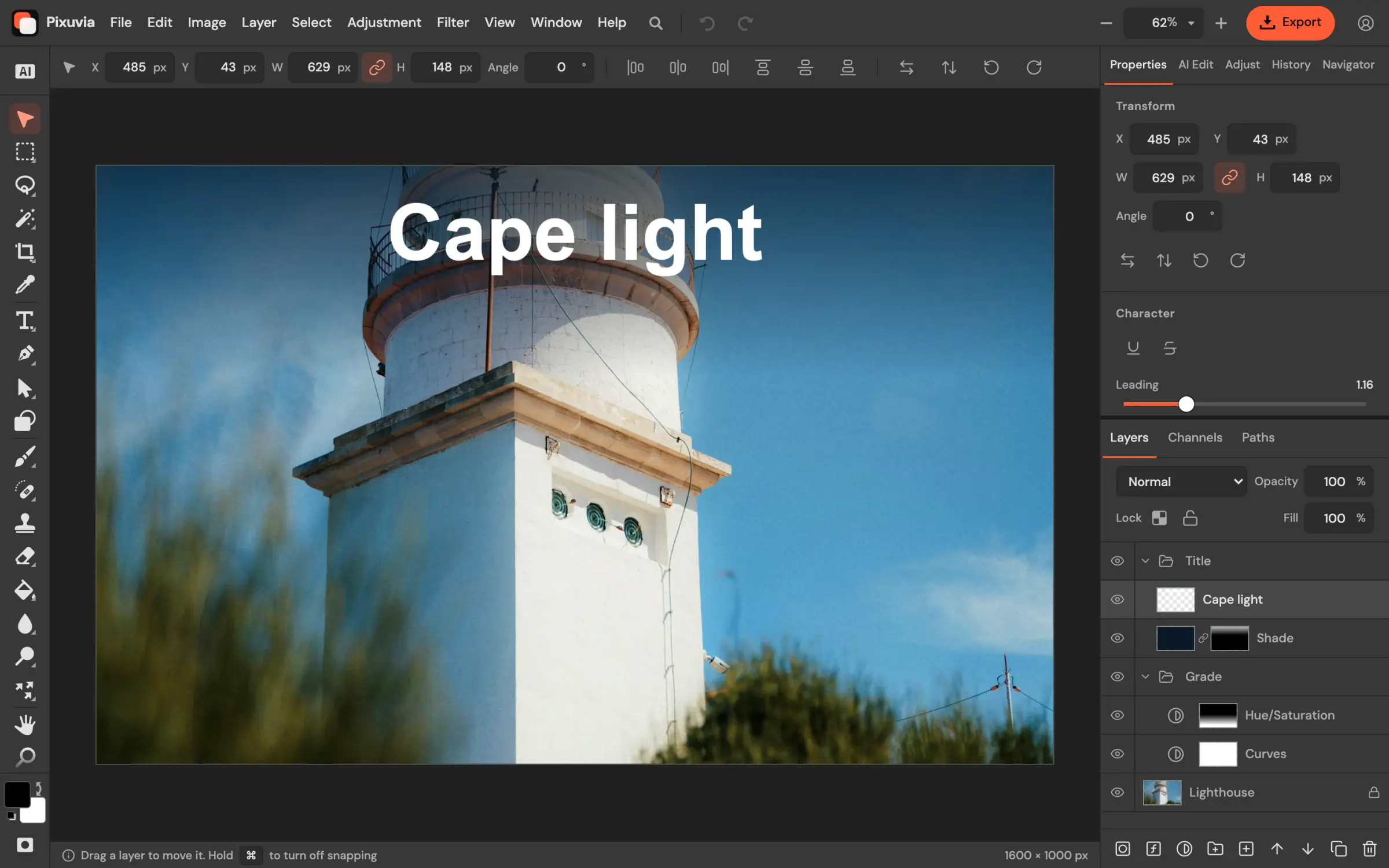
To see what that means in practice, we built a small PSD called Cape light: a lighthouse photo, a Grade group with Curves and Hue/Saturation adjustment layers (one with a mask), and a Title group holding a dark Shade layer faded in by a layer mask and the text layer "Cape light". Here it is in the Pixuvia Editor, which reads the structure the way Photoshop writes it.
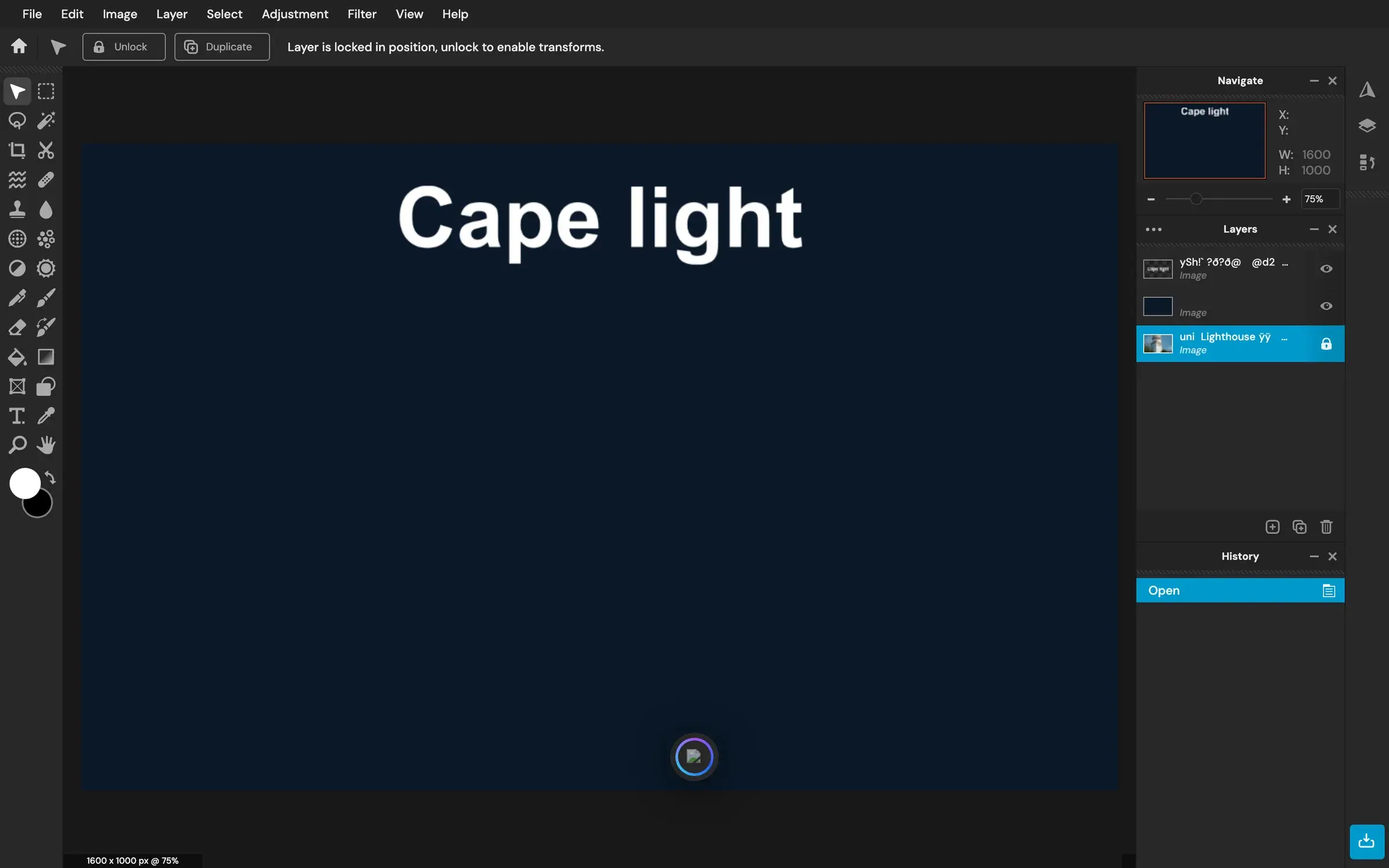
Then we opened the same file in Pixlr Editor in a fresh browser, signed out. It opened without an error, but as three image layers. The groups were gone, and so were both adjustment layers. The Shade layer lost its mask, so the dark fill that should fade out below the title covered the whole photo. The title came in as an image rather than editable text, and the layer names showed stray characters in the Layers panel. This matches what we saw with other PSD files in our Photopea vs Pixlr comparison and in Pixlr alternatives, where Pixlr Express gave the same result.
One file is not a full test of Pixlr's PSD support, and we did not try PSD export, which Pixlr doesn't list. Still, if a client sends you a layered PSD and expects one back, Photoshop is the safe choice of the two. If you only need a flat image from a PSD, our PSD to PNG converter or the guide to opening a PSD without Photoshop covers that.
AI features in Pixlr and Photoshop
Both editors lean on AI, and both charge for it in credits. Pixlr lists the longer menu. Across Editor and Express it names generative fill, generative expand, generative transform, an object remover, a background remover, an image upscaler, a noise remover, Super Sharp, colorize, a skin enhancer, face swap, a sticker maker, Extract Layers, an Instruct Editor that edits from a text prompt and the Pixlr Agent, plus separate image, video and audio generators. Each run uses AI credits from a plan, and plans cap how many generations run at once.
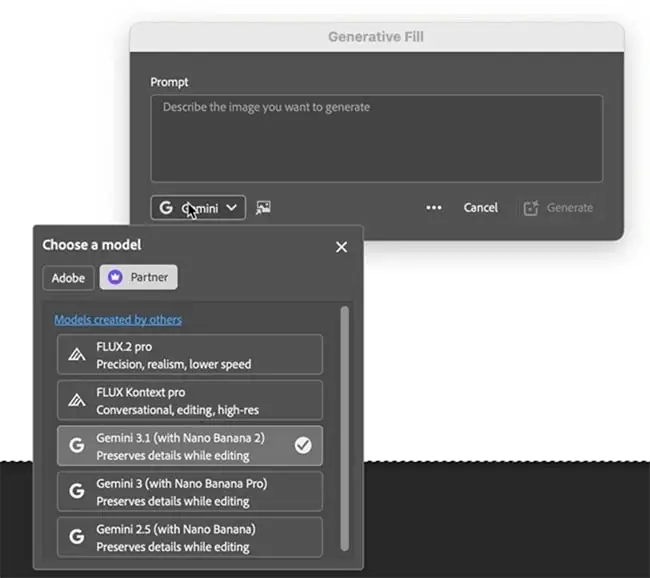
Photoshop's Generative Fill adds, removes or replaces content in a selection from a text prompt, or fills it from the surroundings when you leave the prompt empty, and puts the result on its own layer. Its help page lists Adobe Firefly models and partner models, FLUX.2 pro, FLUX Kontext pro, and Google Gemini 3 and 3.1, in a model picker. Photoshop also offers Generative Expand, Generative Upscale, Generative Recompose, Prompt to edit and Generative restyle. These use generative credits from your Adobe plan; Adobe's credits page says the number used depends on the feature, and the plans page lists unlimited standard AI features on the larger plans.
In practice, many of Pixlr's AI tools do one job in one click inside a quick editor, and some, such as the image, video and audio generators, stand on their own. Photoshop's AI tools sit inside a full editor, so a generated fill lands on its own layer next to your masks and adjustment layers. If you want to try the same kinds of tools in a browser, our generative fill tutorial walks through one.
Learning curve
Neither company publishes a measure of how hard its editor is to learn, so we won't guess at hours. Pixlr is built for a short start: Pixlr Express puts a photo, a tool panel and an export button on one screen, and Pixlr Editor adds layers when you need them. Pixlr Editor's menus (File, Edit, Image, Layer, Select, Adjustment, Filter, View) use names close to Photoshop's.
Photoshop is the deeper tool, with far more panels and settings to learn. Adobe now offers two ways in: the AI Assisted Editor for prompt-driven edits, and the Pro Editor with every panel. Masks and adjustment layers, once learned in Photoshop, work the same way in most layered editors.
Pixlr or Photoshop: who should choose which
Choose Pixlr if you:
- make quick edits, cutouts and social images, and finish with JPEG, PNG or WebP
- want to edit in a browser on any computer, or on a phone with the same account
- use one-click AI tools often, such as background removal, upscaling or generative fill
- don't need to send layered PSD files back to anyone
Choose Photoshop if you:
- exchange layered PSD files with clients, agencies or print shops
- rely on adjustment layers, smart objects, Camera Raw or a CMYK workflow
- want Generative Fill with a choice of Firefly and partner models, inside a full layered editor
- already work with Lightroom or other Adobe apps
A third option: Pixuvia
If you want Pixlr's split of a full editor and a quick one, but with PSD files that keep their layers, Pixuvia runs in the browser on Windows, macOS, Linux, Android, iPhone and iPad. Its Editor follows Photoshop's tools and menus, and its Studio is built around one-job AI tools, plus filters, text and collages. The Editor capture above is the same Cape light file.
- Opens PSD files up to 60 MB with layers, groups, masks, editable text and shapes, and saves PSD, PNG, JPG, WebP, GIF, SVG, PDF and TIFF
- About 50 tools, 18 kinds of adjustment layers with their own masks, smart objects with smart filters and 10 layer styles
- AI tools in both editors: the background remover, object remover, generative fill, the image extender, the image upscaler, relight and the AI photo editor that edits by prompt
- AI tools need a sign-in and use credits; the Standard background removal uses none. Plans are on the pricing page
It has limits too. Pixuvia works in 8-bit RGB with no CMYK mode, doesn't keep alpha channels or masks and effects on groups in PSD export, opens warped or linked smart objects and text on a path as pixels, and doesn't open PSB files. Photoshop handles all of those. It also has fewer AI generators than Pixlr, with no video or audio generation. If those gaps don't touch your work, try your own file in the online PSD editor, or compare more options in GIMP vs Photoshop, GIMP vs Pixlr and our list of Photoshop alternatives.
Questions
Is Pixlr as good as Photoshop?
For quick edits, cutouts, social images and AI tools, Pixlr covers a lot of what people use Photoshop for, right in a browser. For layered PSD work it is not a replacement: in our test, Pixlr Editor opened a PSD without its groups, layer mask and adjustment layers, and Pixlr lists JPEG, PNG and WebP as its export formats. Photoshop also has smart objects, adjustment layers as a layer type and a CMYK mode for print.
Is Pixlr or Photoshop better for beginners?
Pixlr is quicker to start with: Pixlr Express takes a photo from upload to export in one screen, and it runs in the browser without installing anything. Photoshop now offers an AI Assisted Editor next to its full Pro Editor, but it is still a large professional app that you install on Windows or macOS and pay for by subscription.
Can Pixlr open and save PSD files?
Pixlr says it supports layered PSD files, and its Suite FAQ lists JPEG, PNG, GIF, TIFF and BMP for import and JPEG, PNG and WebP for export. Layered projects are kept in its own .PXZ format. In our test, Pixlr Editor opened our PSD as three image layers: the photo, a dark layer without its mask and the title as pixels.
Is Pixlr cheaper than Photoshop?
Both are subscriptions, so compare the current price lists on their own pricing pages. Pixlr sells Plus, Premium and Ultra plans, monthly or yearly, and opens in the browser without a plan. Photoshop has no plan at no cost on the desktop: Adobe answers "Can I buy Photoshop outright?" with "No", and Photoshop comes only with a Creative Cloud plan.
Does Pixlr have Generative Fill like Photoshop?
Yes. Pixlr lists generative fill, generative expand, an object remover, a background remover, an upscaler and many other AI tools, paid with AI credits from its plans. Photoshop has Generative Fill with Adobe Firefly models and partner models such as FLUX.2 pro and Google Gemini, paid with generative credits from your Adobe plan.
Does Pixlr work on a phone or without installing anything?
Yes. Pixlr Editor and Pixlr Express run in the browser, and Pixlr also has desktop apps for Windows and Mac and mobile apps for iOS and Android under one Pixlr account. Photoshop on desktop runs on Windows and macOS, with separate web and mobile versions that need an Adobe plan for their premium features.
Sources
- Pixlr: Pricing and FAQ (plans, refunds, credits, platforms)
- Pixlr: Pixlr Editor (tools, history, .PXZ)
- Pixlr: Pixlr Express (tools, AI tools)
- Pixlr: Pixlr Suite (PSD, import and export formats, apps)
- Adobe: Photoshop product page
- Adobe: Photoshop plans and FAQ
- Adobe Blog: Creative Cloud Pro (rename of Creative Cloud All Apps), May 15, 2025
- The Register: Adobe plan changes, May 20, 2025
- Adobe: Subscription terms
- Adobe Help: Edit images with Generative Fill
- Adobe Help: Generative credits overview
- Adobe Help: Work with adjustment and fill layers
- Adobe Help: Photoshop on desktop technical requirements
- Adobe Help: Compare Photoshop on the web and desktop features
- Adobe Help: What's new in Photoshop on desktop
- PhotoshopCAFE: How to choose the best generative AI model in Photoshop (screenshot)