DPI vs PPI: what resolution do you need for printing?
By Pixuvia · · Updated
The difference between DPI and PPI: PPI (pixels per inch) is how many of a digital photo's pixels go into each inch of a print; DPI (dots per inch) is how many dots of ink a printer puts down per inch. When a print lab asks for "300 DPI", it means 300 pixels per inch at the size you order. Your photo's pixel count decides how big it can print sharply: 1000 pixels at 300 PPI make 3.33 inches.
Changing the DPI number in a file's settings adds no detail. Below: what each term means, a print-size table for common photo sizes, why posters can get away with less, what to do with a photo that is too small, and where Pixuvia shows resolution.
On this page
What do PPI and DPI mean?
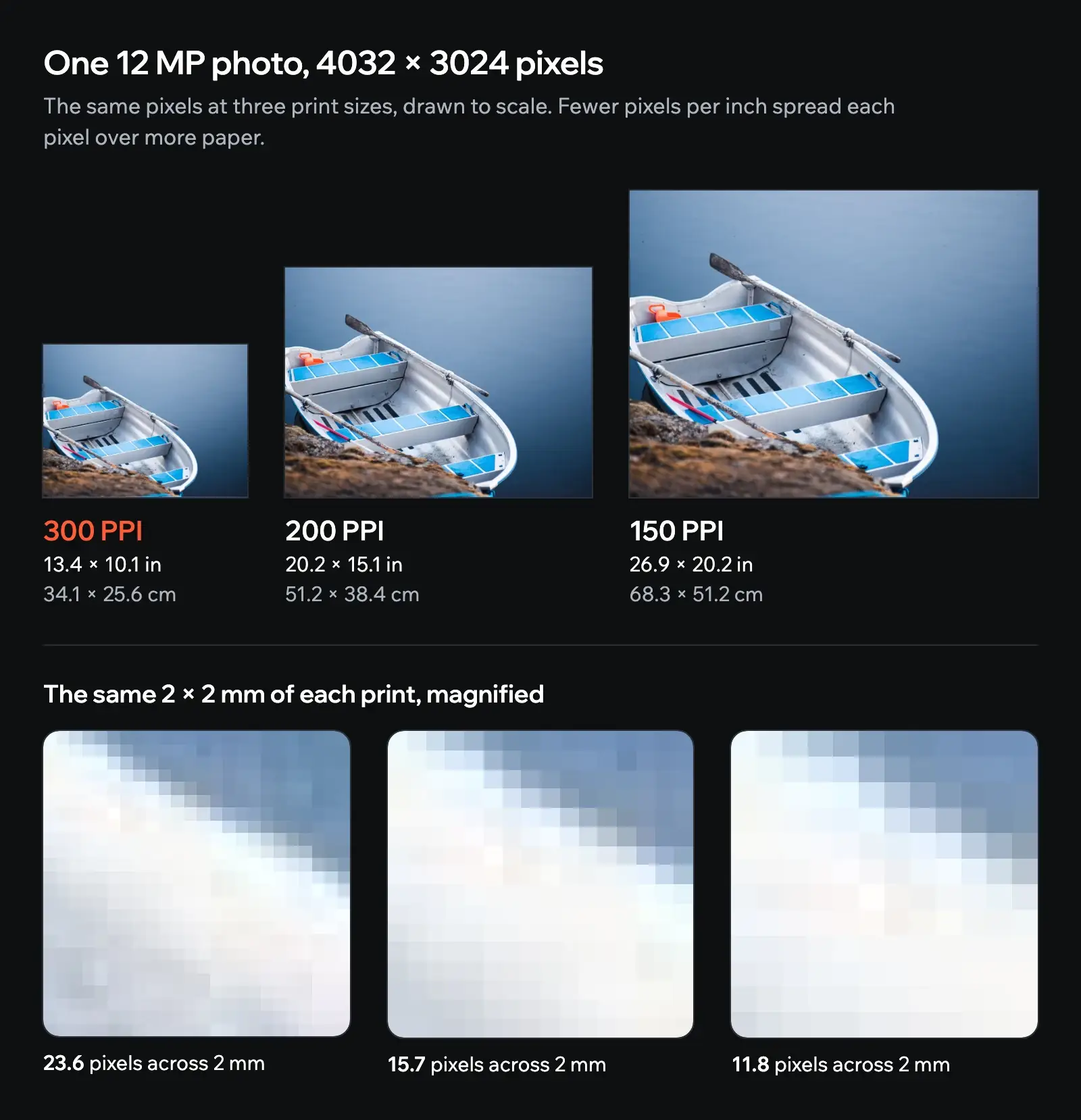
A digital photo is a grid of pixels, each one a single color. The grid has a fixed size, such as 4032 × 3024. PPI says how densely those pixels are spread on paper. Print the same 4032 pixels across 13.4 inches and you get 300 PPI; stretch them across 26.9 inches and you get 150 PPI. Same pixels, half the density, each pixel twice as wide on the paper.
DPI belongs to the printer. An inkjet or a lab printer builds every color out of tiny dots of a few inks, many dots for each pixel of your photo. A printer rated at thousands of DPI is describing how finely it places ink, not how much detail your photo holds. Adobe's guide puts it the same way: DPI is the number of ink droplets a printer produces per inch, while PPI describes image resolution.
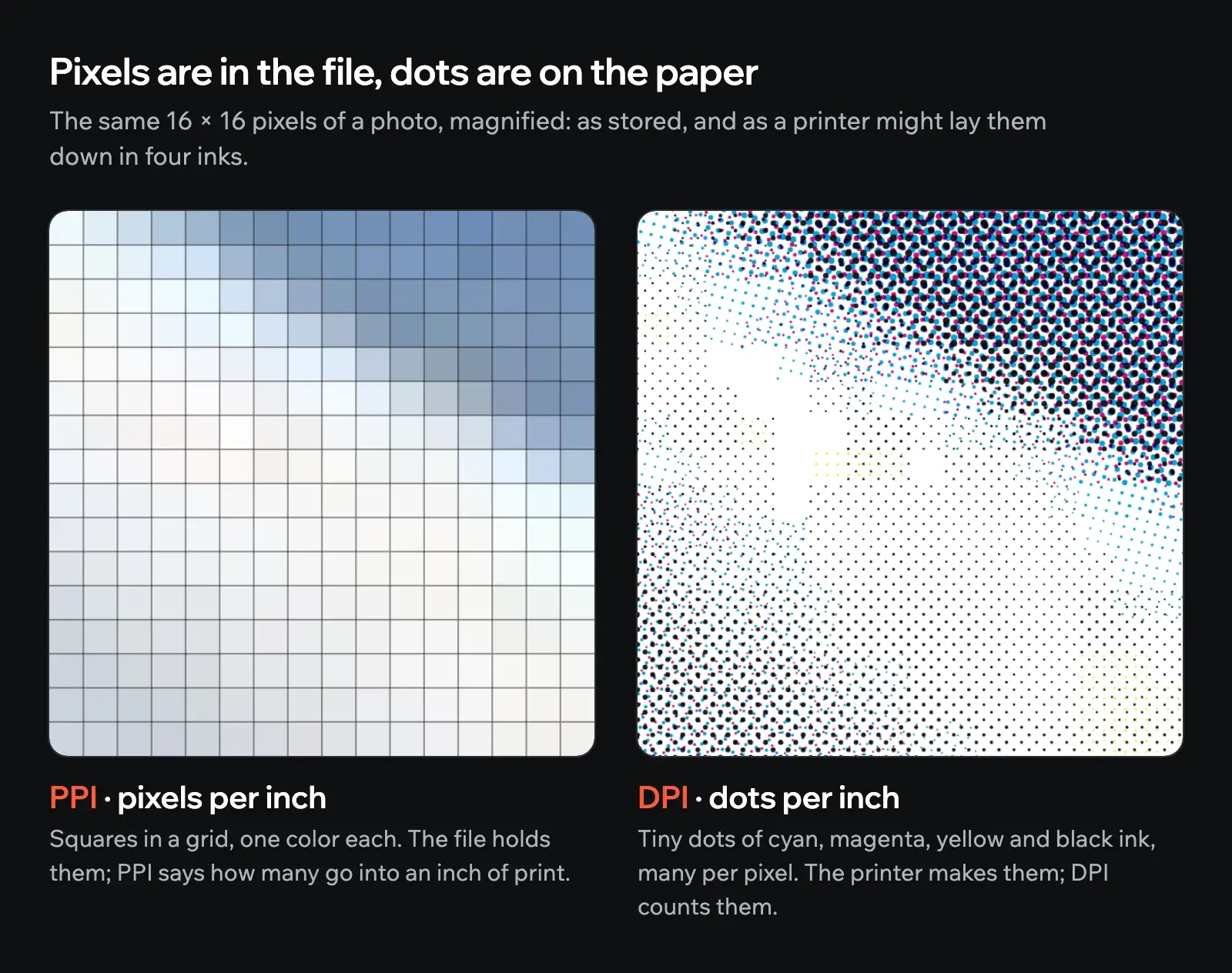
In everyday use the two words are mixed up, and that is fine as long as you know what is meant. Print labs and photo apps often say "DPI" or "resolution" when the number they ask for is pixels per inch of the finished print.
What does "300 DPI" mean for a print?
"300 DPI" asks for 300 pixels per inch at the print size: the long-standing benchmark for photo prints held at reading distance. Adobe calls 300 DPI the benchmark photographers and designers use for high-quality prints, and Vistaprint calls 300 PPI the standard resolution for print files and the minimum it requires for uploaded images. Translated into pixels, it is simple: multiply the print size in inches by 300.
- 6 × 4 inch print: 1800 × 1200 pixels.
- 10 × 8 inch print: 3000 × 2400 pixels.
- A4 (8.27 × 11.69 inches): about 2480 × 3508 pixels.
Going the other way works the same: divide the pixels by the PPI to get inches. A photo 1000 pixels wide prints 1000 ÷ 300 = 3.33 inches wide at 300 PPI, or 6.67 inches at 150 PPI. For centimeters, multiply the inches by 2.54.
Does changing the DPI add detail?
No. Many files carry a resolution value, such as 72 or 300, next to their pixels, and it is only a suggestion for the print size. Change 72 to 300 without resampling and the file keeps exactly the same pixels; it just suggests a print about four times smaller in each direction. The detail in the print is the same either way, because the printer gets the same pixels.
Resampling is different. It makes a new grid with more or fewer pixels. Fewer pixels throw detail away. More pixels made by ordinary enlarging are blends of the old ones, so the print gets bigger without getting sharper. That is why "make it 300 DPI" is the wrong fix for a photo that is too small: the question is always whether there are enough pixels for the size you want.
How big can you print a photo? Print-size table
Each cell is the photo's width and height in pixels divided by the PPI, so you can read off the largest print at each density. A 24 MP camera photo at 6000 × 4000 makes a 20 × 13.3 inch print at 300 PPI; the same photo at 150 PPI covers 40 × 26.7 inches.
| Photo (pixels) | 300 PPI | 200 PPI | 150 PPI |
|---|---|---|---|
| 12 MP photo 4032 × 3024 | 13.4 × 10.1 in 34.1 × 25.6 cm | 20.2 × 15.1 in 51.2 × 38.4 cm | 26.9 × 20.2 in 68.3 × 51.2 cm |
| 24 MP photo 6000 × 4000 | 20.0 × 13.3 in 50.8 × 33.9 cm | 30.0 × 20.0 in 76.2 × 50.8 cm | 40.0 × 26.7 in 101.6 × 67.7 cm |
| 48 MP photo 8064 × 6048 | 26.9 × 20.2 in 68.3 × 51.2 cm | 40.3 × 30.2 in 102.4 × 76.8 cm | 53.8 × 40.3 in 136.6 × 102.4 cm |
| Social post 1080 × 1080 | 3.6 × 3.6 in 9.1 × 9.1 cm | 5.4 × 5.4 in 13.7 × 13.7 cm | 7.2 × 7.2 in 18.3 × 18.3 cm |
The last row is the reason social images disappoint on paper: a 1080 × 1080 post makes a sharp print only about 3.6 inches (9.1 cm) square. Crop a photo before printing and the table shrinks with it, since cropping removes pixels. Sizing for screens works in pixels only; how to resize an image for social media covers those sizes.
Why do posters need less PPI?
Posters are seen from further away, and your eye resolves detail by angle rather than by inches. A pixel that is easy to see on a print in your hands becomes too small to see from across the room, because it covers a smaller angle. Twice the distance means each pixel looks half as big, so a print viewed from twice as far needs only about half the pixels per inch to look just as sharp.
Print services build this into their advice. Vistaprint calls 300 DPI for posters a standard rather than a rule and suggests about 240 for typical indoor viewing from 3 to 6 feet, 150 to 200 from 6 to 10 feet and more, and 100 to 150 for outdoor posters. Adobe likewise says posters need at least 100 DPI, depending on size and viewing distance. A banner across a hall can be fine at a PPI that would look rough on a postcard.
Use the closest distance people will really stand at. A poster in a hallway gets looked at from a step away; a billboard never does.
What if a photo is too small to print?
- Print smaller. The table above gives the honest size at each PPI. Often 200 PPI at arm's length still looks good.
- Accept a lower PPI for a print seen from further away. A wall print viewed from a few feet does not need 300.
- Upscale it. AI upscaling makes a photo 2x or 4x larger and fills the new pixels with plausible detail instead of blur. The image upscaler does it on one page; how to upscale an image explains when plain enlarging is enough and when AI detail is worth it.
- Find the original. Photos sent through chat apps and social sites are often smaller copies. The camera roll's original usually has more pixels.
Where to see and set resolution in Pixuvia
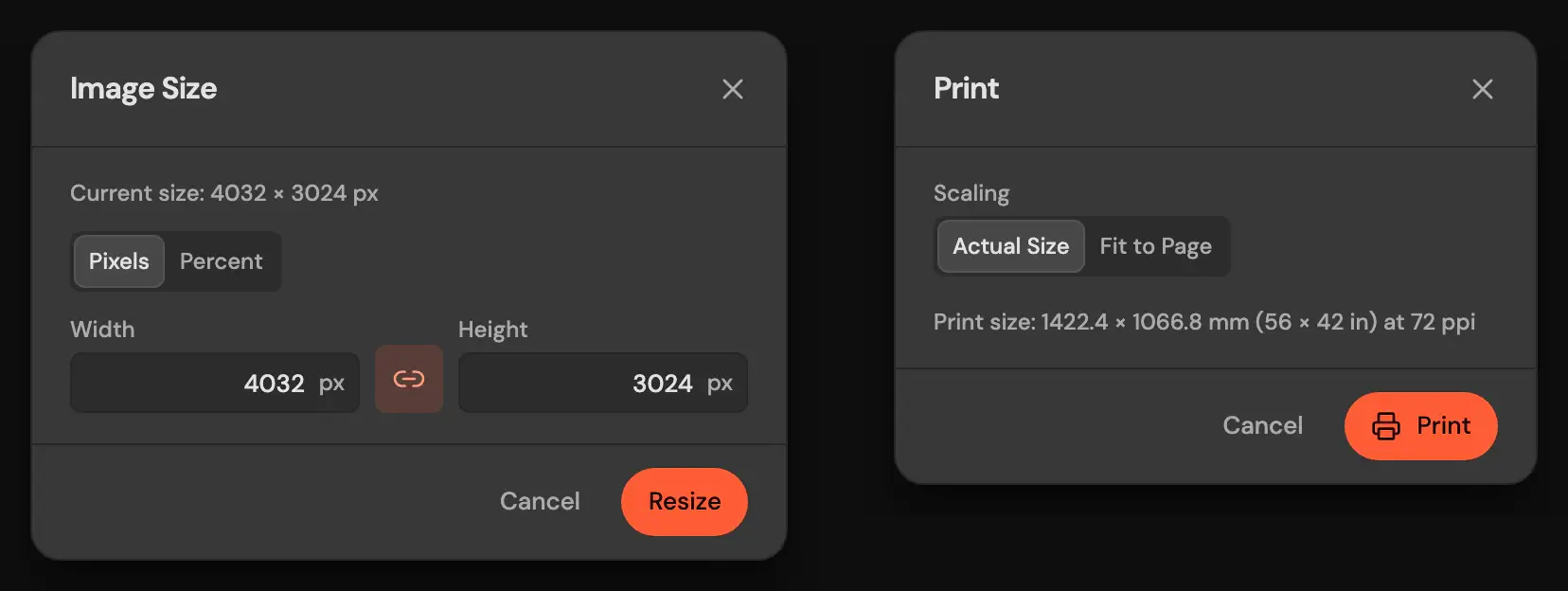
In the Editor, Image > Image Size… changes the pixel size: Width and Height in Pixels or Percent, linked to keep the shape unless you unlink them, with the current size shown at the top. It resamples the whole document and every layer. It has no resolution field, because a resolution value alone would change nothing in the picture. To change the pixel size of one or many photos without opening the Editor, use resize image.
Resolution itself is set when you start: File > New… opens the New canvas dialog, which takes a size in pixels, inches, centimeters or millimeters plus a resolution in Pixels/Inch or Pixels/Cm, and its print presets start at 300 pixels per inch. The Editor keeps that value with the document, reads it from PSD files and writes it into PSD, TIFF and PDF exports (PSD vs TIFF compares the two for print). File > Print… shows the print size it gives. A photo opened from a JPG or PNG has no resolution set there, so Print counts it as 72 pixels per inch and shows a very large size, as in the capture below. Choose Fit to Page there, or give the print lab your size in inches or centimeters; labs work from the pixels.
Questions
Is 72 DPI or 300 DPI better?
Neither number changes the picture. A photo of 3000 × 2000 pixels holds the same detail whether its file says 72 or 300. What matters is how many pixels land on each inch of paper at the size you print. For close viewing, aim for about 300 pixels per inch at the print size.
How do I make a photo 300 DPI?
If the photo already has enough pixels for your print size at 300 per inch, you only need to tell the print lab the size you want; changing the DPI field adds nothing. If it does not have enough pixels, either print smaller, accept a lower PPI for a print seen from further away, or enlarge the photo with an upscaler first.
What size can I print a 12 megapixel photo?
A 12 MP photo of 4032 × 3024 pixels prints at about 13.4 × 10.1 inches (34.1 × 25.6 cm) at 300 PPI, 20.2 × 15.1 inches at 200 PPI and 26.9 × 20.2 inches at 150 PPI.
Does changing the DPI reduce quality?
Changing only the DPI or PPI value, without resampling, keeps every pixel as it is: it just sets the print size the file suggests. Resampling to more or fewer pixels does change the image. Fewer pixels throw detail away; more pixels made by plain enlarging add no real detail.
Do photos for screens need a DPI?
No. Screens, websites and social apps show images by their pixel size and ignore the DPI value in the file. For screens, think in pixels only: for example 1080 pixels wide for a typical social post.